Create a video collection
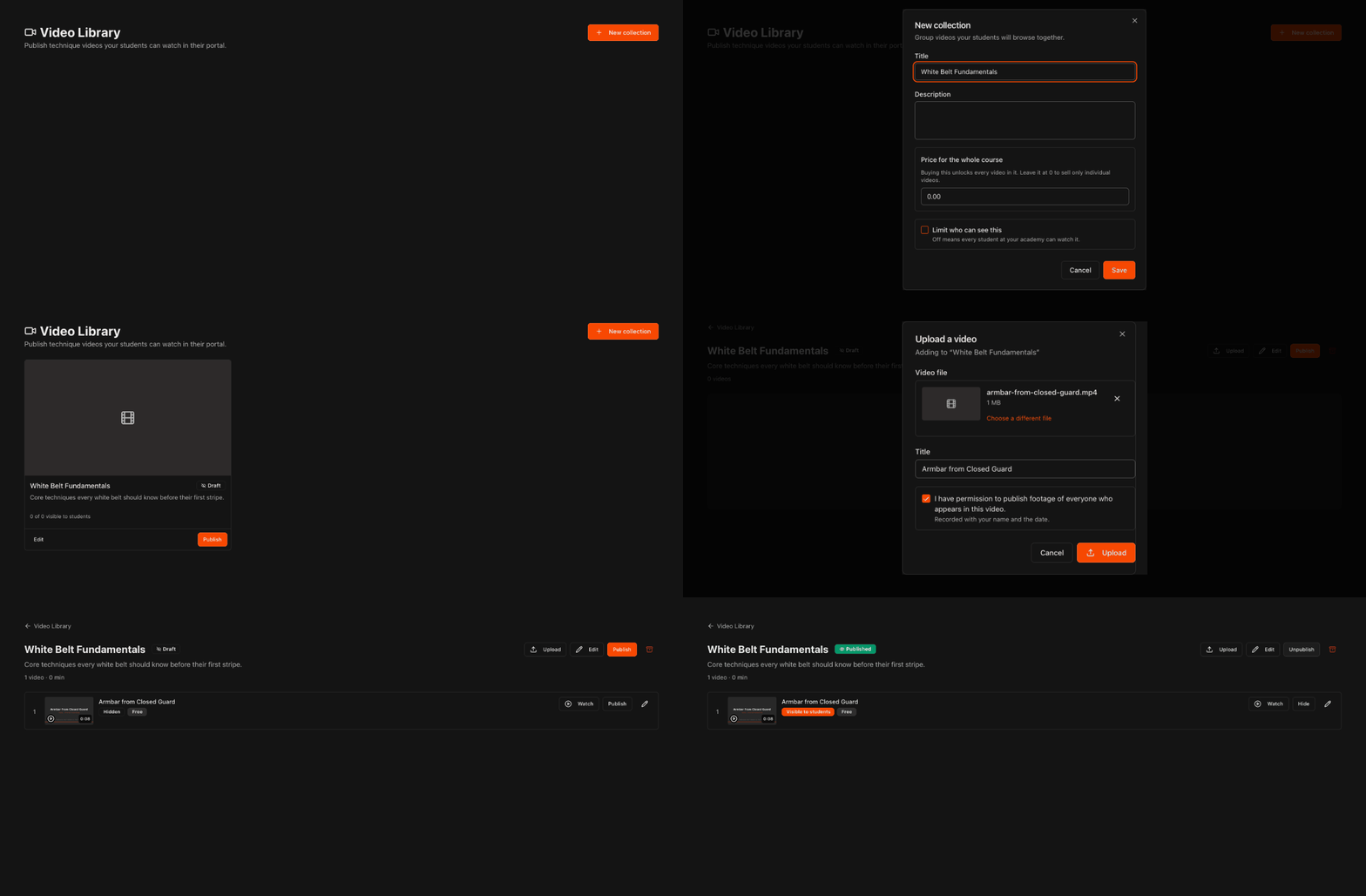
Click Videos in the left menu to open your Video Library, then click New collection.
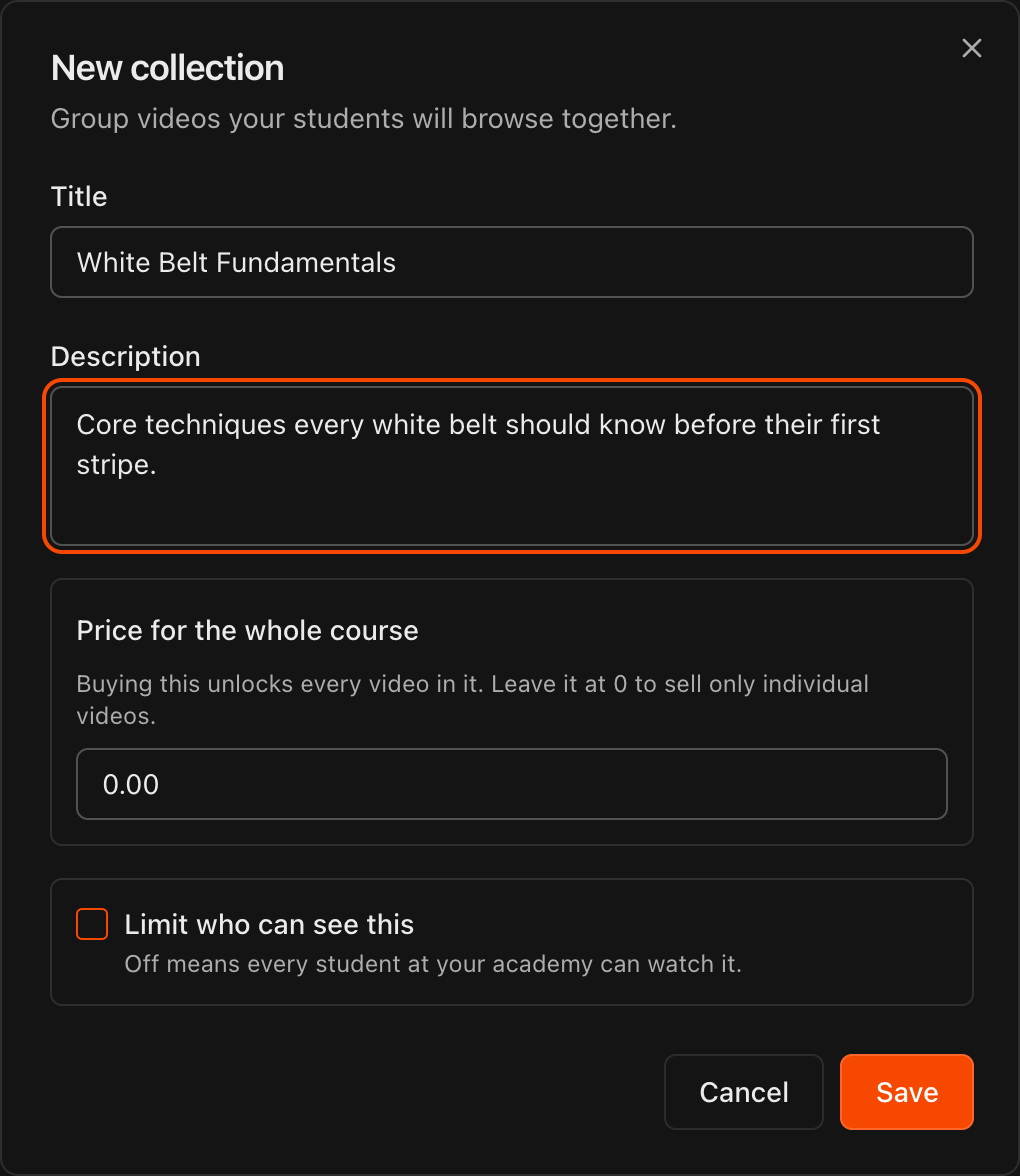
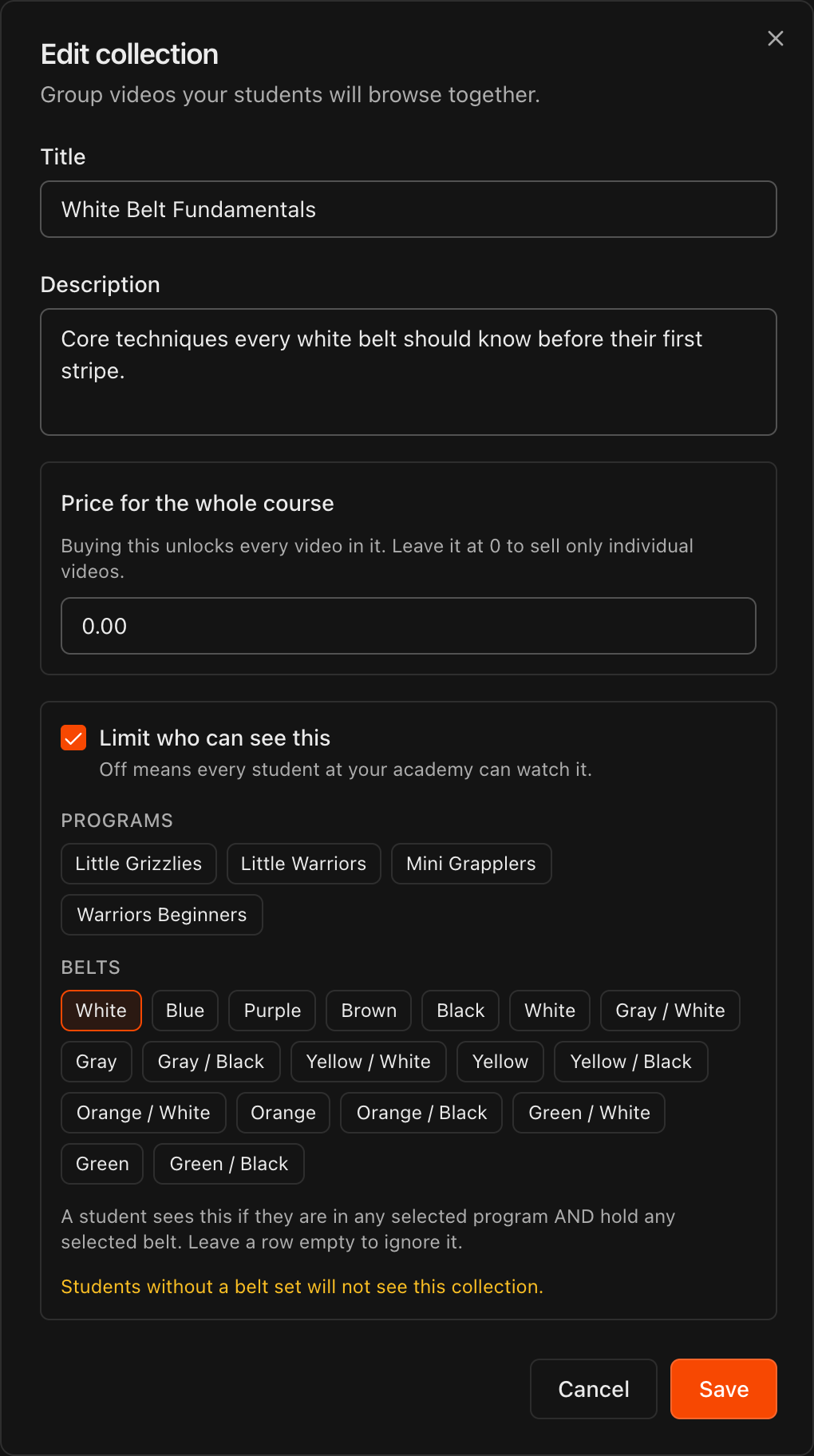
Enter a Title and a short Description. Students see both when they browse your videos.
Leave Price for the whole course at 0 for a free collection, or enter a price to sell every video in it as one purchase.
Click Save. The collection appears in your Video Library as a Draft until you publish it.
Tip
Group videos the way students will browse them, such as one collection per belt or one per seminar. You can keep adding videos to a collection as you film them.
Note
A price entered here unlocks every video in the collection. Leave it at 0 if you only want to sell individual videos (see step 3).
Upload a video
Open the collection and click Upload.
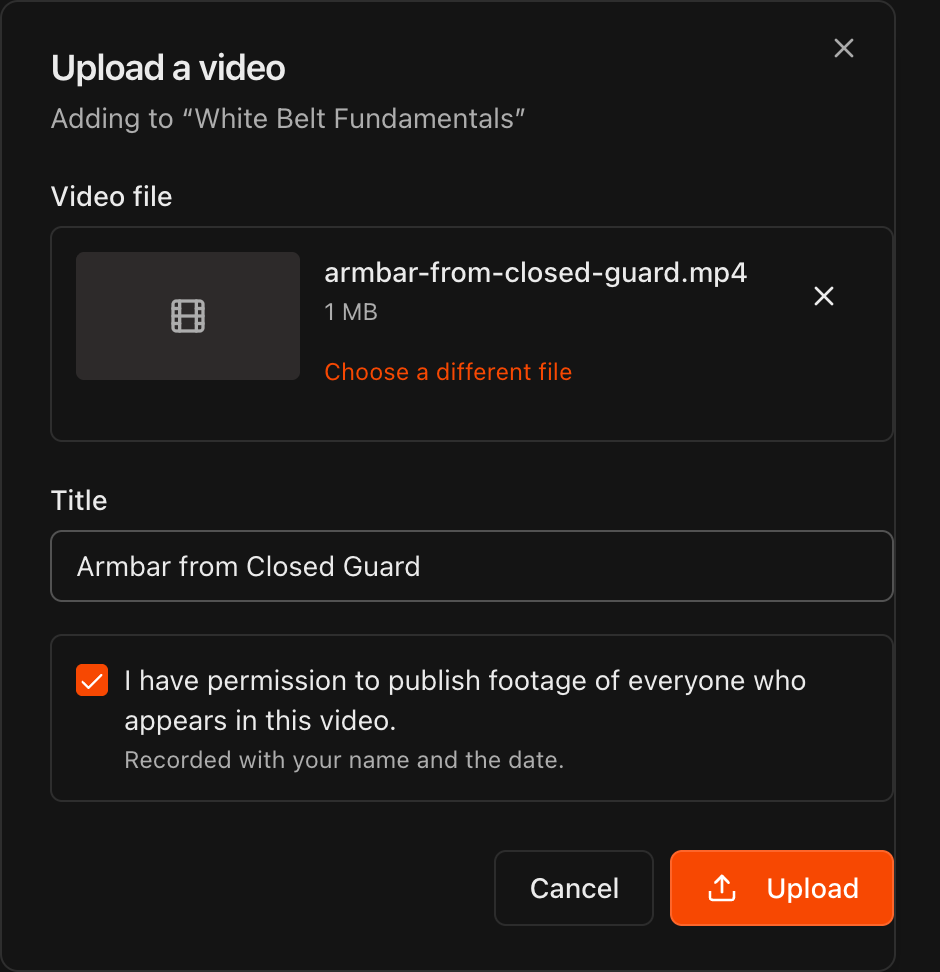
Drop a video into the Video file box or click it to browse. Kmura accepts MP4, MOV, M4V, WEBM, MKV, and AVI files.
Give the video a Title students will recognize, for example Armbar from Closed Guard.
Check I have permission to publish footage of everyone who appears in this video, then click Upload.
Keep the tab open until the progress bar finishes. Kmura then processes the video, and it is ready once the row shows a thumbnail and duration.
Note
Your permission confirmation is recorded with your name and the date. Make sure everyone shown in the video has agreed to be filmed.
Note
New videos start as **Hidden**. Students cannot watch a video until you publish it in step 5.
Set what students see and pay for each video
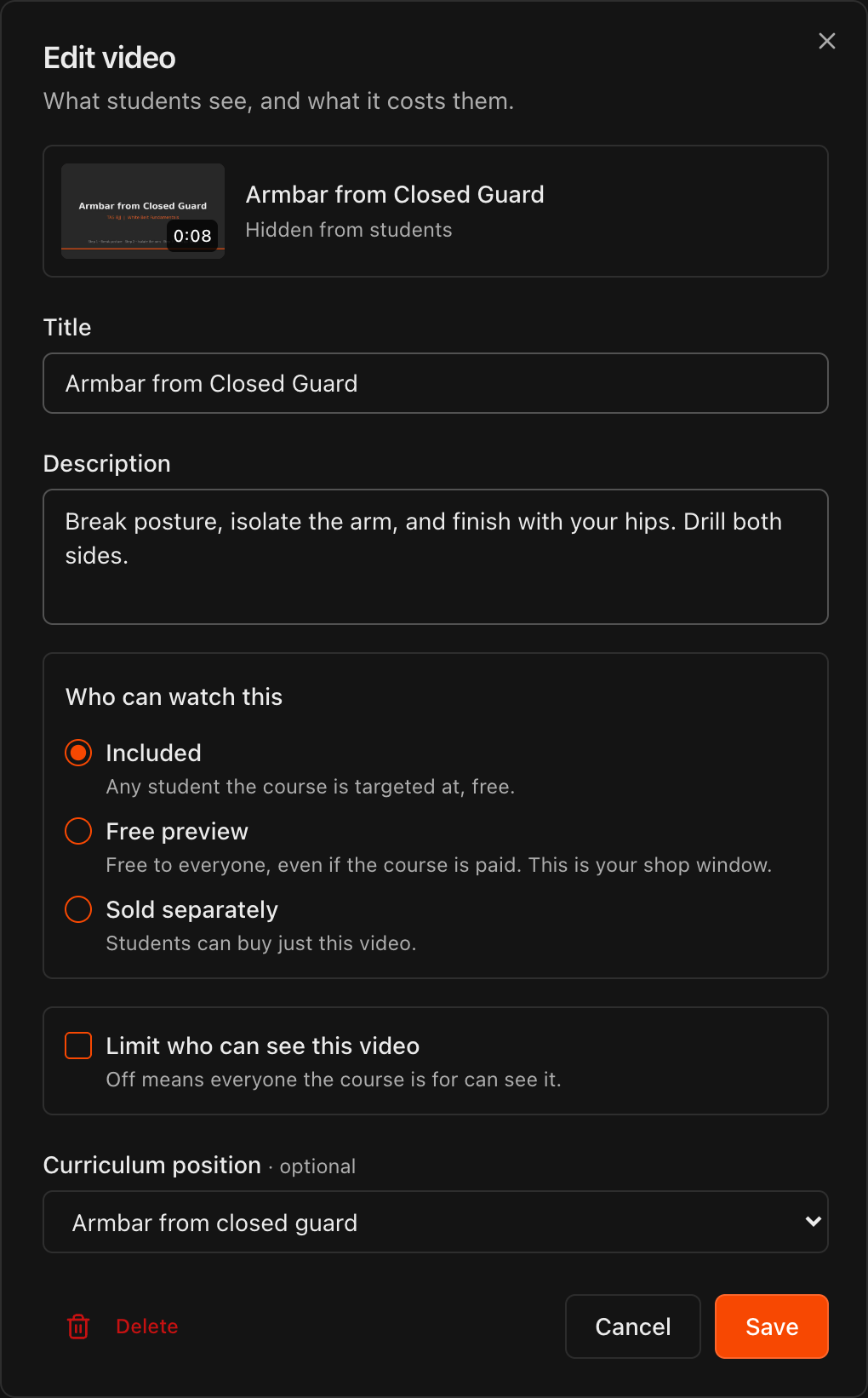
Click the pencil icon on a video row to open Edit video. Here you can change the Title or add a Description.
Under Who can watch this, choose Included (free for every student the collection is for), Free preview (free for everyone, even in a paid collection), or Sold separately (students buy just this video).
If you choose Sold separately, enter a Price above 0.
Optionally choose a Curriculum position to link the video to an item in your curriculum.
Click Save.
Tip
In a paid collection, mark one strong video as **Free preview**. It is your shop window: every student can watch it, which helps sell the rest.
Note
A video marked **Sold separately** is a bonus outside the collection. Buying the whole course does not include it.
Target videos to programs and belts
To limit a whole collection, click Edit on the collection page and turn on Limit who can see this. To limit a single video, turn on Limit who can see this video in the Edit video dialog instead.
Select one or more Programs, one or more Belts, or both.
A student sees the collection if they are in any selected program AND hold any selected belt. Leave a row empty to ignore it.
Click Save.
Caution
Students without a belt set for the selected program will not see anything limited by belt. Set each student's belt per program on their **Student Information** page before you rely on belt targeting.
Tip
Leave **Limit who can see this** off to let every student at your academy watch the collection.
Publish videos and the collection
On a video row, click Publish to change it from Hidden to Visible to students. Click Hide to take it down again.
Click Watch to play a video yourself before students see it.
Once at least one video has finished processing, click Publish at the top of the collection. The Draft badge changes to Published and students can find the collection in their portal.
Click Unpublish to hide the whole collection again at any time.
Note
A collection cannot be published until at least one video in it has finished processing.
Caution
The archive icon next to **Unpublish** archives the collection. Every video in it is hidden, students lose access, and this cannot be undone from this page.

Include videos in a membership plan
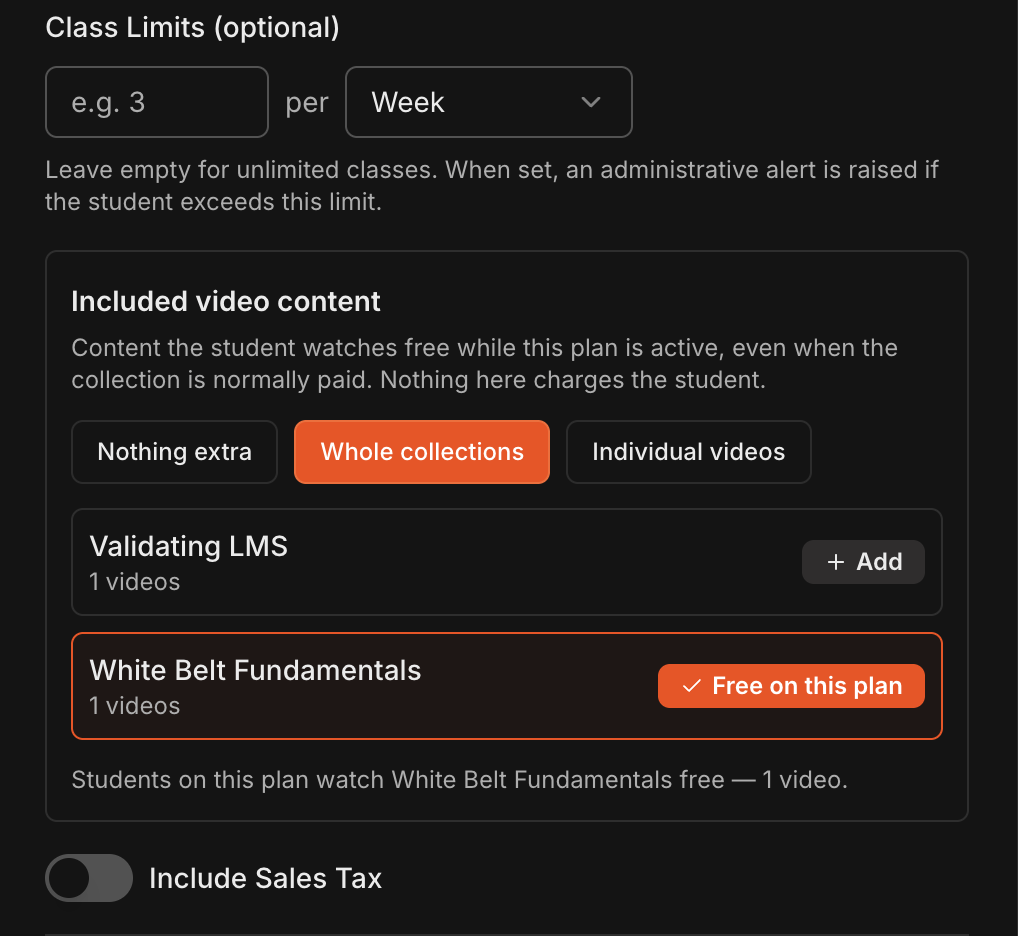
Go to Settings > Payments > Membership Plans and click Add Plan, or the pencil icon on an existing plan.
Under Included video content, choose Whole collections or Individual videos and click Add on the content the plan includes.
Students on that plan watch the content free while the plan is active, even when the collection is normally paid.
To do this for one student, turn on Override plan settings for this student in the Subscribe Student dialog on their Billing tab. The same section appears there.
Note
Plan grants stop when the membership is cancelled or paused. Students on other plans still pay the collection's normal price.
Attach a video to a class
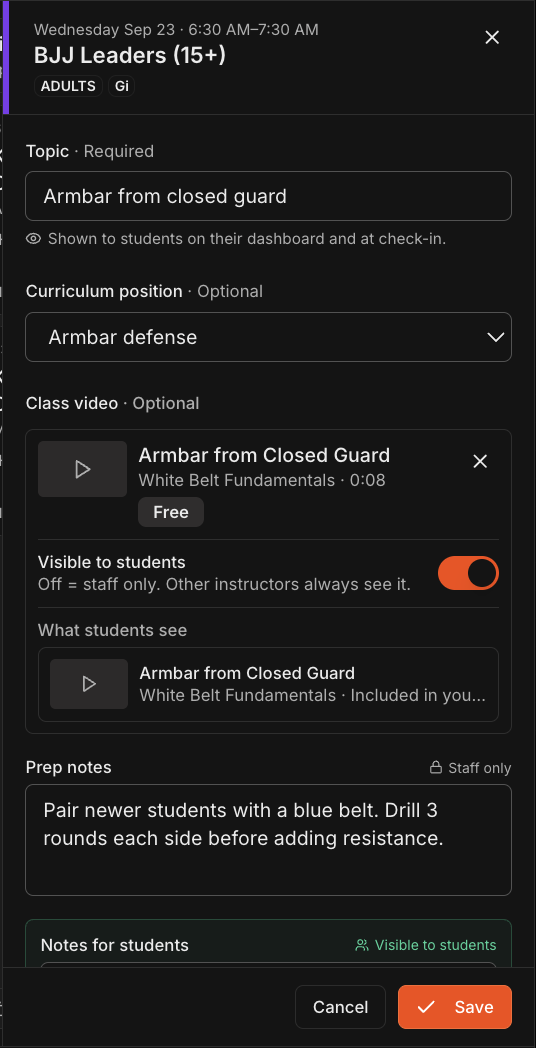
Open Schedule, click Plan this week, and click Add topic on a class.
Under Class video, click Attach a video from the library and pick the video.
Turn on Visible to students to show it on the student's Lesson Plans page. Off means only staff see it.
Click Save. See Planning Weekly Lesson Plans for topics and notes.
Note
Attaching a video does not give access. A student who is not entitled to a paid collection sees the video locked with the usual unlock option.
Require videos for promotion eligibility
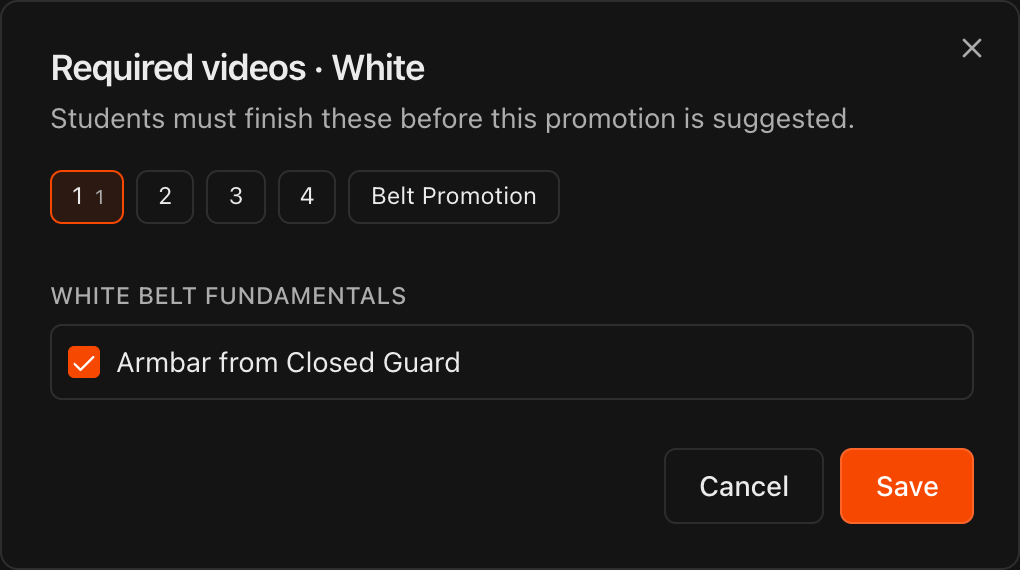
Go to Settings, open Curriculum, and click Configure Promotion Requirements.
Choose the Program, then click Required videos next to the belt you want to configure, under Adult Belts or Children Belts.
Use the tabs at the top to pick a stripe, named by its color and position (for example Black 1 to Black 4), or Belt promotion, then check each video the student must finish before that promotion is suggested.
Click Save.
Note
Only free, published videos that have finished processing can be promotion requirements. Paid collections and videos sold separately are not listed.
Tip
Requirements are set per stripe and per belt, so a white belt can need different videos for stripe 1 than for the promotion to blue.
What students see
Students click Videos in their portal to browse every published collection they are eligible for, with the video count and total run time on each card.
Opening a collection shows its videos and a progress bar such as 0 of 1 watched. A video counts as watched once the student finishes it, which is what your promotion requirements check.
Paid collections and videos sold separately appear as Locked with a Get access button. Students pay once by card and can rewatch the video afterwards.
Free preview videos are always playable, even inside a paid collection.
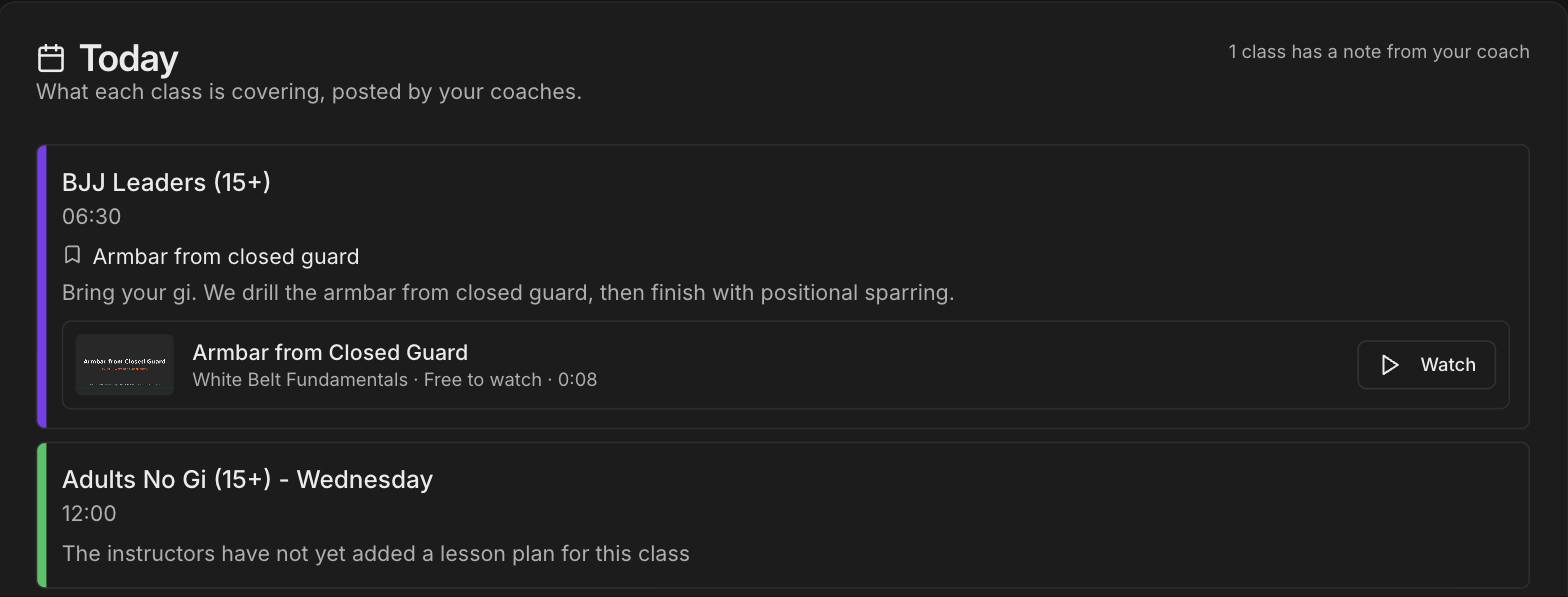
Videos attached to a class appear on the student's Lesson Plans page and in the Today section of their Overview, with a Watch button when they have access.
Note
If a student's belt has not been set, their **Videos** page tells them some videos may be hidden and to ask their instructor to set it.