Select students
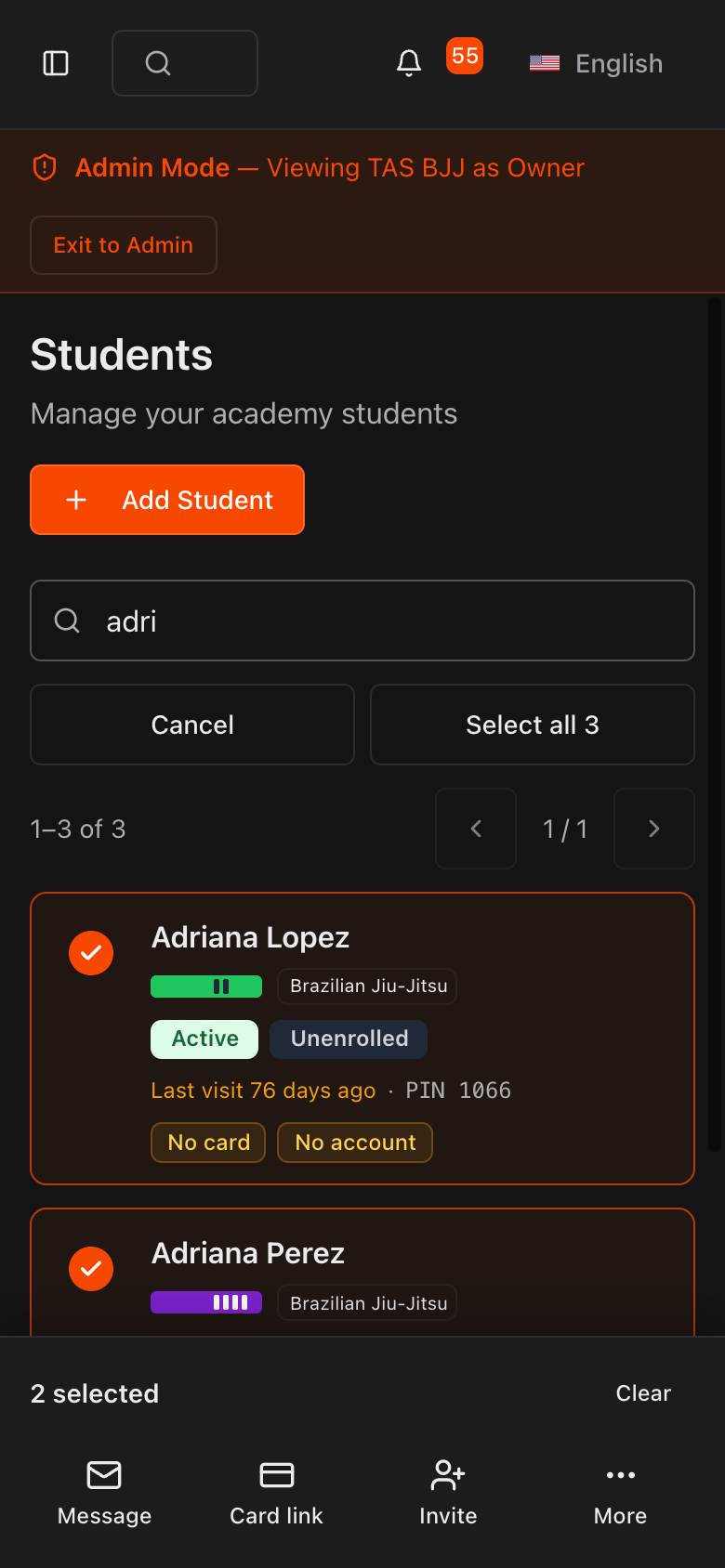
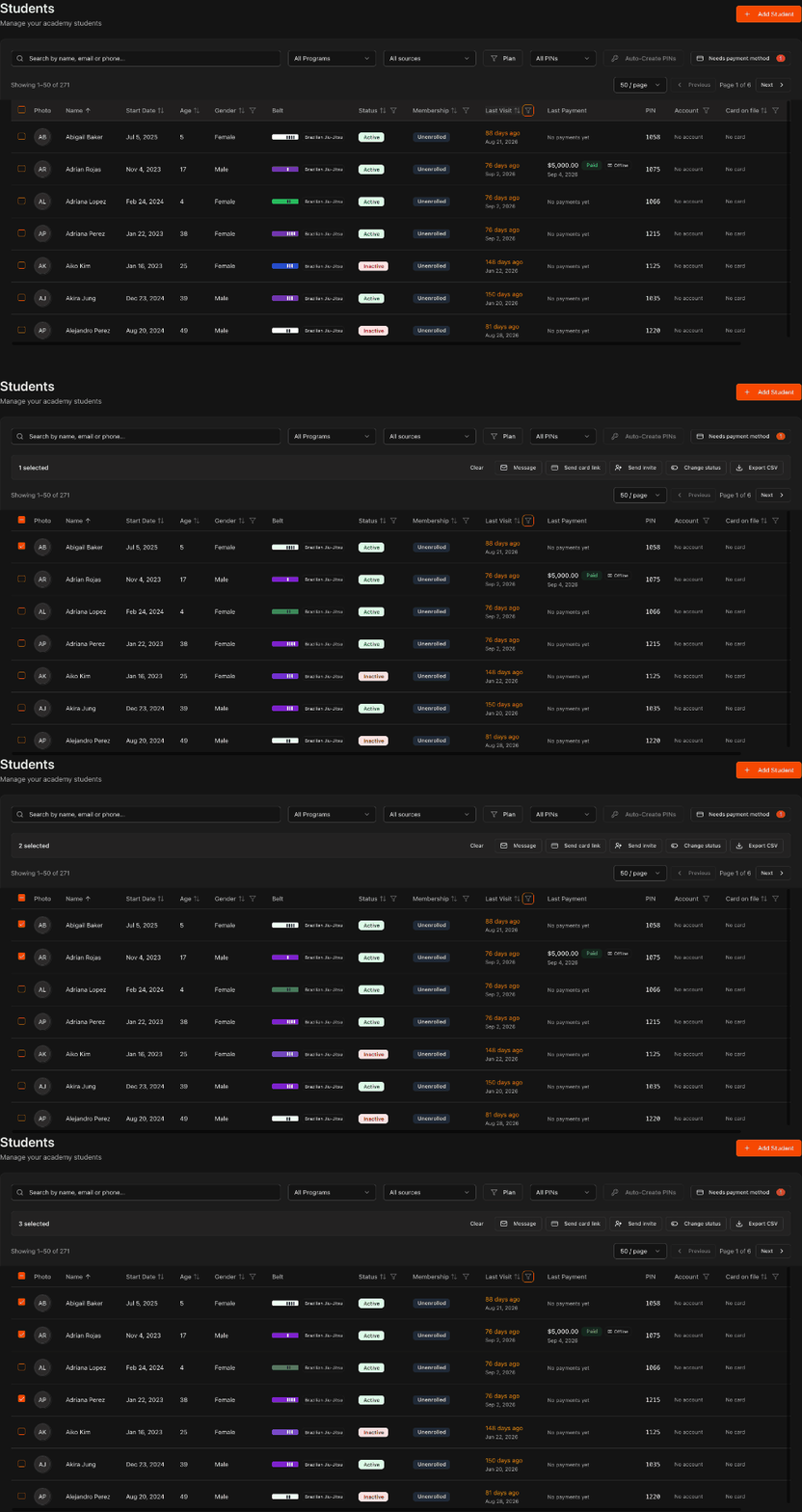
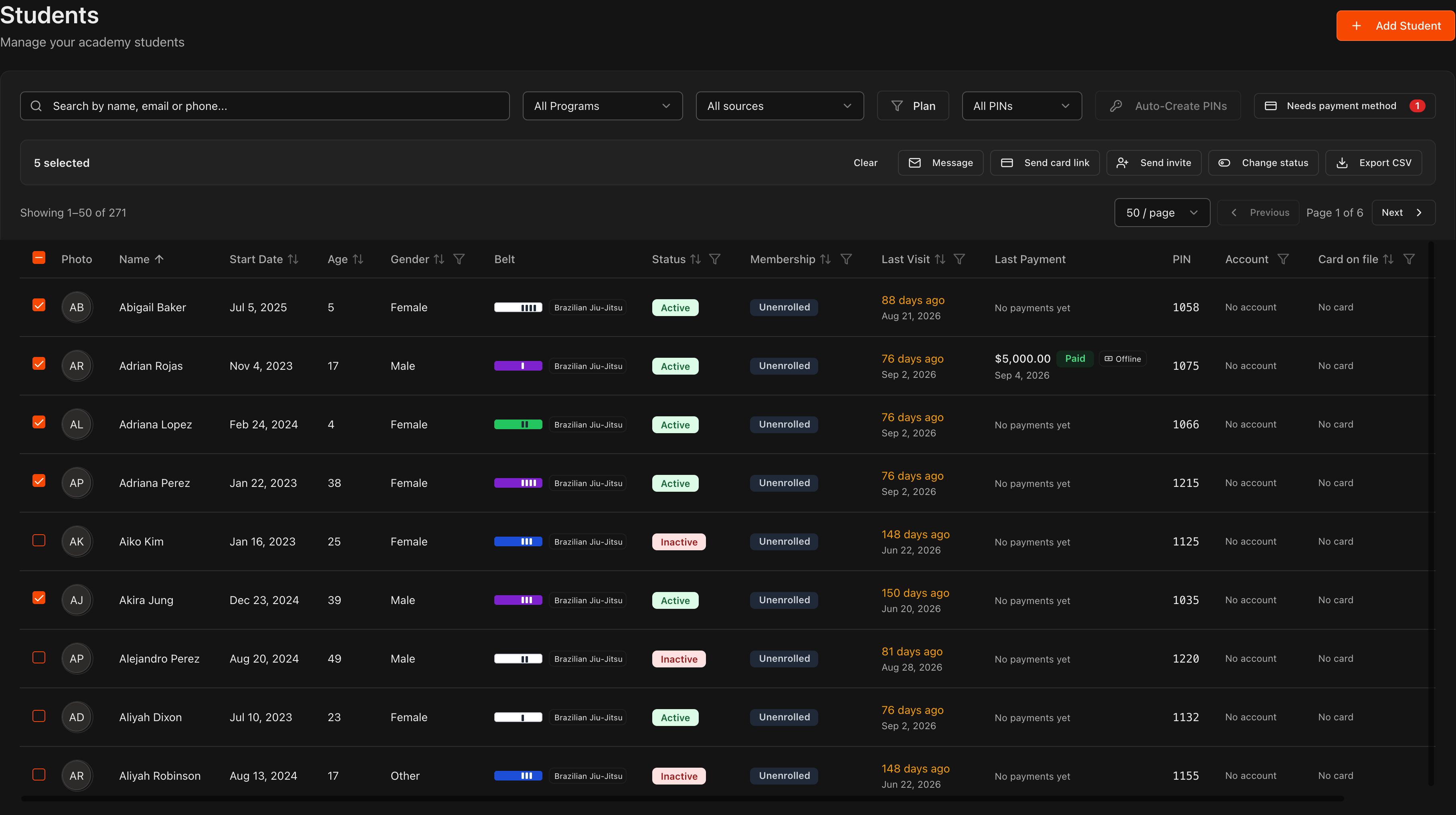
On the Students page, tick the box on each student's row. The box in the header selects everyone on the page.
A bar appears above the list with the count and five buttons: Message, Send card link, Send invite, Change status and Export CSV.
Clear empties the selection. Changing a filter or the search clears it too.
Find who to act on
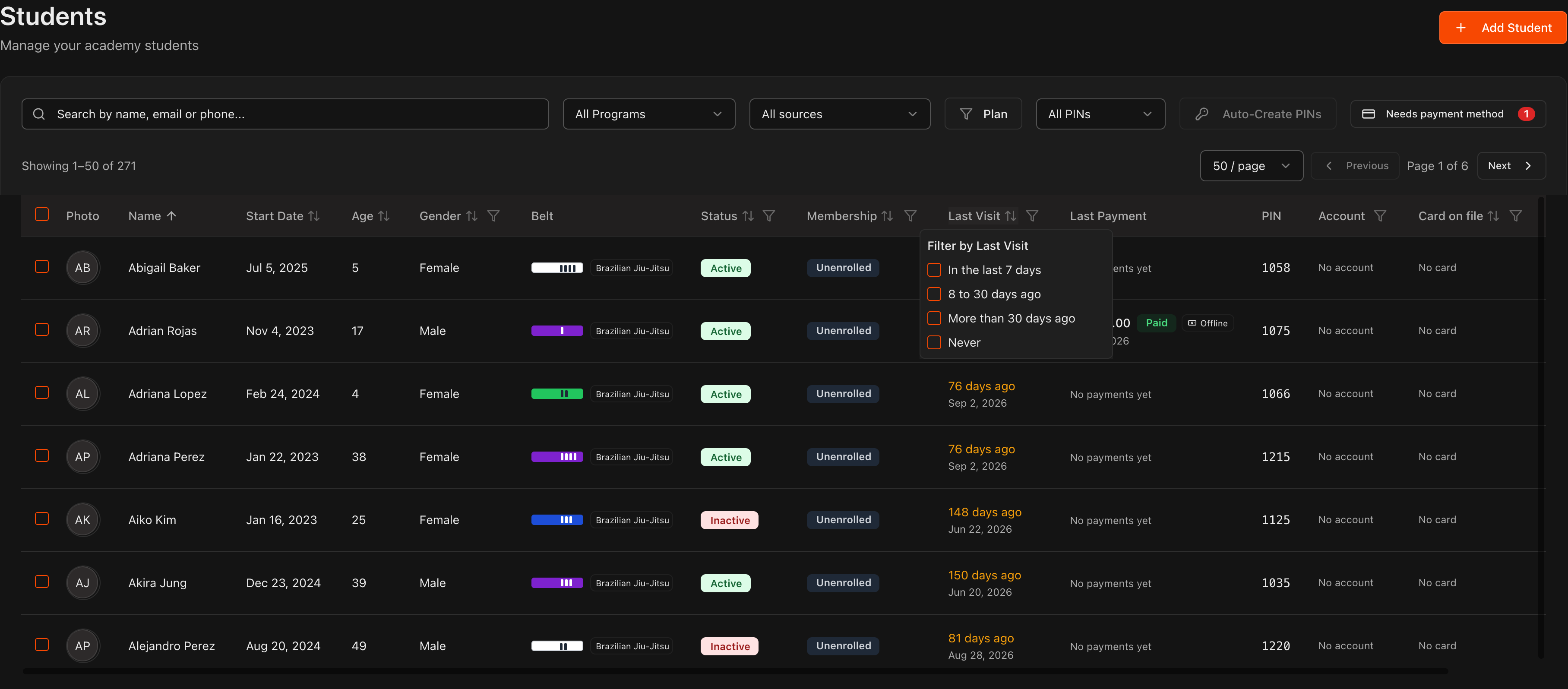
The Last Visit column shows how long ago each student trained, in amber once it passes 30 days.
Click the filter icon beside Last Visit and tick In the last 7 days, 8 to 30 days ago, More than 30 days ago or Never.
Use the Account and Card on file filters to list students with No account or No card.
Message the students you picked
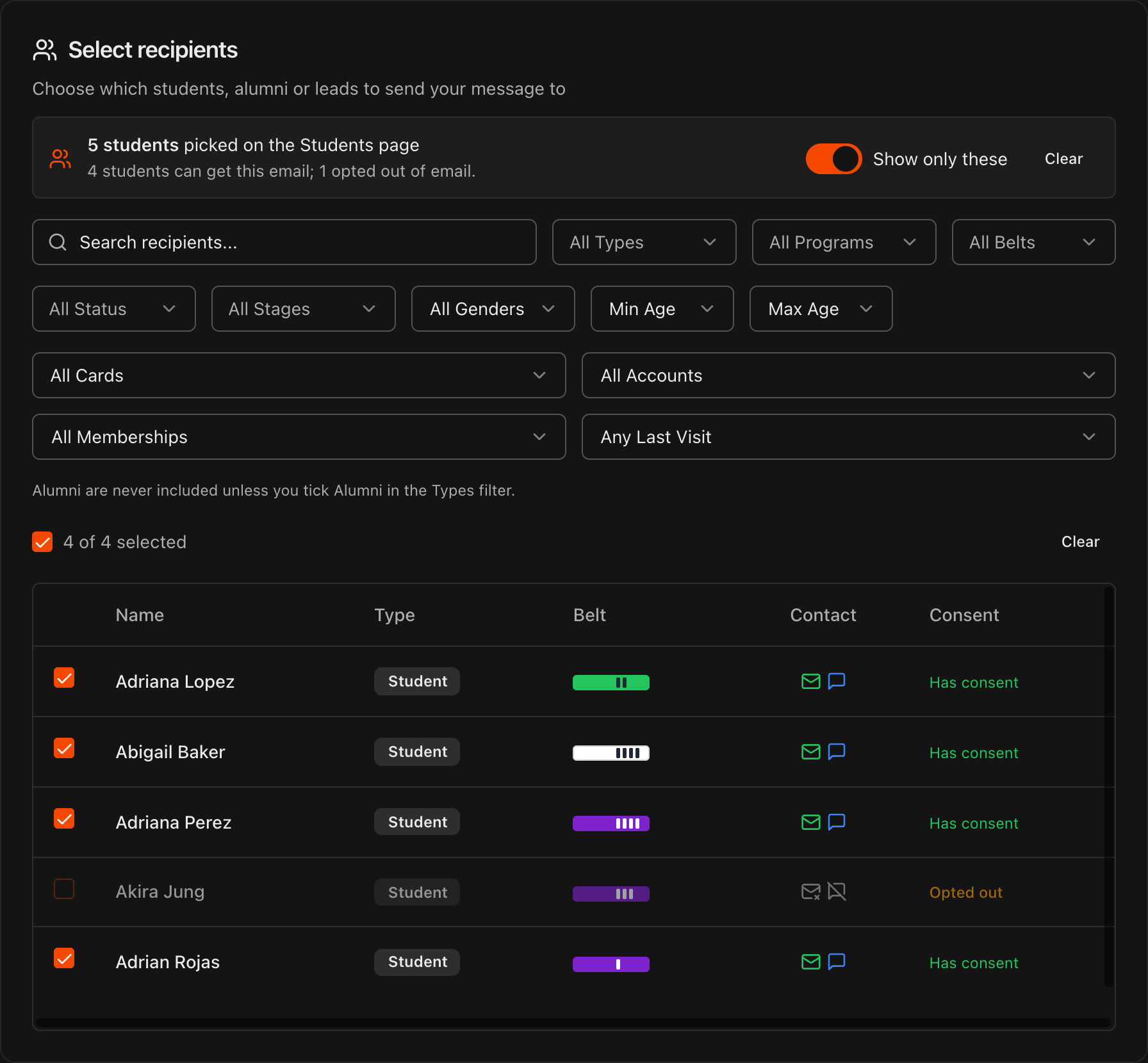
Click Message. Communications > One-time opens with those students already picked.
The notice at the top counts who can receive the email and why the rest cannot. Show only these keeps the list to your selection.
Write and send as usual. See Sending Emails.
Send a card link
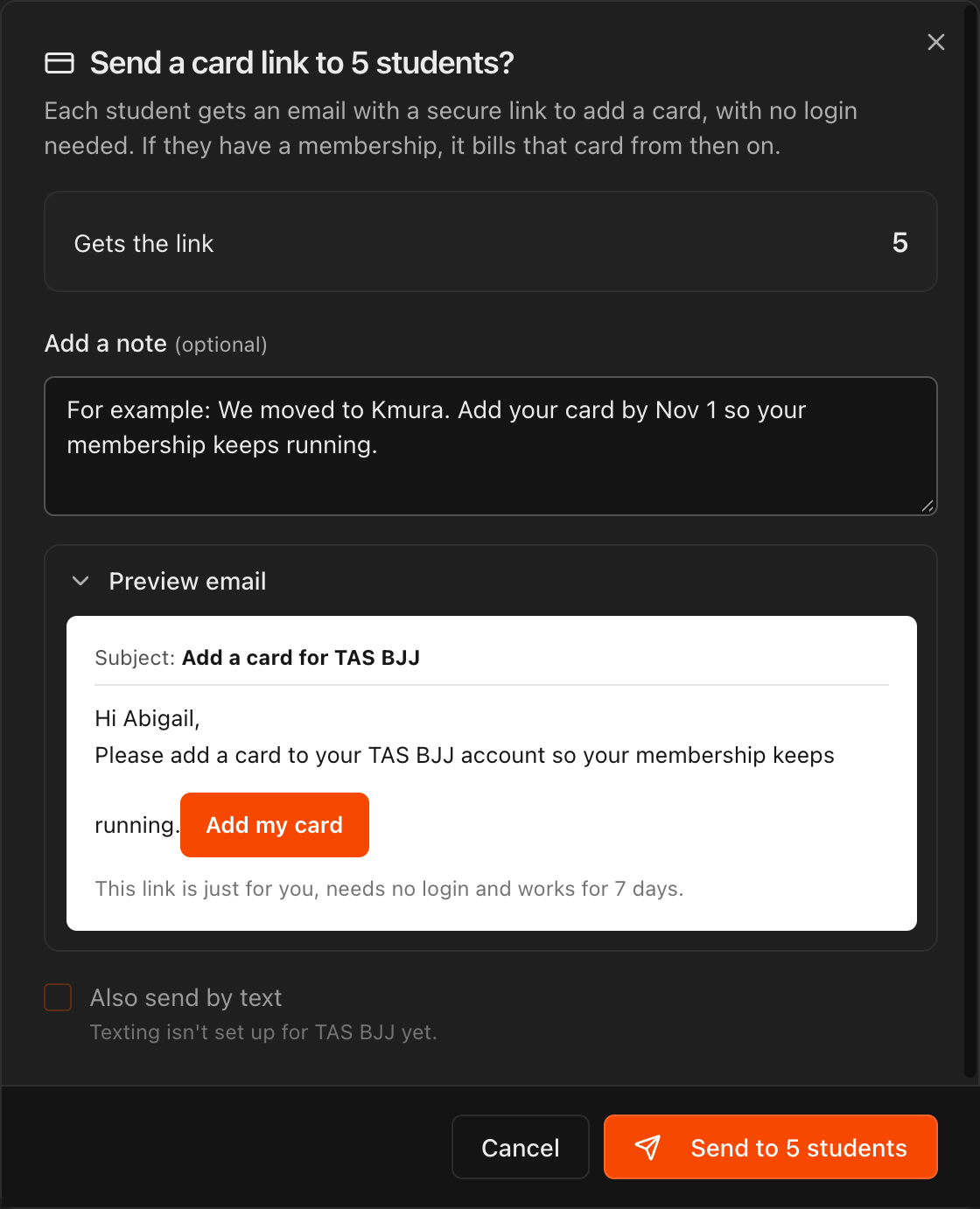
Click Send card link. Each student gets an email with a secure link to add a card, with no login needed.
Optionally type a note under Add a note. Open Preview email to read what goes out.
Click Send to 5 students.
Note
If a student has a membership, it bills the new card from then on. The link works for 7 days.
Send account invites
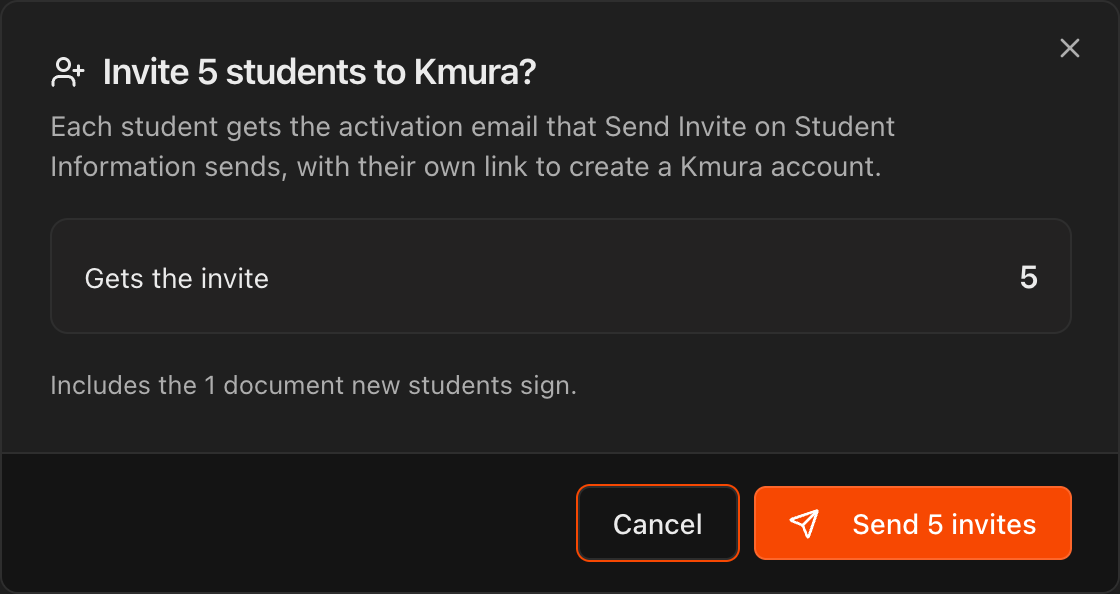
Click Send invite, then Send 5 invites.
Each student gets the same activation email as Send Invite on Student Information, including the documents new students sign.
Tip
To invite students automatically, filter the **Account** column to **No Account** and click **Preview template** in the note above the list. The **Activate your account** campaign emails anyone without a Kmura account and stops once they create one. See Building Email & SMS Campaigns.
Change status
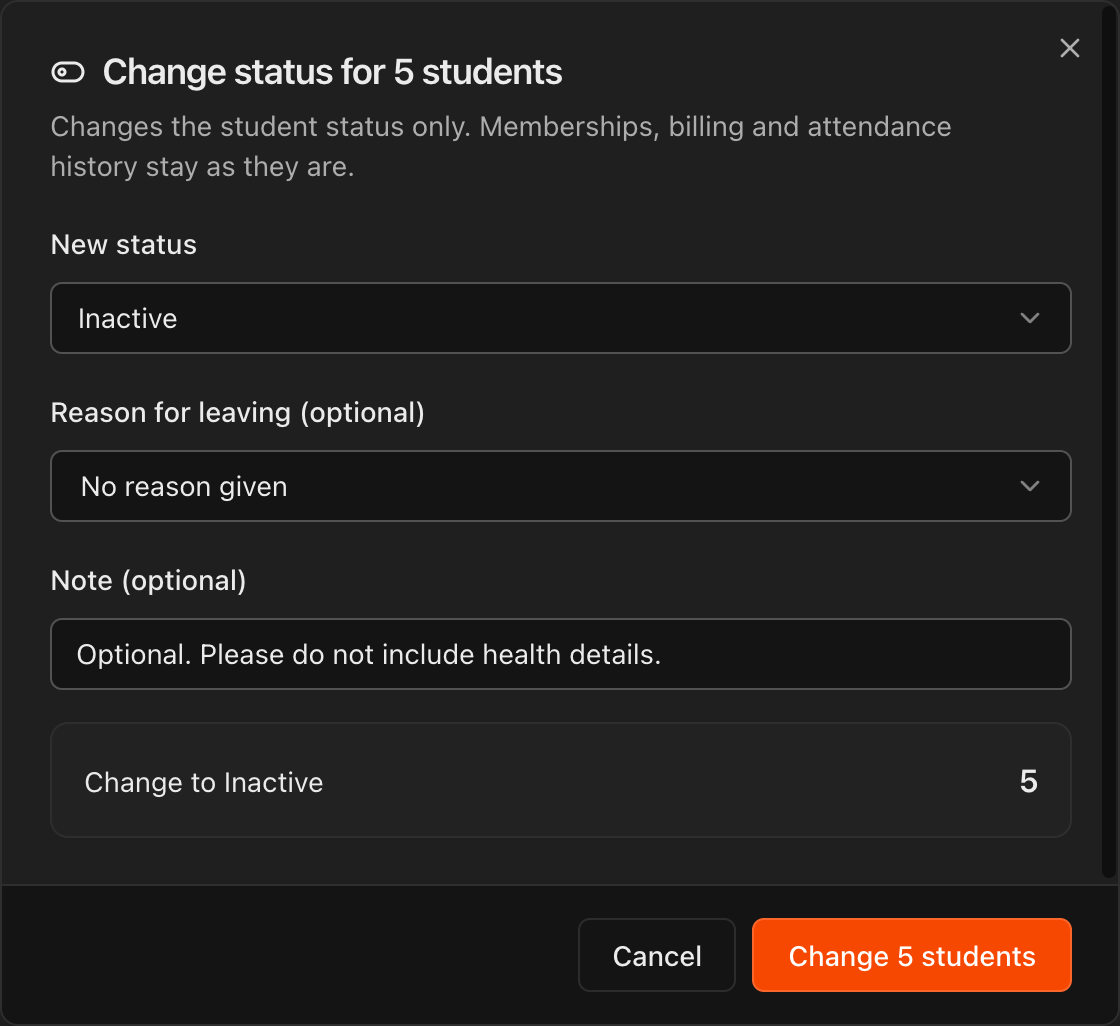
Click Change status and pick a New status. For Inactive you can add a Reason for leaving and a Note.
Note
This changes the student status only. Memberships, billing and attendance history stay as they are.
Export a CSV
Click Export CSV to download the selected students as a spreadsheet file.
Bulk actions on a phone
Tap Filters to open every filter in one drawer, Filter students.
Tap Select, then tap the students you want. Select all picks everyone listed.
The action bar sits at the bottom of the screen: Message, Card link, Invite and More. More holds Change status and Export CSV.