Start SMS registration
Go to Communications, open One-time, and click SMS Settings in the top-right corner.
US carriers require every business that texts customers to register (A2P 10DLC). Kmura walks you through it in six steps and submits everything for you.
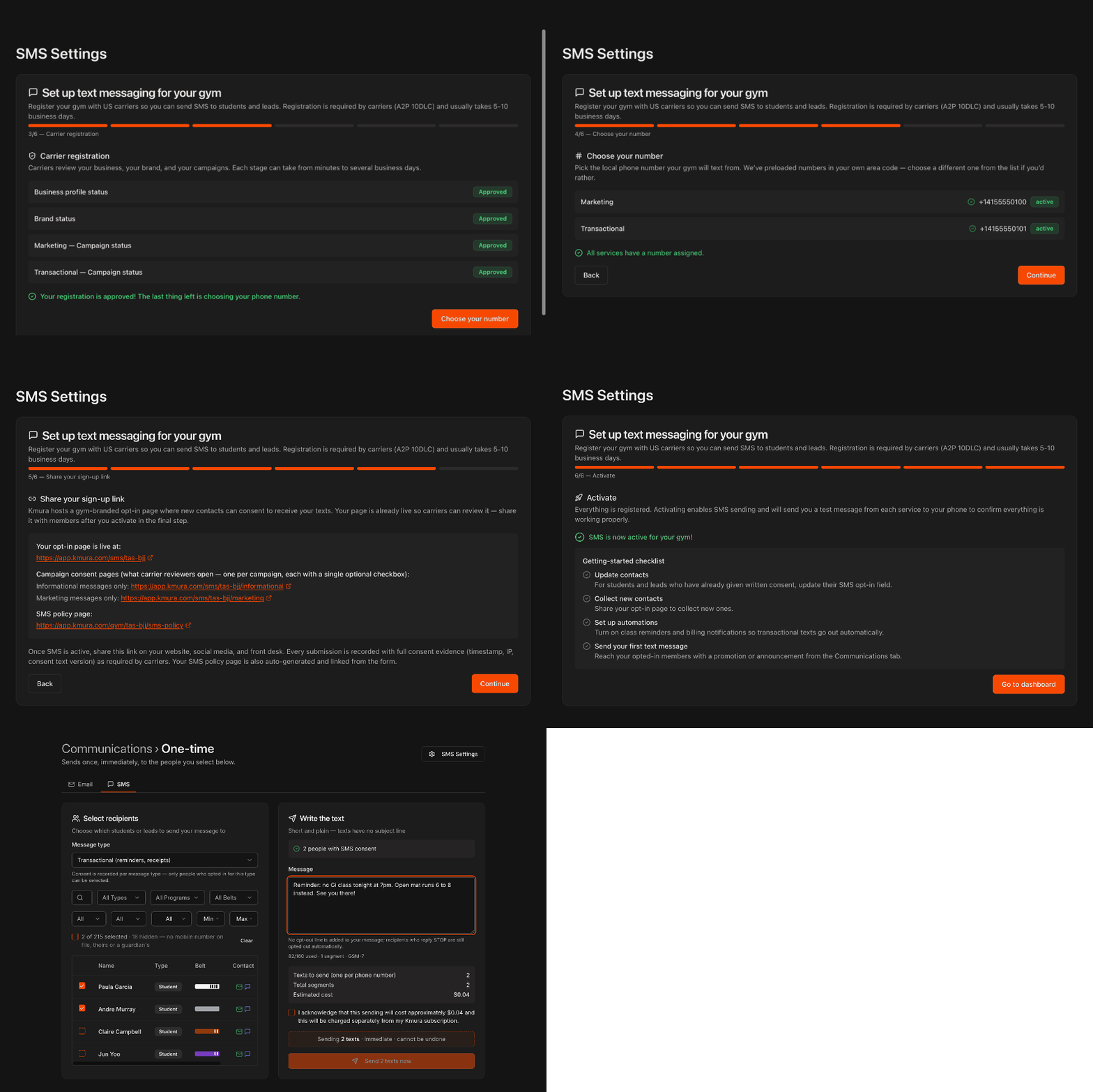
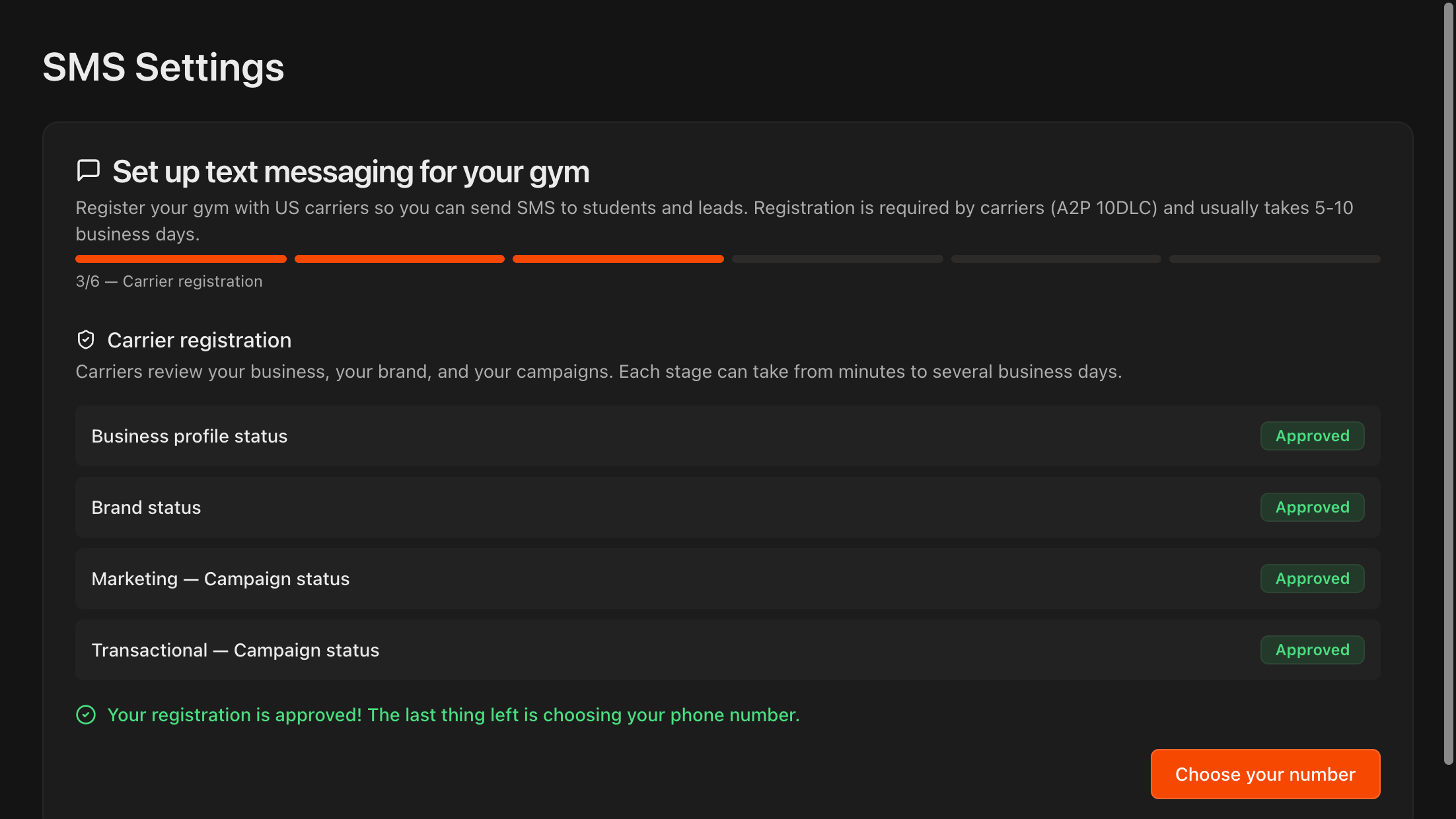
Steps 1 and 2 collect your business details and your brand information. Step 3, Carrier registration, shows the review status of your Business profile, Brand, and your Marketing and Transactional campaigns.
Each stage moves from pending to Approved. Once all four are approved, click Choose your number.
Note
Carrier review usually takes 5 to 10 business days. You can leave the page and come back; your progress is saved.
Note
Texting through Kmura has its own charges on top of your Kmura subscription ($150/month per location): a one-time $20 registration fee, $5/month, and the cost of the texts themselves, which depends on the number of segments and recipients. Step 9 covers billing.
Choose your phone numbers
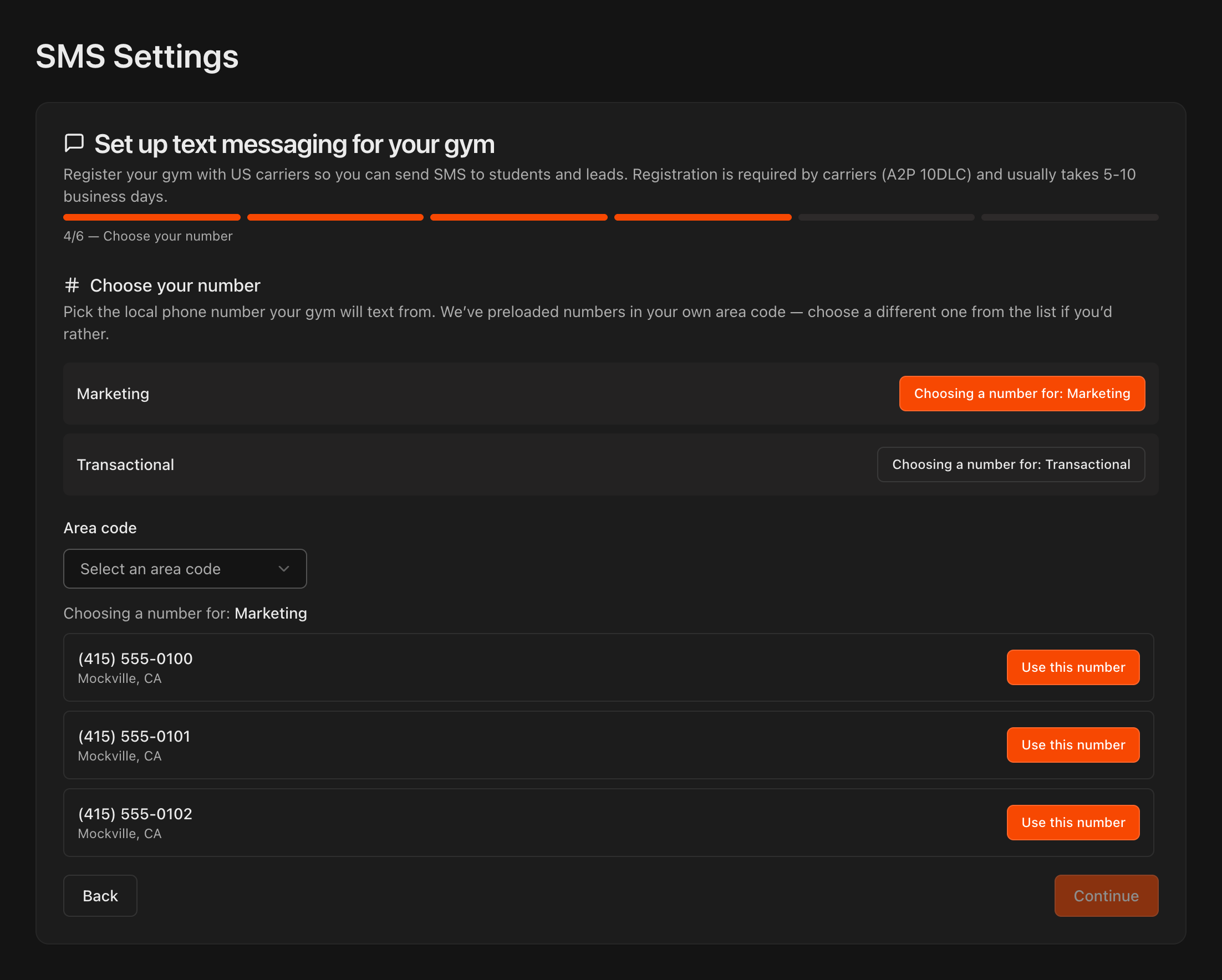
Kmura assigns two local numbers: one for Marketing (promotions and announcements) and one for Transactional (reminders and receipts). Carriers require the split.
The list is preloaded with numbers in your area code. Click Use this number next to the one you want for Marketing, then repeat for Transactional.
To pick a different region, choose an Area code first.
When both rows show active, click Continue.
Review your opt-in links
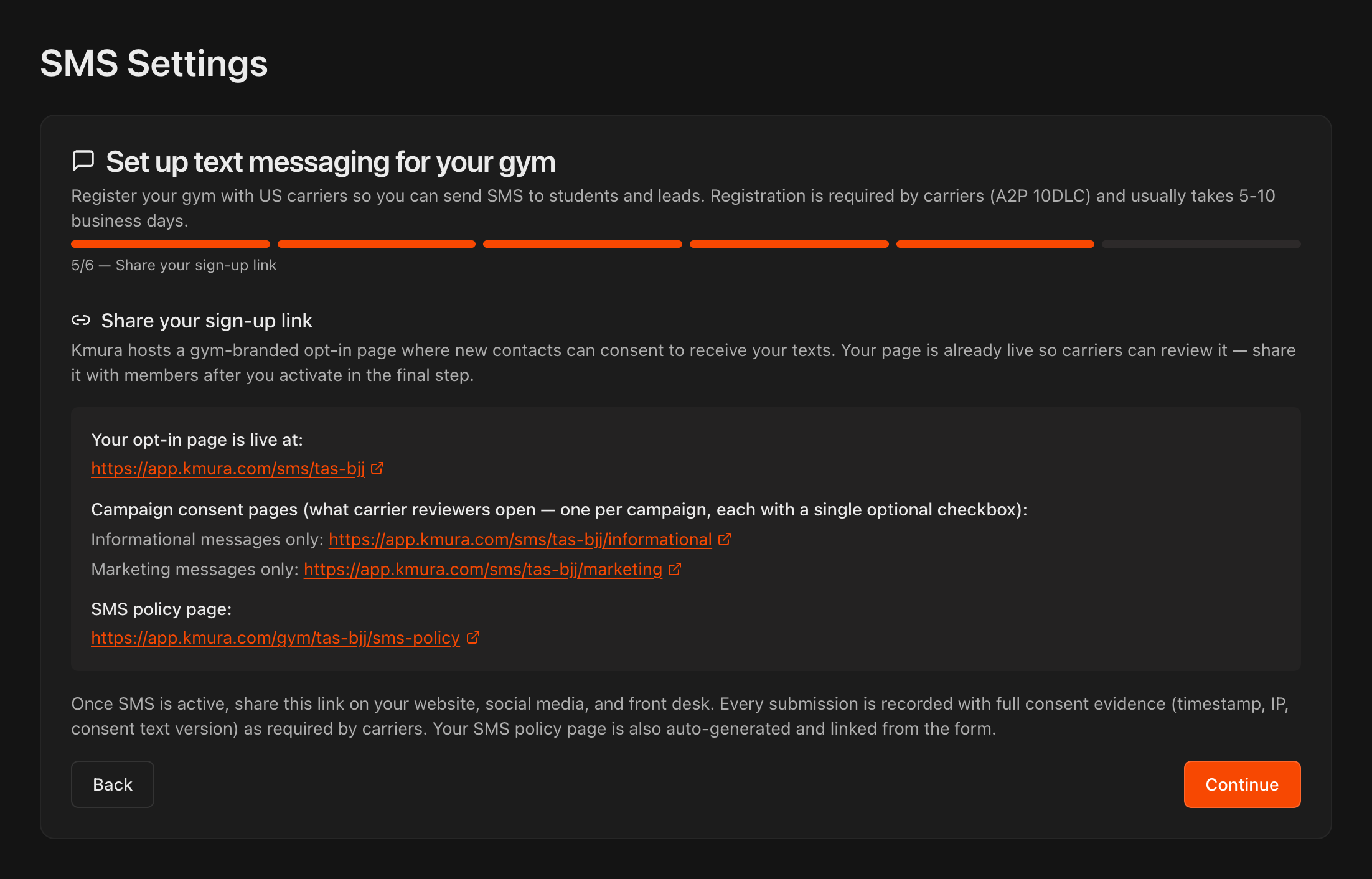
Kmura hosts a gym-branded opt-in page where people consent to receive your texts. It is live immediately so carriers can review it.
You get one general sign-up page, one consent page per message type (Informational messages only and Marketing messages only), and an auto-generated SMS policy page.
Click Continue. You will share these links after activation.
Tip
Put the sign-up link on your website, your social profiles, and at the front desk. Every submission is stored with the timestamp, IP address, and consent text version that carriers can ask you for.
Activate SMS
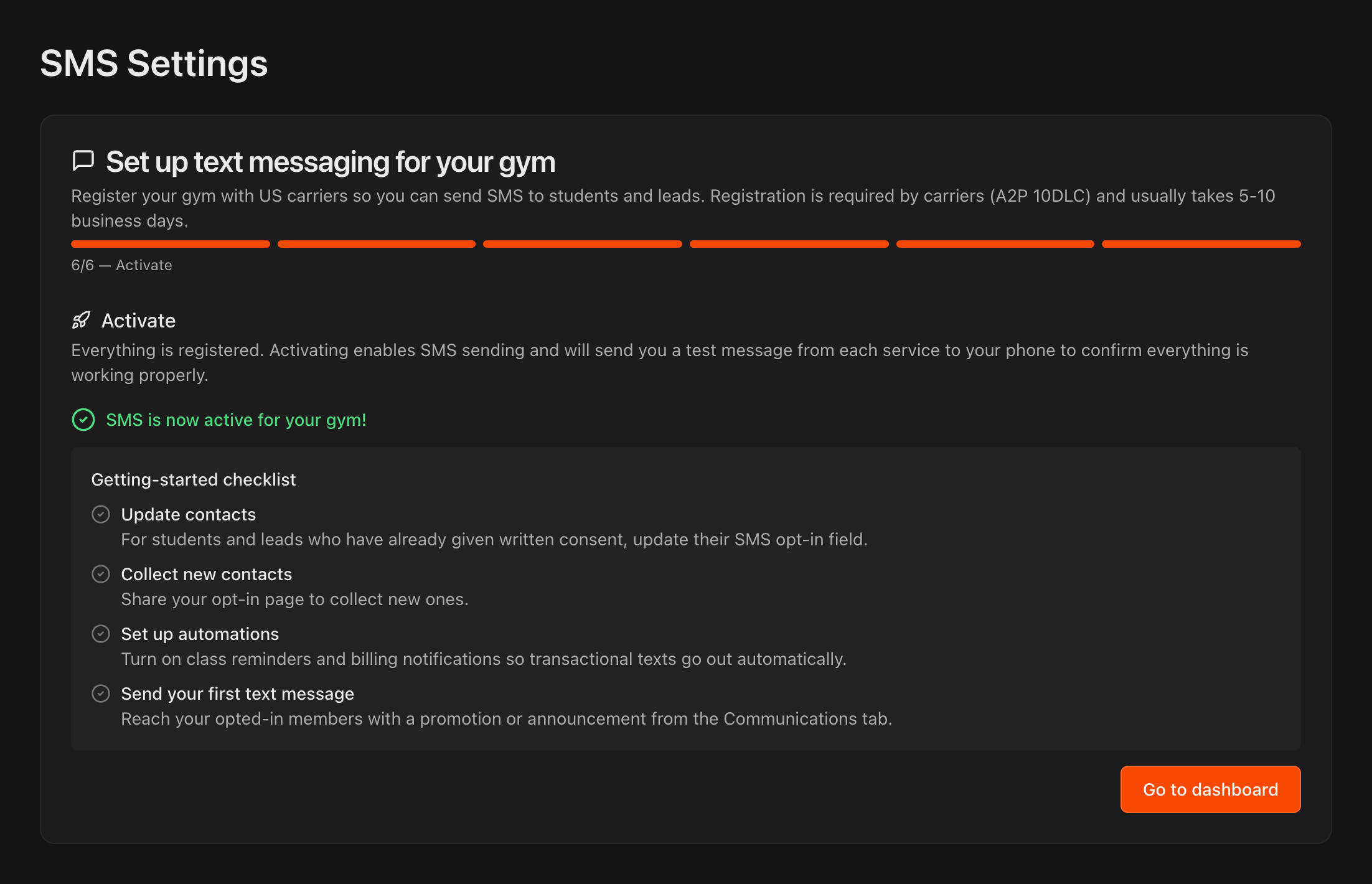
Click Activate SMS. Kmura enables sending and texts a test message from each number to your phone.
The Getting-started checklist tells you what to do next: update the SMS opt-in field for students and leads who already gave written consent, share your opt-in page, turn on automated texts, and send your first message.
Caution
Activation triggers the one-time $20 registration fee and starts the $5/month SMS fee, both billed separately from your Kmura subscription, plus the cost of each text you send.
Know the SMS Settings dashboard
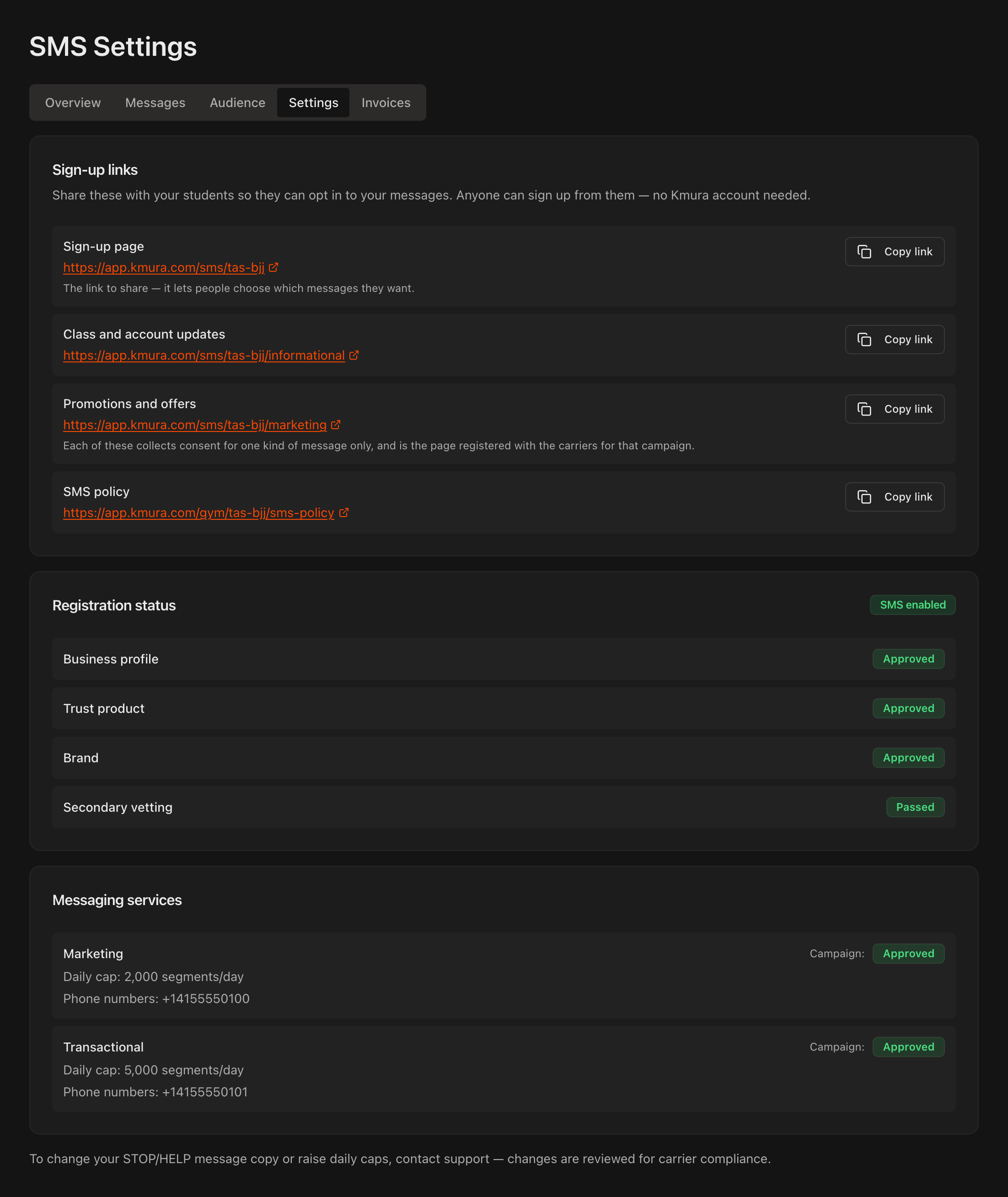
After activation, SMS Settings becomes your text-messaging control center with five tabs: Overview, Messages, Audience, Settings, and Invoices.
Overview shows what you have been billed this month, outbound and inbound segments, opt-outs, and a daily spend chart.
Settings lists your sign-up links with Copy link buttons, your Registration status, and each Messaging service with its phone number and daily segment cap (2,000 per day for Marketing, 5,000 for Transactional).
Note
To change your STOP/HELP reply copy or raise a daily cap, contact Kmura support. Carriers review those changes.
Manage consent in the Audience tab
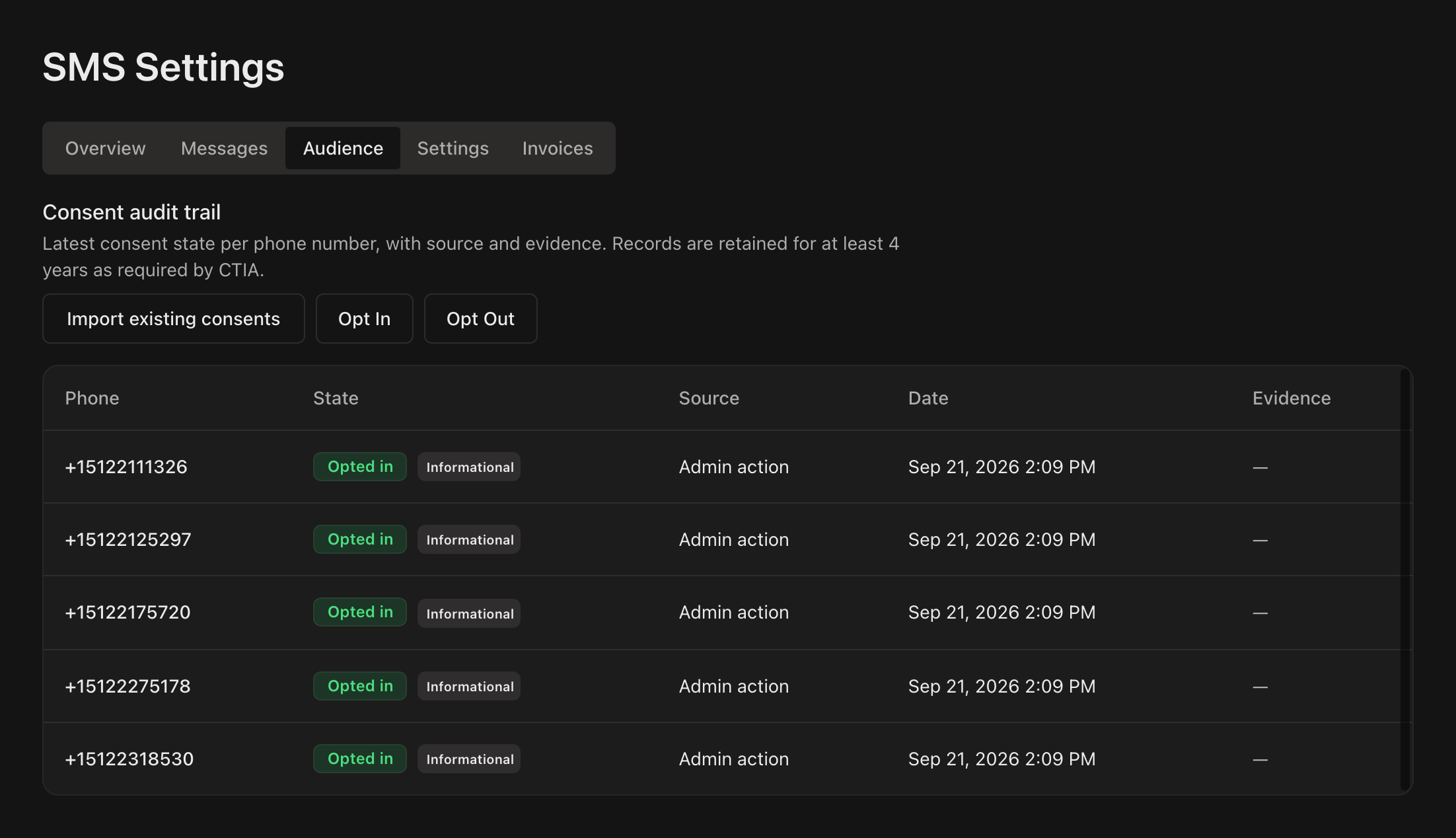
Audience is your consent audit trail: every phone number with its state (Opted in or Opted out), the type of consent (Informational or Marketing), the source, the date, and any evidence link. Records are kept for at least four years, as CTIA requires.
Click Import existing consents to convert the SMS consent checkmarks already on your student and lead profiles into ledger records. Numbers that replied STOP are never re-opted in, and it is safe to run again.
Click Opt In to record consent you collected outside Kmura, such as a signed paper form. Tick Informational messages and, only if the form has its own signed marketing line, Marketing messages. Add an Evidence URL if you have one.
Click Opt Out to honor a request you received verbally or by email. Sends to that number stop immediately.
Caution
Marketing consent must be a separate written choice. Do not tick it because someone agreed to reminders.
Record SMS consent on a student's profile
Open the student's Student Information page. On the Details tab, under Communication Preferences, there are two SMS checkboxes next to Email Consent: Transactional SMS (class, billing and account messages) and Marketing SMS (promotions, events and offers).
The two boxes stay greyed out until the student has a phone number on file.
Tick a box and confirm in the Record SMS consent? dialog that the member agreed to receive that kind of text, then click Save changes.
The same two checkboxes appear in the Add Student dialog, on parent and guardian profiles and on leads, and your public lead forms ask the visitor for the two consents separately.
Caution
Tick **Marketing SMS** only when the student gave a separate written yes to promotions. Agreeing to class and billing texts is not consent for marketing texts.
Note
Everything that sends texts in Kmura reads these two boxes: a one-time text, an SMS campaign or an alert only goes to people who consented to that type. Consent recorded here also shows in the **Audience** tab of **SMS Settings** after **Import existing consents**.

Send a one-time text
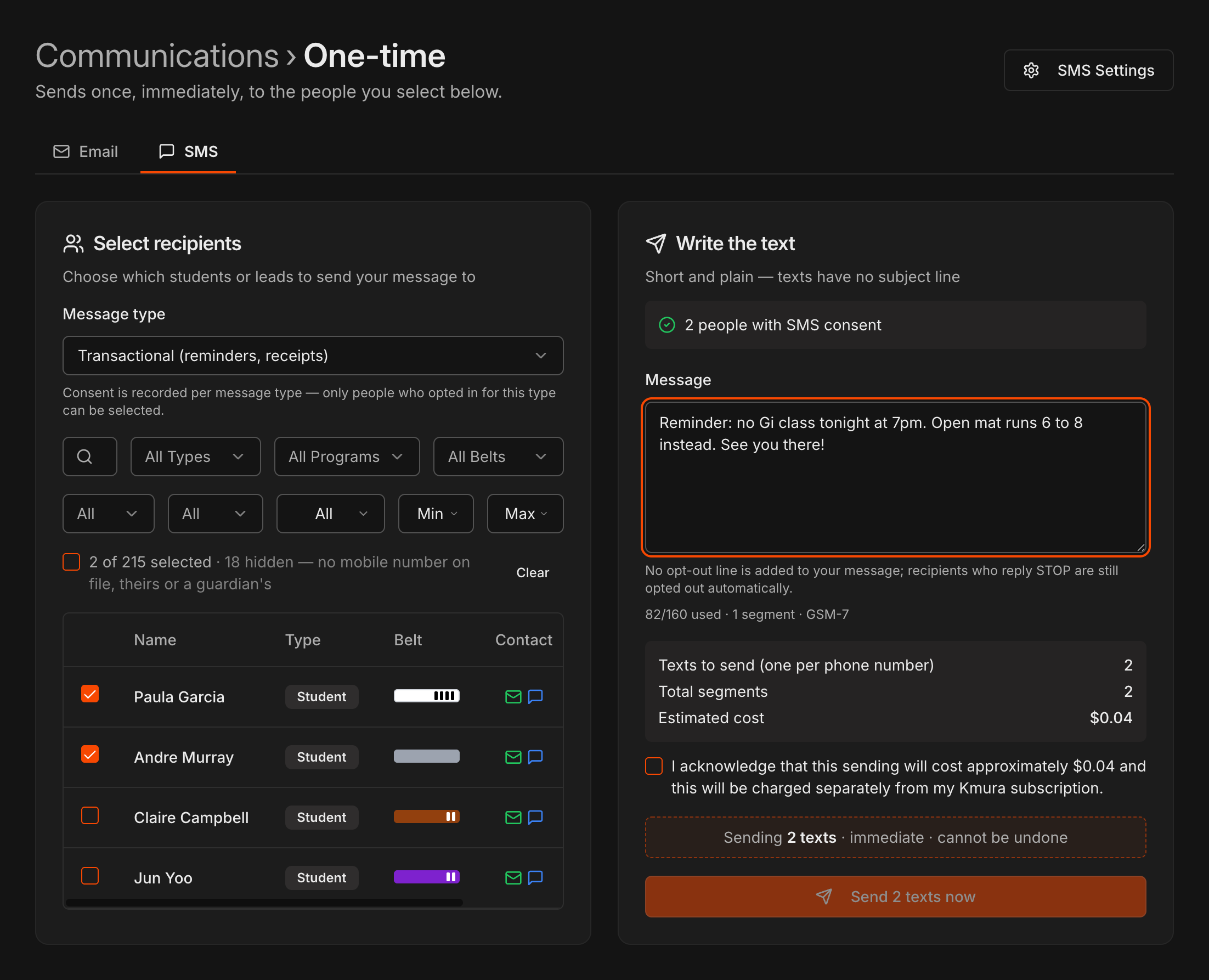
Go to Communications, open One-time, and click the SMS tab.
Pick the Message type first: Marketing (promotions, announcements) or Transactional (reminders, receipts). Only people whose profile has the matching box ticked, Marketing SMS or Transactional SMS, can be selected, and the count updates when you switch.
Filter and check recipients the same way you do for email. Under Write the text, type your message; the counter shows characters used and how many segments it will cost.
Tick the cost acknowledgment box, then click Send now. Sends are immediate and cannot be undone.
Note
Marketing texts respect quiet hours (8am to 9pm in the recipient's time zone) and a separate daily limit. Transactional texts do not.
Note
Kmura does not add an opt-out line to your message. Anyone who replies STOP is still opted out automatically.
Read replies and check delivery
Go to Communications and open History, then click the SMS tab to see every text sent, with recipient, message, source (one-time or campaign), and status.
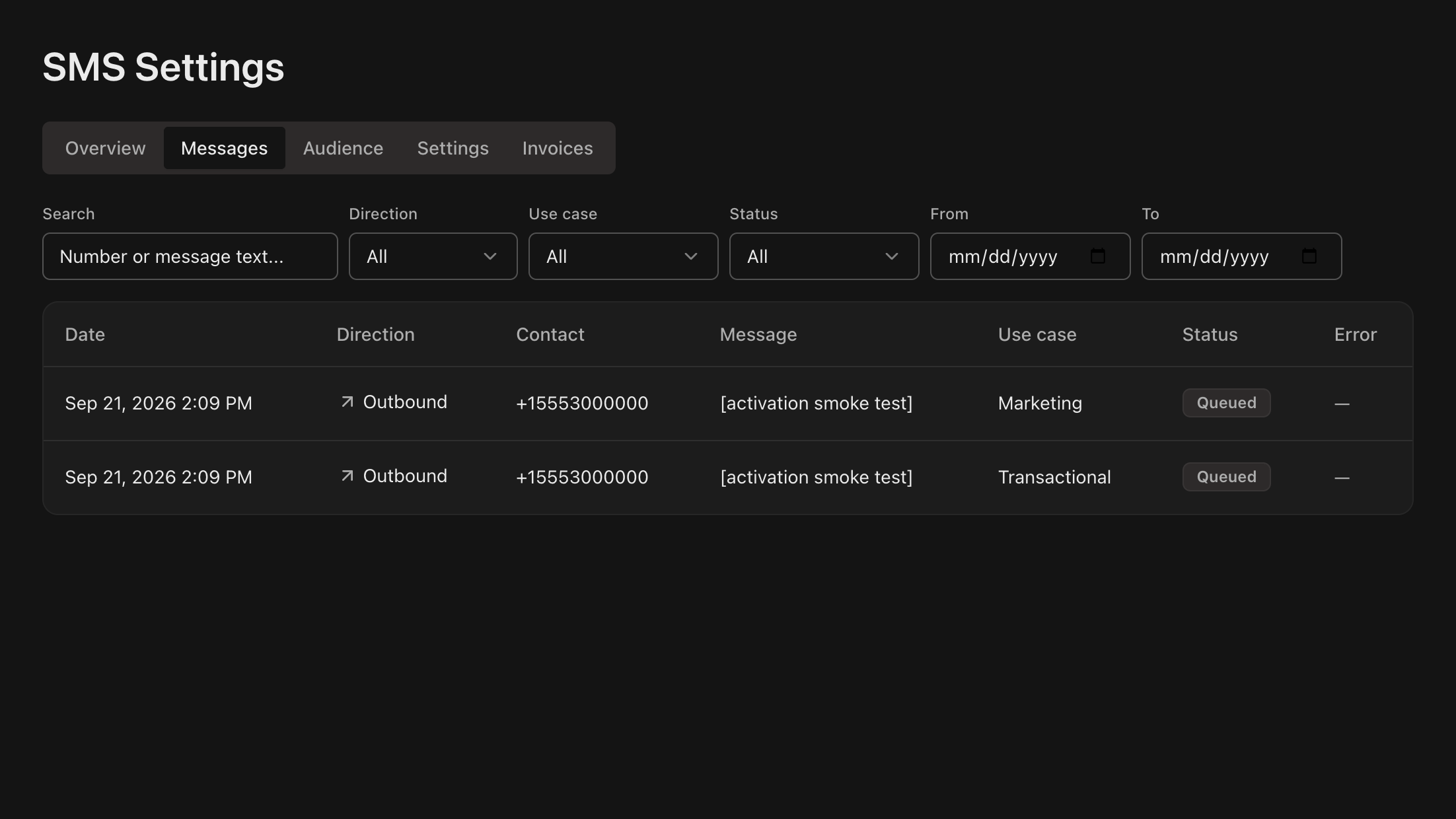
To see replies, open SMS Settings, click Messages, and set Direction to Inbound. Filter by Use case, Status, or date range, or search by number or message text.
Tip
A reply of STOP appears here and also flips the person to **Opted out** in the **Audience** tab.
Understand SMS billing
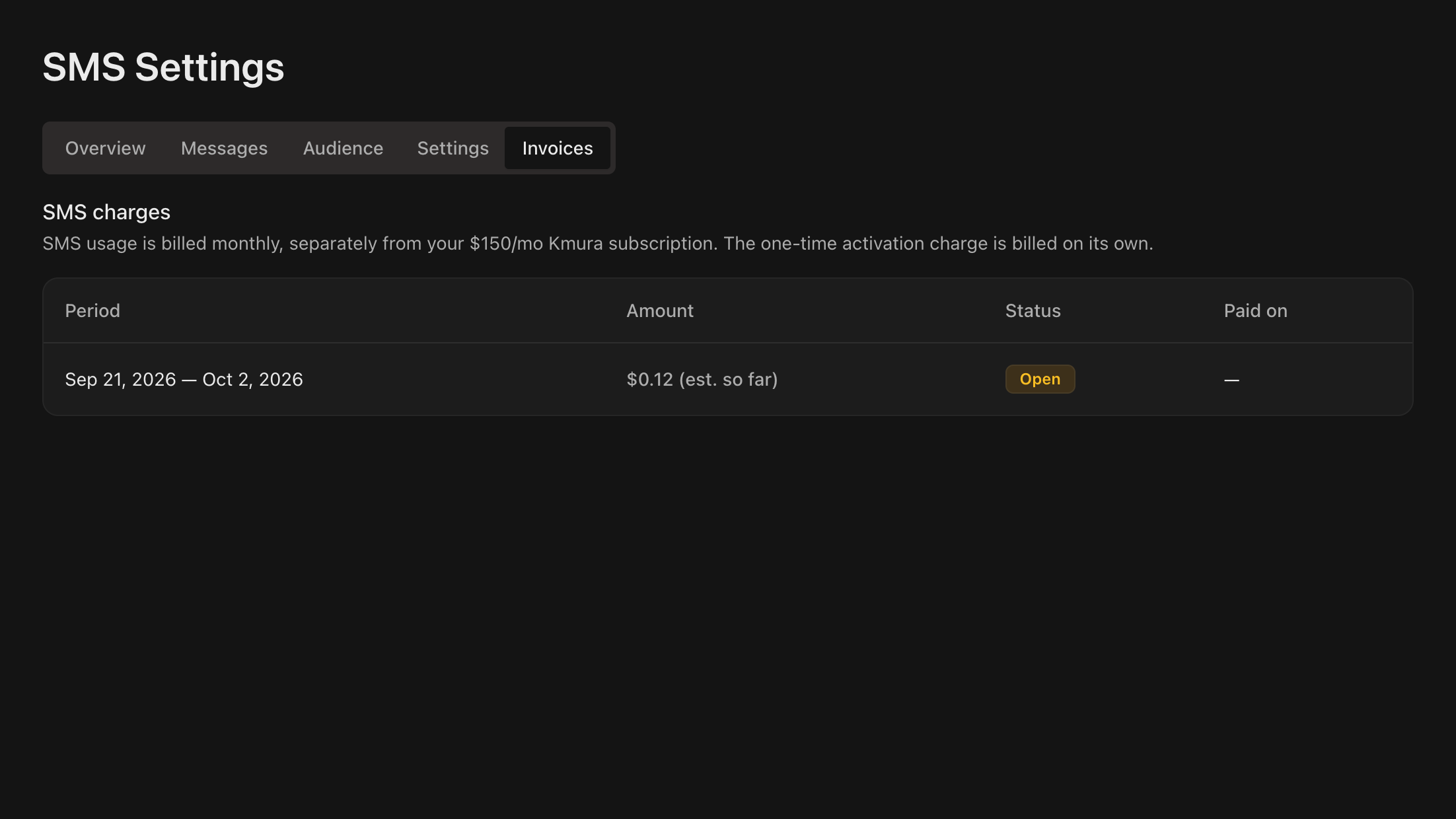
SMS usage is billed monthly and separately from your Kmura subscription. The Invoices tab lists each billing period, the amount, and its status.
Every send shows its estimated cost before you confirm, based on the number of texts and segments. That includes one-time sends and texts sent from the Email and Text buttons on the Overview page alerts.
Note
SMS is the only add-on not included in your $150/month per location subscription. It costs a one-time **$20** registration fee, **$5/month**, plus the cost of the texts themselves, which depends on the number of segments and recipients.
Note
SMS notifications that Kmura sends to you and your staff (new lead, charges, payment summaries) are paid by Kmura and never appear on these invoices.