Open Plan this week
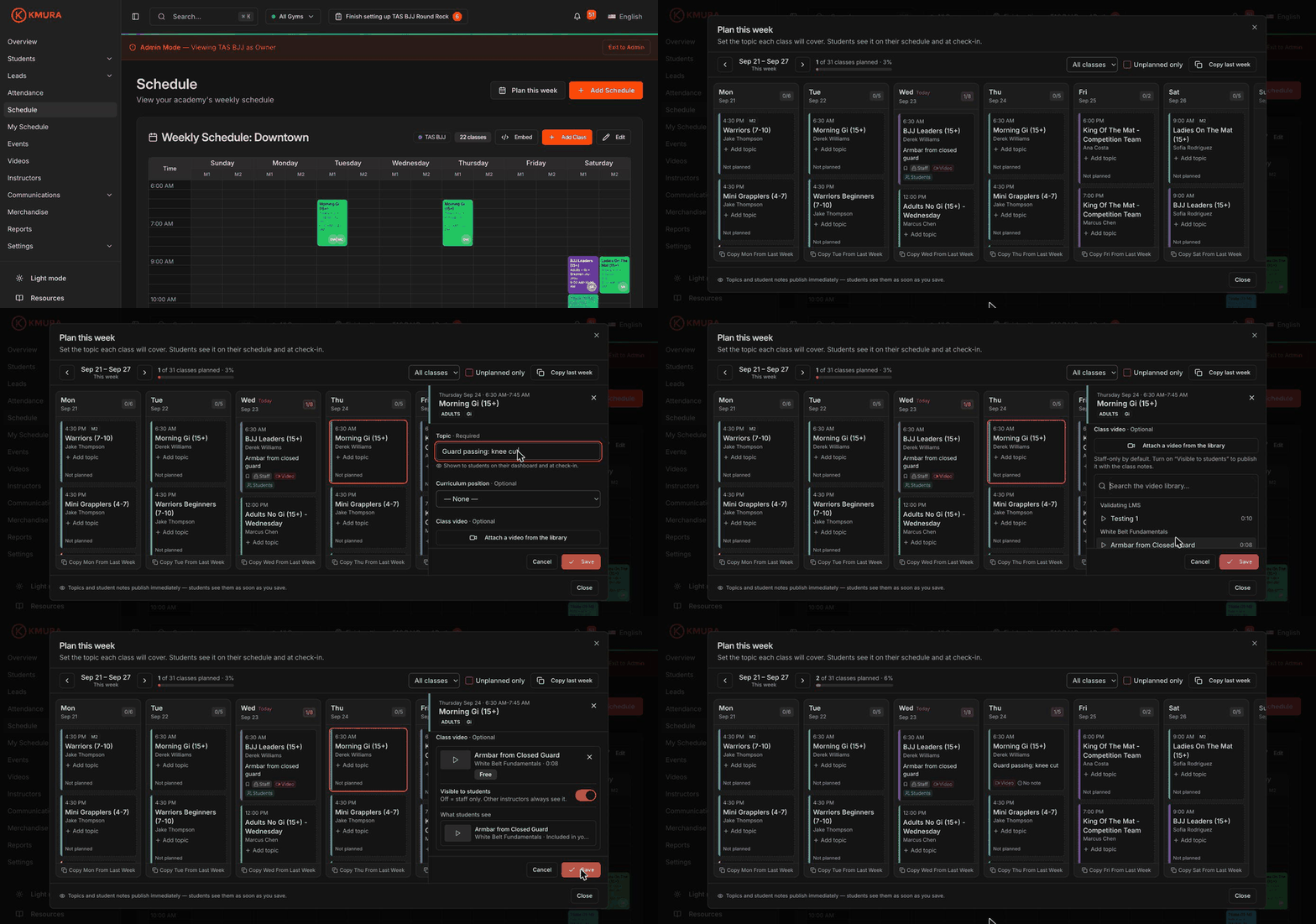
Click Schedule in the left menu, then click Plan this week at the top right.
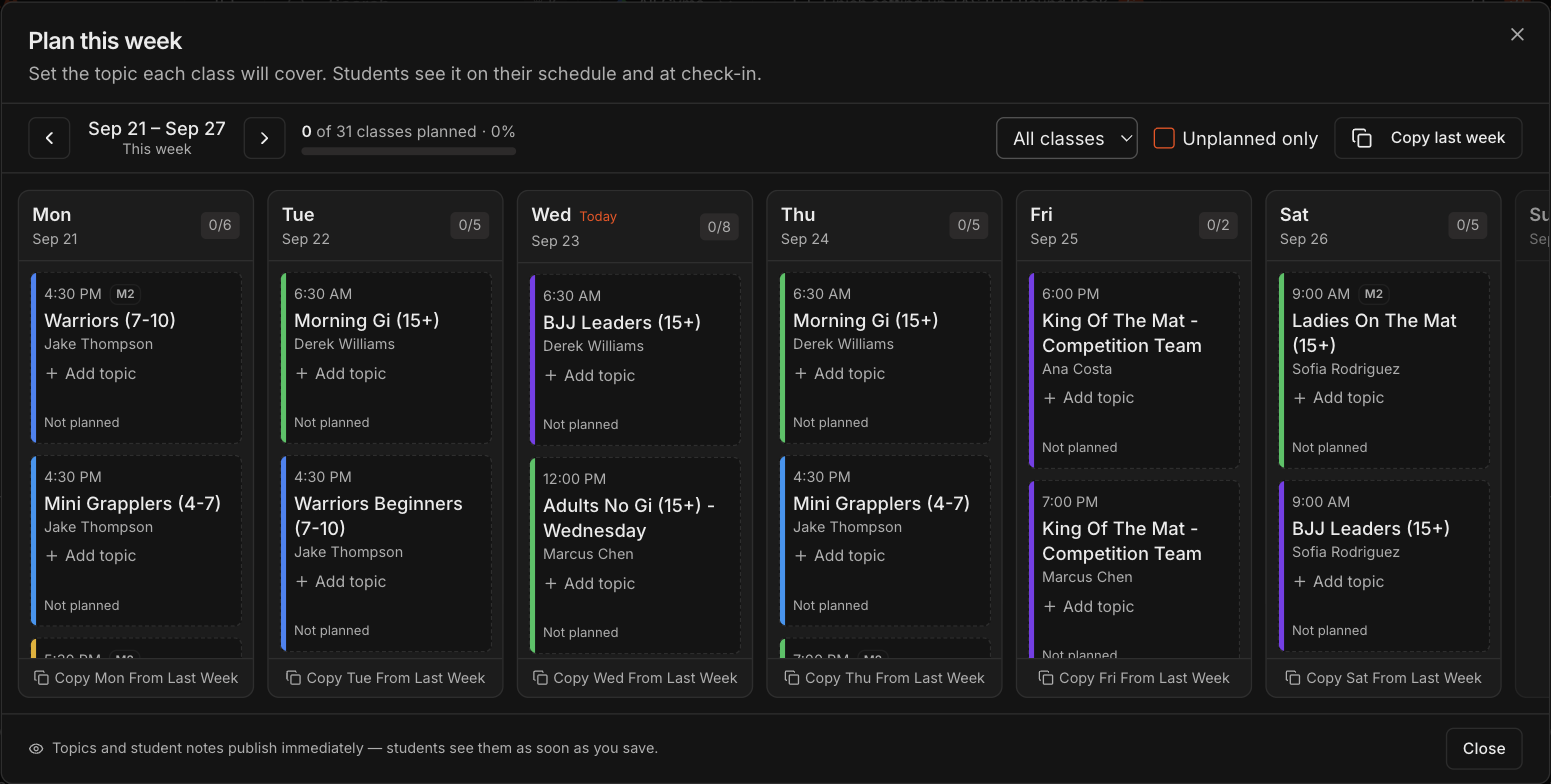
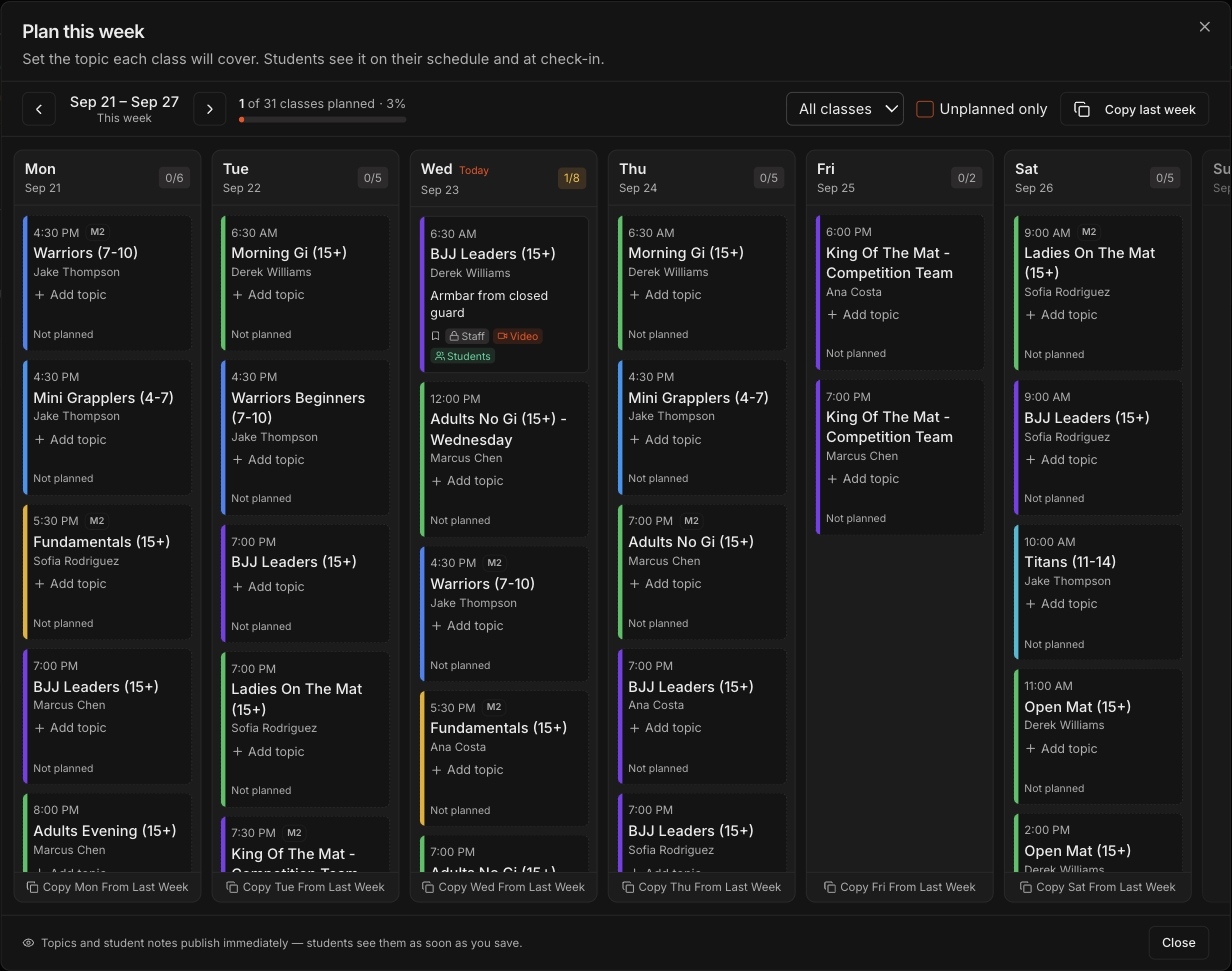
The board shows one column per day with every class on your schedules, plus a count of how many classes are planned this week.
Use the arrows next to the week range to move to a past or future week.
Classes without a topic show Not planned and an Add topic link.
Note
Topics and student notes publish immediately. Students see them as soon as you save.
Set the topic and attach a class video
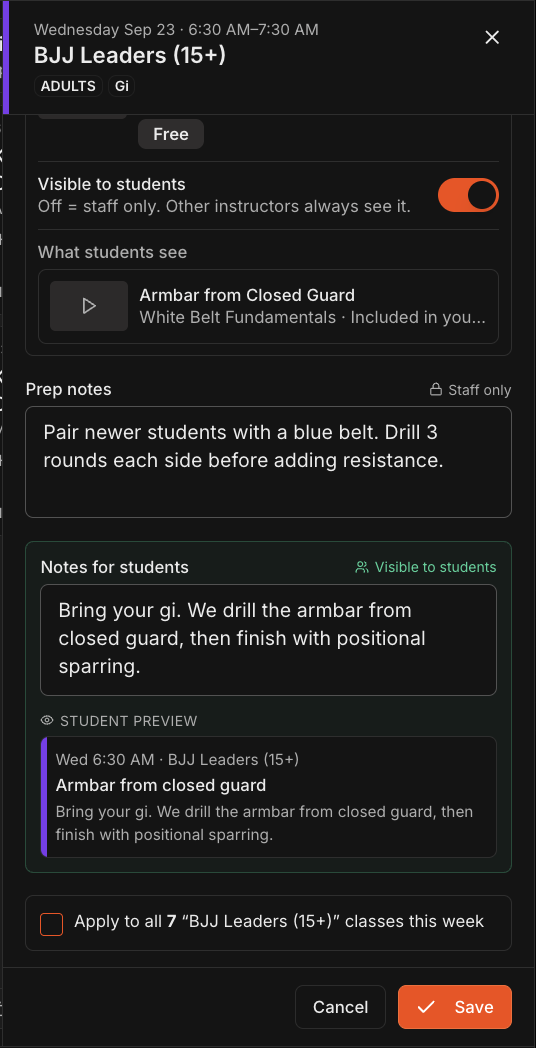
Click Add topic on a class to open its panel.
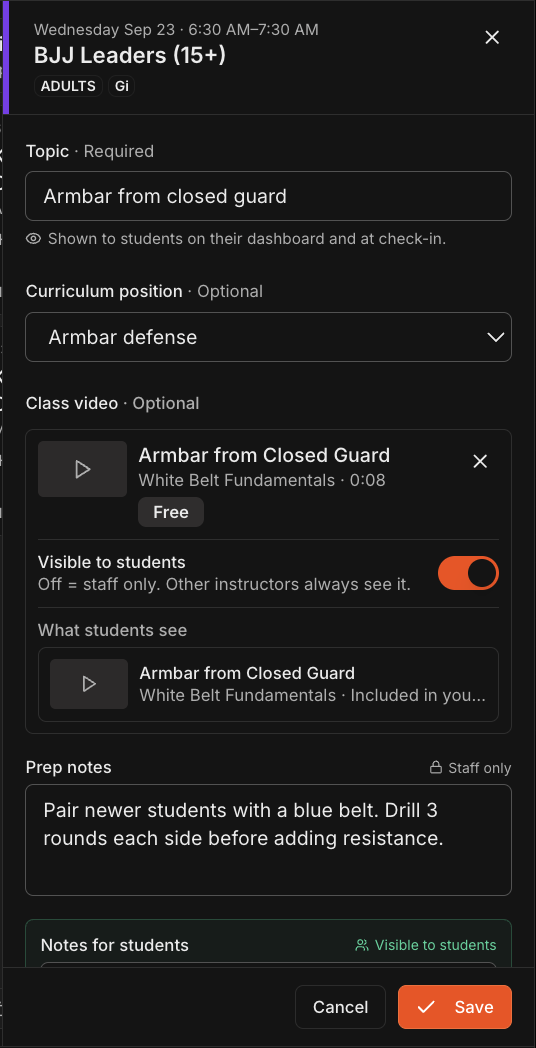
Type the Topic. Students see it on their dashboard and at check-in.
Optionally choose a Curriculum position to tie the class to an item in your curriculum.
Under Class video, click Attach a video from the library and pick a video. The picker groups videos by collection.
The video is staff-only by default. Turn on Visible to students to publish it with the class notes. A What students see preview appears under the toggle.
Note
Attaching a video never grants access. A student who is not entitled to a paid collection sees the video locked with the collection's normal unlock option.
Note
One video per class plan.
Add prep notes and notes for students
Prep notes are staff only. Use them for drilling order, partners, or anything students should not see.
Notes for students are visible to students. Tell them what to bring and what to expect.
The Student preview shows the card exactly as students will see it.
Check Apply to all N classes this week to give every session of that class the same plan, then click Save.
Track progress and copy last week
The counter at the top shows how many classes are planned this week, and each day column shows its own count.
Planned cards carry Staff, Students and Video flags so you can see at a glance what has been added.
Check Unplanned only to hide finished classes, or use the All classes dropdown to focus on one class.
Click Copy last week to bring over every plan from the previous week, or Copy Mon From Last Week at the bottom of a column for a single day.
Tip
Use the arrows to plan the following week ahead of time.
Plan a single class from the class editor
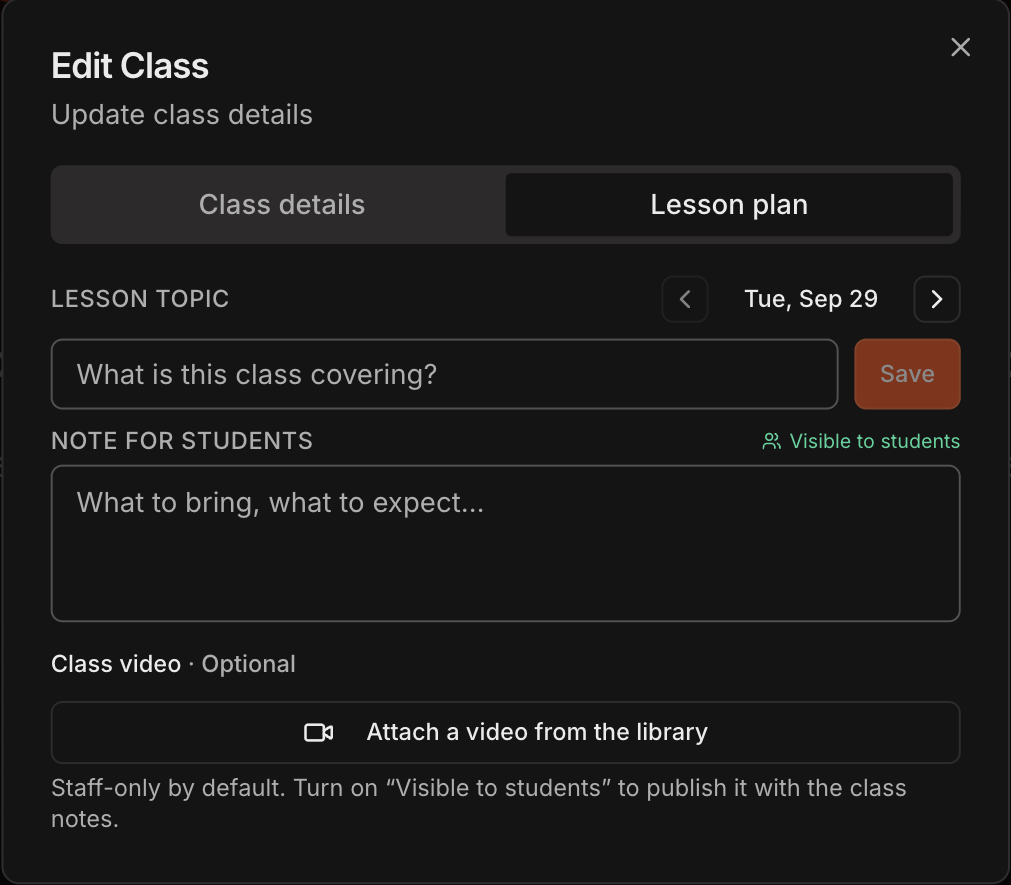
On the Schedule page, click a class block, click Edit Class, then open the Lesson plan tab.
Use the arrows next to the date to pick the session, then set the Lesson topic, Note for students and Class video and click Save.
Plans made here and in Plan this week are the same data, so either place shows the other's changes.
What students see
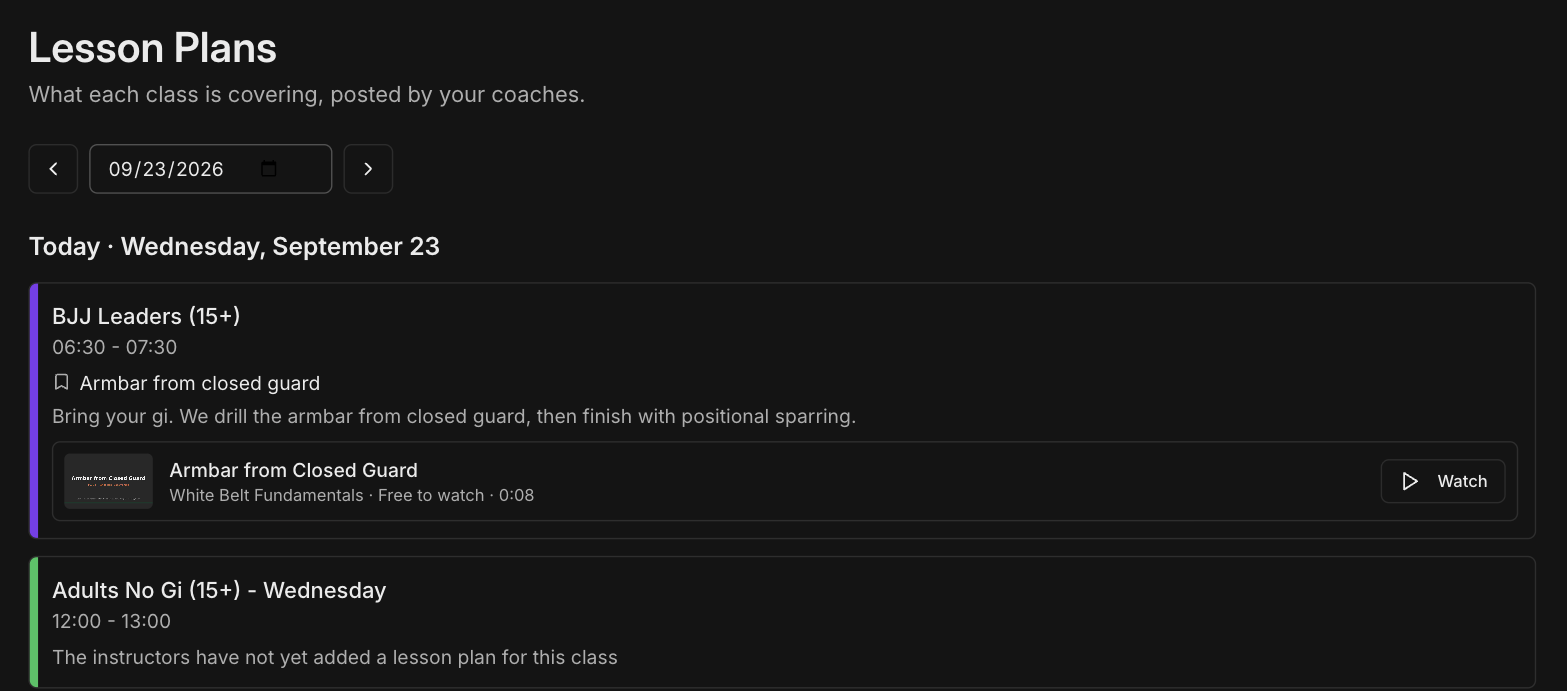
Students click Lesson Plans in their portal to see today's classes, with a date selector for other days.
Each class shows the topic, your notes for students, and the video row when Visible to students is on. Students with access see a Watch button; students without access see the video locked with the collection's normal unlock option.
The Today section on the student Overview page shows the same cards for today's classes.
Classes without a plan read The instructors have not yet added a lesson plan for this class.
Note
Prep notes never appear in the student portal.