Understand programs and sub-programs
Go to Settings and open Curriculum. The Programs card is the first card on the page.
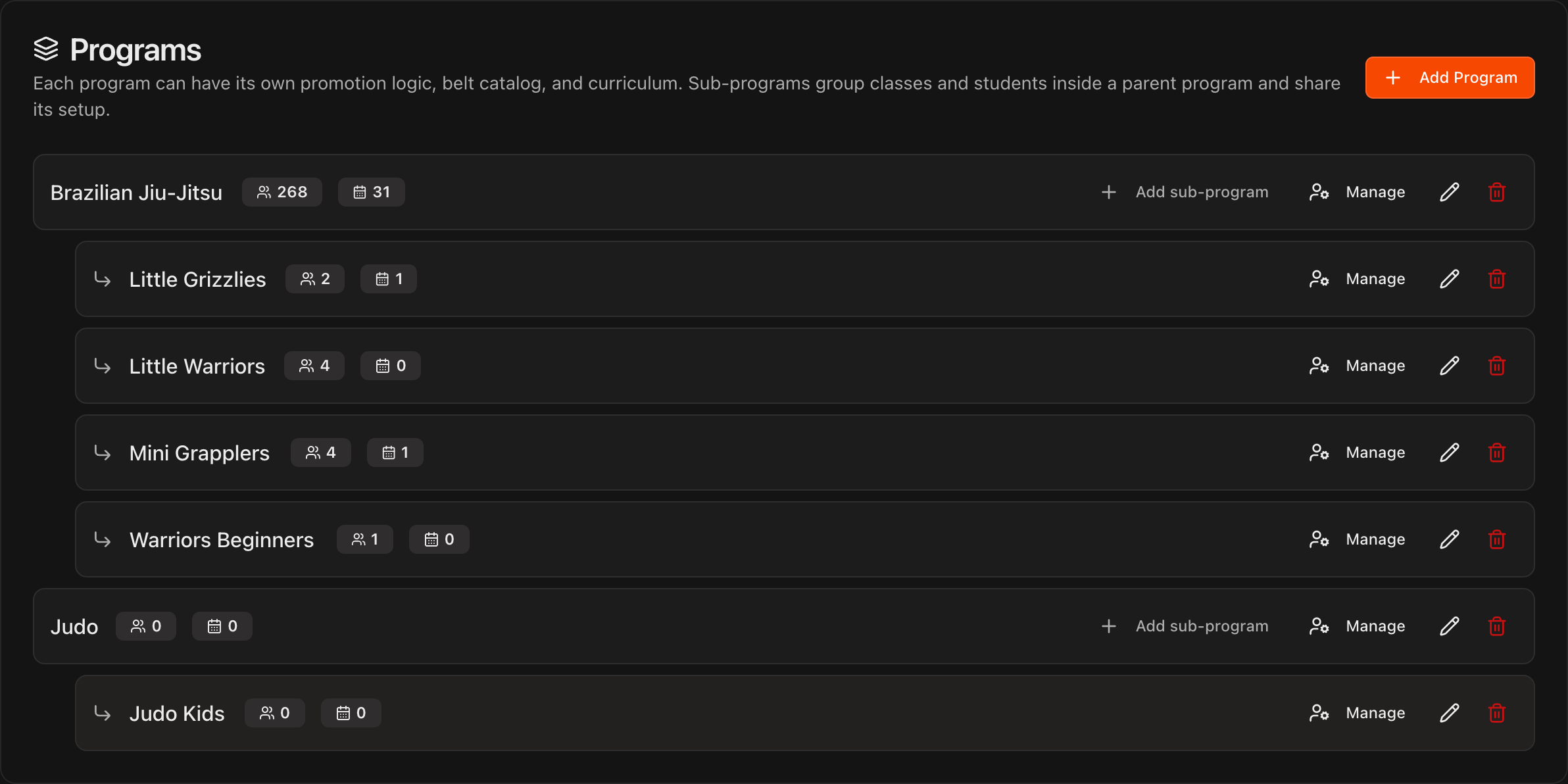
A top-level program (for example Brazilian Jiu-Jitsu or Judo) owns its own belt catalog, curriculum, belt tests and promotion logic.
A sub-program (for example Little Grizzlies or Judo Kids) sits indented under its parent. It groups classes and students for attendance and shares the parent's setup; it has no belts or curriculum of its own.
Each row shows how many students and classes are assigned. A top-level program's student count includes everyone in its sub-programs.
Note
When multi-program support went live, every program you already had became a sub-program of a new top-level **Brazilian Jiu-Jitsu** program, and your existing belts, curriculum and promotion history moved under it. Nothing was lost. If your academy is not a BJJ school, click the pencil on that program to rename it.
Add a top-level program
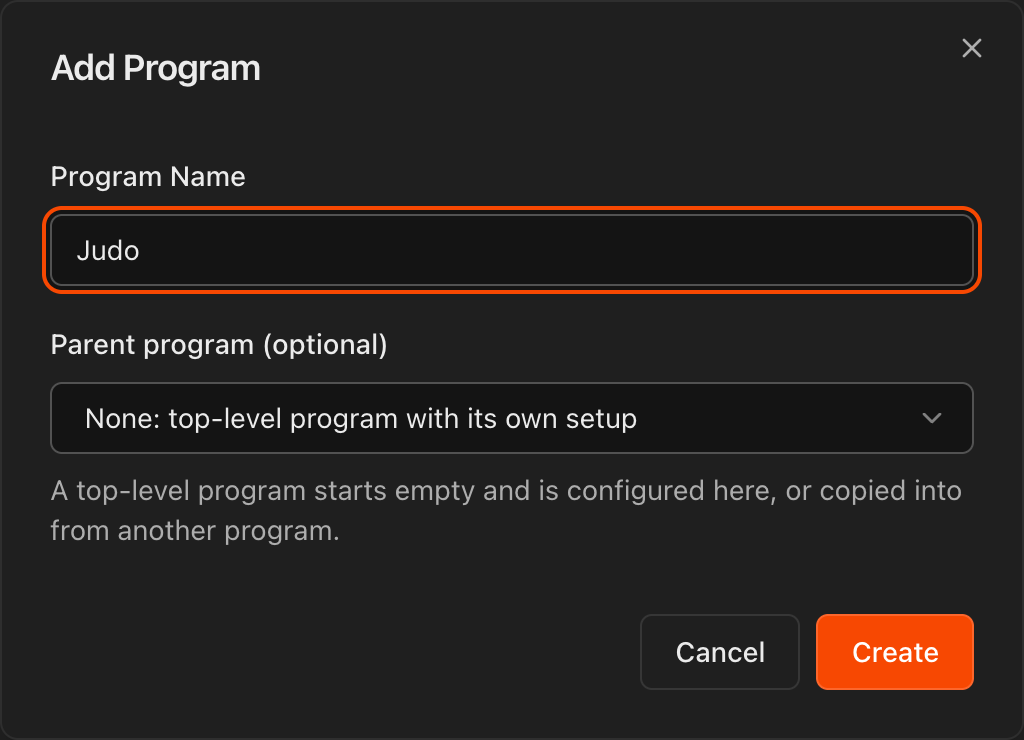
Click Add Program at the top right of the Programs card.
Enter the Program Name. Leave Parent program (optional) set to None: top-level program with its own setup and click Create.
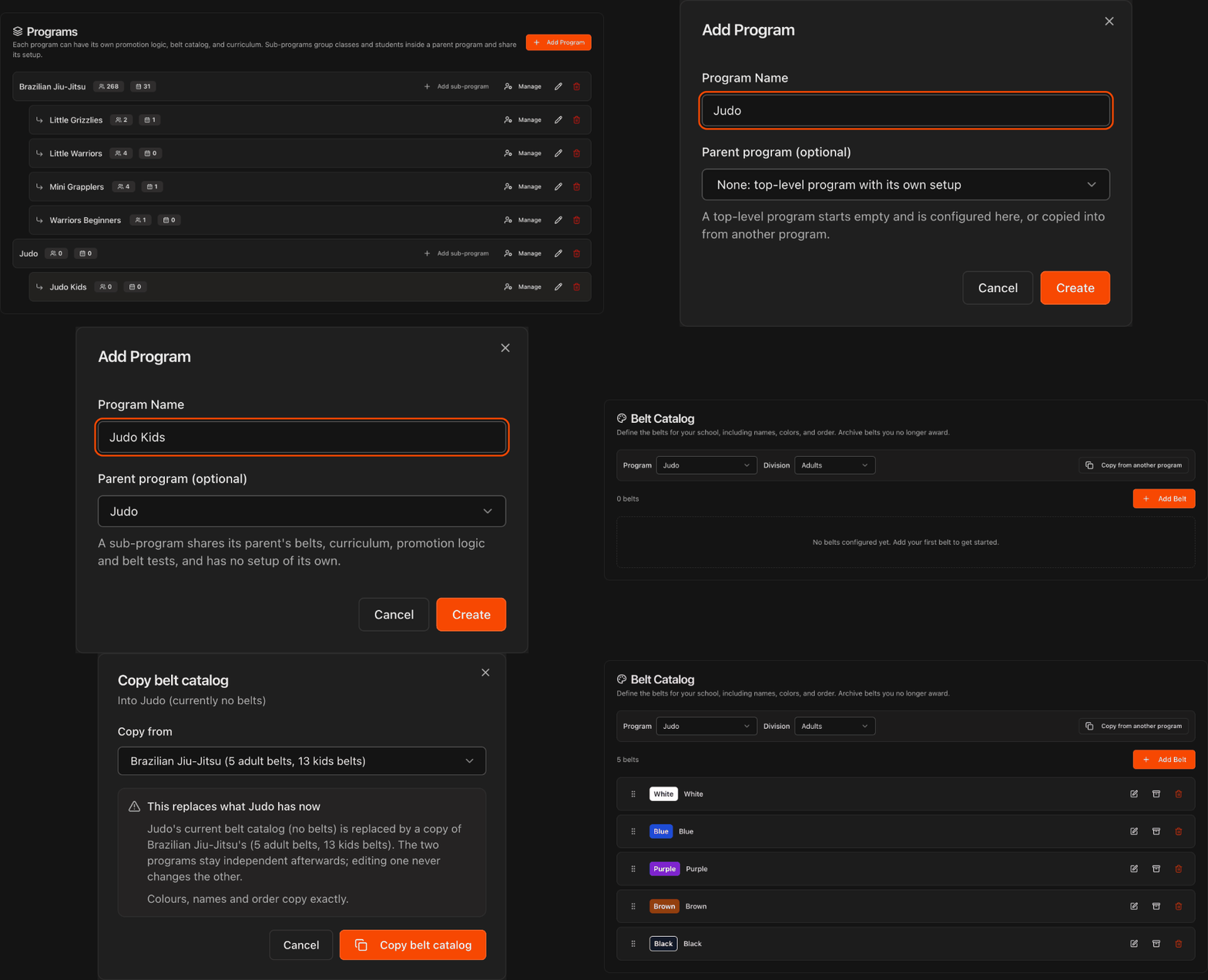
A new top-level program starts empty. Give it belts and a curriculum in step 5, or copy them from another program.
Add a sub-program
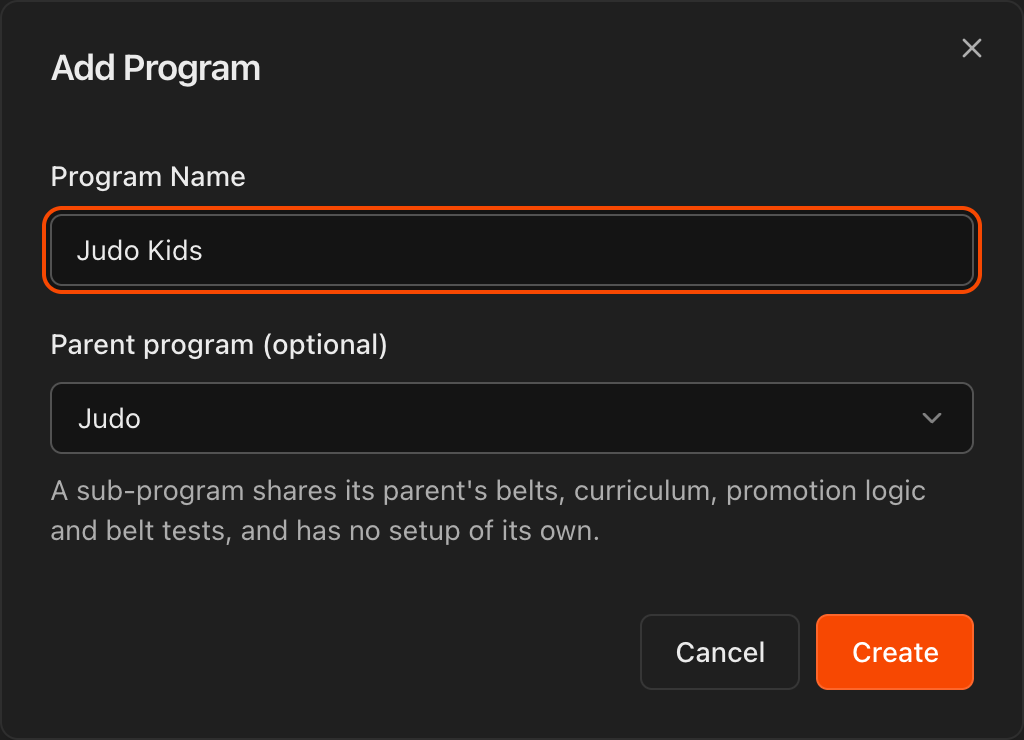
Click Add sub-program on the parent program's row. The Add Program dialog opens with the Parent program already selected.
Enter the Program Name and click Create. The sub-program appears indented under its parent.
Tip
Use sub-programs for age or level groups, such as kids classes, so instructors see the right students first when taking attendance. See Class Schedules for assigning a class to a program.
Rename or move a program
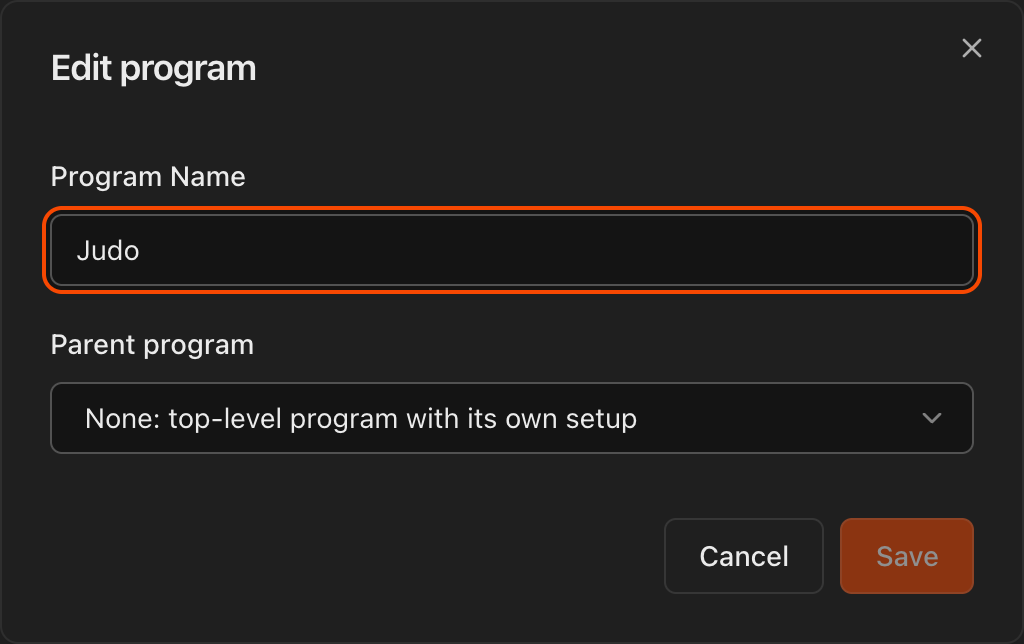
Click the pencil icon on any program row to open Edit program.
Change the Program Name, or use Parent program to move a program under a parent or back out to top level, then click Save.
Caution
A program can only be moved under a parent while it has no belts, curriculum, belt tests or student ranks of its own. Clear or copy them first. Nesting is one level deep: a sub-program cannot have sub-programs.
Note
Deleting a top-level program is blocked while any student holds a belt in it, any class is linked to it or its sub-programs, or it still has sub-programs. Deleting a sub-program only removes the grouping; ranks stay on the parent.
Pick a program in each curriculum section
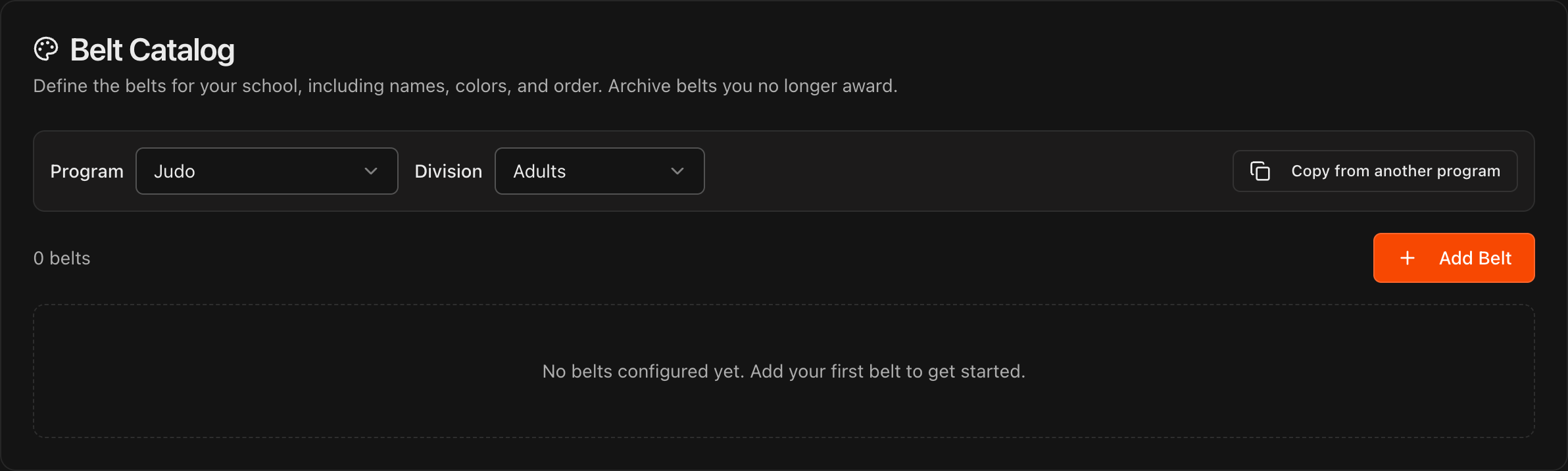
Edit Curriculum, Belt Catalog, Belt Test Requirements and the Promotion Logic dialog each have a Program dropdown in their toolbar. Only top-level programs are listed.
Choose a program to view and edit that program's setup. The dropdowns are independent, so pick the program in each section you edit.
A program with nothing configured yet shows an empty state with a pointer to Copy from another program.
Copy setup from another program
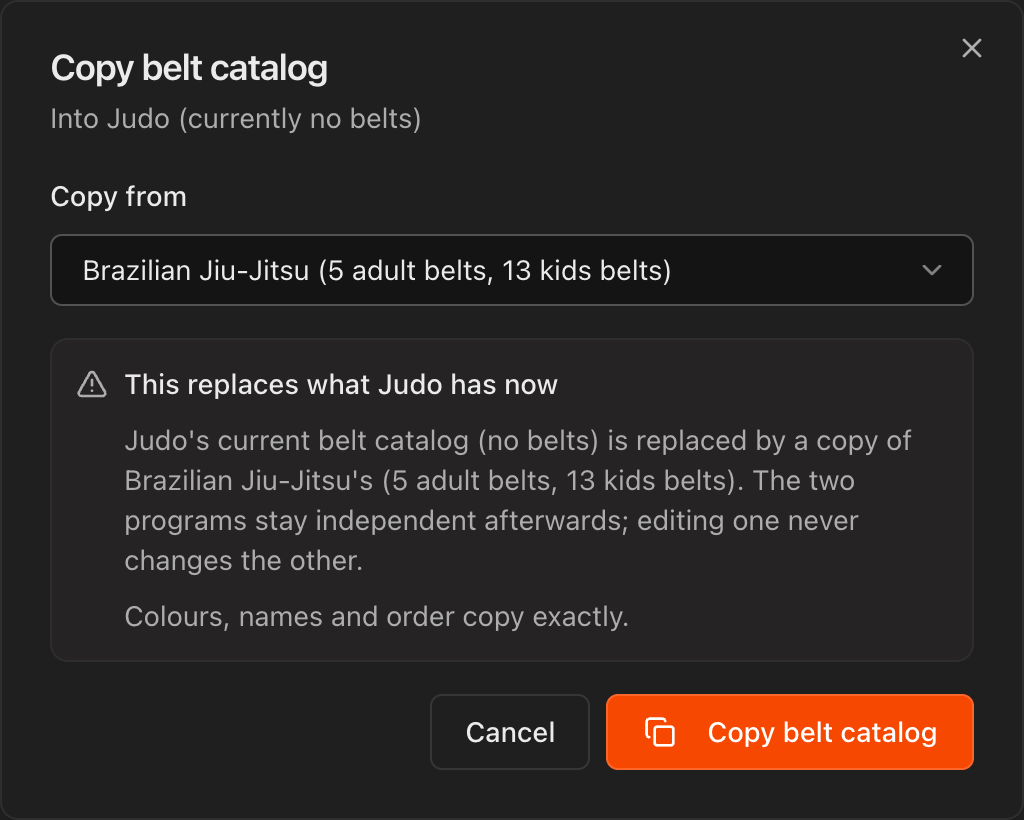
Click Copy from another program in the section's toolbar. The dialog is titled for what it copies, for example Copy belt catalog, and shows the target program under the title.
Under Copy from, choose the source program. Each option shows what it holds, such as 5 adult belts and 13 kids belts.
Read the warning: the copy replaces whatever the target program has now. Afterwards the two programs are independent, so editing one never changes the other.
Click the orange Copy button. A toast confirms how many items were copied.
Caution
Belt catalogs cannot be copied into a program where any student already holds a belt. Archive or reassign those belts first, or add belts one at a time.
Copy belt tests and promotion requirements
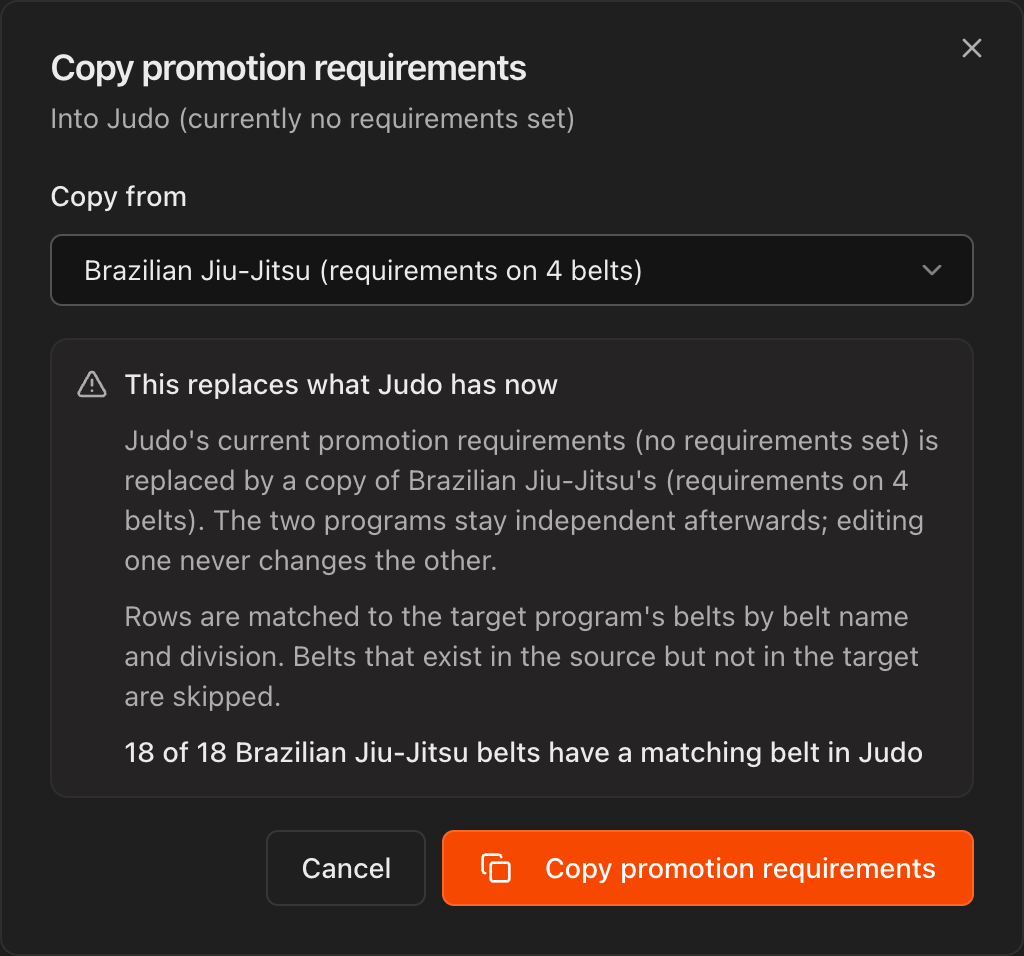
Copy the belt catalog first. Belt tests and promotion requirements are matched to the target program's belts by belt name and division, and the dialog shows how many belts matched, for example 18 of 18 Brazilian Jiu-Jitsu belts have a matching belt in Judo.
Belts that exist in the source but not in the target are skipped. If nothing matches, the copy button stays disabled until you copy the belt catalog.
In the Promotion Logic dialog, switch the Program dropdown to the target program before clicking Copy from another program, because the copy always goes into the program currently selected.
Enroll students and set a belt per program
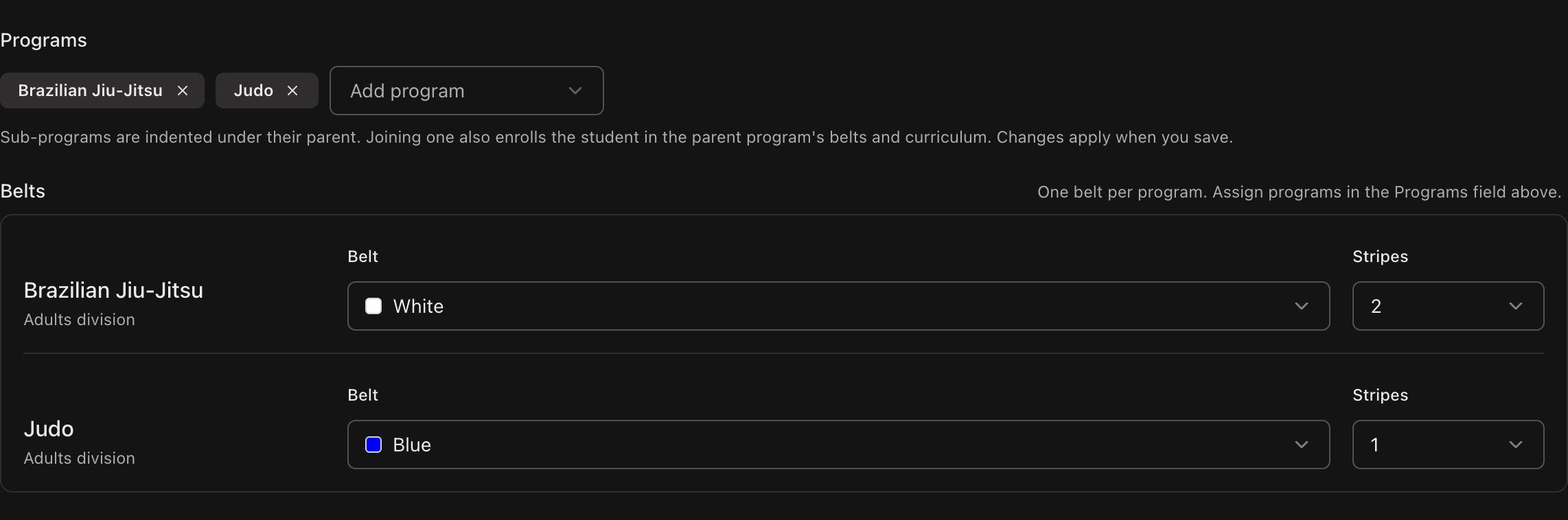
Open a student's Student Information page. On the Details tab, use the Programs field to add each program or sub-program the student trains in. Sub-programs are indented under their parent in the list, and joining one also enrolls the student in the parent for belts and curriculum.
The Belts block shows one row per top-level program the student belongs to. Pick the Belt and Stripes for each program, then save.
Note
Students in a program with no belts yet see a disabled belt dropdown until you add belts to that program's catalog.
Filter students by program
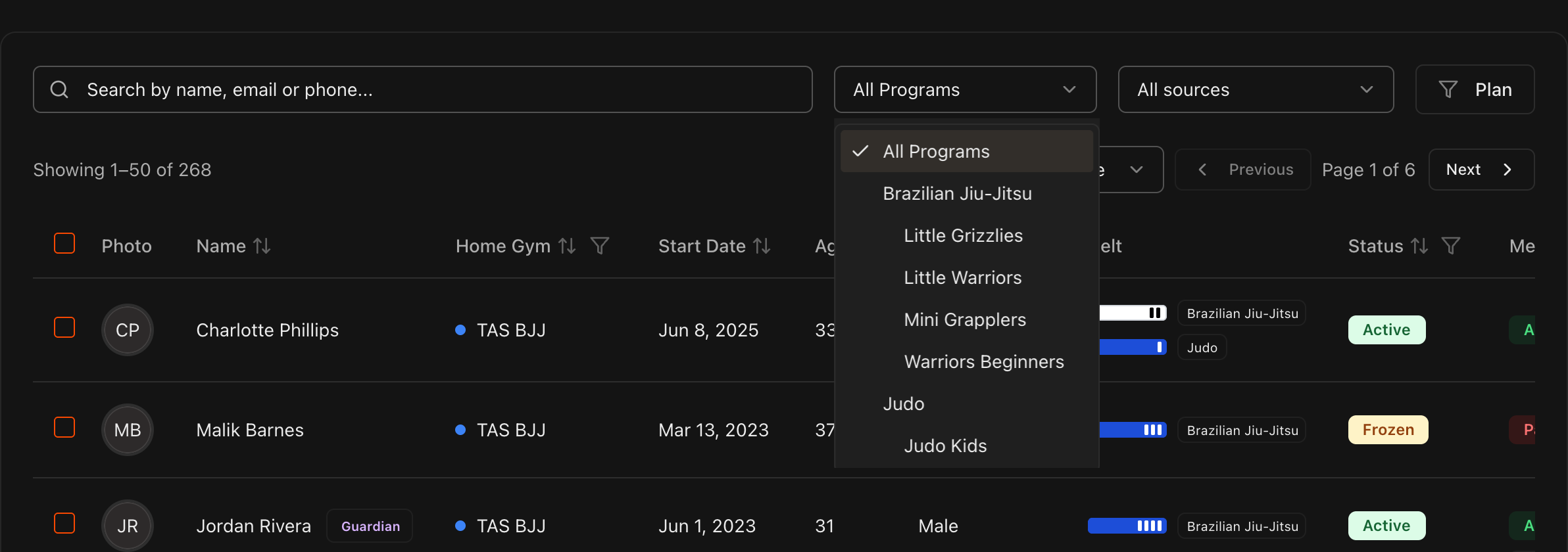
On the Students page, use the All Programs dropdown next to the search box. Top-level programs are listed with their sub-programs indented underneath.
Under All Programs, the Belt column stacks one belt bar per program the student holds a rank in, each tagged with its program name.
Pick a top-level program to include everyone enrolled in it or any of its sub-programs, or pick a sub-program to narrow to that group only. The Belt column then shows the single belt for that program and becomes sortable again.