Open the Trial & waiver tab of a lead form
Go to Leads > Lead Forms, open a form with the pencil icon (or click New Form) and click the Trial & waiver tab.
After submitting, the lead can book a trial class and then sign a waiver, in that order. Each step can be turned off, and the lead is created the moment the form is submitted, whatever happens next.
Both steps are off on forms you built before this update and on by default on new forms. The same two steps apply to the enquiry form on your Kmura landing page.
Note
Building the form itself (fields, design, routing and embedding) is covered in Creating A Form For Your Website.
Offer group classes from your schedule
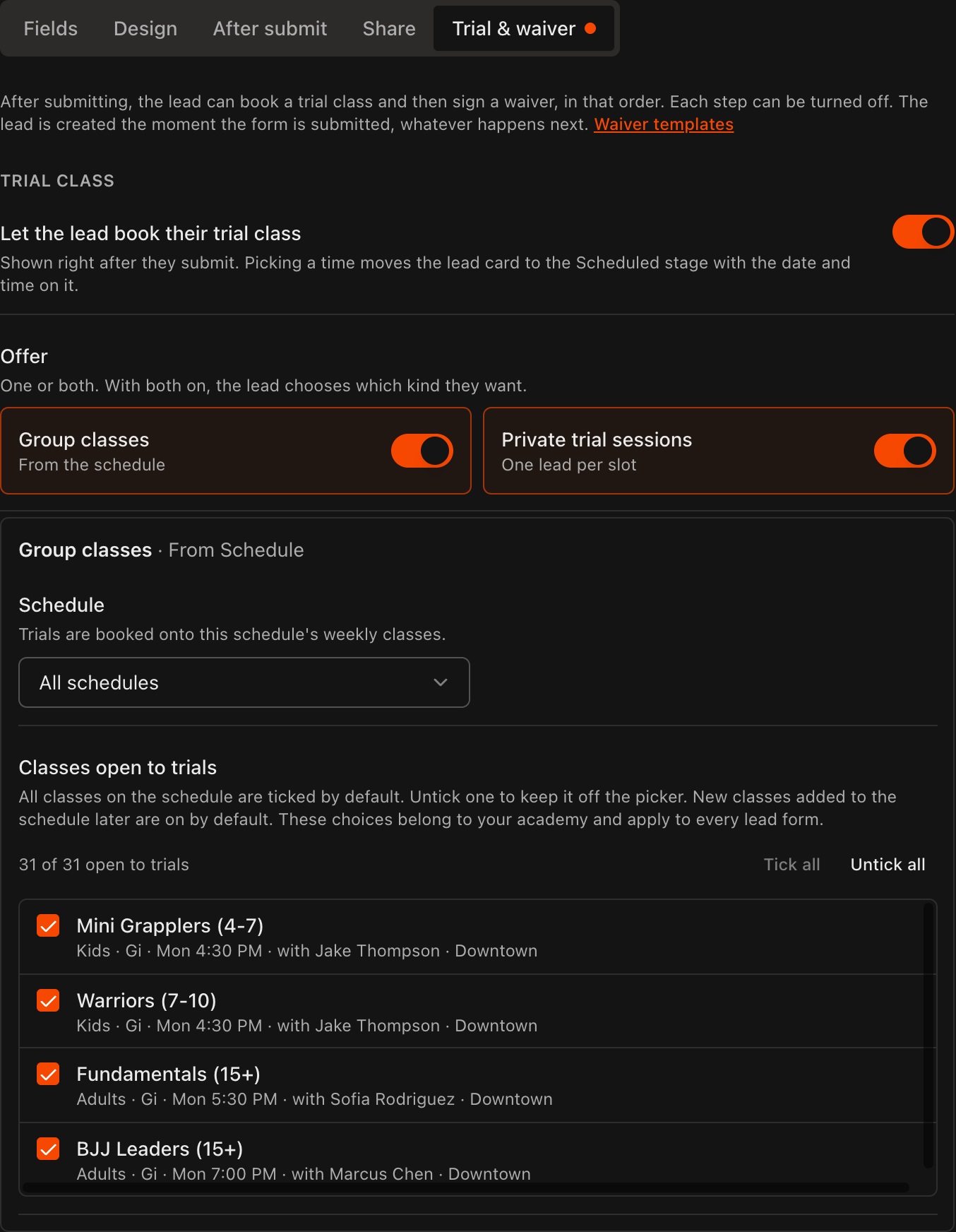
Under Trial class, turn on Let the lead book their trial class. Picking a time moves the lead card to the Scheduled stage with the date and time on it.
Under Offer, turn on Group classes (from your schedule), Private trial sessions (one lead per slot) or both. With both on, the lead chooses which kind they want.
Under Group classes, pick the Schedule trials are booked onto, or leave All schedules.
Under Classes open to trials, every class is ticked by default. Untick a class to keep it off the picker; new classes added to the schedule later are on by default. Use Tick all and Untick all to change many at once.
Leave Match the lead's age group on so a form that asks Adult or Child only shows the classes for that answer.
Set the Booking window: how many days ahead a lead can book and how long before the start a class stops being offered.
Note
The classes you tick or untick belong to your academy and apply to every lead form, not just the one you are editing.
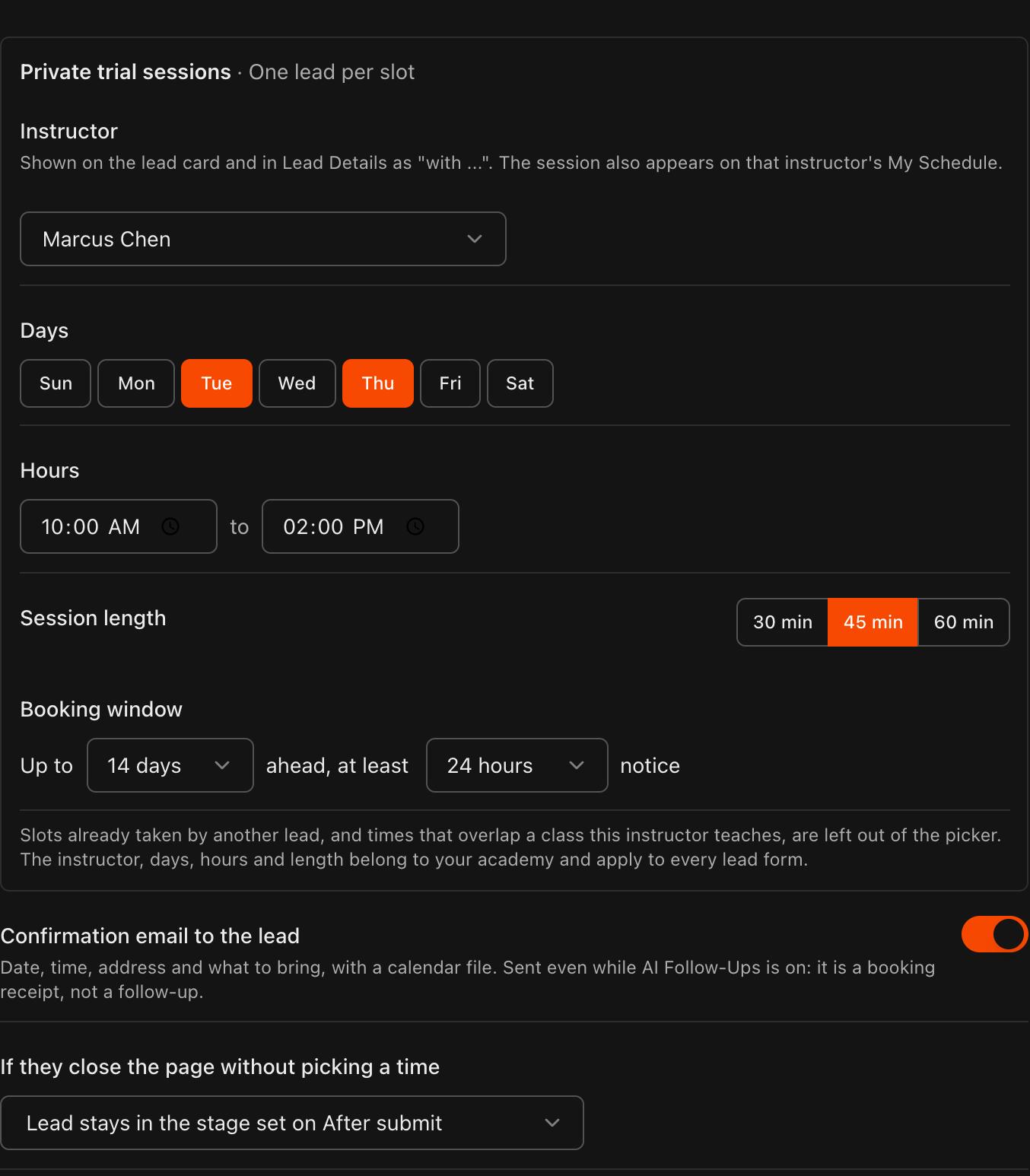
Offer private trial sessions
Under Private trial sessions, choose the Instructor who runs them. The session shows on the lead card and in Lead Details as "with ..." and lands on that instructor's My Schedule.
Pick the Days, set the Hours from and to, and choose a Session length of 30 min, 45 min or 60 min.
Set the Booking window: how many days ahead and how much notice a lead must give.
Slots already taken by another lead, and times that overlap a class this instructor teaches, are left out of the picker.
Leave Confirmation email to the lead on to send the date, time, address and what to bring, with a calendar file.
Under If they close the page without picking a time, choose where the lead stays; by default it stays in the stage set on After submit.
Note
Private sessions need an instructor, at least one day and hours that fit one session before the form can be saved with them on.
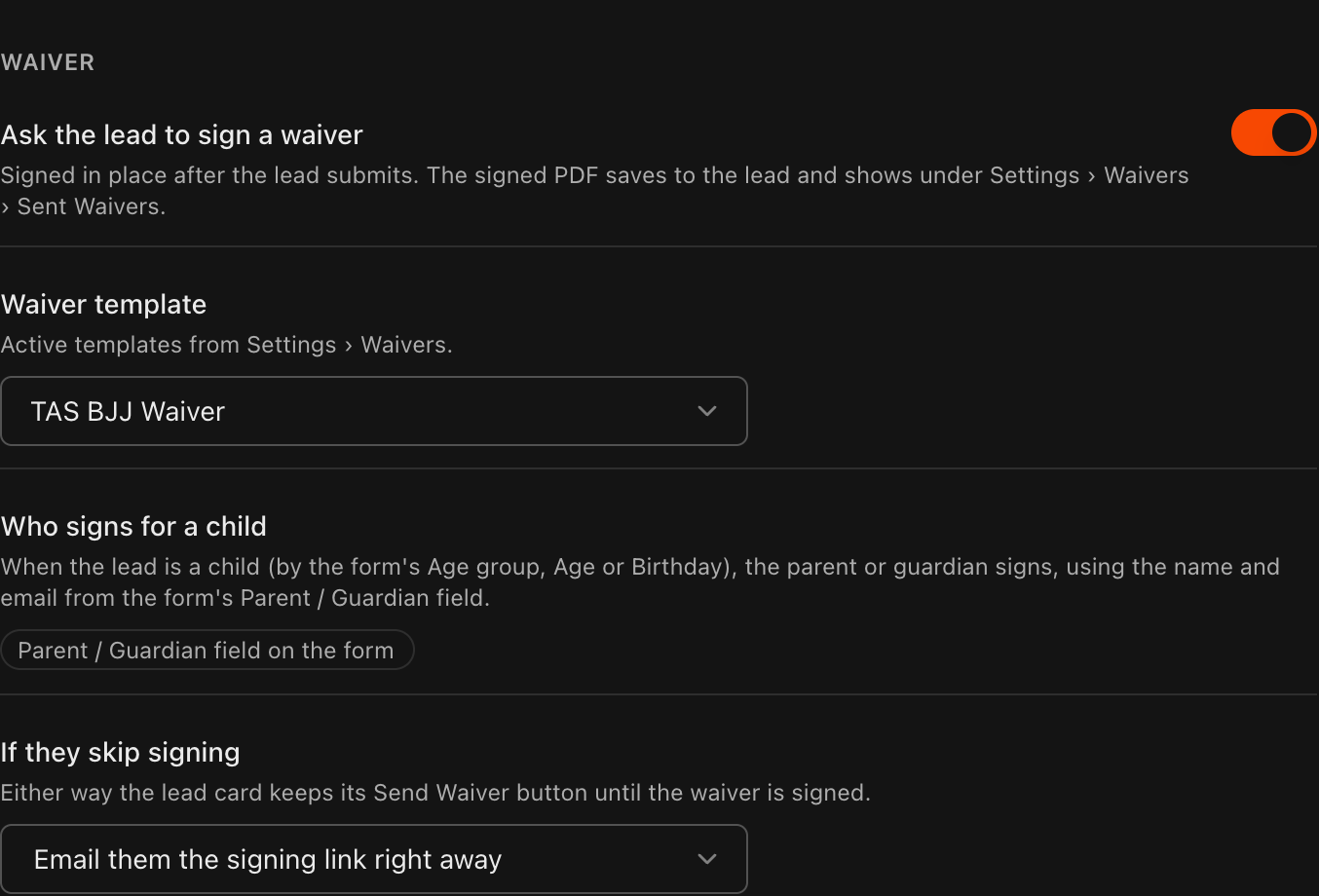
Ask the lead to sign a waiver
Under Waiver, turn on Ask the lead to sign a waiver. It is signed in place right after the trial step, and the signed PDF saves to the lead and shows under Settings > Waivers > Sent Waivers.
Pick the Waiver template from the active templates under Settings > Waivers.
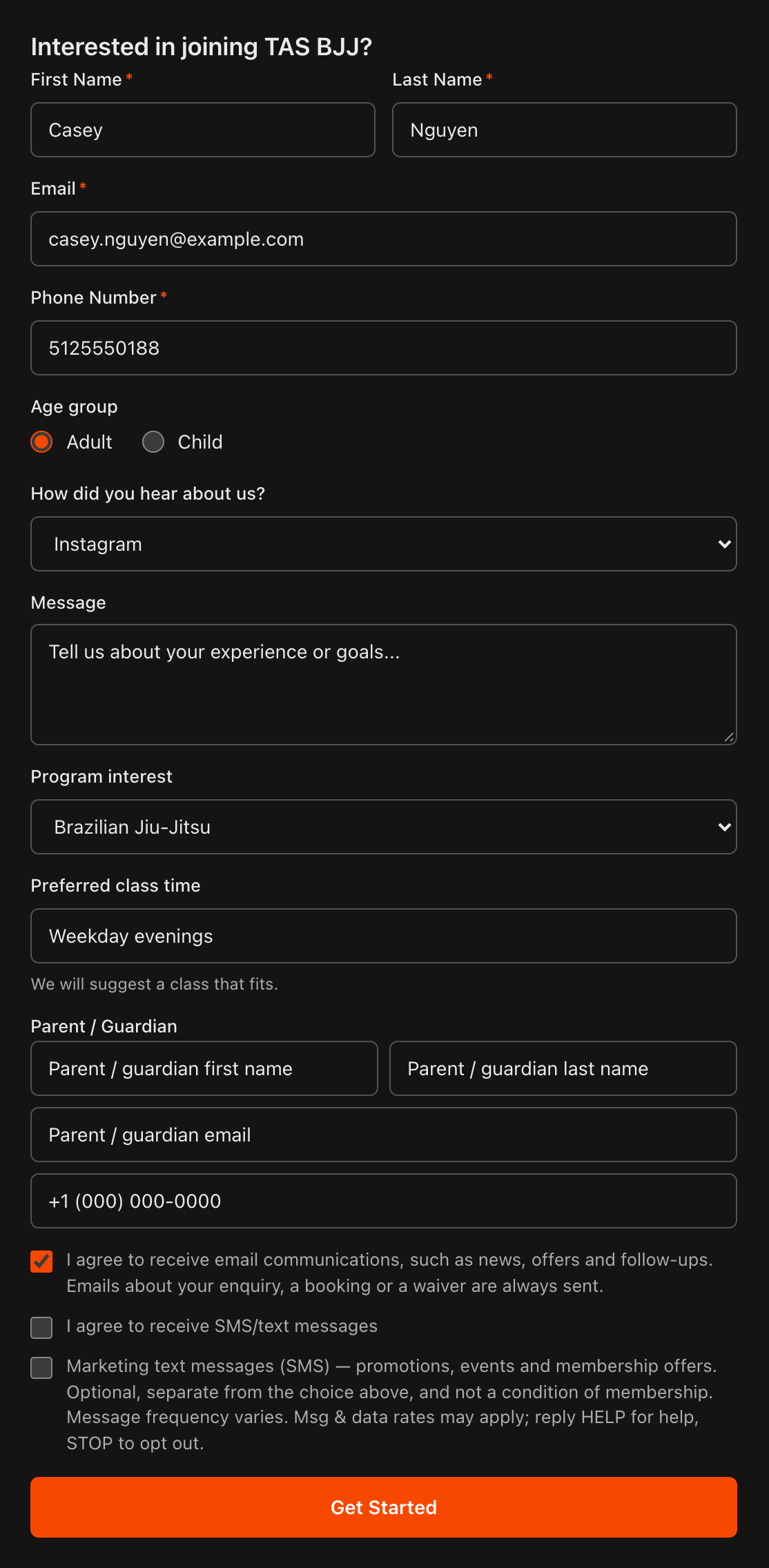
Under Who signs for a child, the parent or guardian signs when the lead is a child, using the name and email from the form's Parent / Guardian field. If the form does not have that field yet, click Add Parent / Guardian field.
Under If they skip signing, leave Email them the signing link right away so nobody slips through. Either way, the lead card keeps its Send Waiver button until the waiver is signed.
Tip
Use the same template you set as **Required For New Students** or **Required For Attendance**. A waiver signed as a lead carries over when the lead converts to a student, so they are not asked to sign it again.
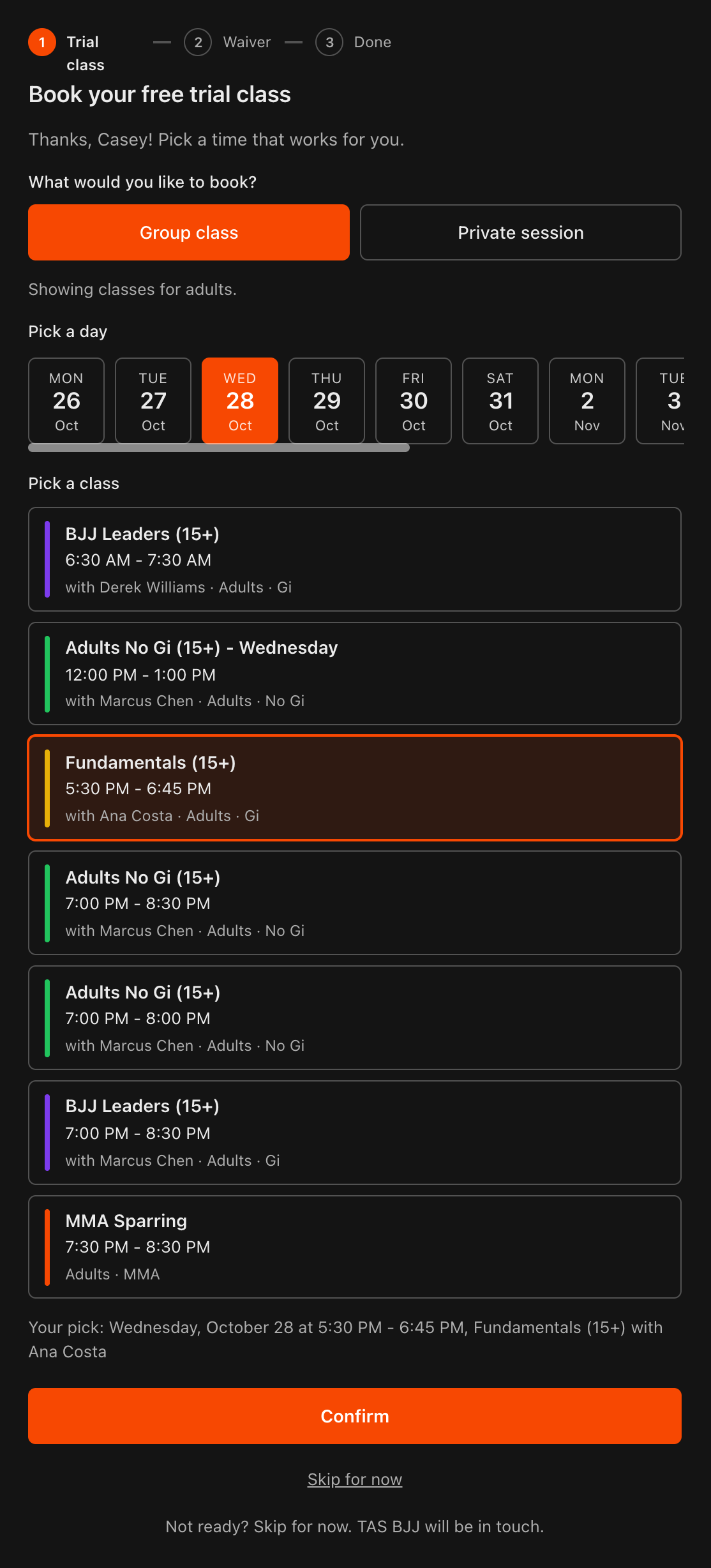
The lead picks a class
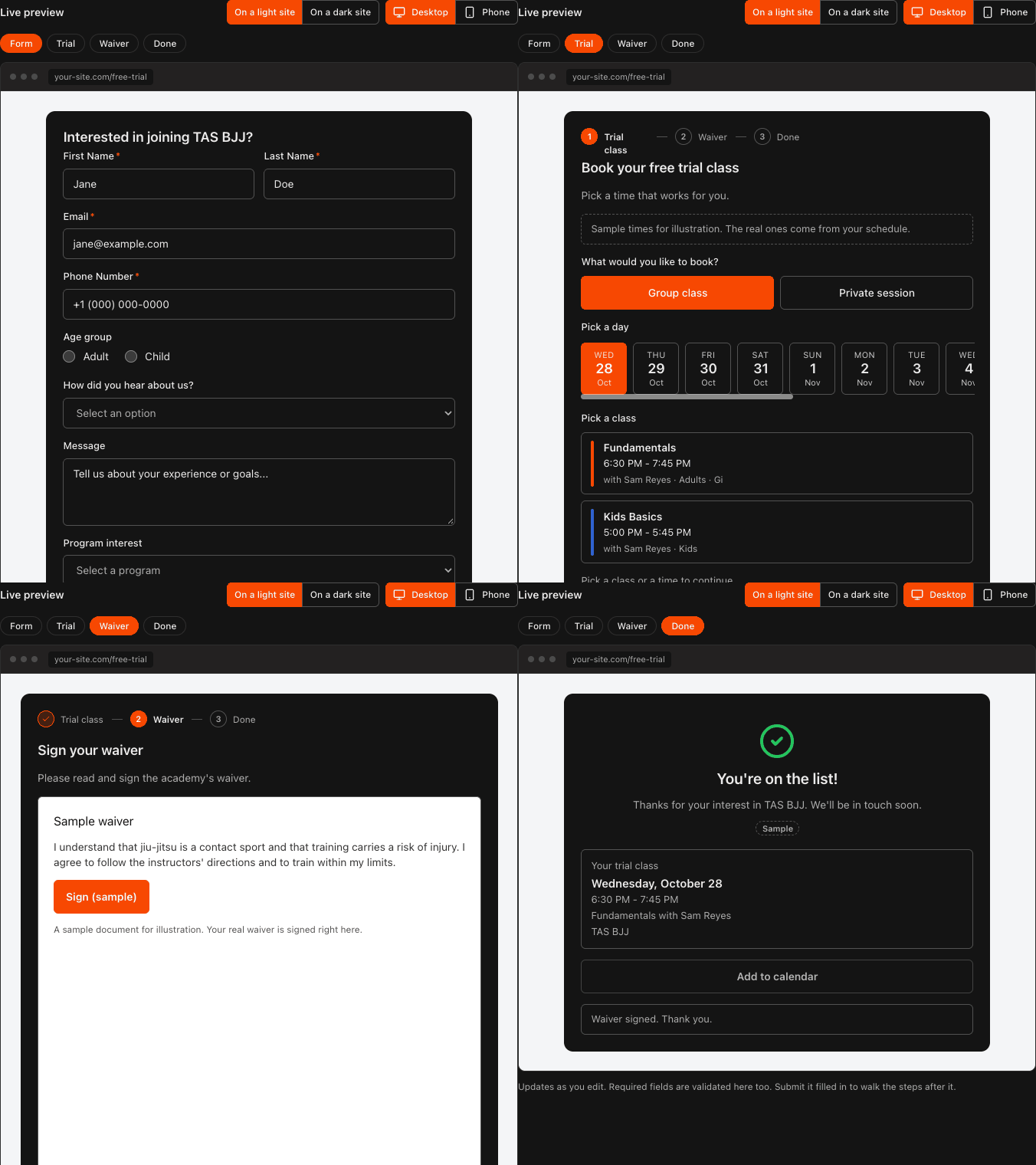
Right after clicking Get Started, the lead sees Book your free trial class with the steps Trial class, Waiver and Done across the top.
They choose Group class or Private session, pick a day and then a class or time slot from the list. The list shows only the classes you opened to trials, for the age group they picked.
They click Confirm to book, or Skip for now to carry on without booking.
Group classes come straight from your schedule, so the lead sees the real class name, time and instructor.
Note
The **Live preview** in the builder shows this step with sample times. Submit the preview filled in to walk through it yourself.
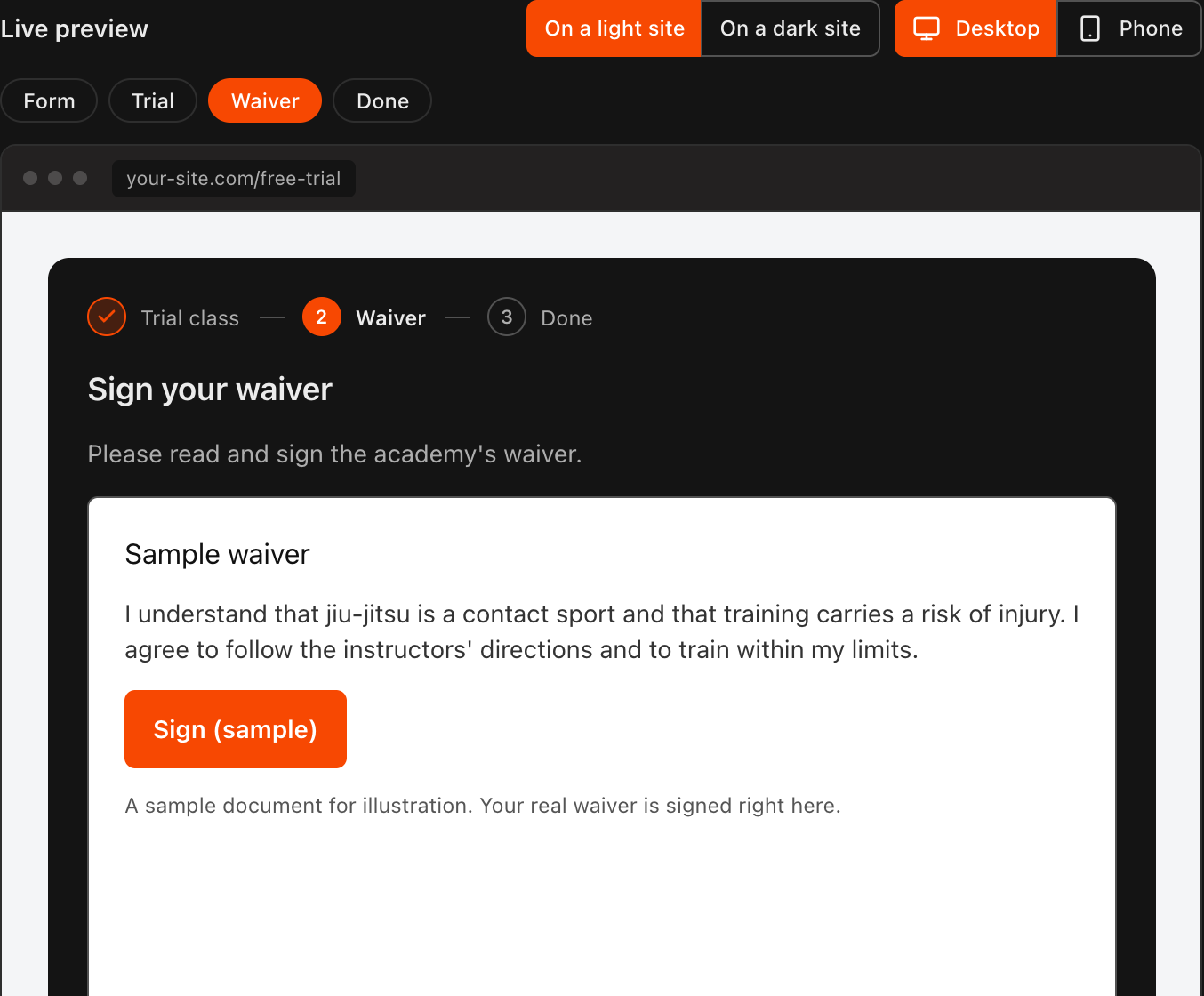
The lead signs the waiver
After booking, the lead lands on Sign your waiver and signs your template right there, with no email to open and no Kmura login.
For a child, the parent or guardian named on the form signs instead.
If the waiver cannot be opened at that moment, or the lead closes the page, Kmura emails them the signing link and the lead card shows Waiver sent, not signed until they do.
The lead sees their confirmation
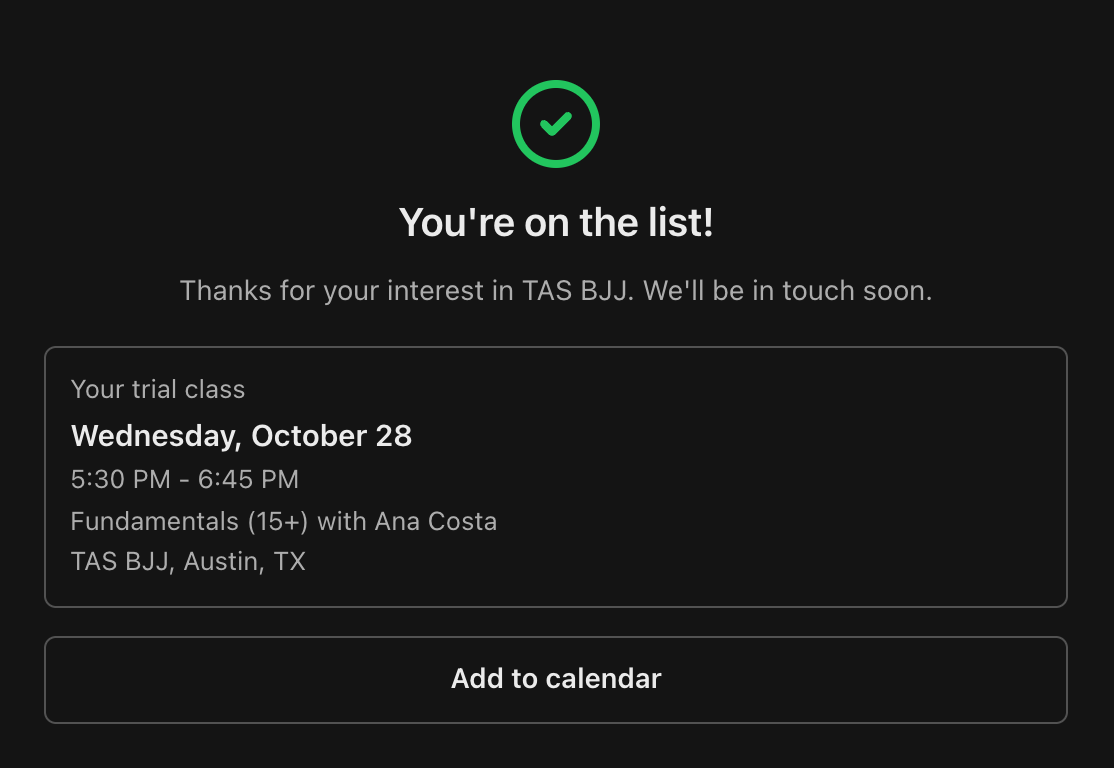
The Done screen confirms the booking: the day, the time, the class or session with the instructor and your academy's address, plus an Add to calendar button.
If Confirmation email to the lead is on, the same details go out by email with a calendar file.
See the booking on the Leads board
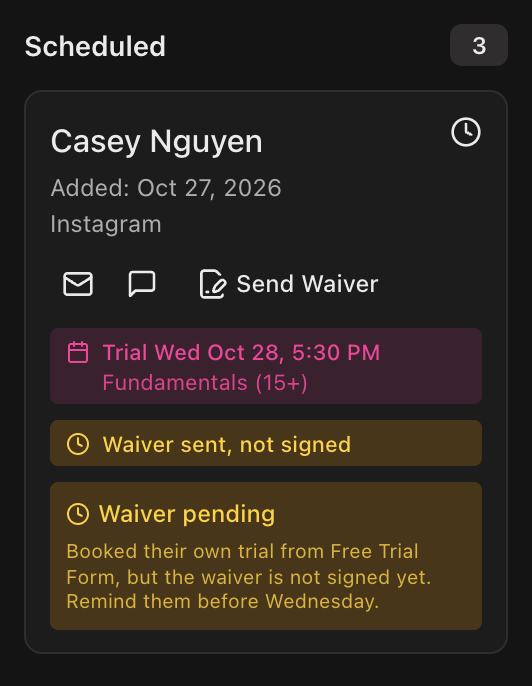
A lead who picked a time lands in the Scheduled column of the Leads board.
The card shows the trial date and time with the class name, the waiver state (Waiver sent, not signed until it is signed) and Kmura's suggestion for what to do next, for example reminding them to sign before class.
A lead who skipped stays in the stage set on the form's After submit tab, with its Send Waiver button still available.
Note
A trial booked by the lead counts exactly like one you schedule from the card yourself. The lead must have someone under **Assigned To**, which the form sets through **Assign to** on **After submit**.
Manage the booking from Lead Details
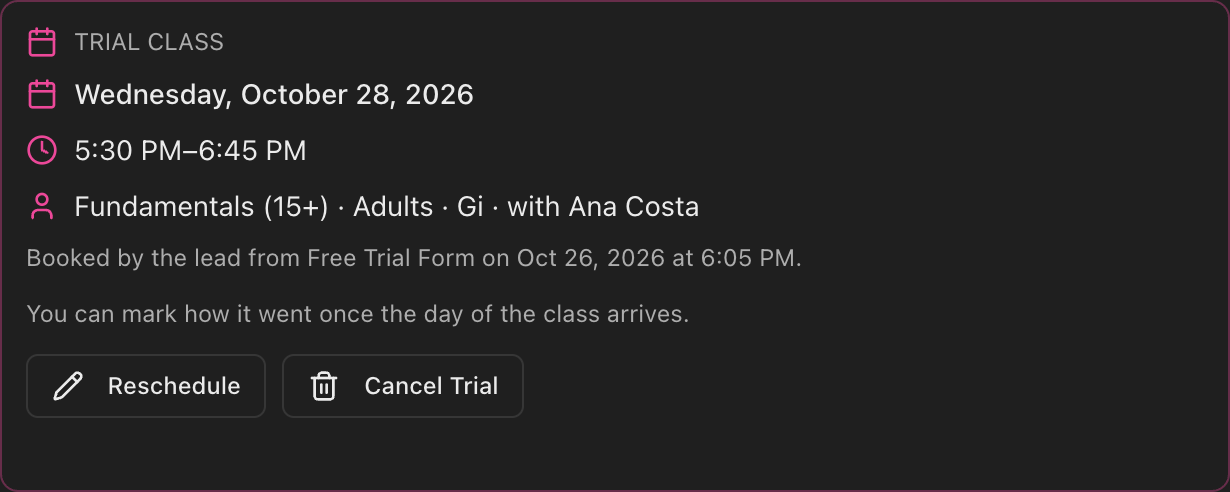
Open the lead. The Trial Class block shows the date, time, class, program and instructor, and records that it was Booked by the lead from which form and when.
Click Reschedule to move it or Cancel Trial to drop it. After the class, mark how it went from the same block.
Lead Form Details further down lists everything the form sent, including the trial booking and the waiver status.
Tip
Everything about trial classes on the board, including **How did the trial class go?**, is covered in Managing The Leads Pipeline.