
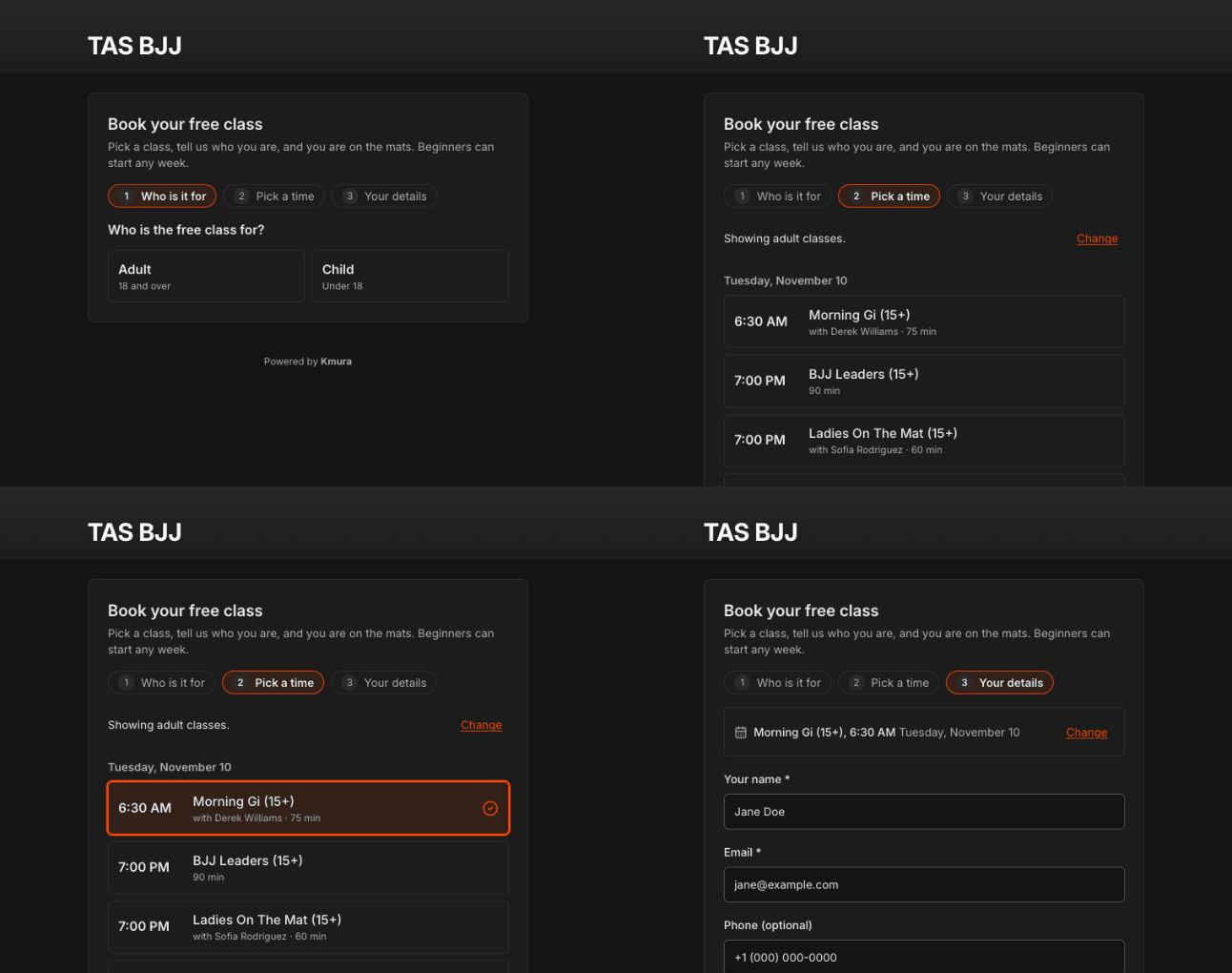
Open the booking page tab and turn it on
Under Leads, click Landing Page, then click the Free class booking page tab at the top. The pill on the tab reads On or Off.
On the Booking settings sub-tab, turn on Let leads book their own free class on a public page.
Your booking page shows the public link, with Copy and Open next to it.
Click Save. One Save and Discard bar covers both the landing page and the booking page.
Note
A booking creates a new lead, moves them to **Scheduled**, sends the confirmation and the waiver, and takes that time off every other lead's list.
Note
The booking page works with or without AI Follow-Ups. When AI Follow-Ups is on, it puts this link in every invite and reschedule message.
Choose which group classes leads can book
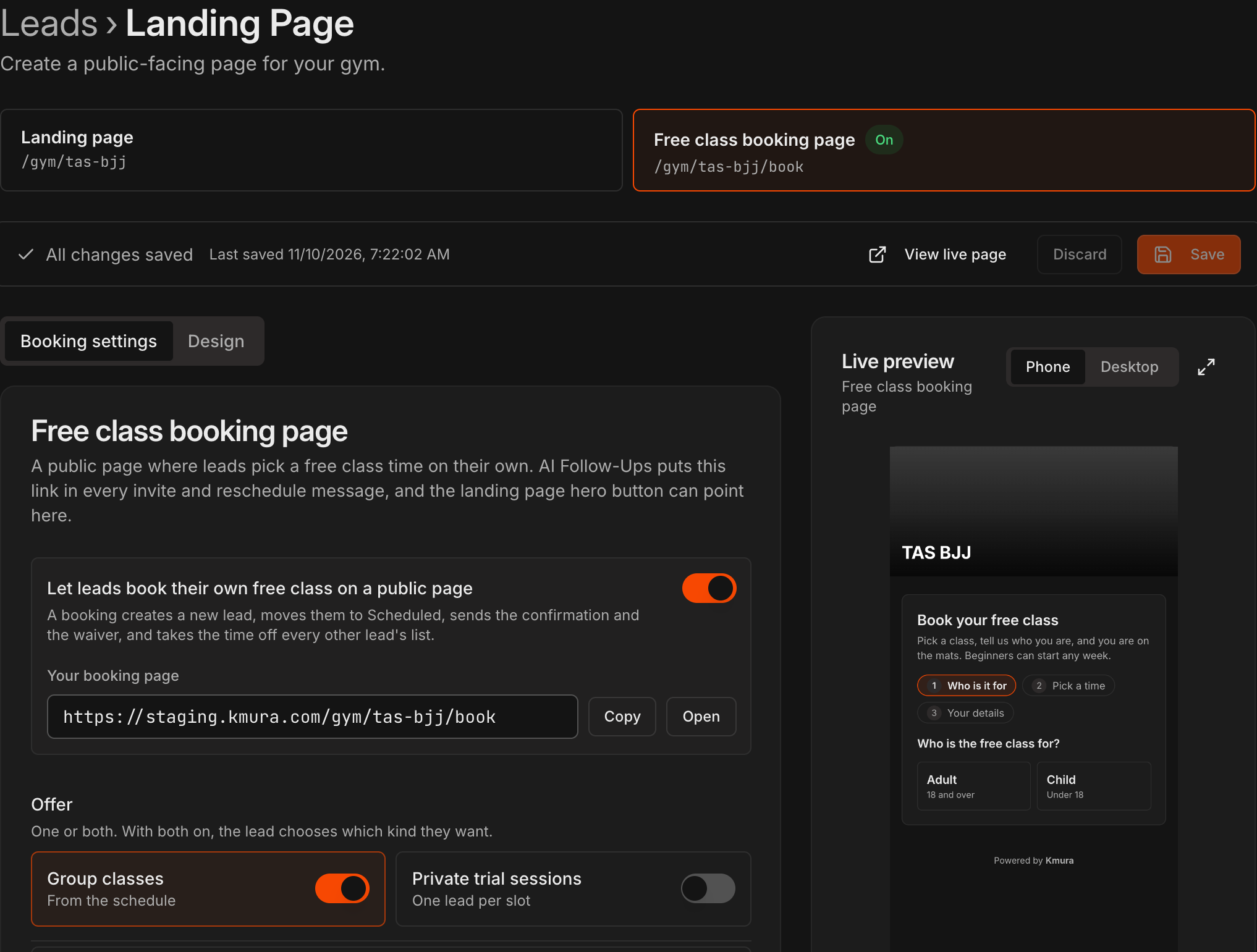
Under Offer, turn on Group classes, Private trial sessions, or both. With both on, the lead chooses which kind they want.
Under Schedule, pick the schedule trials are booked onto, or leave All schedules.
Under Classes open to trials, untick any class you want kept off the picker. Tick all and Untick all change many at once.
Leave Match the lead's age group on so the page asks Adult or Child first and shows only the classes for that answer. All-ages classes show for both.
Set the Booking window: how many days ahead a lead can book, and how long before the start a class stops being offered.
Note
**Classes open to trials** is marked **Shared with all lead forms**. It is one academy-wide list, so a change here changes every lead form, and the reverse. Settings marked **This page only** apply to the booking page alone.
Offer private trial sessions
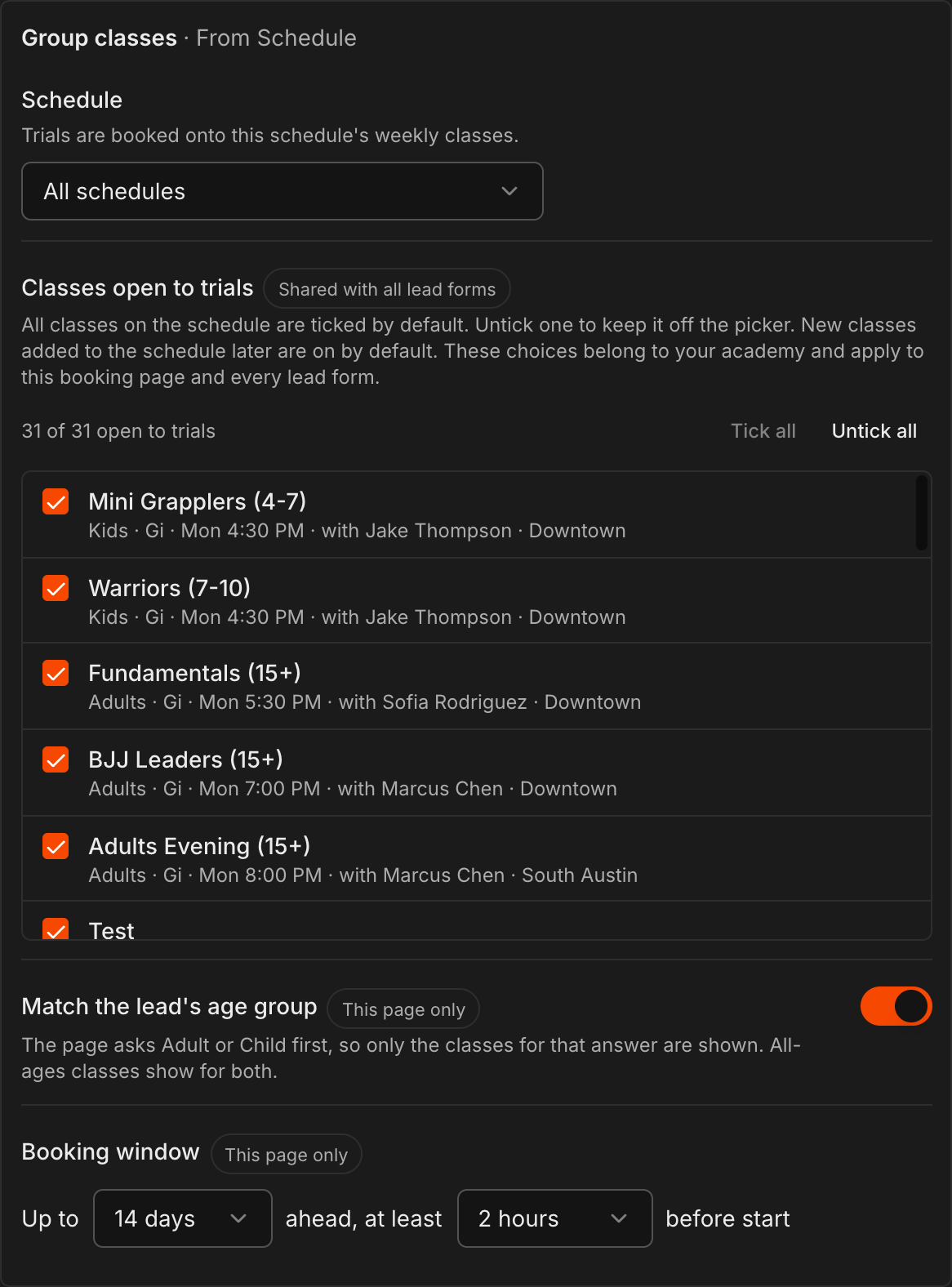
Turn on Private trial sessions under Offer to open its panel.
Instructor, Days, Hours and Session length are shared with every lead form, so you set them once.
The Booking window here applies to this page only: how many days ahead, and how much notice a lead must give.
Slots already taken by another lead, and times that overlap a class this instructor teaches, are left out of the picker.
Note
The full private session setup is covered in Letting Leads Book A Trial Class From Your Form.
Design the booking page
Click the Design sub-tab.
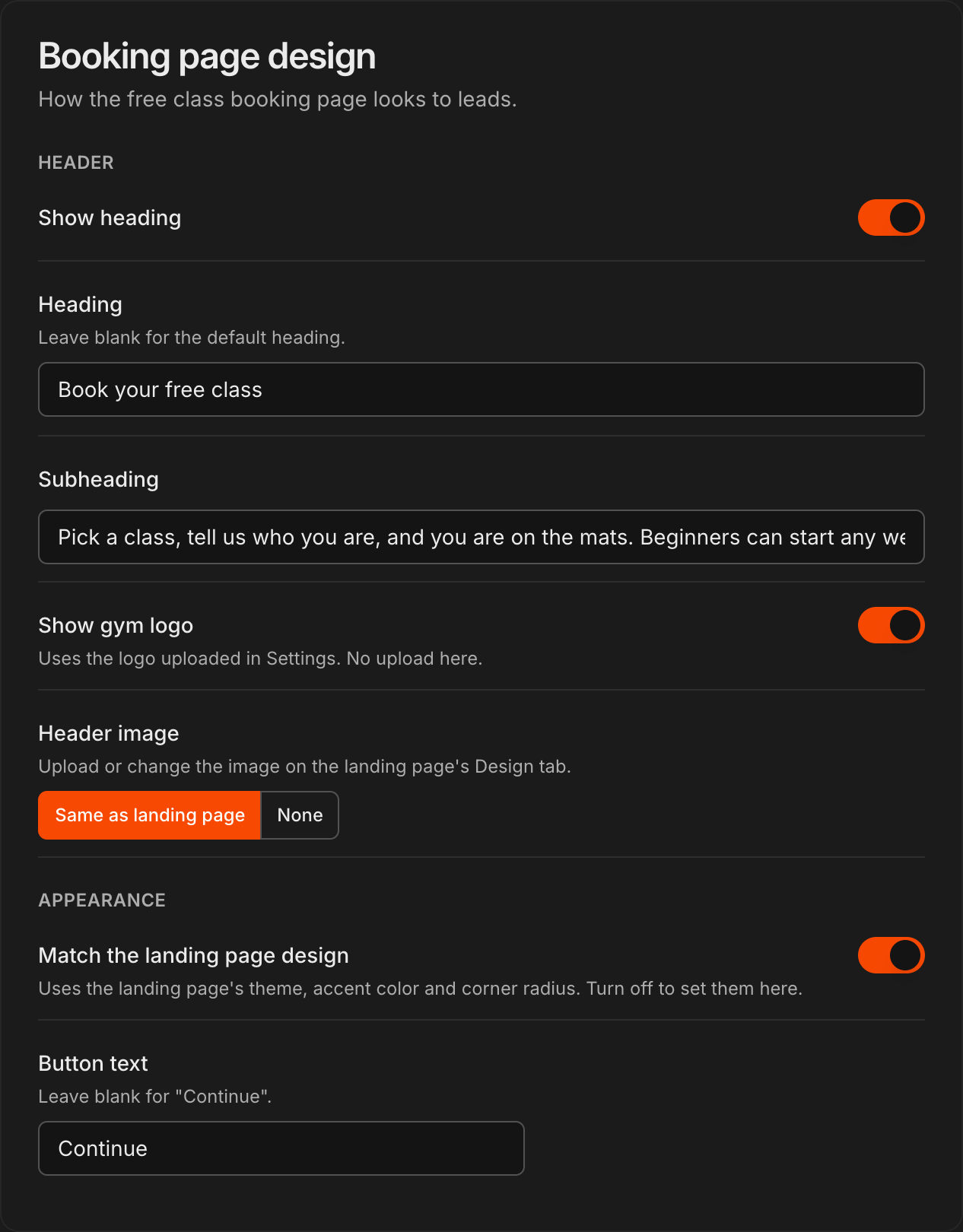
Under Header, set Show heading, Heading, Subheading and Show gym logo. A blank heading or subheading uses the default text.
Under Header image, choose Same as landing page or None.
Match the landing page design is on by default and uses the landing page's theme, accent color and corner radius. Turn it off to set them for this page.
Button text renames the step button. Leave it blank for Continue.
Watch the Live preview on the right, and switch between Phone and Desktop to check both.
Tip
The header image itself is uploaded on the landing page's **Design** sub-tab. See Creating A Kmura-Hosted Landing Page.
What a lead sees first
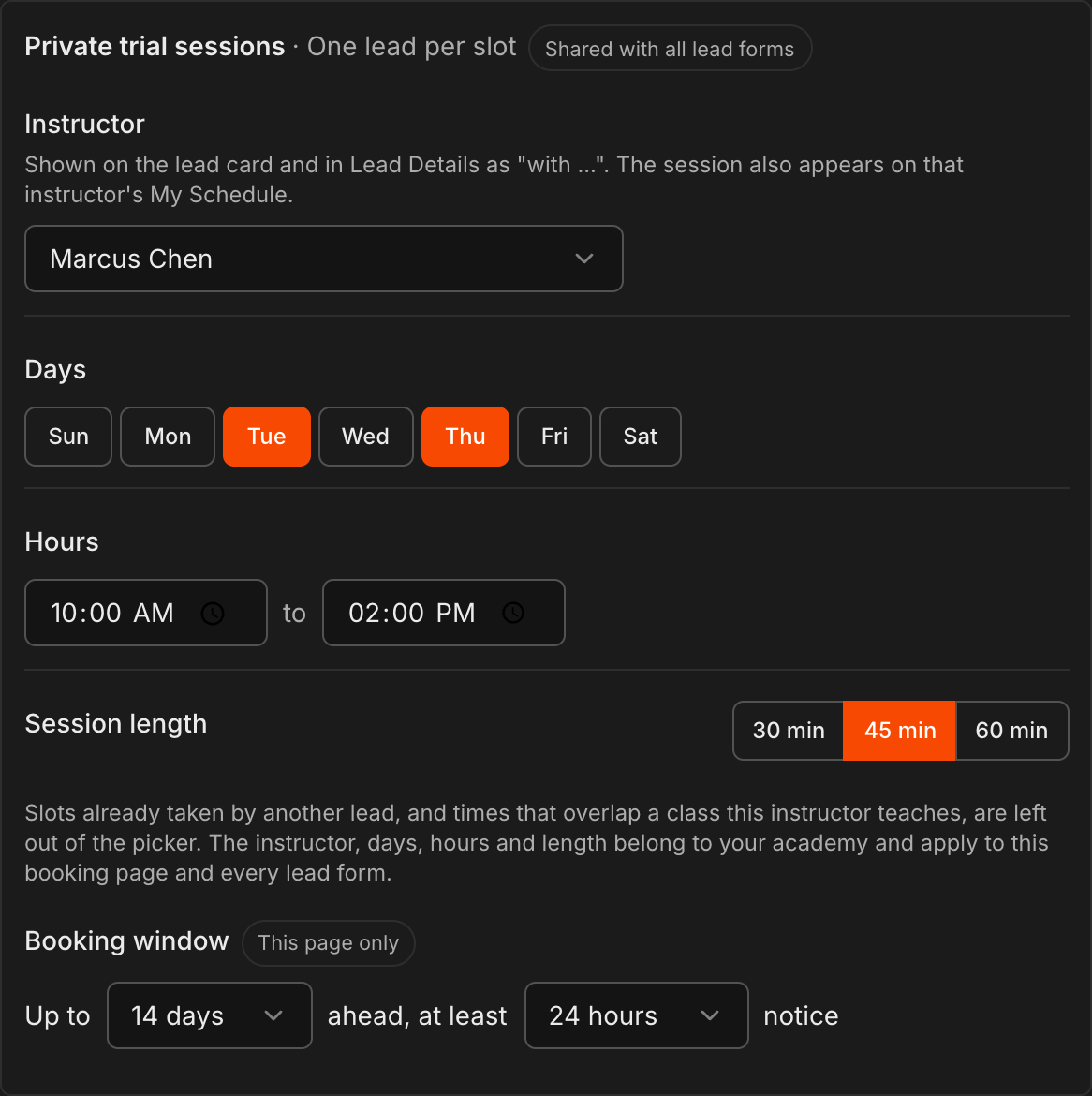
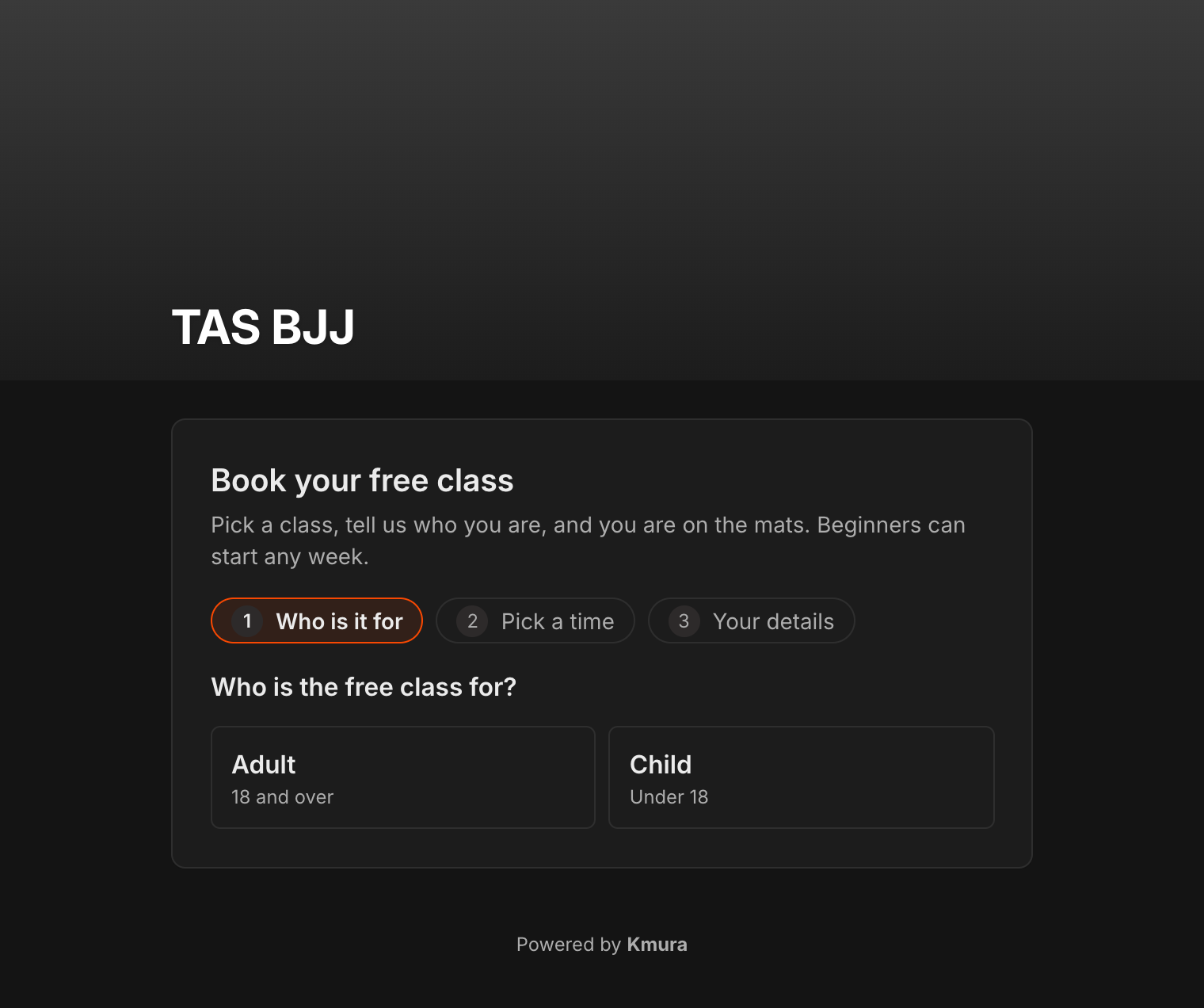
The public page runs in three steps: Who is it for, Pick a time and Your details.
With Match the lead's age group on, the lead starts by choosing Adult (18 and over) or Child (Under 18).
With both offers on, the lead also chooses a group class or a private session.
Picking a time and booking
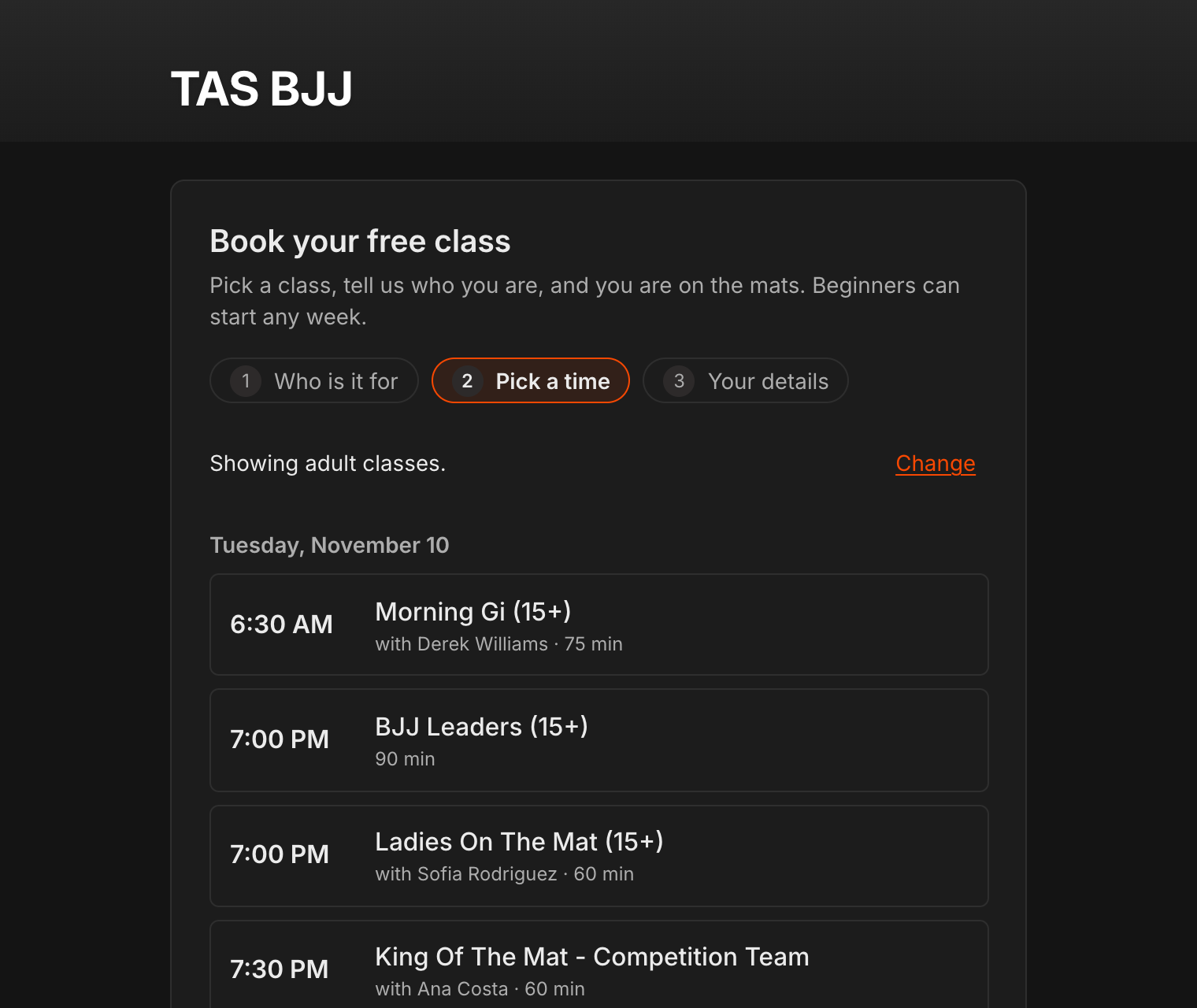
Pick a time lists the open classes by day, with the time, class name, instructor and length. Change goes back to the age choice.
The lead picks a class, clicks Continue, enters Your name, Email and an optional Phone, and clicks Book my free class.
The line under the list states the window, for example Showing the next 14 days of free classes.
Note
The age answer is saved on the lead, so a child's waiver goes to a parent or guardian.
Send people to your booking page
Point your landing page's hero button at it with Button goes to. See Creating A Kmura-Hosted Landing Page.
AI Follow-Ups puts the link in every invite and reschedule message. See Setting Up AI Lead Follow-Ups.
Click Copy next to Your booking page to share the link yourself, for example in your Instagram bio.
Note
If you turn the booking page off, AI Follow-Ups invites leave out the link and the hero button goes back to the enquiry form.