Understand campaigns and triggers
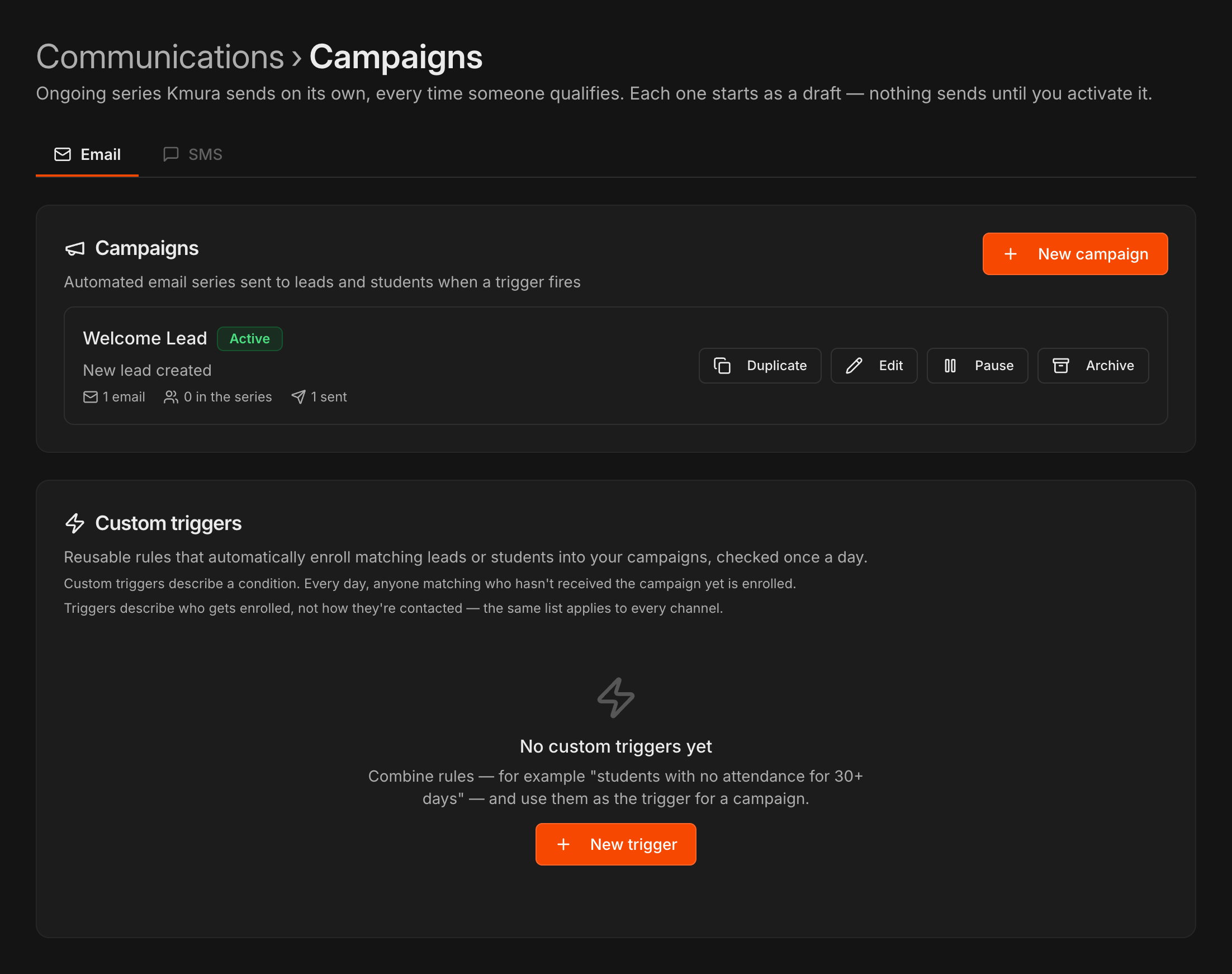
Go to Communications and open Campaigns. Use the Email or SMS tab to choose the channel you are building for.
A campaign is an ongoing series: every time someone qualifies, Kmura enrolls them and sends the messages on the schedule you set. It starts as a Draft and sends nothing until you activate it.
The page has two cards: Campaigns (your series) and Custom triggers (reusable rules that decide who gets enrolled).
Note
Triggers describe who gets enrolled, not how they are contacted. The same trigger can power an email campaign and an SMS campaign.
Note
SMS campaigns send through your gym's SMS service, which costs extra on top of your Kmura subscription ($150/month per location): a one-time $20 registration fee, $5/month, and the cost of the texts themselves, which depends on the number of segments and recipients. See Sending SMS.
Note
An SMS campaign only enrolls people who ticked the matching consent on their profile, **Marketing SMS** or **Transactional SMS** under **Communication Preferences**. See Sending SMS.
Note
A lead campaign skips every lead that AI Follow-Ups is working, so nobody gets two automated series at once. The lead becomes eligible again on the first daily check after it leaves AI Follow-Ups.
Pick a built-in trigger
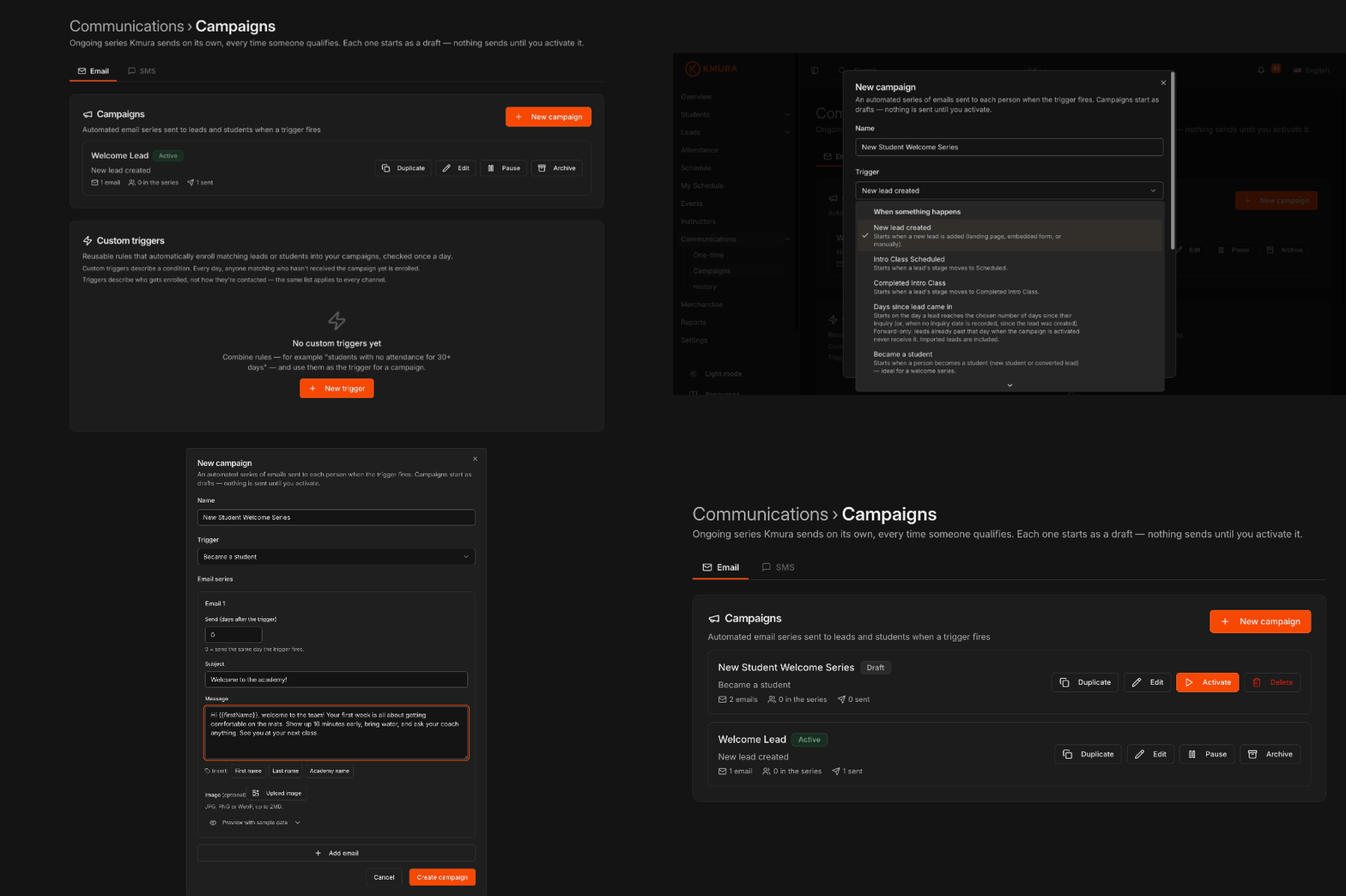
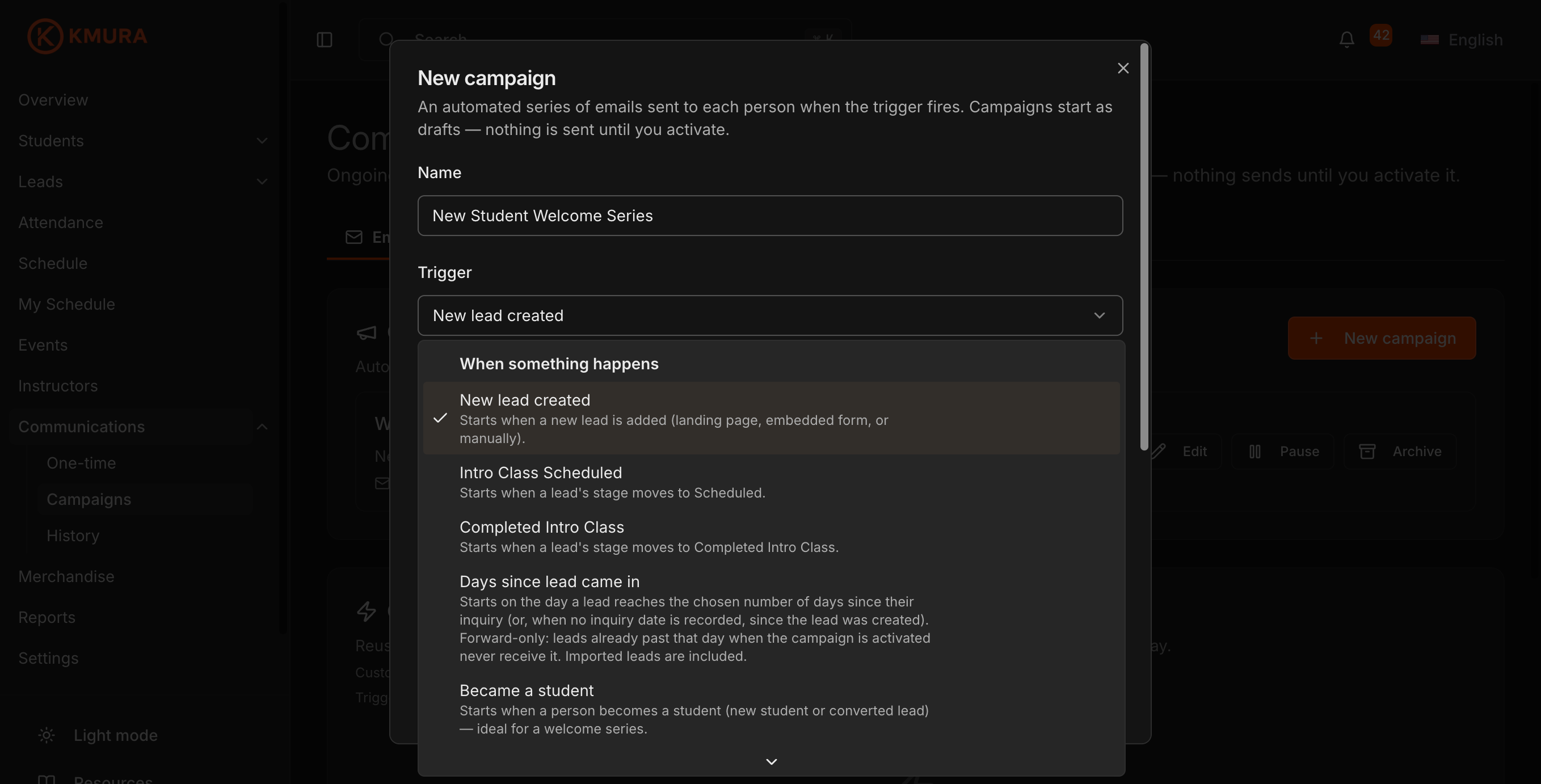
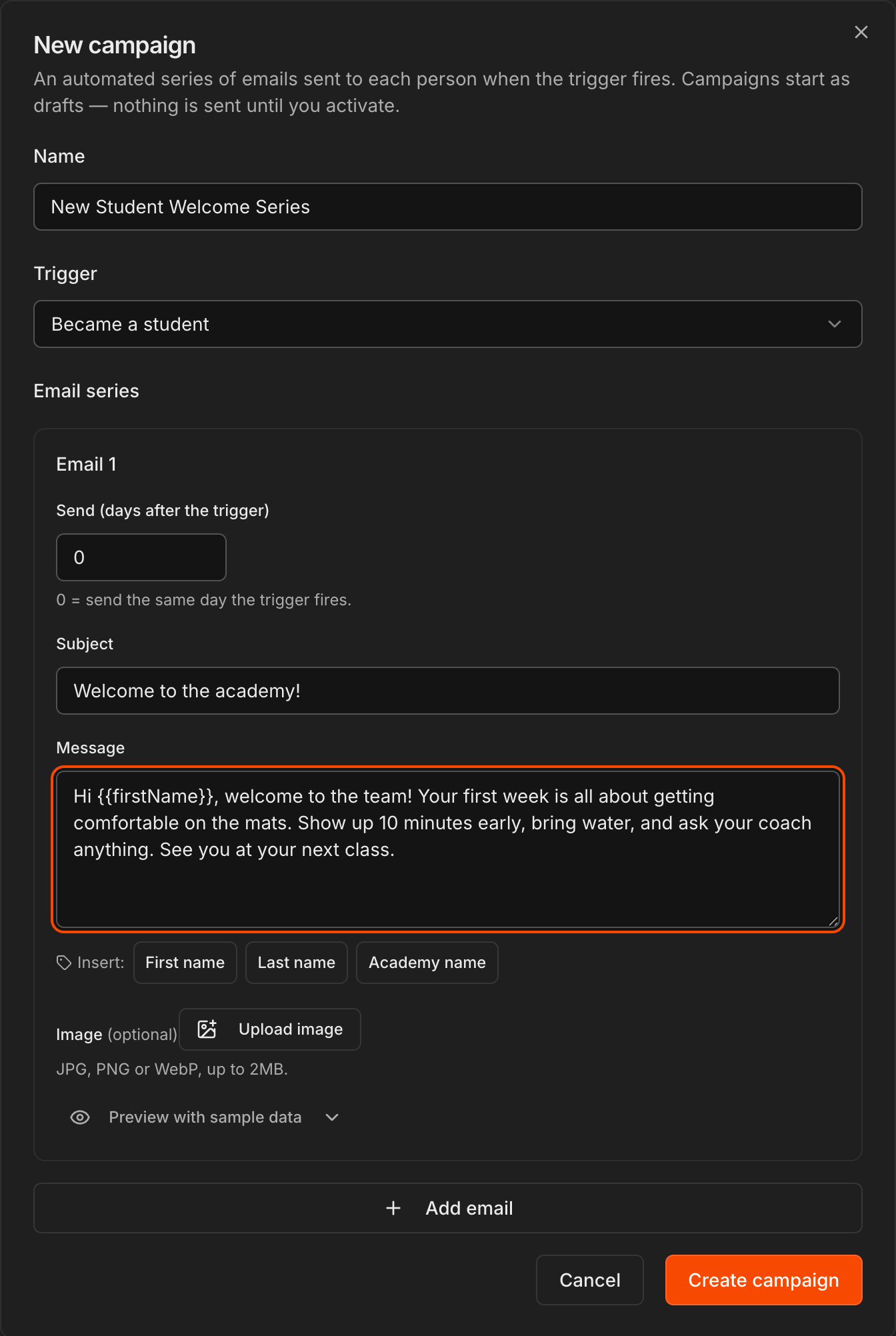
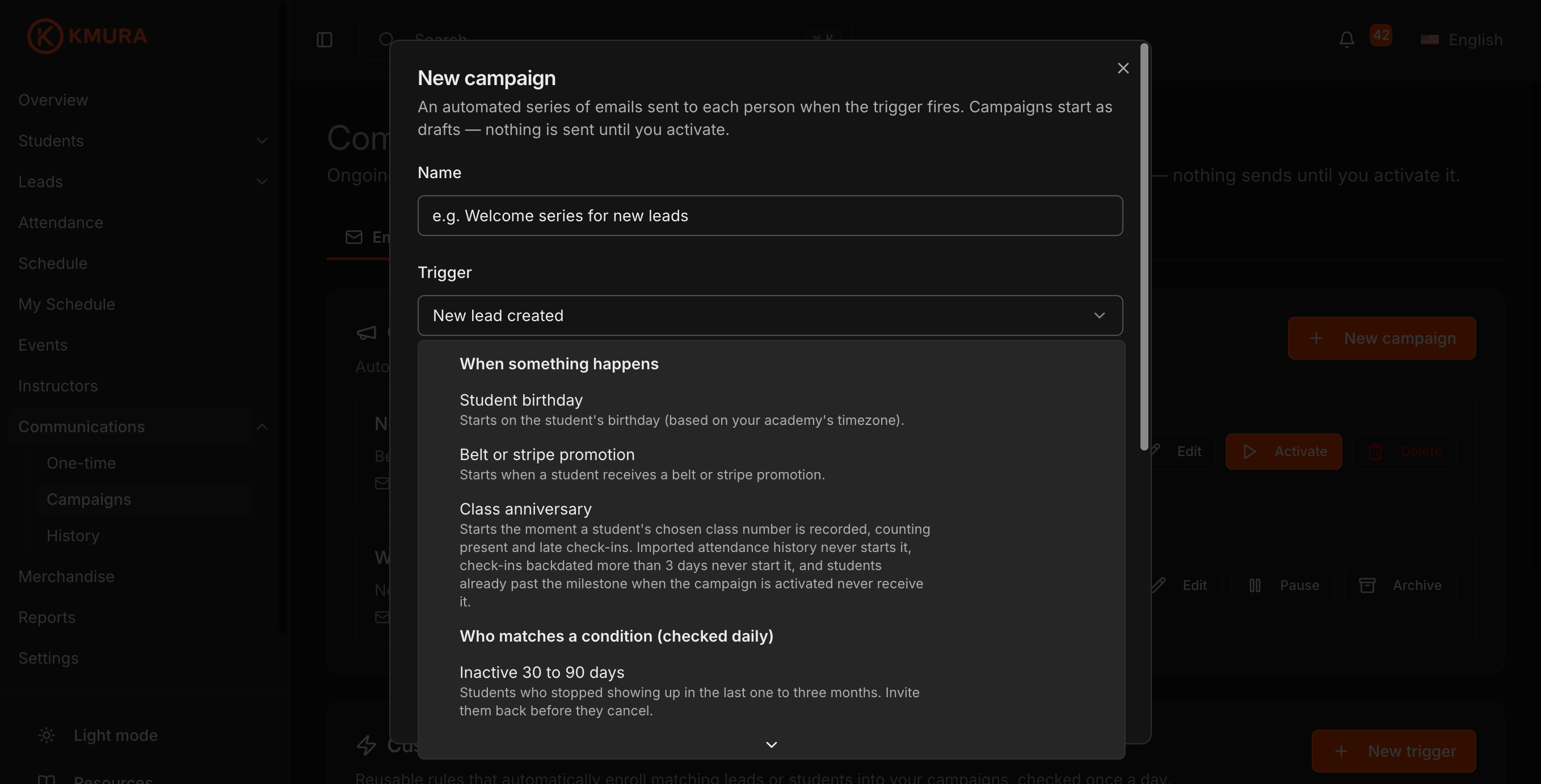
Click New campaign, give it a Name, and open the Trigger dropdown.
Under When something happens, choose the event that starts the series: New lead created, Lead form submitted (optionally limited to one of your lead forms), Intro Class Scheduled, Completed Intro Class, Days since lead came in, Became a student, Student birthday, Belt or stripe promotion, or Class anniversary.
For lead triggers, leave Stop this series if the lead becomes a student checked so converted leads do not keep getting sales emails.
Note
Time-based triggers are forward-only. Someone already past the day or milestone when you activate never receives the series.
Write the message series
Under Email series, set Send (days after the trigger) for the first message. 0 sends the same day the trigger fires.
Enter a Subject and your Message. Use the Insert buttons to drop in First name, Last name, or Academy name, which Kmura fills in for each recipient.
Optionally upload an image (JPG, PNG, or WebP, up to 2MB).
Click Add email to add the next message in the series with its own day offset, subject, and text. Use the trash icon to remove one.
Tip
A welcome series that sends on day 0, day 3, and day 7 covers the window when new students decide whether the habit sticks.
Open the SMS tab
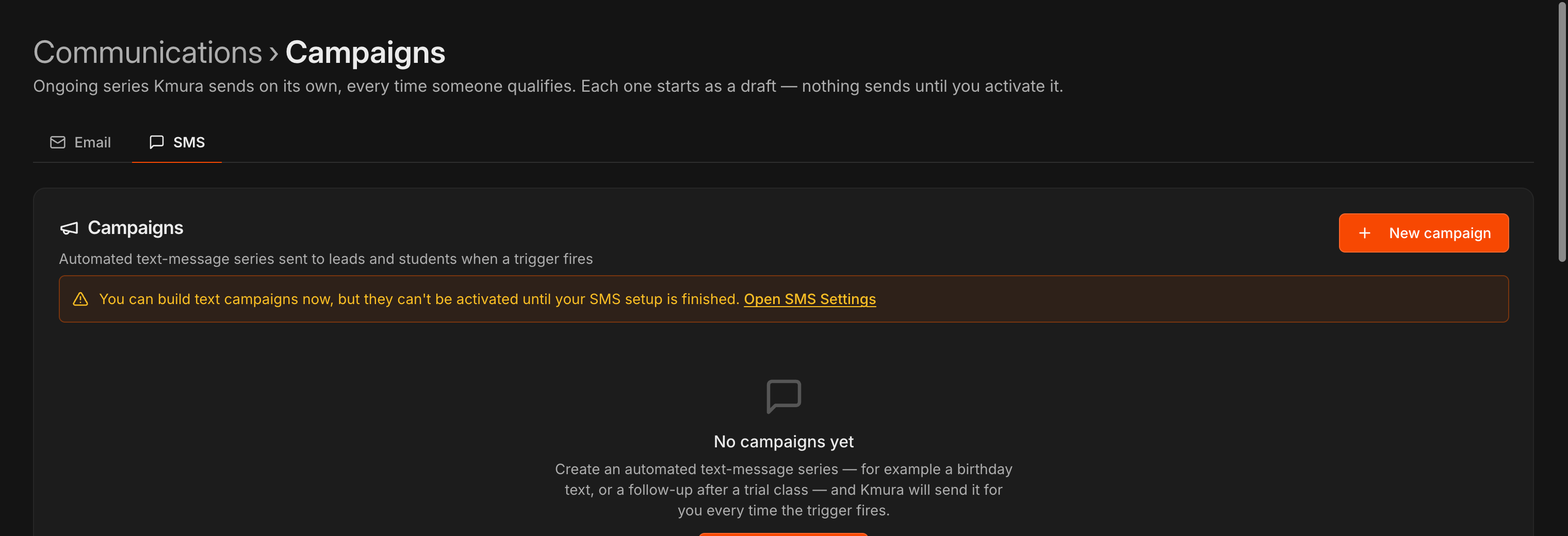
Click the SMS tab at the top of Campaigns. It has the same two cards as Email, and the custom triggers you build are shared between the two channels.
You can build text campaigns before your gym's SMS setup is finished, but they cannot be activated until it is. The amber note on the card links to SMS Settings.
Note
Registering your gym for texting and what it costs is covered in Sending SMS.
Build an SMS campaign
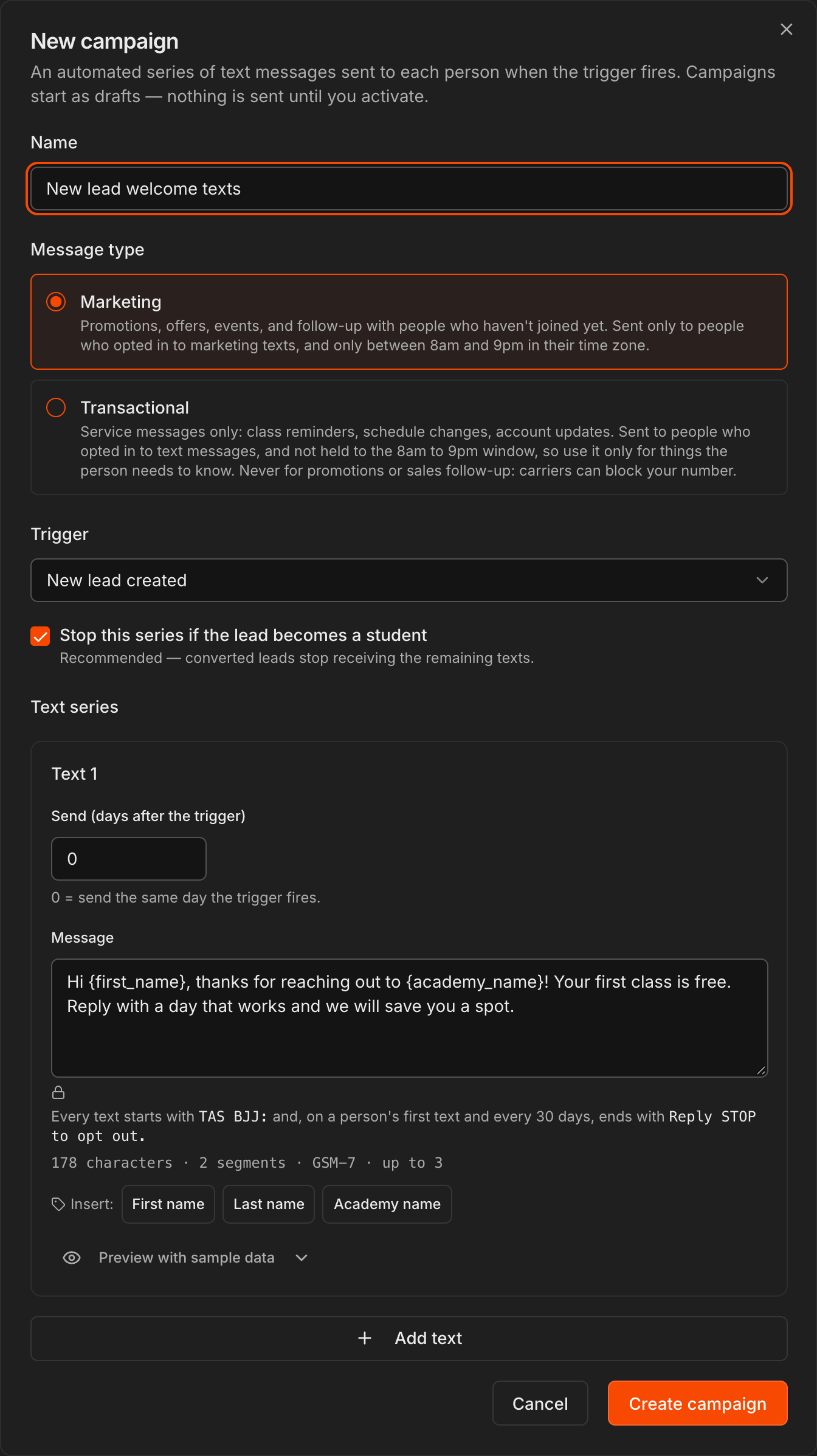
On the SMS tab, click New campaign and give it a Name.
Pick the Message type. Marketing covers promotions, offers, events and follow-up with people who have not joined yet; it only goes to people who opted in to marketing texts, between 8am and 9pm in their time zone. Transactional is for class reminders, schedule changes and account updates only, and is not held to that window.
Choose the Trigger exactly as for an email campaign, and leave Stop this series if the lead becomes a student ticked for lead triggers.
Under Text series, set Send (days after the trigger) and write the Message. The counter under the box shows characters, segments and encoding, and the Insert buttons drop in First name, Last name or Academy name. Click Add text for the next message, then Create campaign.
Caution
Never use **Transactional** for promotions or sales follow-up. Carriers can block your number for it.
Note
Every text starts with your academy's name, and the first text to a person (and one every 30 days after) ends with **Reply STOP to opt out**. Those words count toward the segments you are billed for.
Preview, save, and activate
Click Preview with sample data under any message to see it with a real name and your academy filled in.
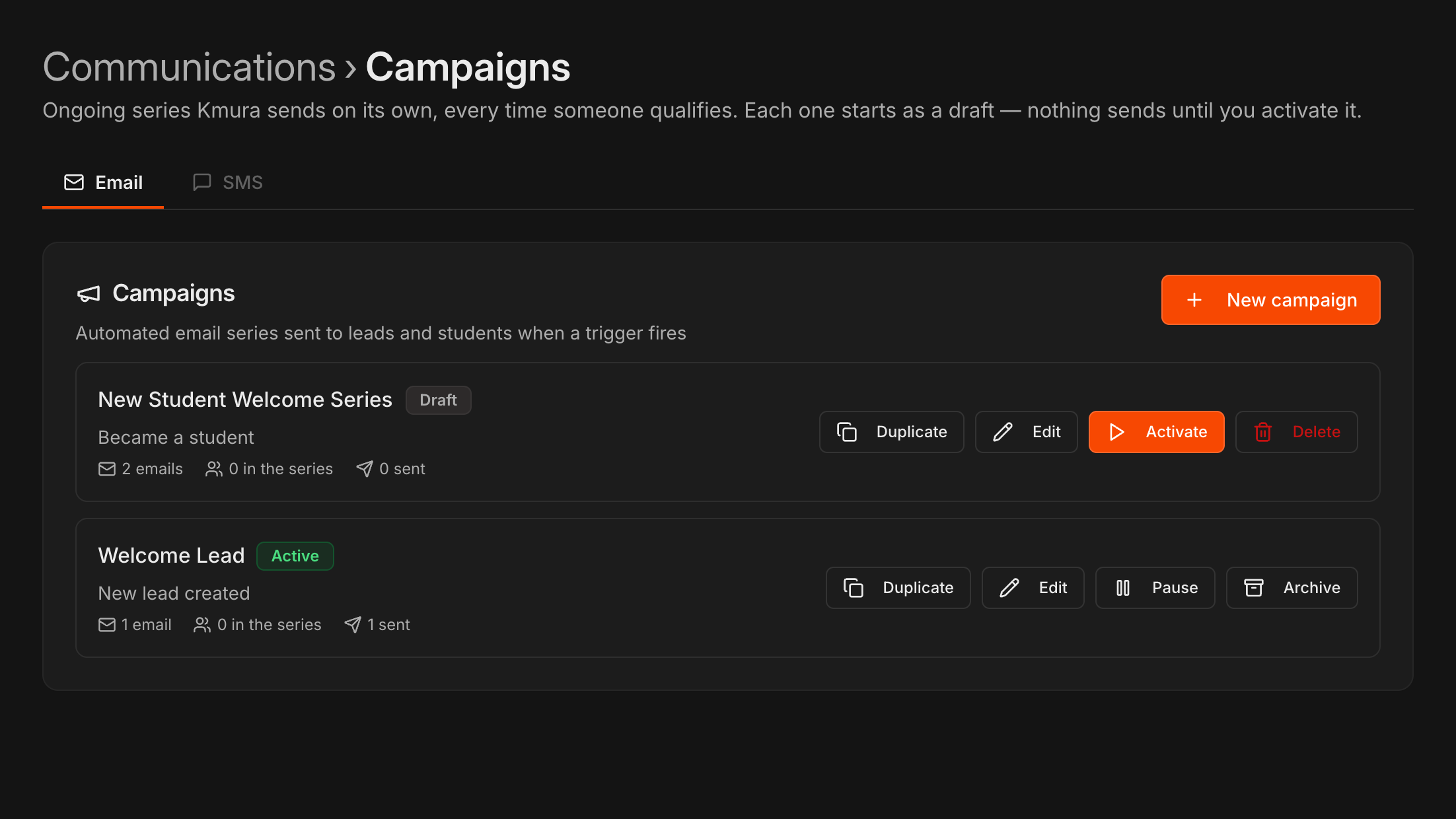
Click Create campaign. It appears in the Campaigns card as a Draft with Duplicate, Edit, Activate, and Delete buttons.
Click Activate and confirm. From then on Kmura sends automatically every time the trigger fires, until you pause or archive the campaign.
Each card shows how many messages are in the series, how many people are currently in it, and how many messages have been sent.
Build a custom trigger
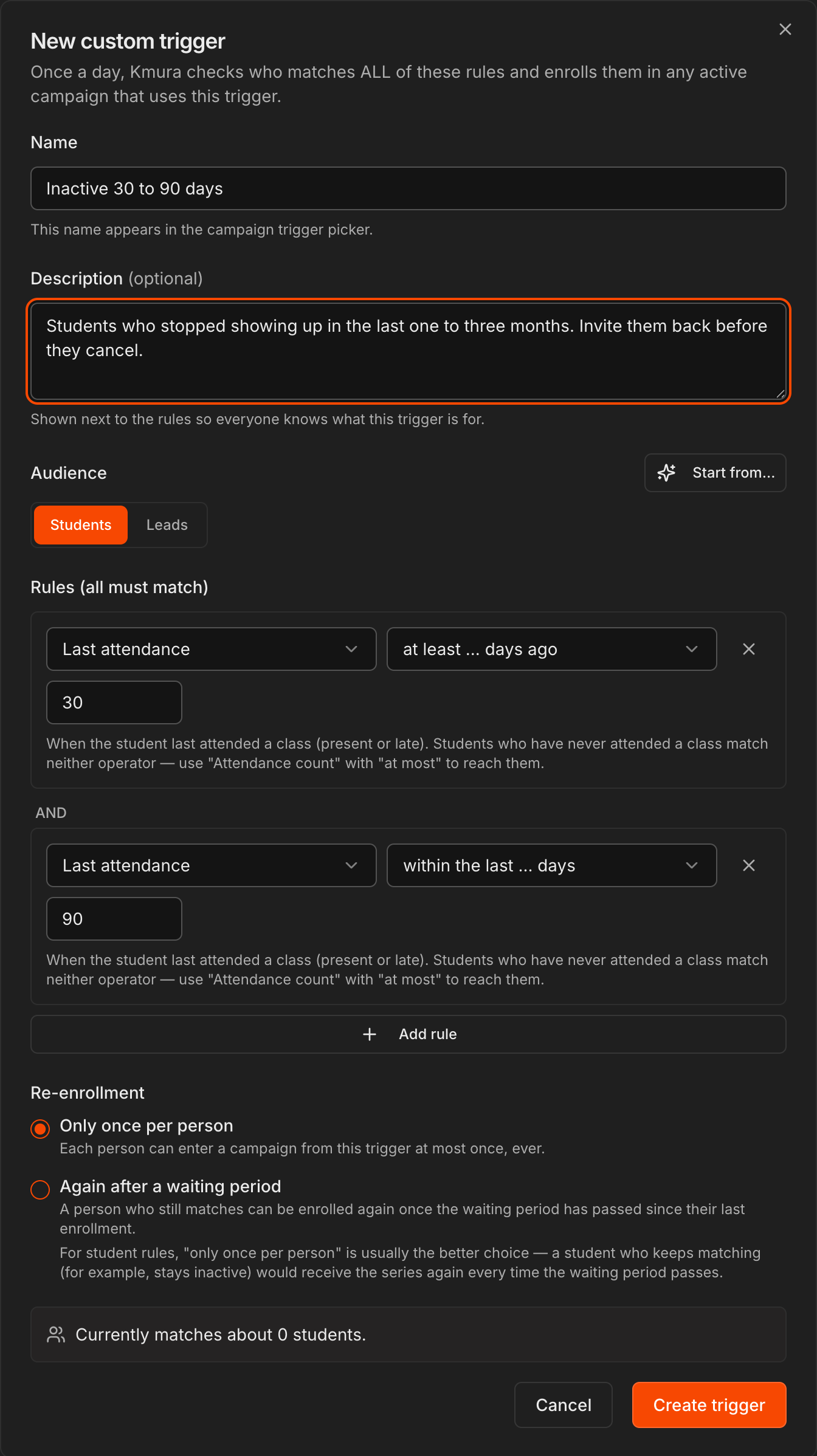
In the Custom triggers card, click New trigger. Give it a Name (this is what appears in the campaign trigger picker) and an optional Description.
Choose the Audience: Students or Leads. Student rules include Belt, Program, Last attendance, Join date, Last promotion, Attendance count, Age, Membership, and Membership plan. Lead rules include Pipeline stage, Time in stage, Source, Lead age, and Belt.
Add rules with Add rule. Every rule must match. The dialog shows how many people currently match as you build.
Under Re-enrollment, pick Only once per person or Again after a waiting period.
Click Create trigger. Kmura checks it once a day and enrolls anyone who matches and has not received the campaign yet.
Tip
Click **Start from...** for ready-made rule sets: **Win-back**, **Stuck lead**, **Promotion nudge**, and **New-member milestone**.
Note
For student rules, **Only once per person** is usually the right choice. Someone who stays inactive would otherwise re-enter the series every time the waiting period passes.
Use a custom trigger in a campaign
Click New campaign and open the Trigger dropdown. Your custom triggers appear under Who matches a condition (checked daily).
Select one, write the series, and activate it as in steps 3 and 4.
The trigger's card shows which campaigns use it. Triggers can be edited, archived, or deleted, but pause any active campaign that uses a trigger before you change it.
Manage running campaigns
Pause stops new sends without losing the series. Archive retires it. Duplicate copies it as a new draft on the same tab; to turn an email series into texts, build the SMS version on the SMS tab with the same trigger.
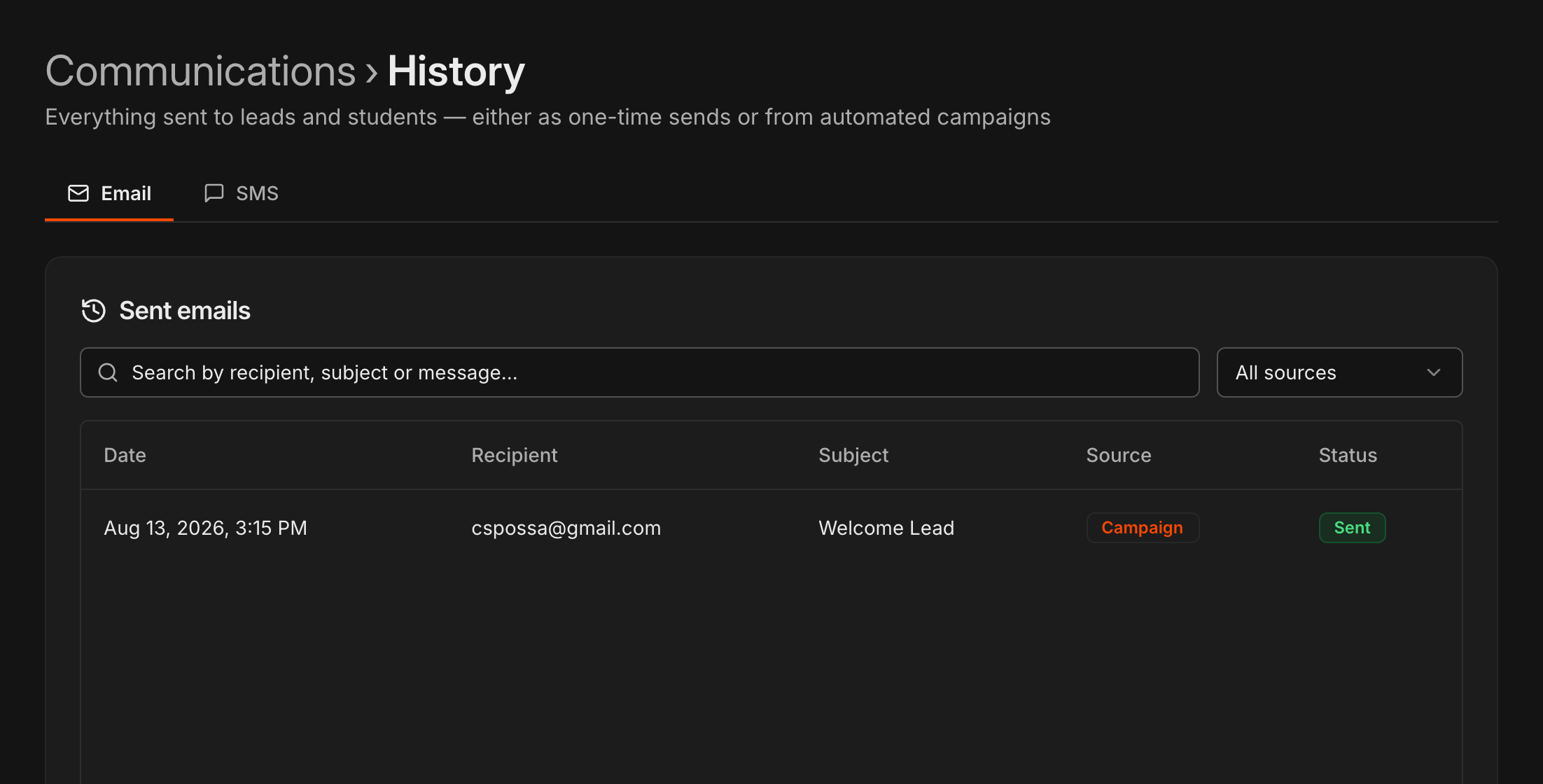
Go to Communications and open History to see every message a campaign has sent, tagged Campaign in the Source column, with its delivery Status.