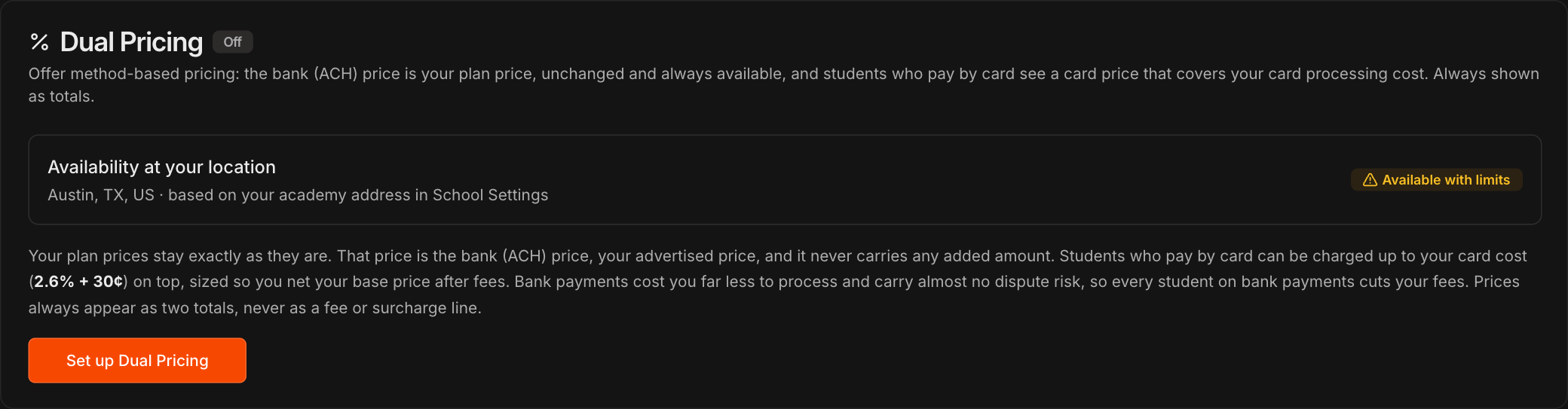
Check availability at your location
Go to Settings, open Payments, and find Dual Pricing, just above Card Statement Descriptor.
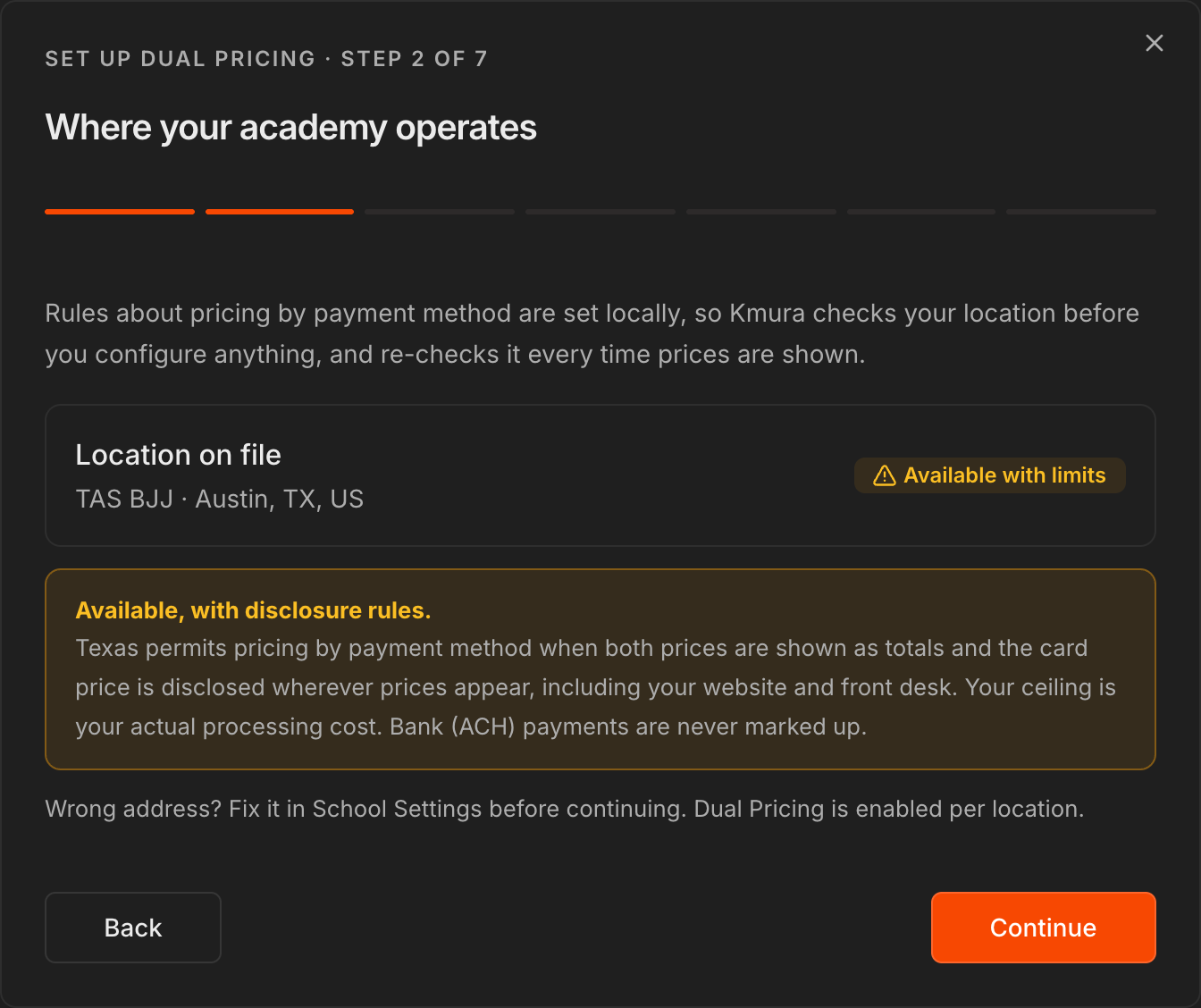
Availability at your location reads your academy address and shows whether Dual Pricing is offered there. Texas, for example, shows Available with limits.
Click Set up Dual Pricing to start the 7-step setup.
Note
Some states and provinces do not allow pricing by payment method, and Dual Pricing cannot be set up there. If your address is wrong, fix it in **Settings** > **General** before you start.
See how the two prices work
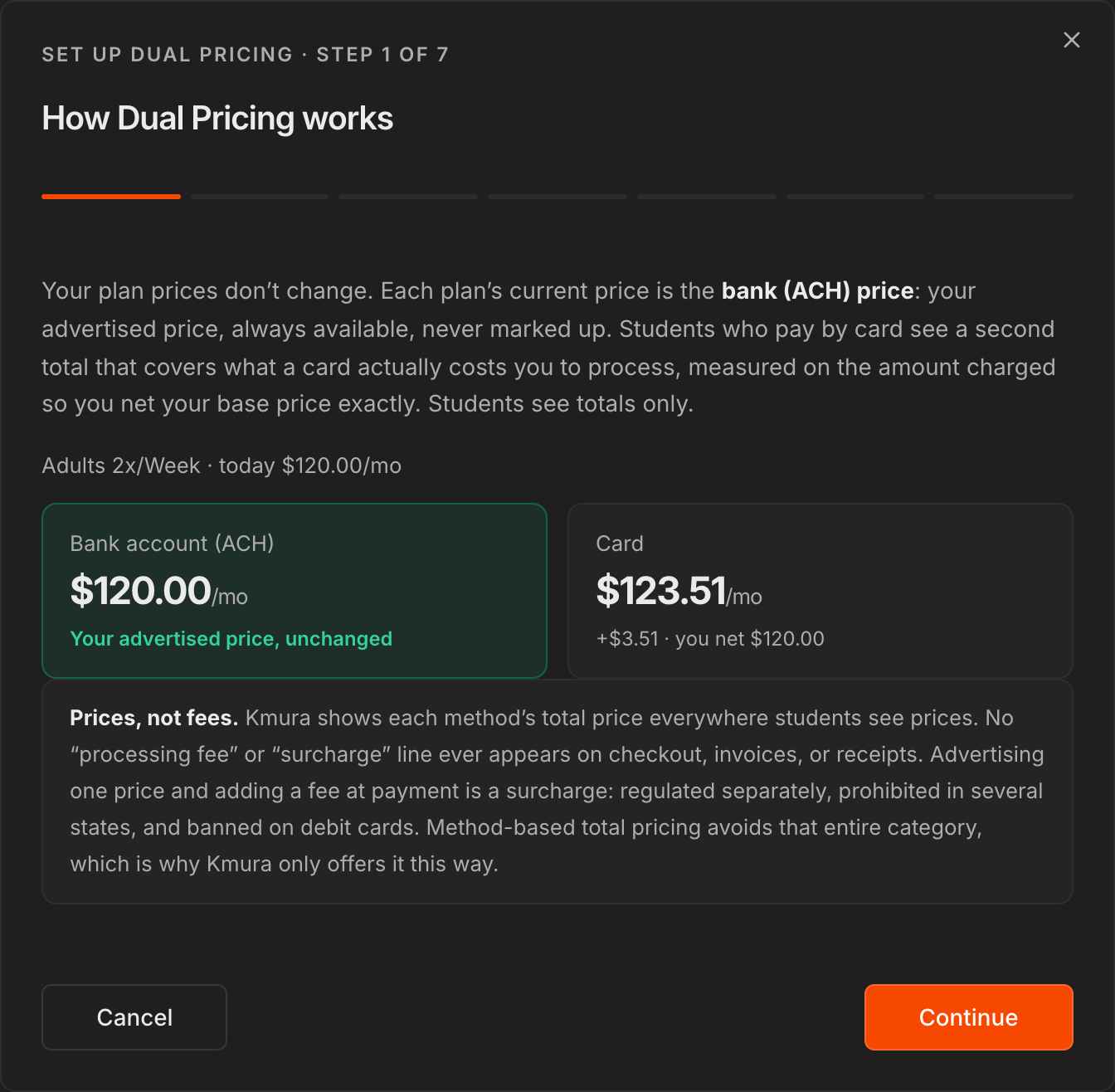
Each plan's current price becomes its Bank account (ACH) price: your advertised price, always available, and never marked up.
Students who pay by card see a second, higher Card total that covers your card processing cost, so you still net your plan price.
Students only ever see two totals. No processing fee or surcharge line appears on checkout, invoices, or receipts.
Click Continue.
Confirm where your academy operates
Kmura checks your location on file and shows the rules that apply there.
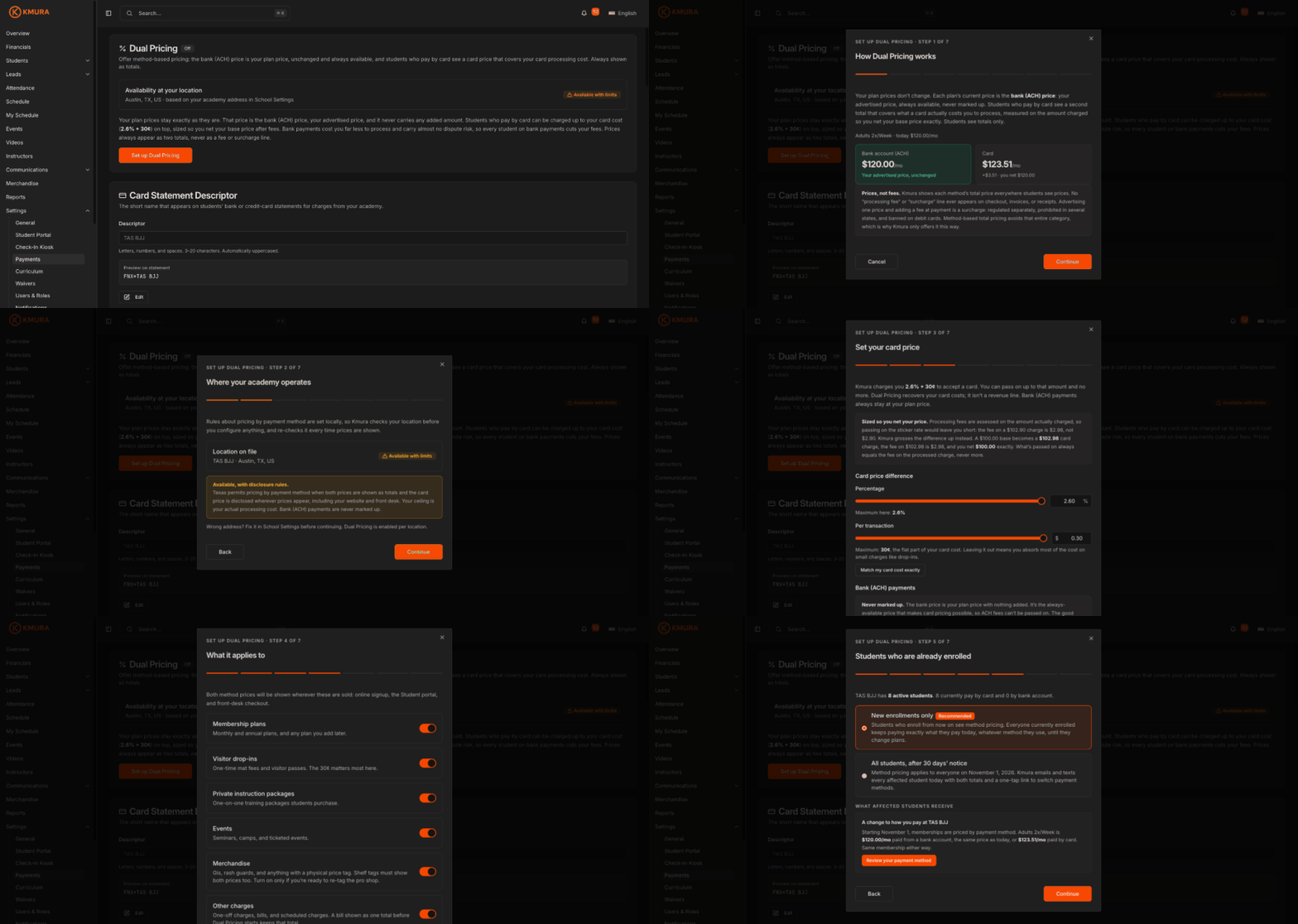
Read them carefully. In Texas, for example, both prices must be shown as totals wherever prices appear, including your website and front desk.
Click Continue.
Note
Kmura re-checks your location every time prices are shown. If your academy moves somewhere Dual Pricing is not offered, it is suspended automatically and you are notified.
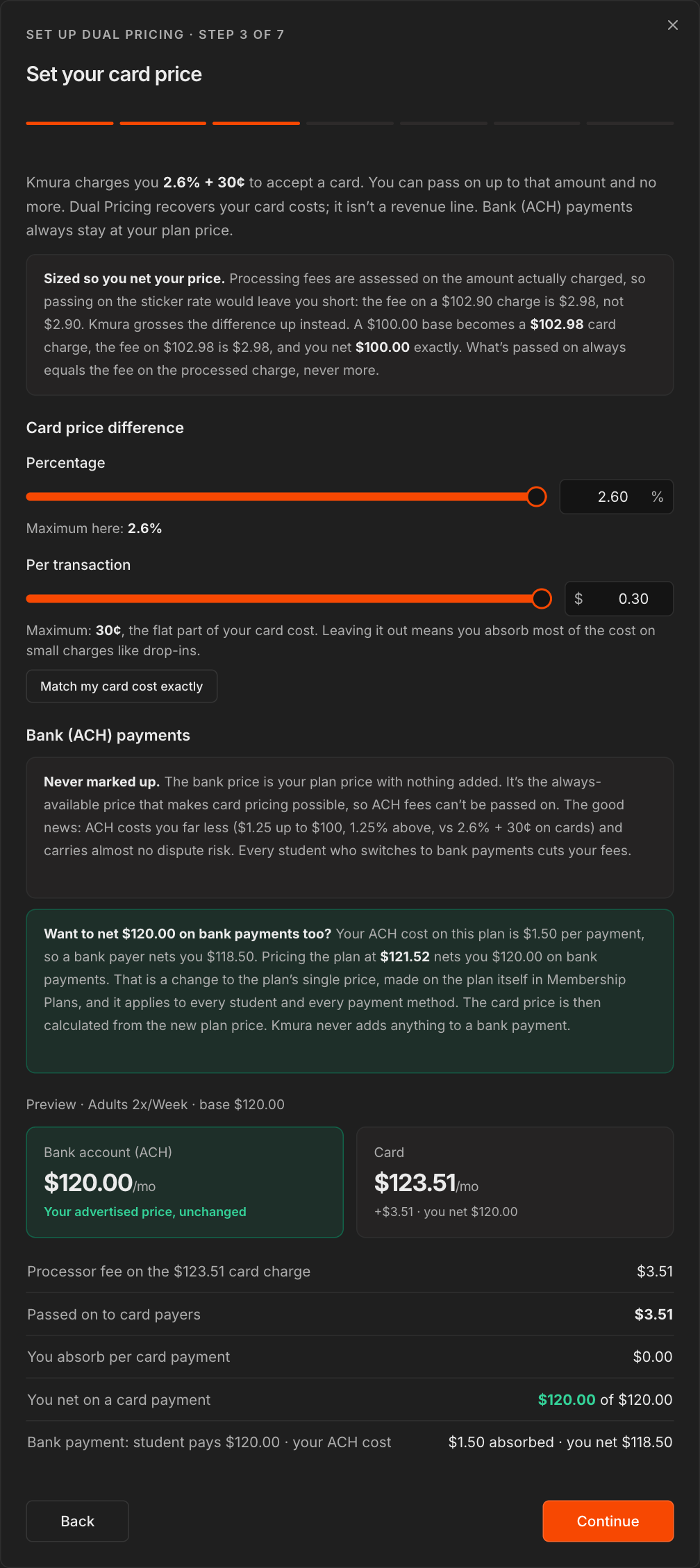
Set your card price
Under Card price difference, set the Percentage (up to 2.6%) and the Per transaction amount (up to 30¢), or click Match my card cost exactly.
Kmura sizes the card price so you net your plan price after the processing fee. A $100.00 plan becomes a $102.98 card price.
Bank (ACH) payments are never marked up. Your ACH cost ($1.25 up to $100, 1.25% above) still comes out of your payout as it does today.
Check the preview of the bank price, the card price, and what you net on each, then click Continue.
Tip
The green box shows the single plan price that would net your full price on bank payments too. That change is optional and is made on the plan itself in **Membership Plans**.
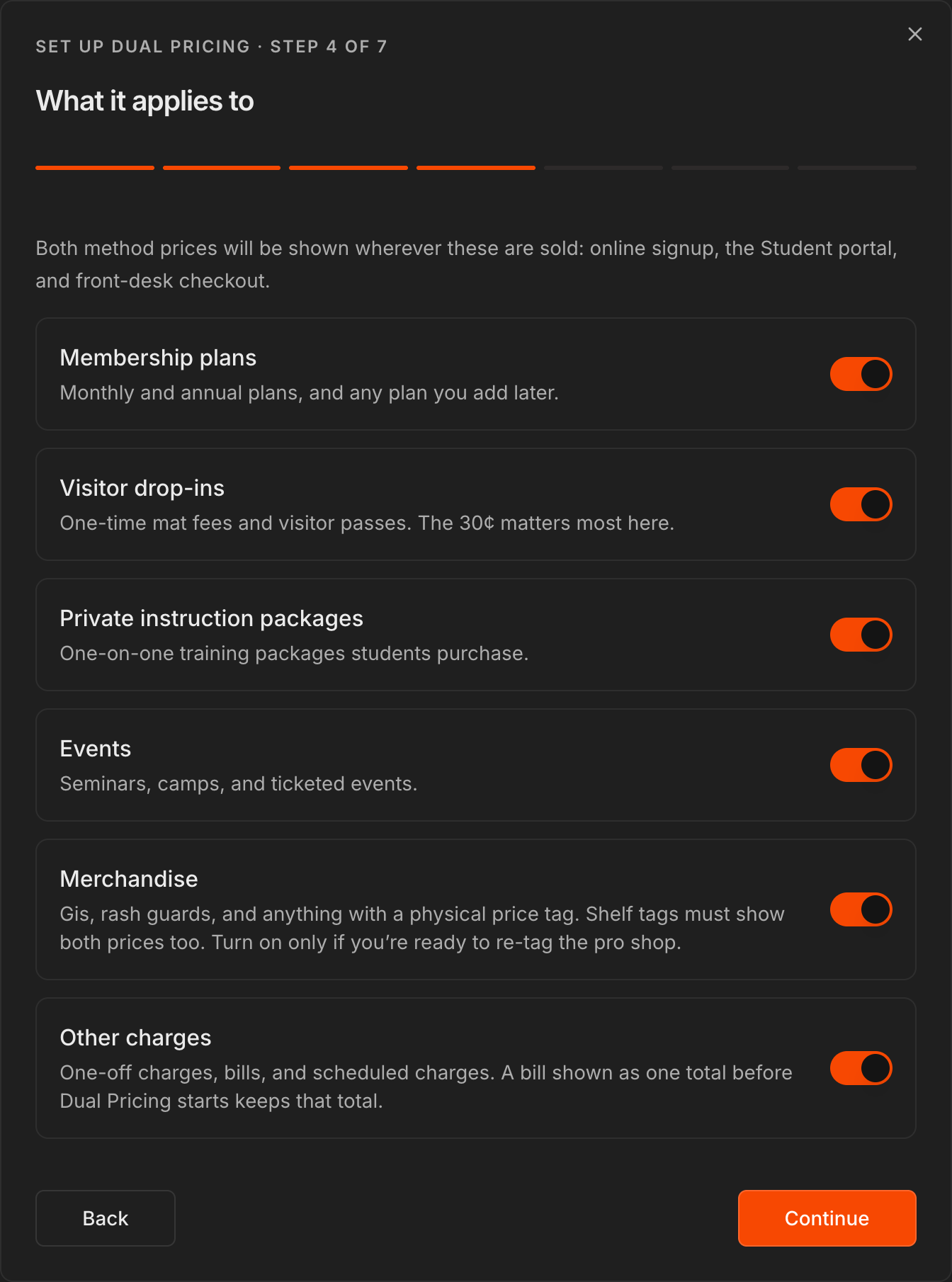
Choose what it applies to
Turn each item type on or off: Membership plans, Visitor drop-ins, Private instruction packages, Events, Merchandise, and Other charges (one-off charges, bills, and scheduled charges).
Both prices are shown wherever those items are sold: online signup, the Student portal, and front-desk checkout.
Click Continue.
Caution
Turn on **Merchandise** only when you are ready to show both prices on your shelf tags too.
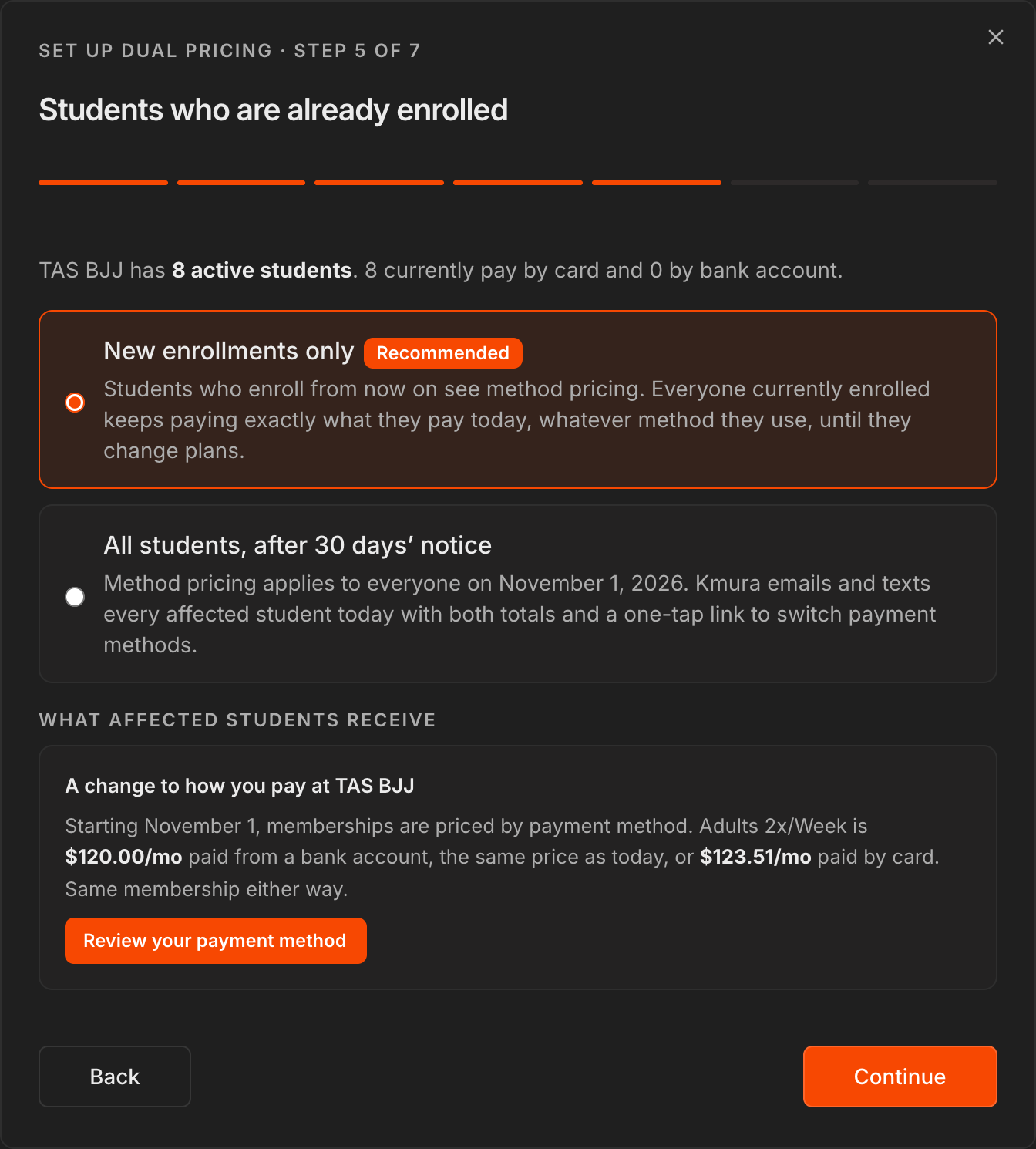
Decide how enrolled students move over
New enrollments only (recommended): students who enroll from now on see both prices, and everyone already enrolled keeps paying exactly what they pay today until they change plans.
All students, after 30 days' notice: method pricing applies to everyone after a 30-day notice. Kmura emails and texts each affected student both totals and a link to switch payment methods.
Click Continue.
Accept the terms
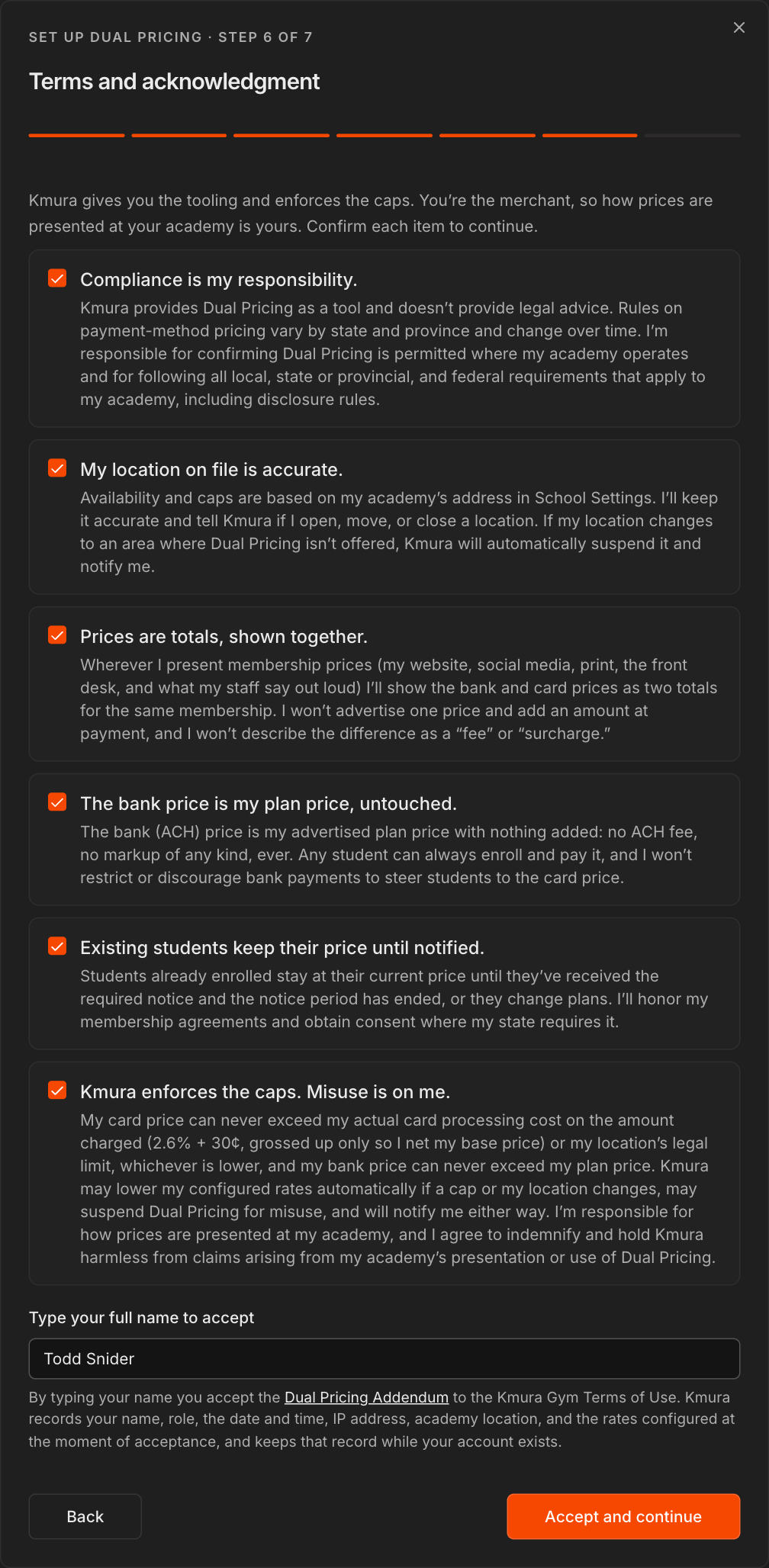
Read and check all six acknowledgments, starting with Compliance is my responsibility.
Type your full name to accept the Dual Pricing Addendum to the Kmura Gym Terms of Use.
Click Accept and continue.
Note
Kmura records your name, role, the date and time, IP address, academy location, and the rates you set at the moment you accept.
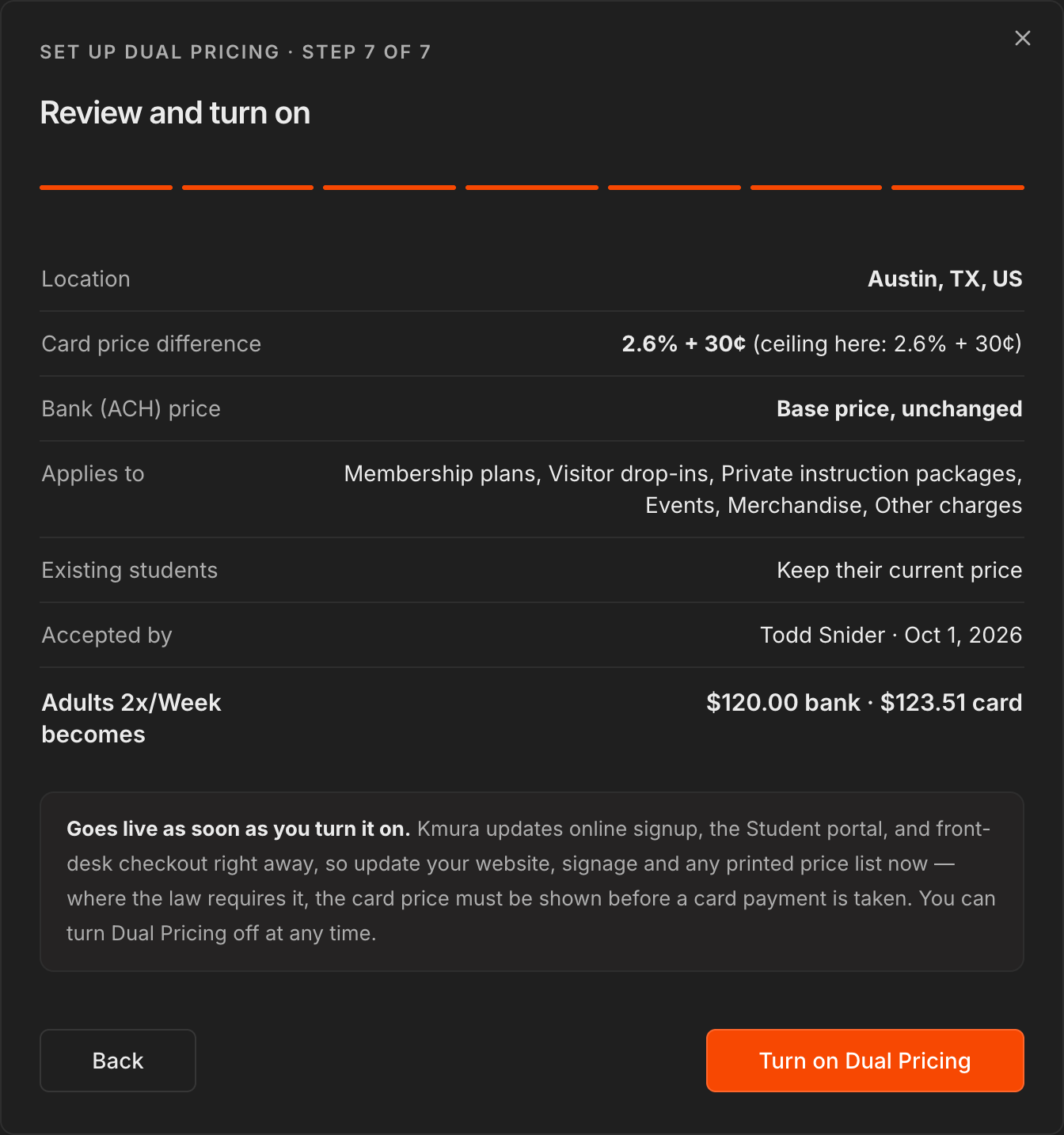
Review and turn it on
Review your location, card price difference, what Dual Pricing applies to, how existing students are handled, and who accepted the terms.
Click Turn on Dual Pricing.
With New enrollments only, it goes live right away, so update your website, signage, and any printed price lists to show both prices.
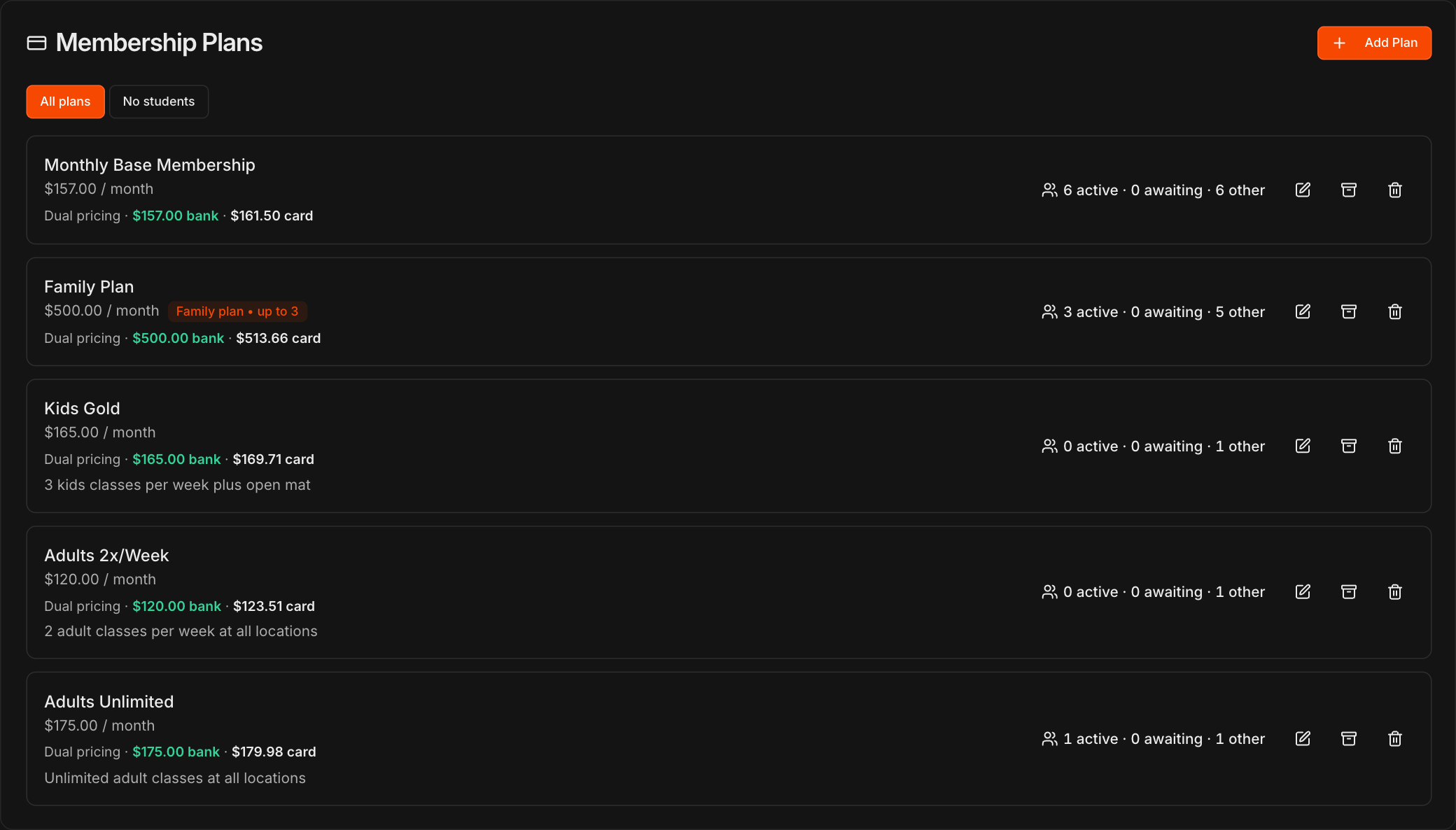
See both prices on your plans
Every plan under Membership Plans now shows its bank and card prices, for example $157.00 bank · $161.50 card.
The plan's price stays the bank price. Edit a plan the usual way and Kmura recalculates its card price.
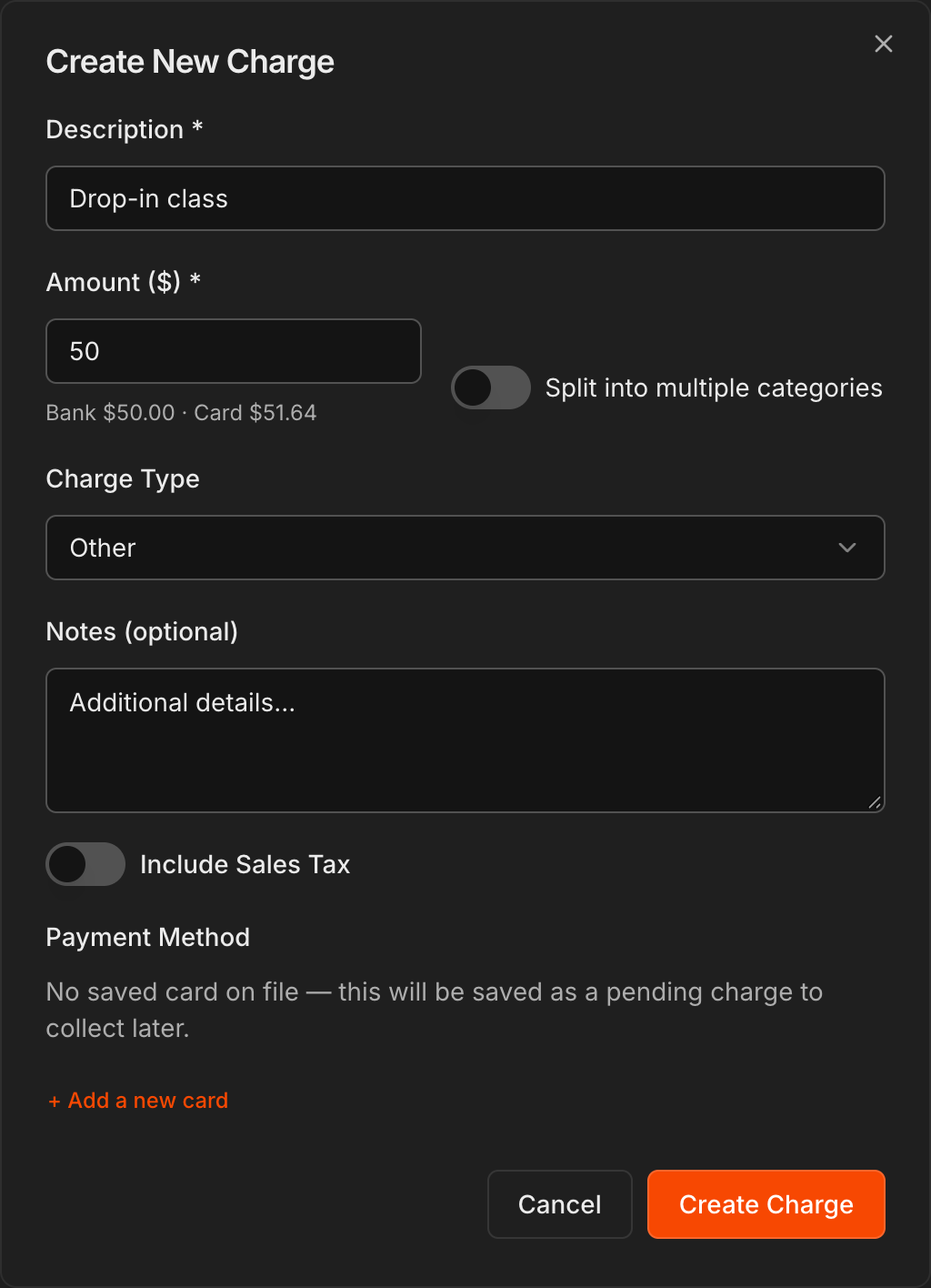
Charge students with Dual Pricing on
In Create Charge, enter the Amount as the bank price. Kmura shows both totals under it, for example Bank $50.00 · Card $51.64.
In Subscribe Student, the Membership Plan dropdown lists each plan with its bank and card prices.
Students who pay from a bank account pay the bank price, and card payers pay the card total. Their receipt shows the total for the method they used.
Note
Students who switch to a bank account accept a bank (ACH) authorization first. It is listed under **Bank authorizations** on their **Billing** tab.
Change or turn off Dual Pricing
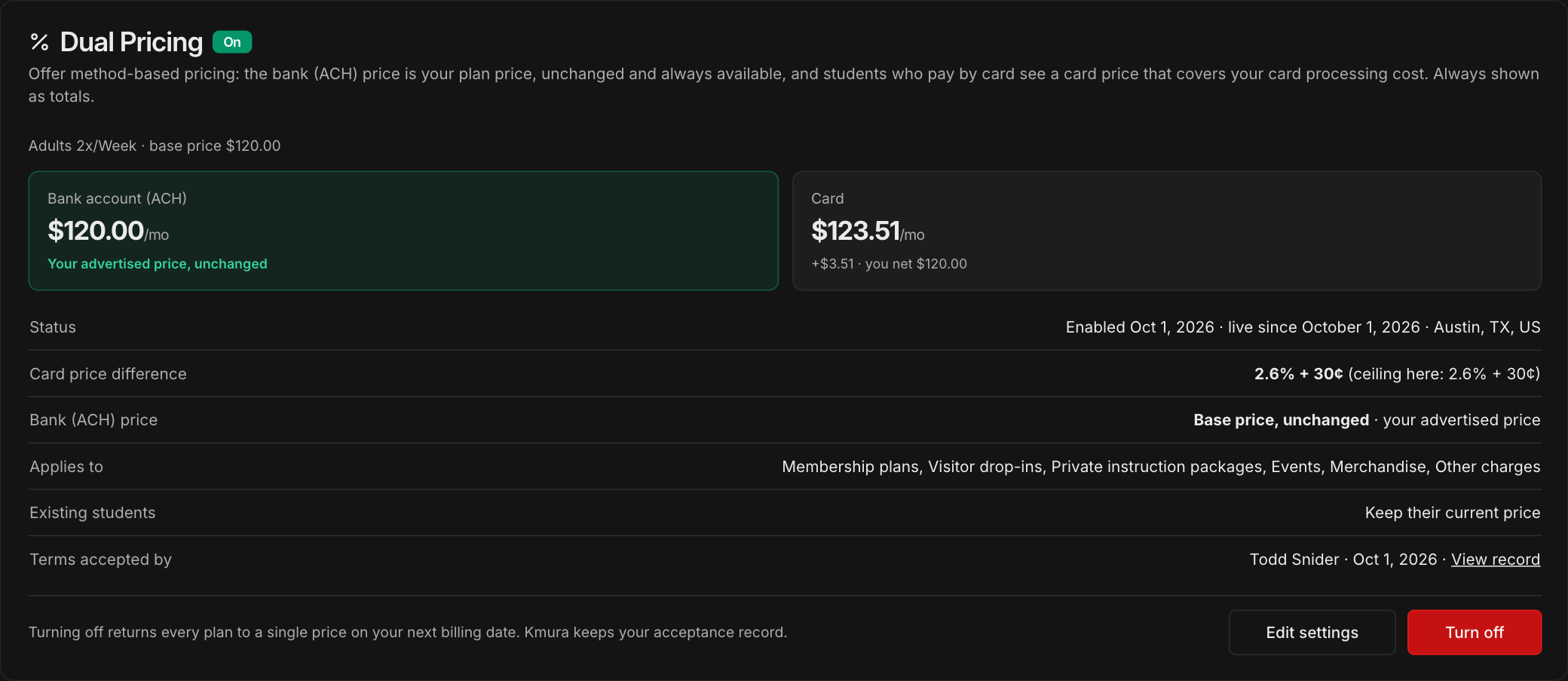
Once it is on, the Dual Pricing card shows On, a price example, the status, your settings, and who accepted the terms.
Click Edit settings to change your setup, or View record to see the acceptance record.
Click Turn off to go back to single prices. Every plan returns to a single price on its next billing date.
Note
Only roles with **Turn On Dual Pricing**, **Turn Off Dual Pricing**, or **Manage Dual Pricing Settings** under **Settings** > **Users & Roles** can make these changes.