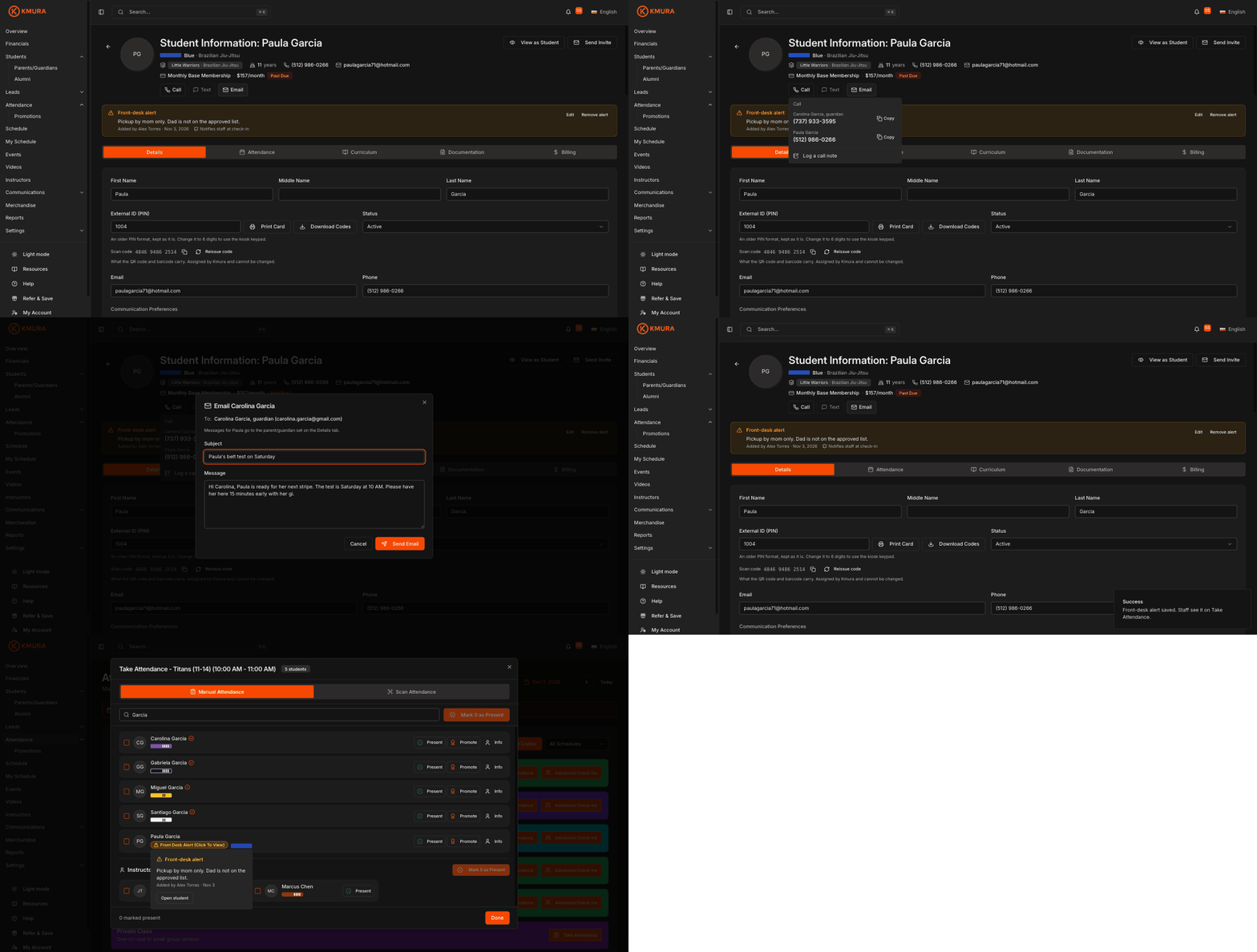
Call a student or their parent from the header
Open a student from the Students page. Under the name, belt and membership lines, the header now has three buttons: Call, Text and Email. The phone number and email in the header are links too.
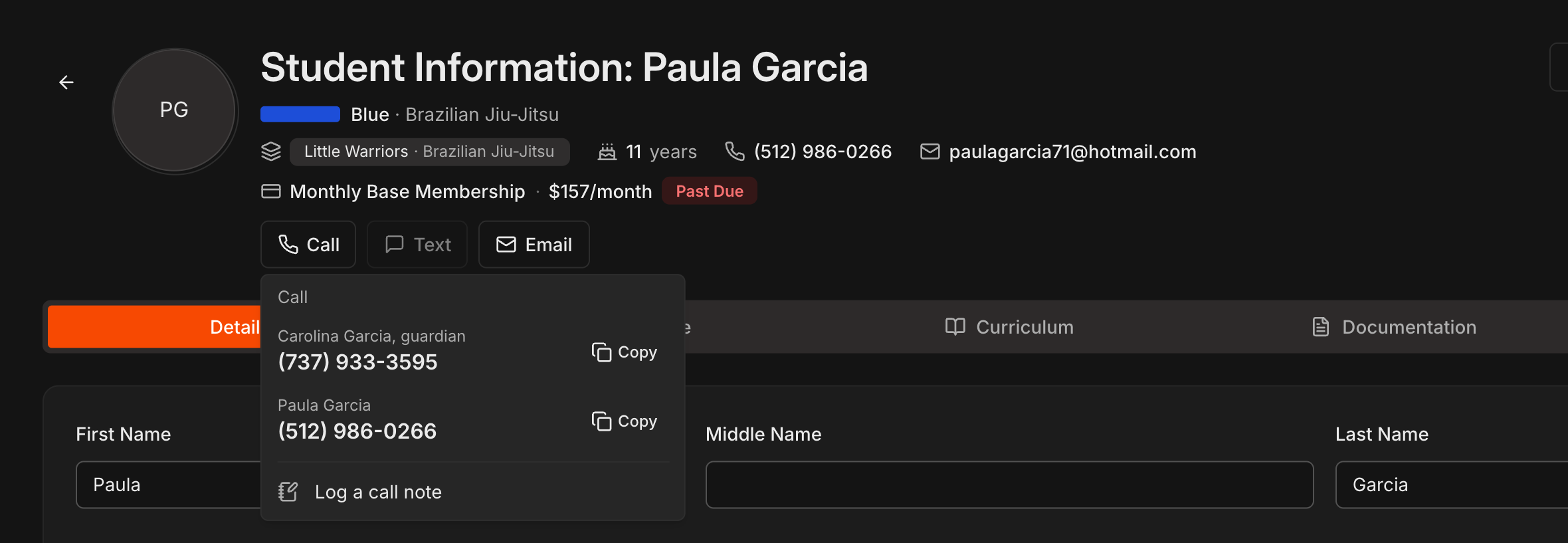
Click Call. On a computer a popover lists every number with a Copy button: a linked parent or guardian first, tagged guardian, then the student's own number. On a phone the same list is a sheet where each row dials.
Log a call note at the bottom jumps to the notes block on the Details tab with Called ... already typed, so the call ends up on the record.
Note
Kmura's rule for minors applies here: a student with a linked parent or guardian is contacted through them. **Text** and **Email** go to the guardian, and **Call** lists the guardian first. See Managing Parents & Guardians.
Text a student, and why the button can be greyed out
Click Text to open the SMS composer: the To line names who receives it, the message box counts to 160 characters, and the estimated cost shows as you type. Click Send SMS.
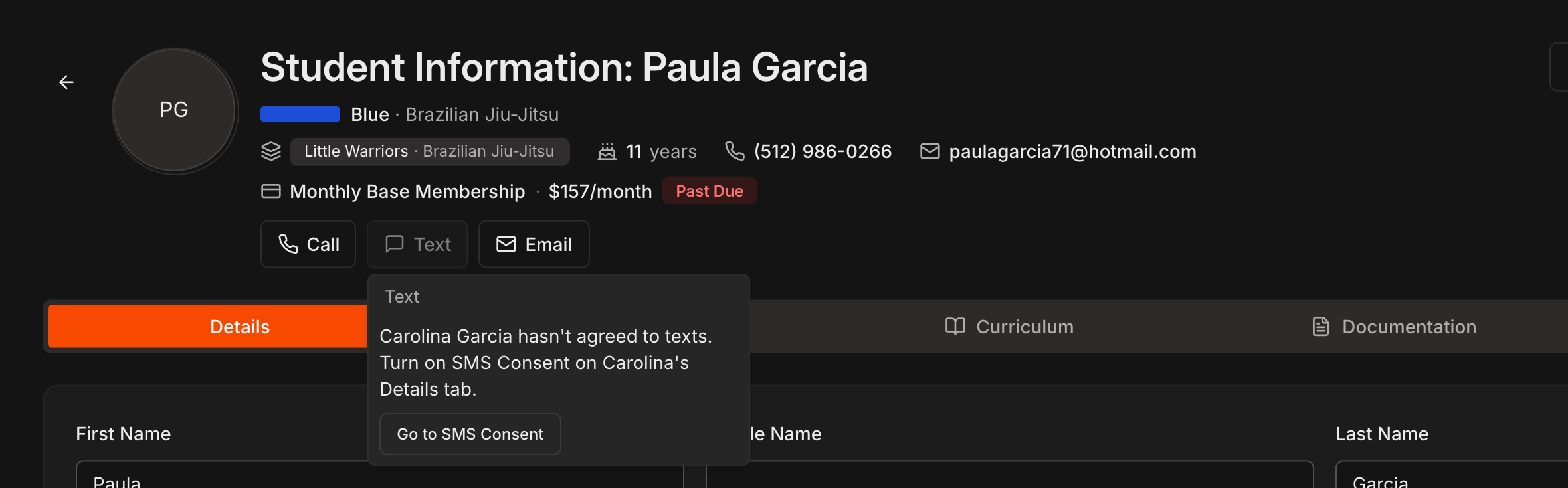
A greyed-out Text button is still clickable. It opens a note that explains the gate and offers a shortcut: no phone on file, texting not set up for your gym yet, or SMS Consent not ticked on the Details tab of whoever receives the texts.
Fix the gate and the button turns on straight away. For a minor, the consent that counts is the parent or guardian's, recorded on their own profile.
Note
Texting needs your gym registered for SMS and is billed separately from your Kmura subscription. See Sending SMS.
Email a student
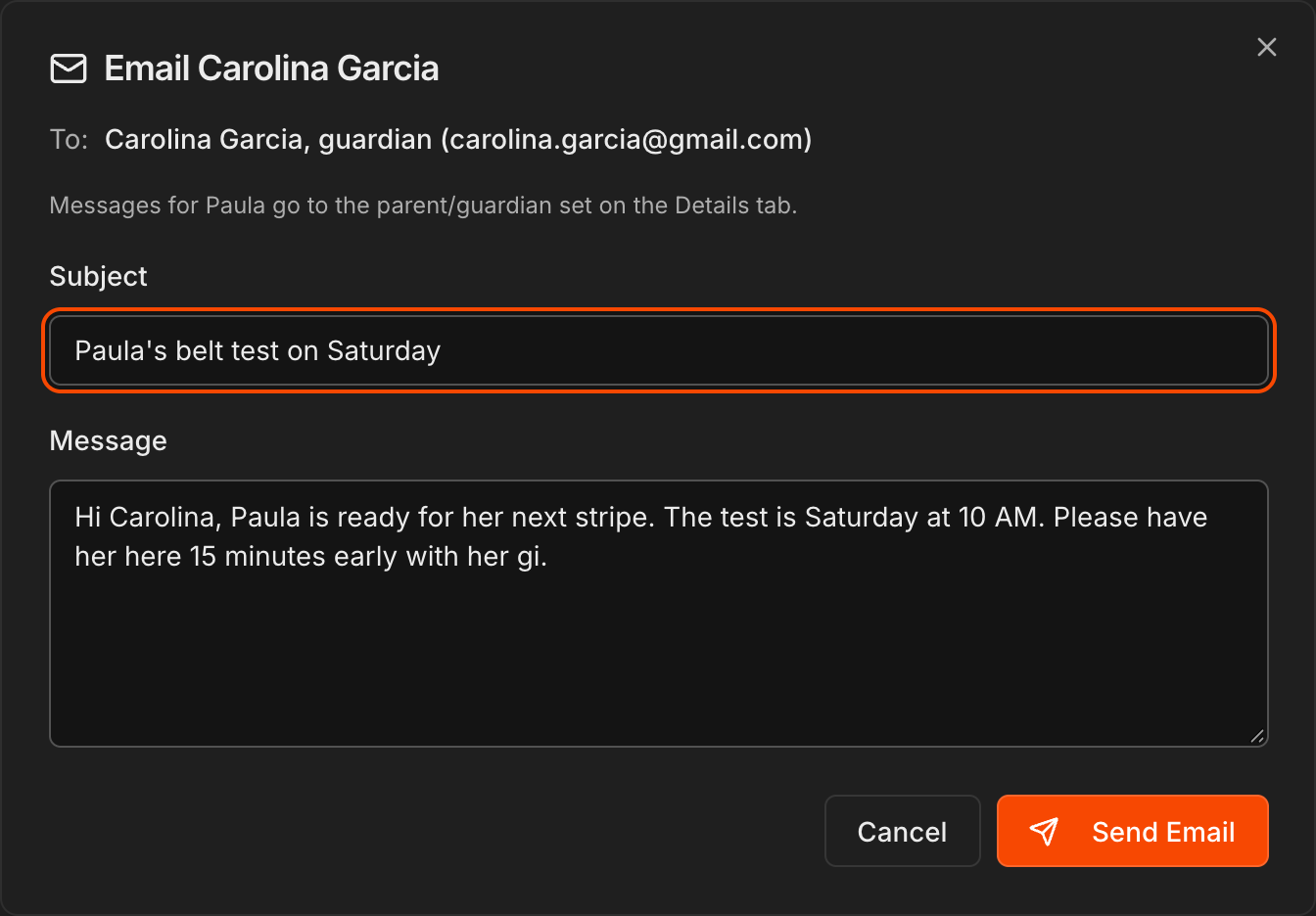
Click Email. The composer is titled for the person who receives it, for example Email Carolina Garcia, with the To line underneath and a reminder that messages for a minor go to the parent or guardian set on the Details tab.
Enter a Subject and your Message and click Send Email. The button stays disabled until both have text.
The email is logged under Communications > History like any other one-time message, so it shows in the student's history.
Note
**Email** is greyed out when there is no email on file or **Email Consent** is off on the **Details** tab. Click it anyway to see which one, with a shortcut to fix it.
Save a note as a front-desk alert
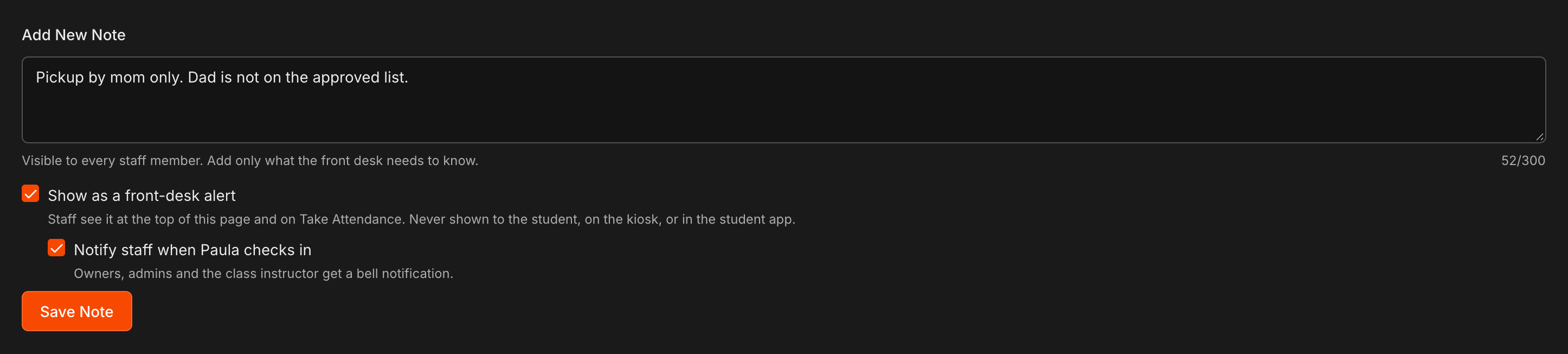
On the student's Details tab, scroll to Add New Note and type what the front desk needs to know, for example Pickup by mom only. Dad is not on the approved list. Alerts are limited to 300 characters.
Tick Show as a front-desk alert. Staff see it at the top of this page and in Take Attendance; it is never shown to the student, on the kiosk or in the student app.
Optionally tick Notify staff when ... checks in so owners, admins and the class instructor get a bell notification the moment the student checks in.
Click Save Note.
Tip
Alerts are visible to every staff member who can open students, so keep them to what the desk must act on: pickup rules, allergies the instructor must know about, an unpaid balance to collect at the door.
See the alert banner on the student's page
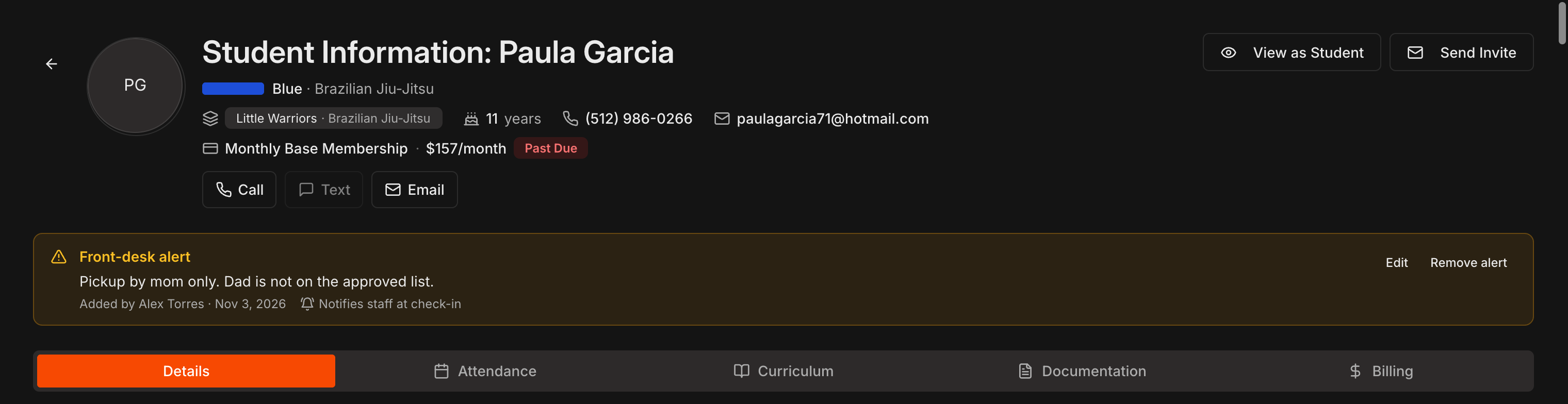
The alert now sits as an amber Front-desk alert banner between the header and the tabs, with the text, who added it and when, and Notifies staff at check-in when that option is on.
Several alerts stack newest first. Click Show more on a long one, or +N more when there are more than three.
Use Edit on the banner to change the text or the notify option, or Remove alert to take it down.
Find the alert in Saved Notes
Under Saved Notes on the Details tab, the note carries an amber Front-desk alert chip next to its time and a Remove alert button.
Remove alert keeps the note in Saved Notes and only takes down the banner and the icons. Removing the note itself removes the alert with it.
Kmura records who removed an alert and when.

Spot alerts on the Students list
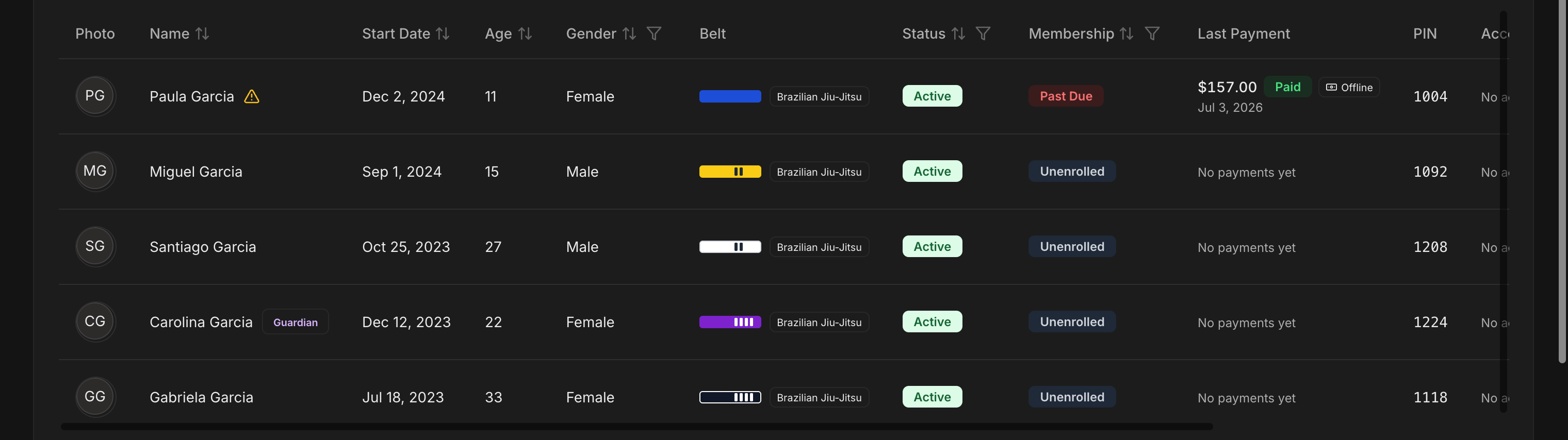
On the Students page, a student with an alert gets an amber triangle right after their name. Hover it to read the alert.
Nothing else on the list changes, so the icon is the quick way to see who has a note the desk must know about.
See alerts when taking attendance
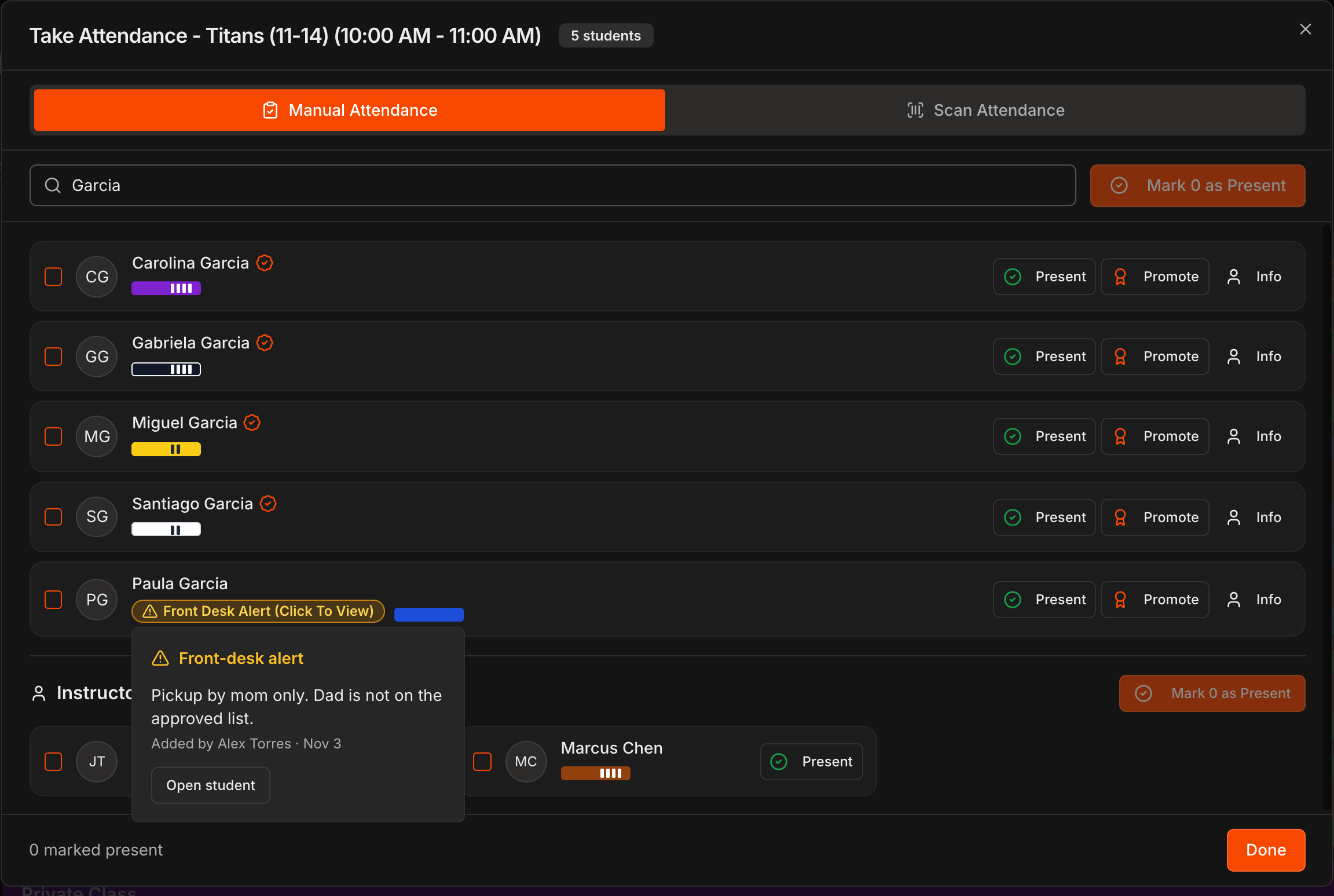
In the Take Attendance window, the student's row carries an amber Front Desk Alert (Click To View) chip under their name.
Click it to read every alert, who added it and when, with an Open student button that jumps to their page.
With Notify staff when ... checks in on, a check-in by PIN, name, scan or Take Attendance adds one Front-desk alerts row to the bell menu in the top bar, for example Paula Garcia checked in for Titans (11-14) at 9:54 AM. Clicking it opens the student.
Note
The kiosk screen never shows the alert, so a student checking themselves in sees nothing. Only staff do.