
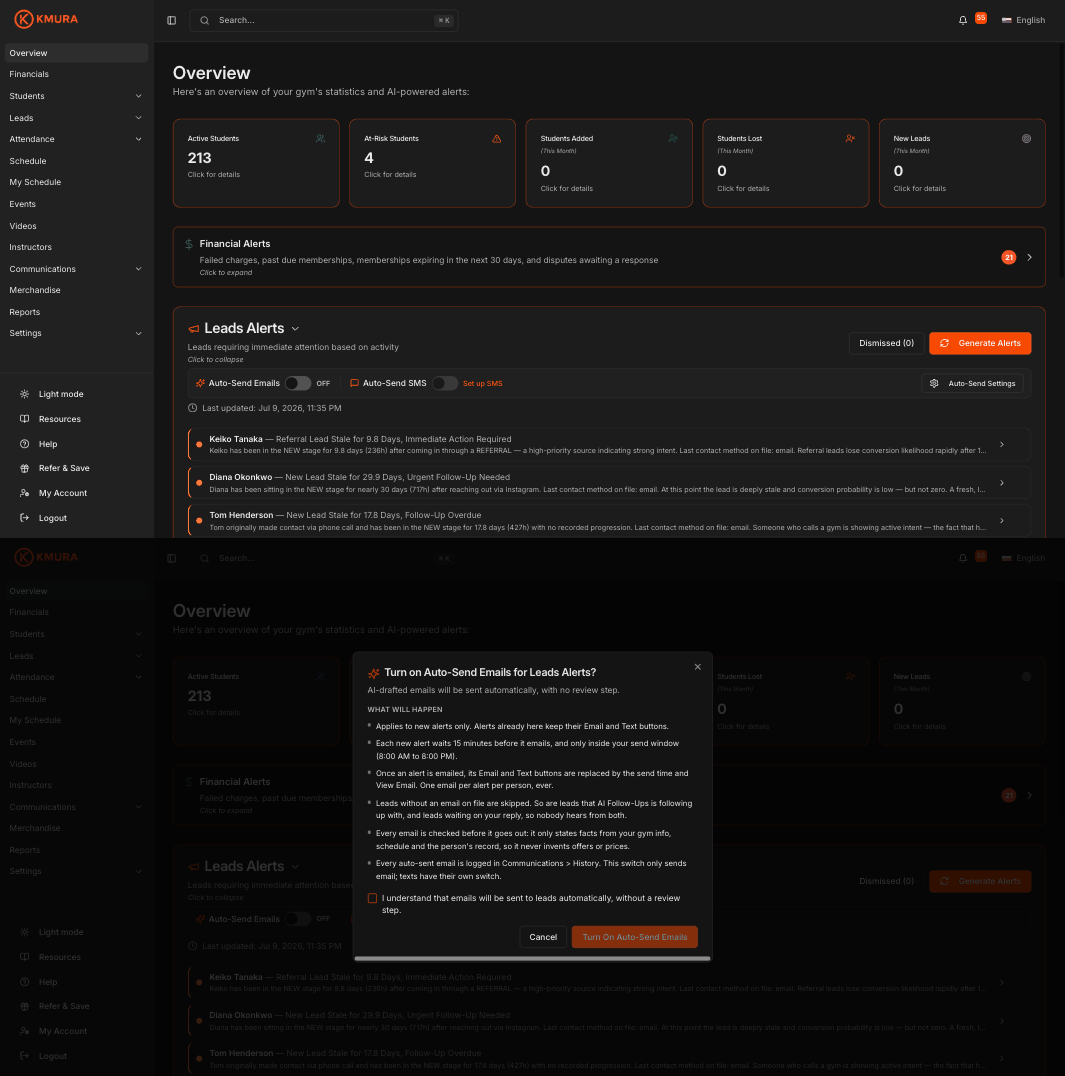
Find the Auto-Send switches on an alert section
Go to Overview and expand Leads Alerts, Student Churn Alerts or Engagement & Milestone Alerts. Only these three sections have Auto-Send.
The row under the section header holds Auto-Send Emails with its switch, Auto-Send SMS with its switch, and an Auto-Send Settings button. Both switches are off for every new school and work independently.
A collapsed section shows a small green tag before its count, Auto-Send: email, Auto-Send: SMS or Auto-Send: email + SMS, so you can see at a glance which sections send on their own.
While a switch is on, a strip under the row confirms what happens: new alerts are emailed 15 minutes after they appear, inside your send window.
Note
Financial, Promotion, Schedule Optimization and Administrative alerts never auto-send. Their **Email** and **Text** buttons work as before.
Turn on Auto-Send Emails
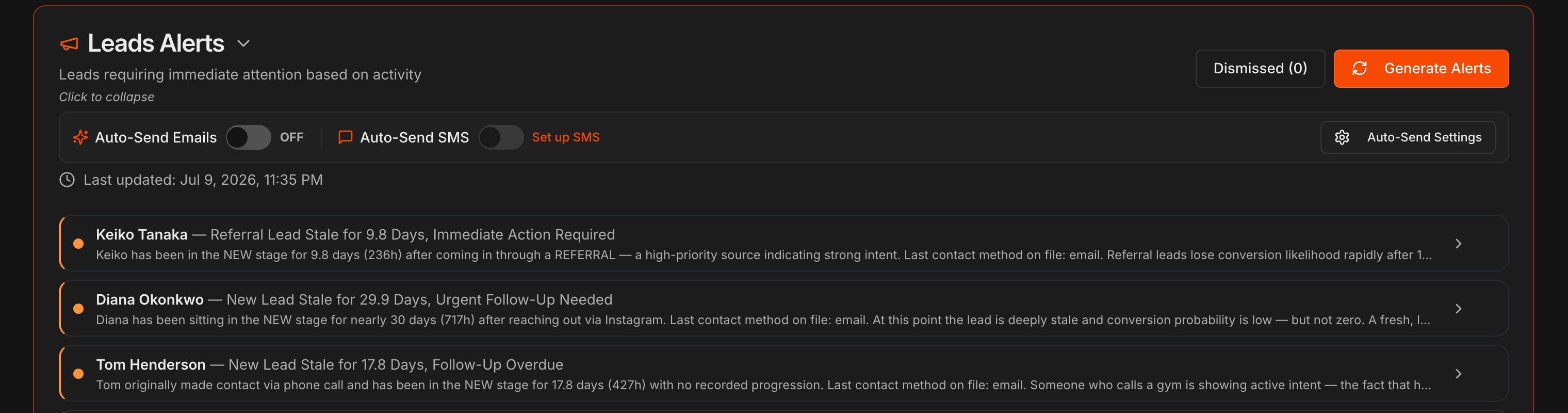
Click the Auto-Send Emails switch. The Turn on Auto-Send Emails for Leads Alerts? dialog lists What will happen before anything is sent.
It applies to new alerts only; alerts already in the section keep their Email and Text buttons. Each new alert waits 15 minutes before it emails, and only inside your send window, so staff can dismiss it first.
One email per alert per person, ever. Leads with no email on file are skipped, and so are leads that AI Follow-Ups is working and leads waiting on your reply, so nobody hears from both. Churn and Engagement alerts reach students under 18 through their parent or guardian.
Tick I understand that emails will be sent to leads automatically, without a review step and click Turn on. Switching it off later cancels any queued alert emails at once.
Note
Every auto-sent email is checked before it goes out so that it only states facts from your gym info, schedule and the person's record, and every one is logged under **Communications** > **History**.
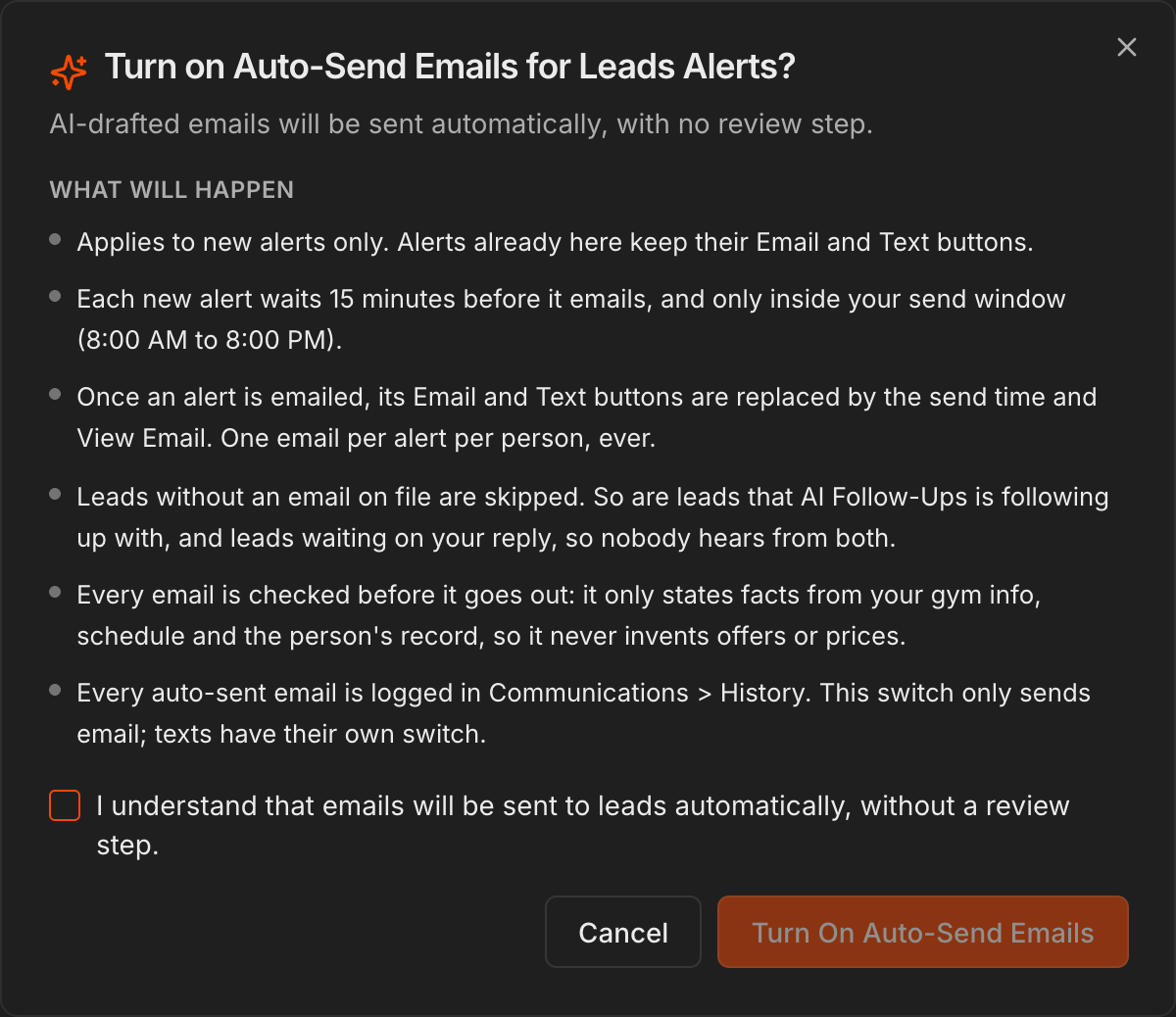
Turn on Auto-Send SMS
Auto-Send SMS can only be switched on while your gym's texting status is Active. Until then the switch is greyed out with Set up SMS, which opens SMS Settings, or Waiting on carrier approval while registration is in review. See Sending SMS.
The confirmation dialog works like the email one, plus a What it costs panel: the rate per text segment, how many alerts this section created in the last 30 days, and a monthly estimate at that pace.
Texts only go to people who agreed to texts, between 9:00 AM and 8:00 PM Monday to Saturday in their own time zone, and every one starts with your gym's name and honors STOP.
Tick the acknowledgment, which also states that your gym is billed for every text separately from the Kmura subscription, and click Turn on.
Caution
There is no limit on how many alerts a section creates, so a busy month costs more than the estimate. Set a monthly limit for alert texts in **Auto-Send Settings** (step 4) if you want a ceiling.
Note
If texting stops being active later, the switch stays on but paused, nothing is texted, and sending resumes for new alerts once texting is active again.
Set the send window and a monthly text limit
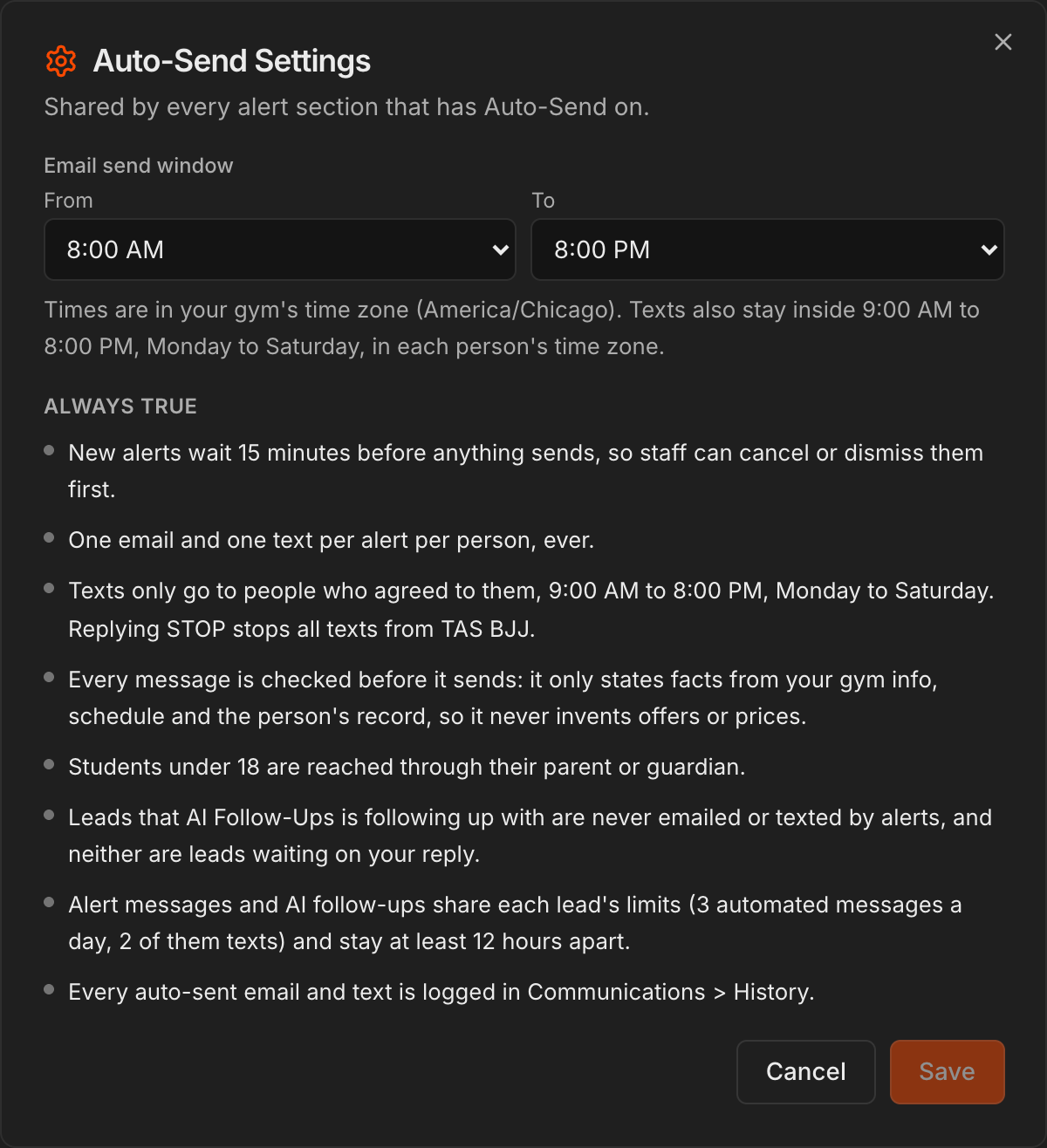
Click Auto-Send Settings. The dialog is shared by every section that has Auto-Send on.
Set the Email send window with the From and To times. The default is 8:00 AM to 8:00 PM in your gym's time zone. Texts also stay inside 9:00 AM to 8:00 PM, Monday to Saturday, in each person's time zone.
While texting is active, Monthly limit for alert texts caps the spend. Leave it empty for no limit; at the limit, alert texts stop until the 1st and emails keep going.
The Always true list restates the guardrails: the 15-minute wait, one email and one text per alert per person, consent and window rules, the facts-only check, minors reached through guardians, and the shared per-lead limits with AI Follow-Ups. Click Save.
Read an alert after Auto-Send handled it
A sent alert shows Auto-emailed or Auto-texted with the time (naming the parent for a minor), then View Email or View Text to read exactly what went out, and View lead or View student. The Email and Text buttons are gone.
An alert inside its 15-minute wait or outside the window reads Auto-email goes out at with the time and a Cancel Auto-Send button.
Not auto-sent names the reason, for example no email on file, opted out of texts, or the lead is waiting on your reply, and leaves Email and Text so you can reach out by hand.
A Leads alert for a lead that AI Follow-Ups is working reads Not auto-sent: AI Follow-Ups is following up with ... with the next message and time.
Note
When someone replies to an auto-sent message, a new alert titled **Replied to an Auto-Sent Email, Human Response Needed** appears. It never auto-sends; a person answers it.
How Auto-Send and AI Follow-Ups share a lead
At any moment one automated sender owns each lead. While a lead is in AI Follow-Ups, Leads alerts never email or text them; the alert still appears so you can see it.
A lead whose reply is waiting, or who your team is talking with, gets nothing automated from either feature.
When both could reach a lead close together, shared limits apply: at most 3 automated messages in 24 hours, at most 2 of them texts, and at least 12 hours between an alert message and a follow-up.
Once AI Follow-Ups is set up, alert emails and texts to leads use its Signed by setting. Student alerts keep the gym as the sender.
Note
Setting up AI Follow-Ups is covered in Setting Up AI Lead Follow-Ups.