
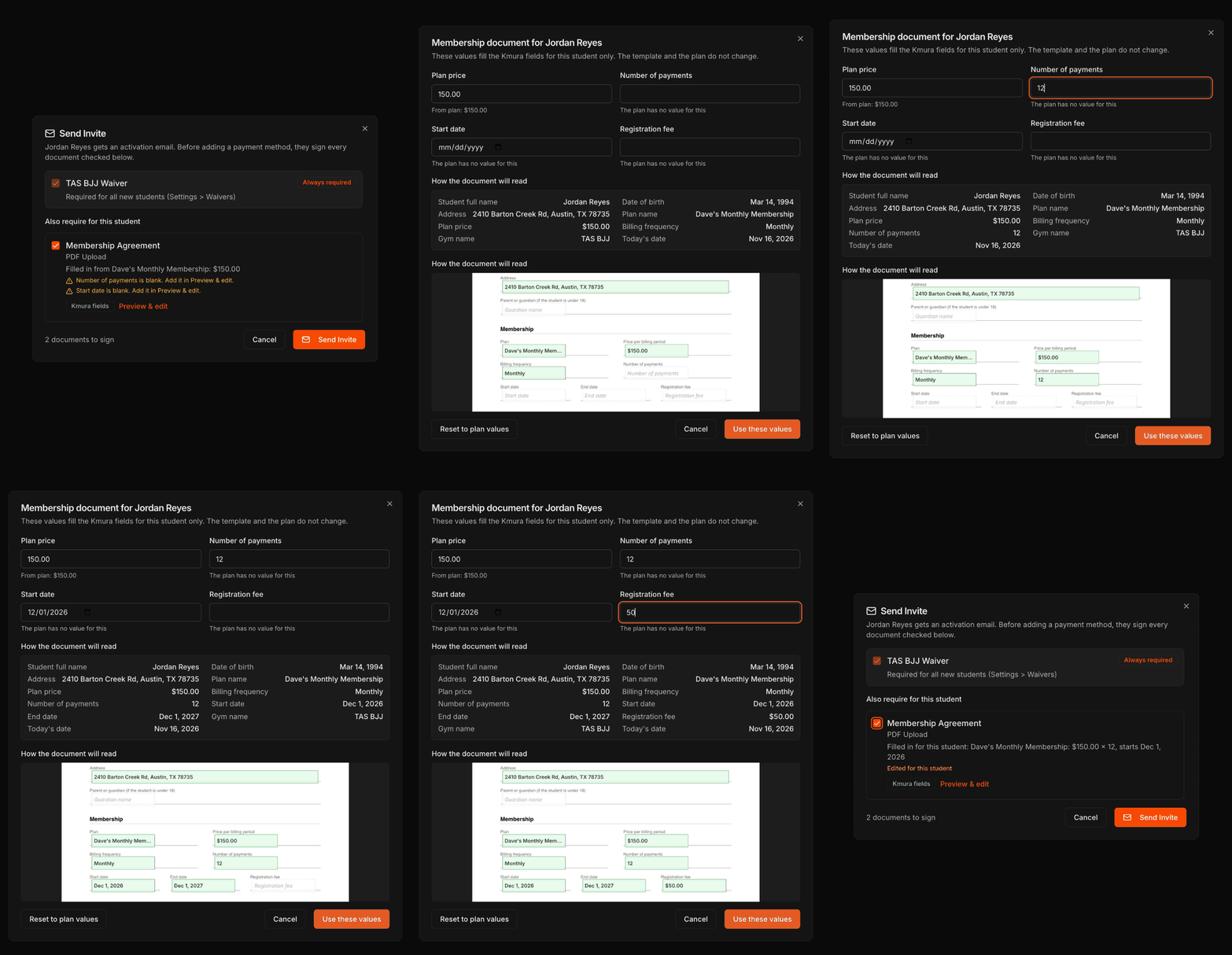
Start a PDF template
Go to Settings > Waivers and click New Template.
Choose Upload PDF. Kmura fields are placed on PDF templates; Build from Scratch does not have them.
Enter a Template Name, tick the payment information acknowledgment and click Continue.
Upload your agreement as a PDF. Leave a blank line or box wherever a detail should be filled in.
Note
Naming a template and the acknowledgment are covered in Saving Waiver Templates.
Tip
One agreement with Kmura fields can replace a separate contract for every membership plan.
Place Kmura fields on the PDF
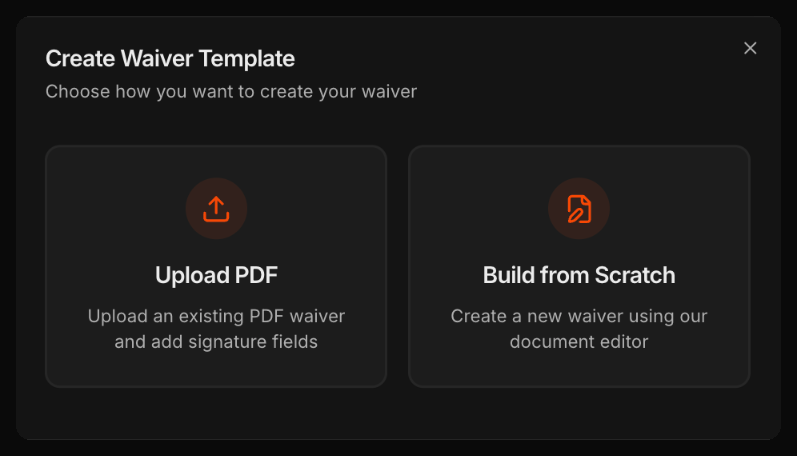
In the editor toolbar, click Kmura field, the green button after the other field types.
Pick a field from the menu. It is grouped into Student, Plan and Gym, with a sample value beside each one.
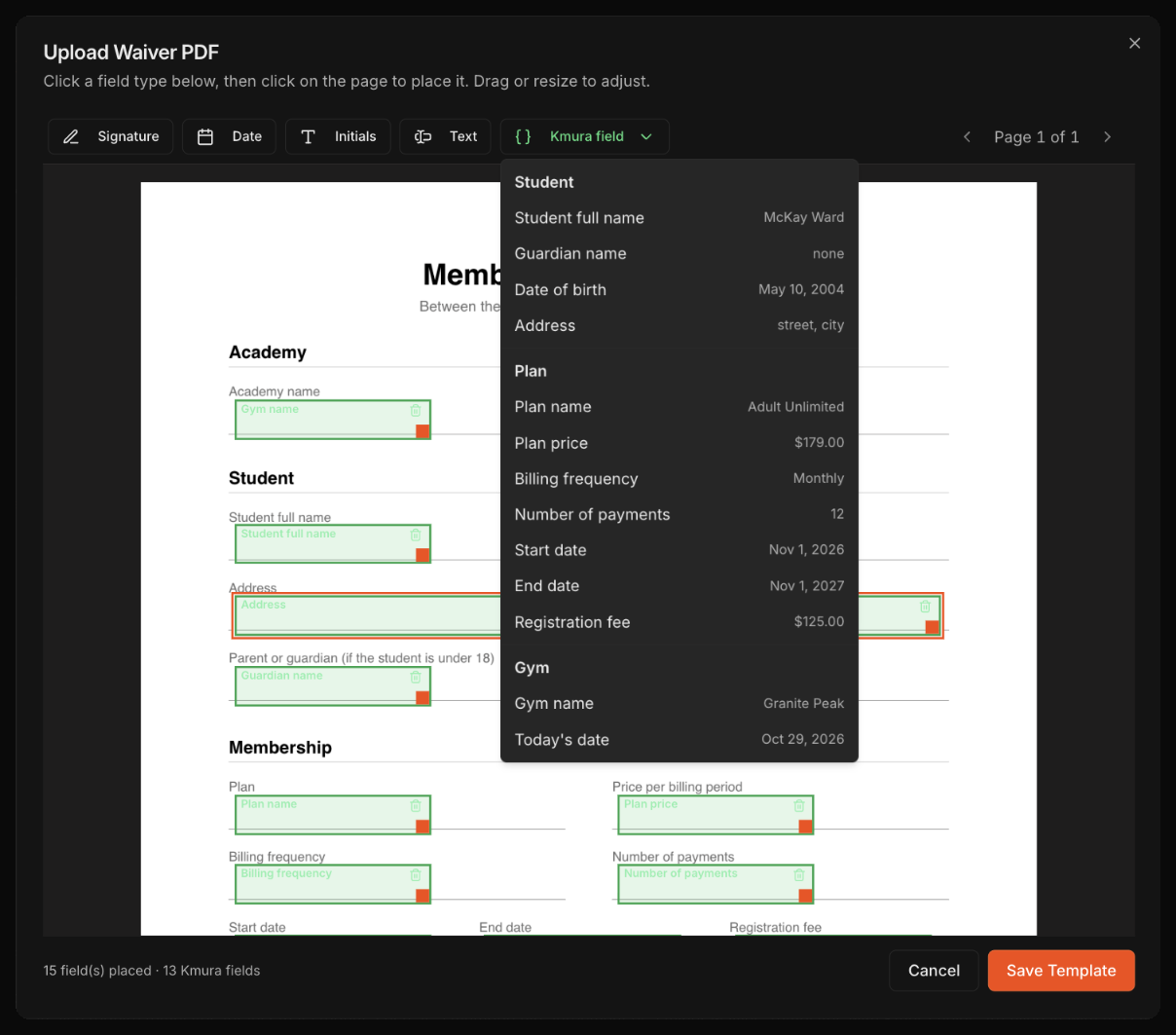
Click on the page where that detail belongs. The field lands there in green.
Repeat for each detail you want filled in.
Note
**Student**: **Student full name**, **Guardian name**, **Date of birth**, **Address**. **Plan**: **Plan name**, **Plan price**, **Billing frequency**, **Number of payments**, **Start date**, **End date**, **Registration fee**. **Gym**: **Gym name**, **Today's date**.
Size the fields and save
Drag a field to move it, drag its corner to resize it, or click its trash icon to remove it.
Make a field wide enough for the longest value it will hold. A long plan name or address can be cut off in a narrow field.
Add at least one Signature field. The template cannot be saved without one.
The count at the bottom shows what you have placed, for example 15 field(s) placed · 13 Kmura fields.
Click Save Template. In Waiver Templates, a green chip next to the name shows how many Kmura fields the template has.
Note
Green fields are filled in by Kmura. Signers fill in the **Signature**, **Date**, **Initials** and **Text** fields.
Check the values for one student
Go to Students, open the student, click the Documentation tab and click Send Waiver.
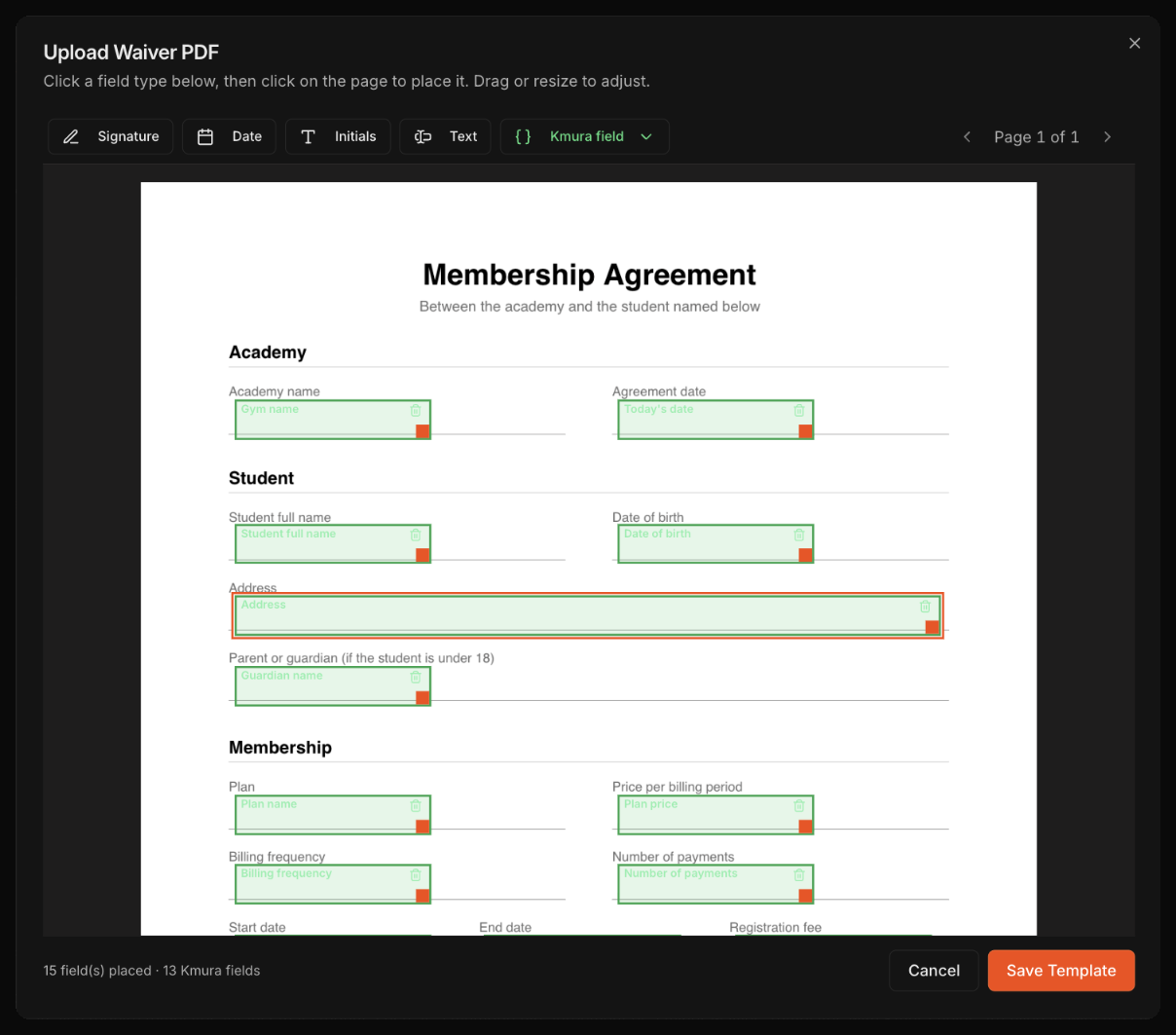
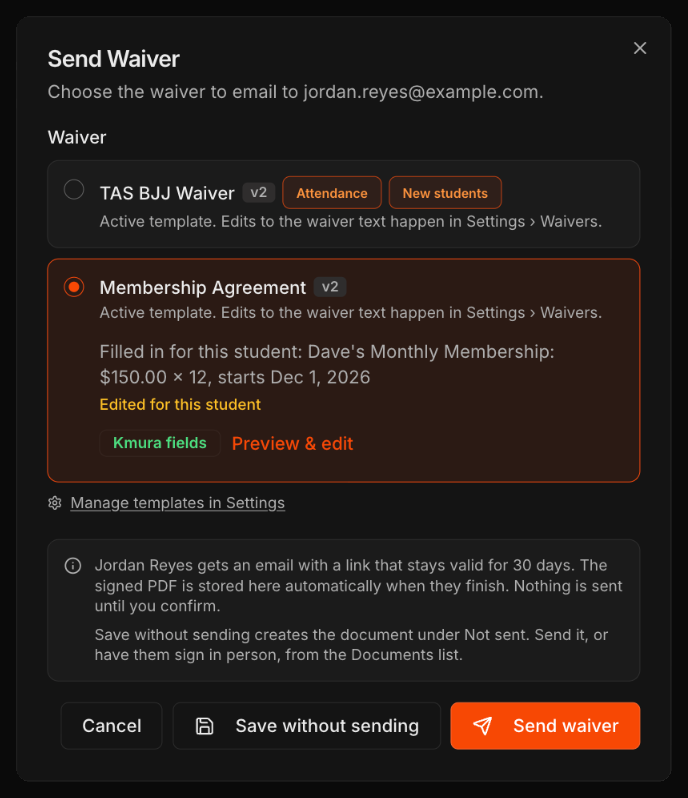
Pick the template. The line under it shows where the values come from, for example Filled in from Dave's Monthly Membership: $150.00.
A yellow line flags any value the plan does not have, such as Number of payments is blank. Add it in Preview & edit.
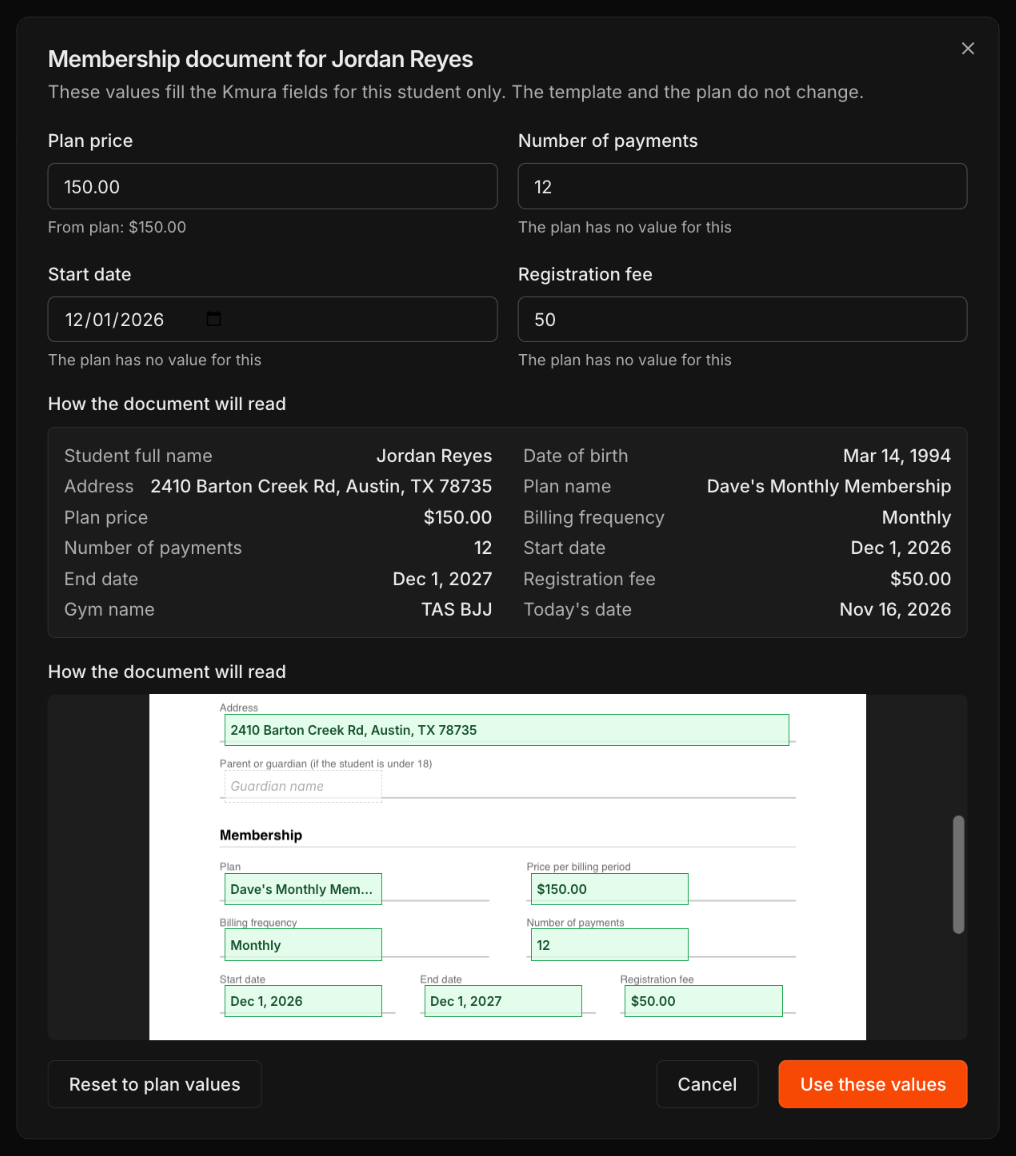
Click Preview & edit. You can change Plan price, Number of payments, Start date and Registration fee. The plan's own value shows under each box.
How the document will read lists every value and shows the document with them filled in. End date is worked out from the start date and the number of payments.
Click Use these values. The template now reads Edited for this student. Reset to plan values undoes your changes.
Caution
These values change the wording of this student's copy only. The template, the plan and what the student is billed stay the same. To change what a student pays, change their membership on the **Billing** tab.
Note
With no plan on the student, the line reads **No plan assigned. Plan fields will be blank.** Enroll the student in a plan first. See Assigning Students To A Membership Plan.
Send it now, or save it for later
Click Send waiver to email the student a signing link that stays valid for 30 days.
Or click Save without sending. The document is created under Not sent on the student's Documents list with the values you set, and nothing is emailed.
Use Save without sending to prepare an agreement before the student is ready to sign, or to hand it over in person.
Note
If a saved copy of that template is already waiting for the student, **Save without sending** is greyed out and a notice sends you to the **Documents** list.
Tip
**Preview & edit** is offered when you send to one student. Sending a template to many students at once from **Settings** > **Waivers** has no per-student edit.
Send, sign or edit a saved copy
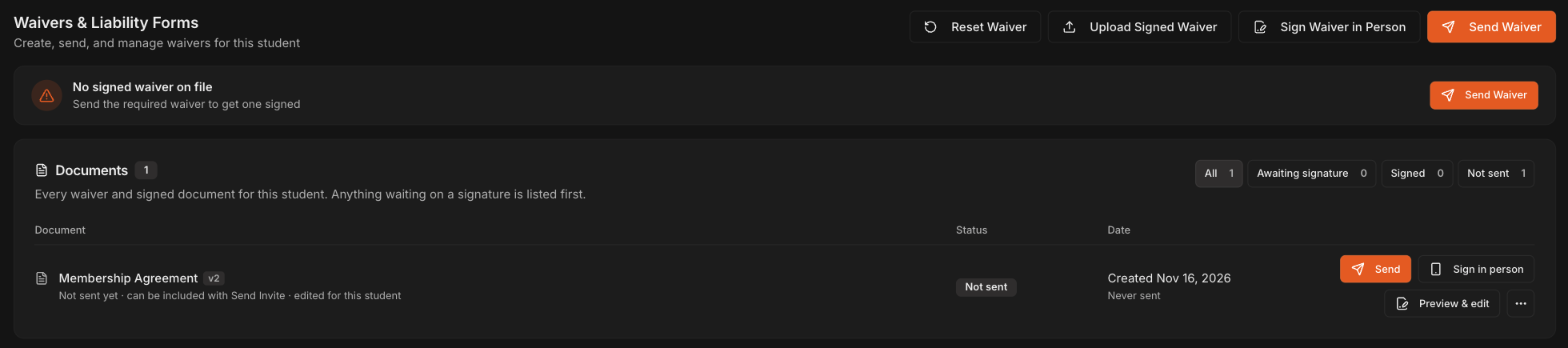
On the Documents list, a saved copy shows Not sent, with edited for this student under its name when you changed a value.
Click Send to email it, or Sign in person to have the student sign on this device.
Click Preview & edit to change the values again before it goes out.
The ... menu holds View PDF and Delete.
Note
A saved copy keeps the values it was saved with. It is not refilled if the plan changes later.
Require it when you invite a student
On the Student Information page, click Send Invite.
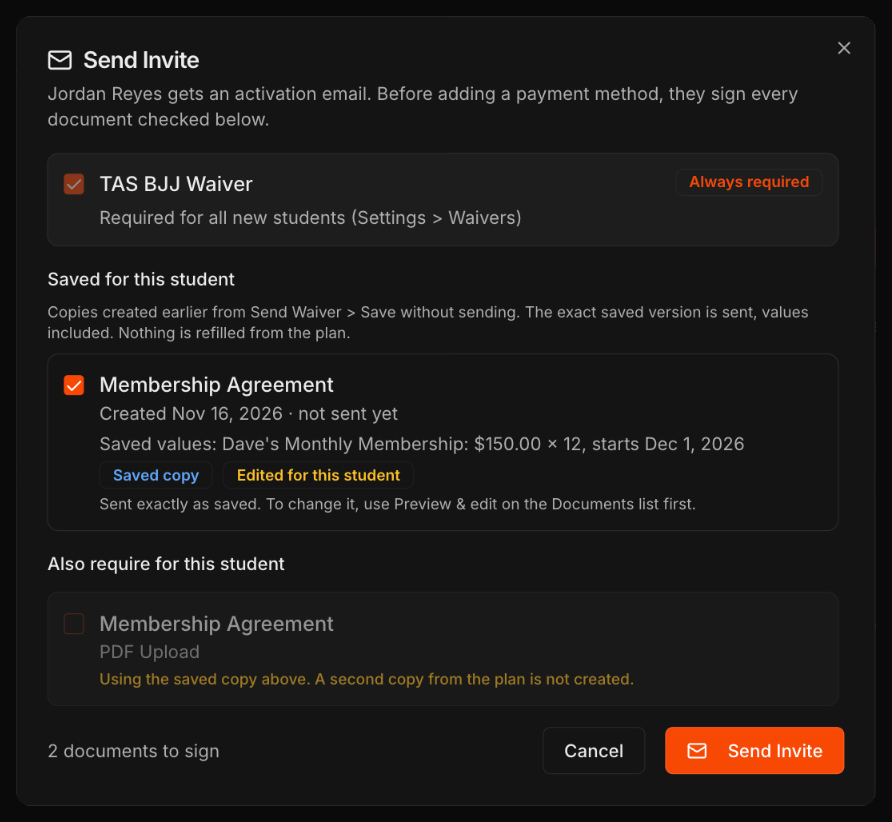
Templates on your Required For New Students list are checked and marked Always required.
Saved for this student lists copies you saved earlier. Tick one to send it exactly as saved.
Under Also require for this student, tick a template to fill a fresh copy from the plan, and click Preview & edit to adjust its values.
The count at the bottom shows the total, for example 2 documents to sign. Click Send Invite.
Note
When you tick a saved copy, the same template under **Also require for this student** is greyed out, so the student is never sent two copies.
What the student signs
The student opens the activation email and signs each required document before adding a payment method.
Your Required For New Students templates are signed in the order set under Settings > Waivers.
The Kmura fields arrive already filled in. The student completes only the signature, date, initials and text fields.
For a student under 18, the parent or guardian signs.
Note
Signed copies are stored on the student's **Documentation** tab. See Have Students Sign Waivers.