Open the setup from the Leads page
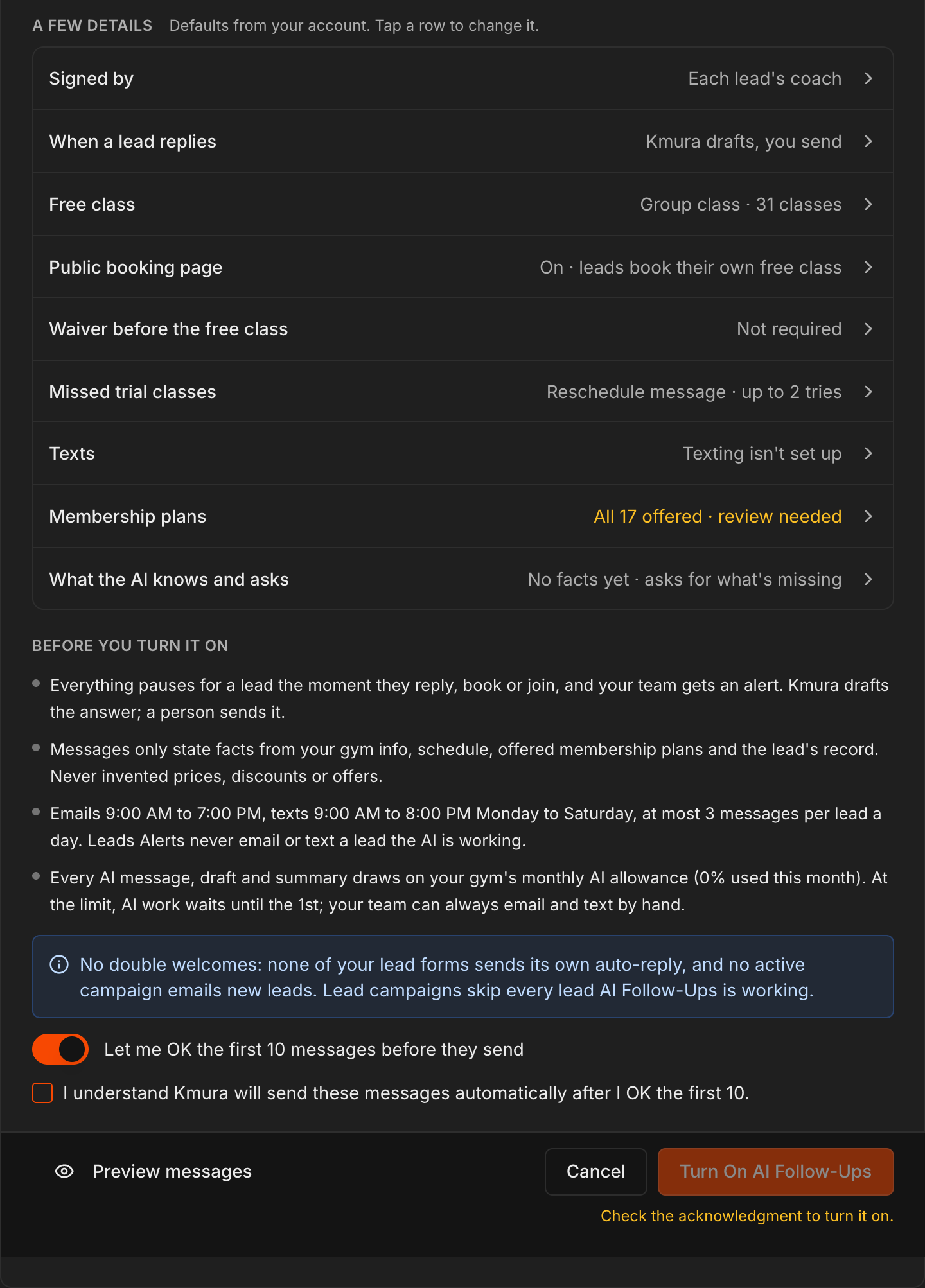
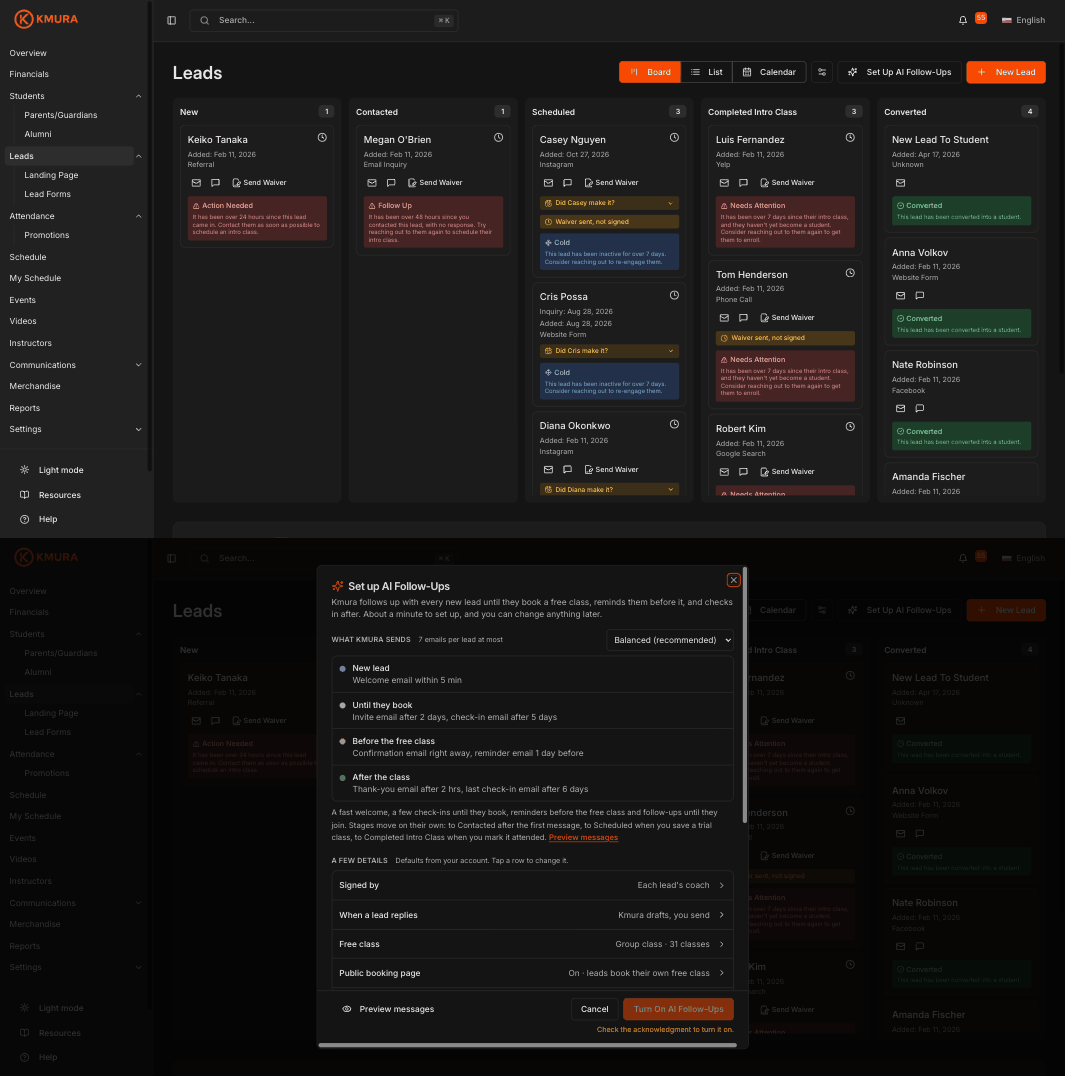
Click Leads in the left menu. The header holds the Board, List and Calendar views, a small Lead stages gear, Set Up AI Follow-Ups and New Lead.
Click Set Up AI Follow-Ups. Everything is on one screen, takes about a minute, and nothing sends until you turn it on at the bottom.
Once it is on, the same button reads AI Follow-Ups with a count of leads that need a person, and opens the Activity and Settings tabs described in step 12.
Note
AI Follow-Ups works on leads only. The moment a lead becomes a student it stops, and your student campaigns under **Communications** > **Campaigns** take over.
Pick how much Kmura sends
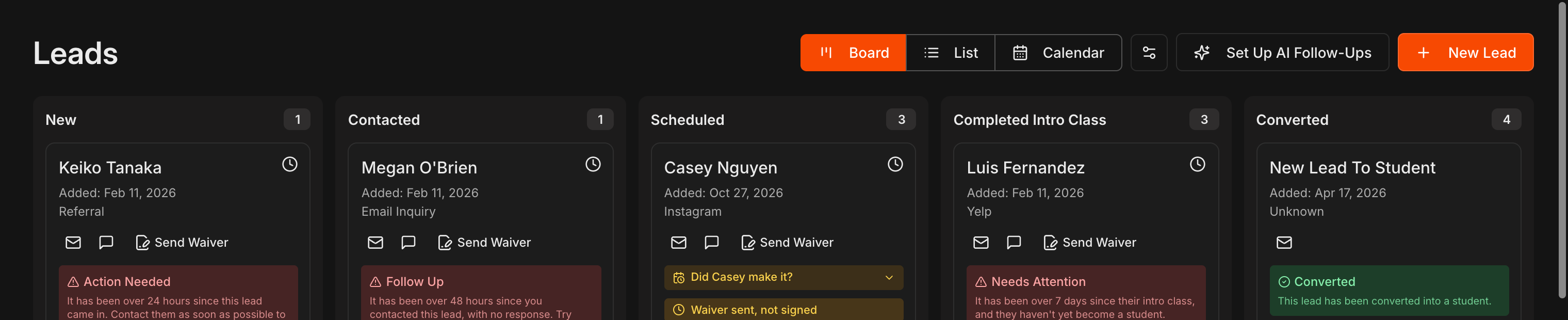
Under What Kmura sends, choose Light, Balanced (recommended) or Persistent. The rows underneath spell out the plan: a welcome within 5 minutes of a new lead, invites and check-ins until they book, a confirmation and reminder before the free class, and a thank-you and last check-in after it.
Stages move on their own: a lead goes to Contacted after the first message, to Scheduled when a trial class is saved, and to Completed Intro Class when it is marked attended.
With texting set up, Balanced and Persistent also add texts and a call task for the coach; without it, the plan is emails only.
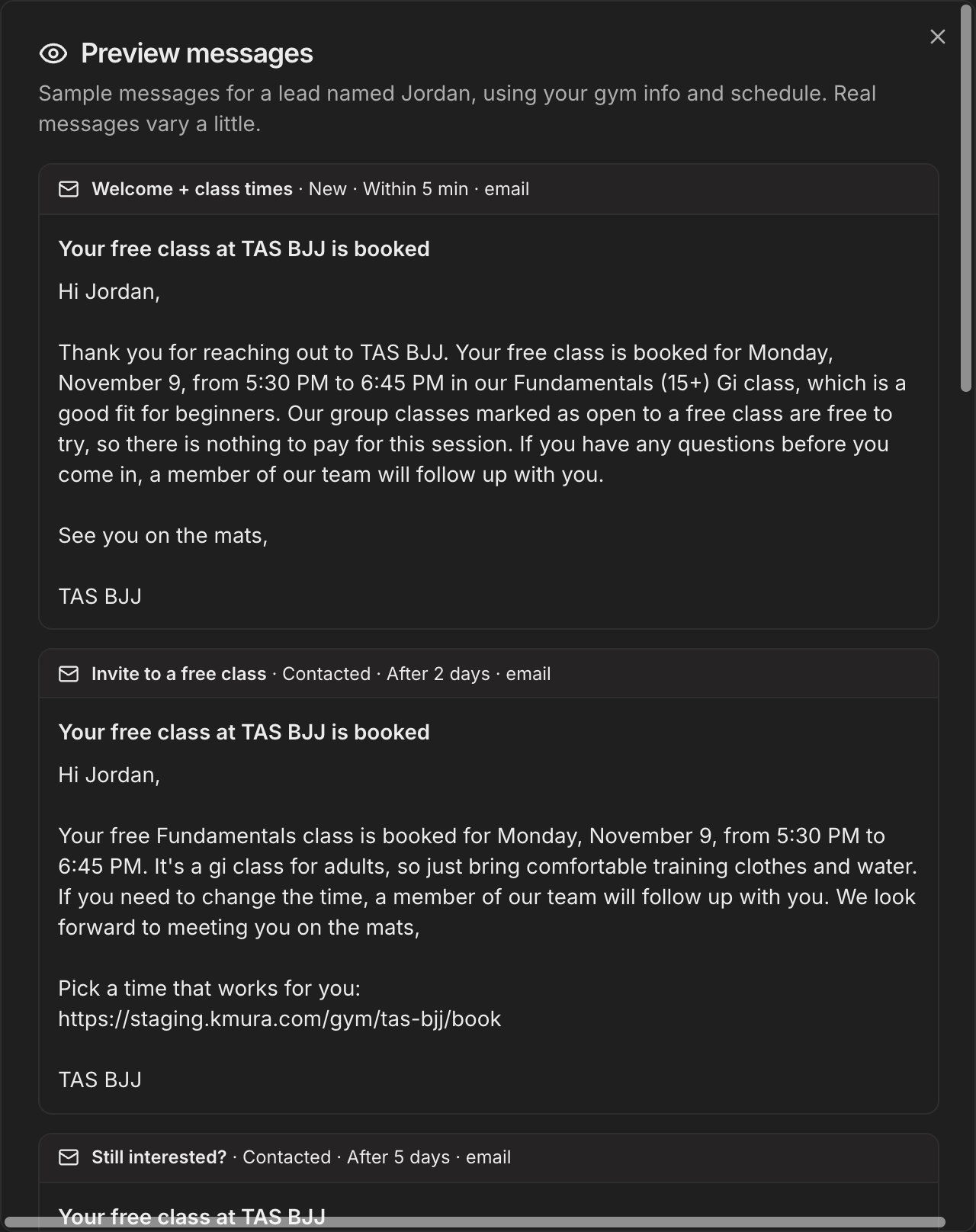
Click Preview messages at any point to read sample messages written for a lead named Jordan with your gym's real details.
Note
Every plan has a cap per lead (for example 7 emails at most on **Balanced**), sends emails between 9:00 AM and 7:00 PM and never more than 3 messages to one lead a day.
Choose what happens when a lead replies
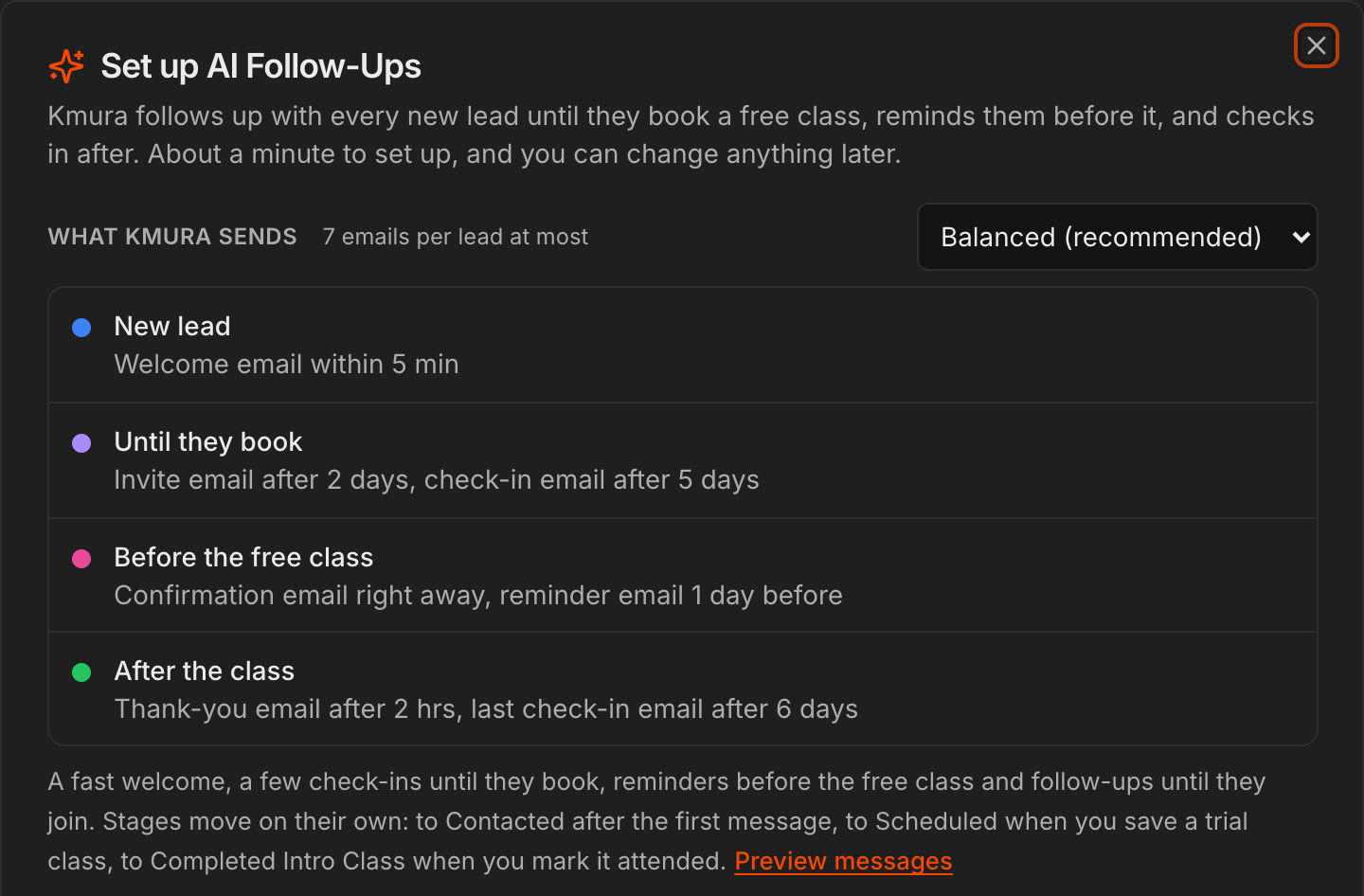
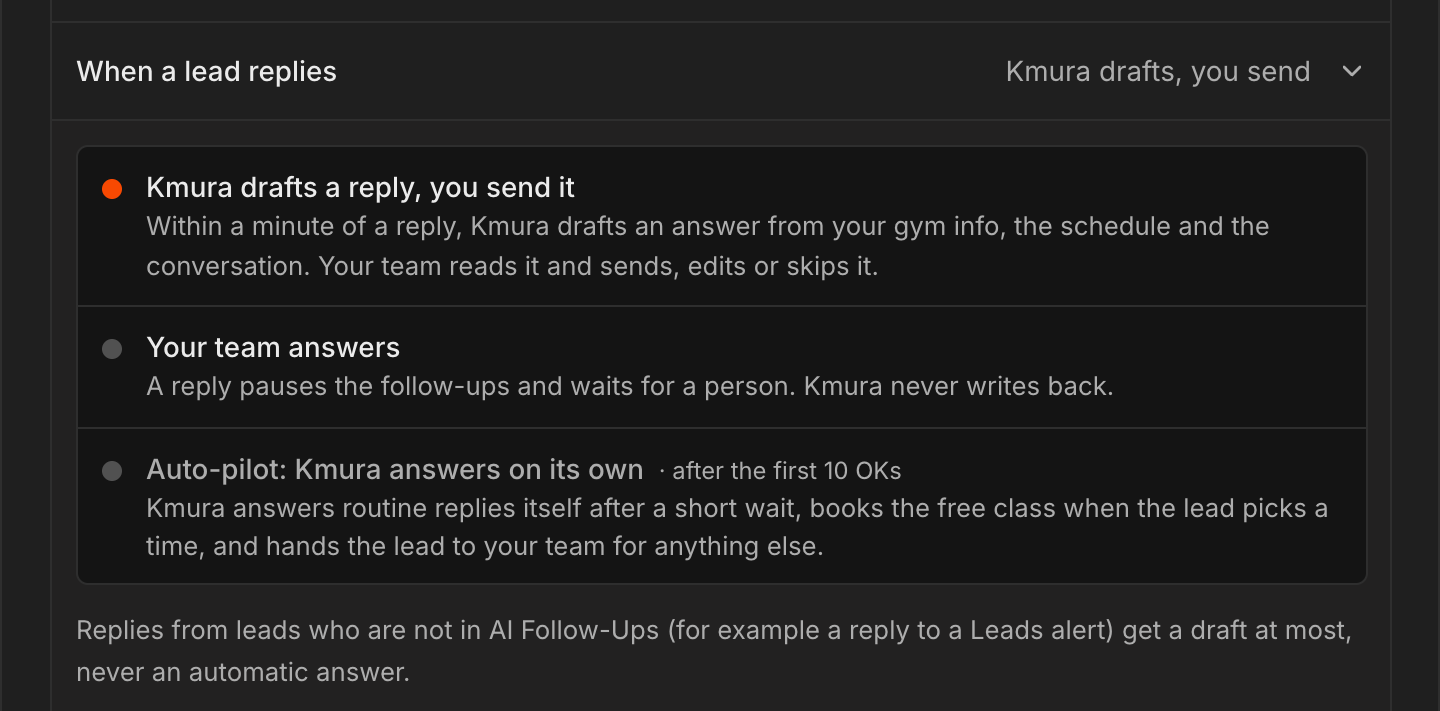
Under A few details, click the When a lead replies row. Every row on this screen opens the same way and shows your current choice on the right.
Kmura drafts a reply, you send it is the default: within a minute of a reply, Kmura writes an answer from your gym info, the schedule and the conversation, and your team sends, edits or skips it.
Your team answers keeps Kmura quiet: a reply pauses the follow-ups and waits for a person.
Auto-pilot lets Kmura answer routine replies itself, book the free class when the lead names a time, and hand anything else to your team. It unlocks after you OK the first 10 messages.
Note
Auto-pilot always hands over pricing or discount questions, complaints, anything medical, a lead who asks for a person, and anything it is not sure about. Once a staff member writes in that lead's conversation, Auto-pilot stays out of it.
Note
A reply from a lead who is not in AI Follow-Ups, for example a reply to a Leads alert, gets a draft at most, never an automatic answer.
Turn on the public booking page
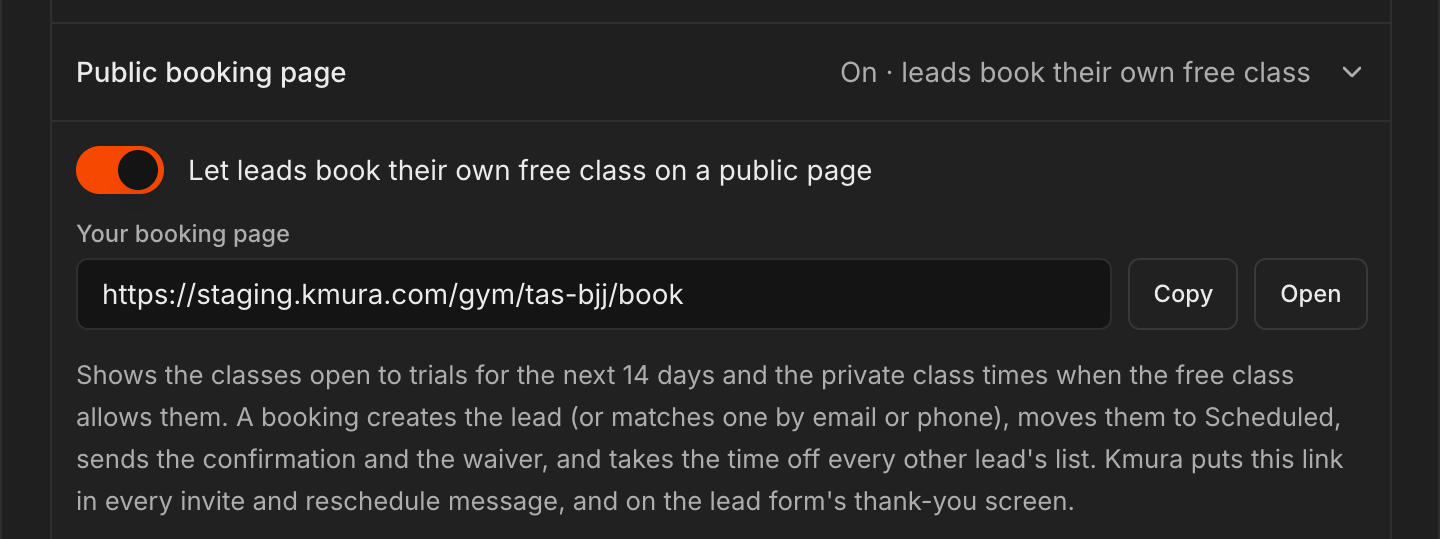
Click the Public booking page row. Let leads book their own free class on a public page is on by default and shows Your booking page link with Copy and Open.
The page lists the classes open to trials for the next 14 days (and private class times when your free class allows them). A booking creates the lead or matches an existing one, moves them to Scheduled, sends the confirmation and the waiver, and takes that spot off every other lead's list.
Kmura puts this link in every invite and reschedule message and on the lead form's thank-you screen, so you do not need to share it by hand.
The Free class row above it decides which classes count as open to trials. Set it up once under Leads > Lead Forms; see Letting Leads Book A Trial Class From Your Form.
Note
The booking page is off until AI Follow-Ups is set up. Visitors who open it before that see a note to contact the gym directly.
Review which membership plans the AI may mention
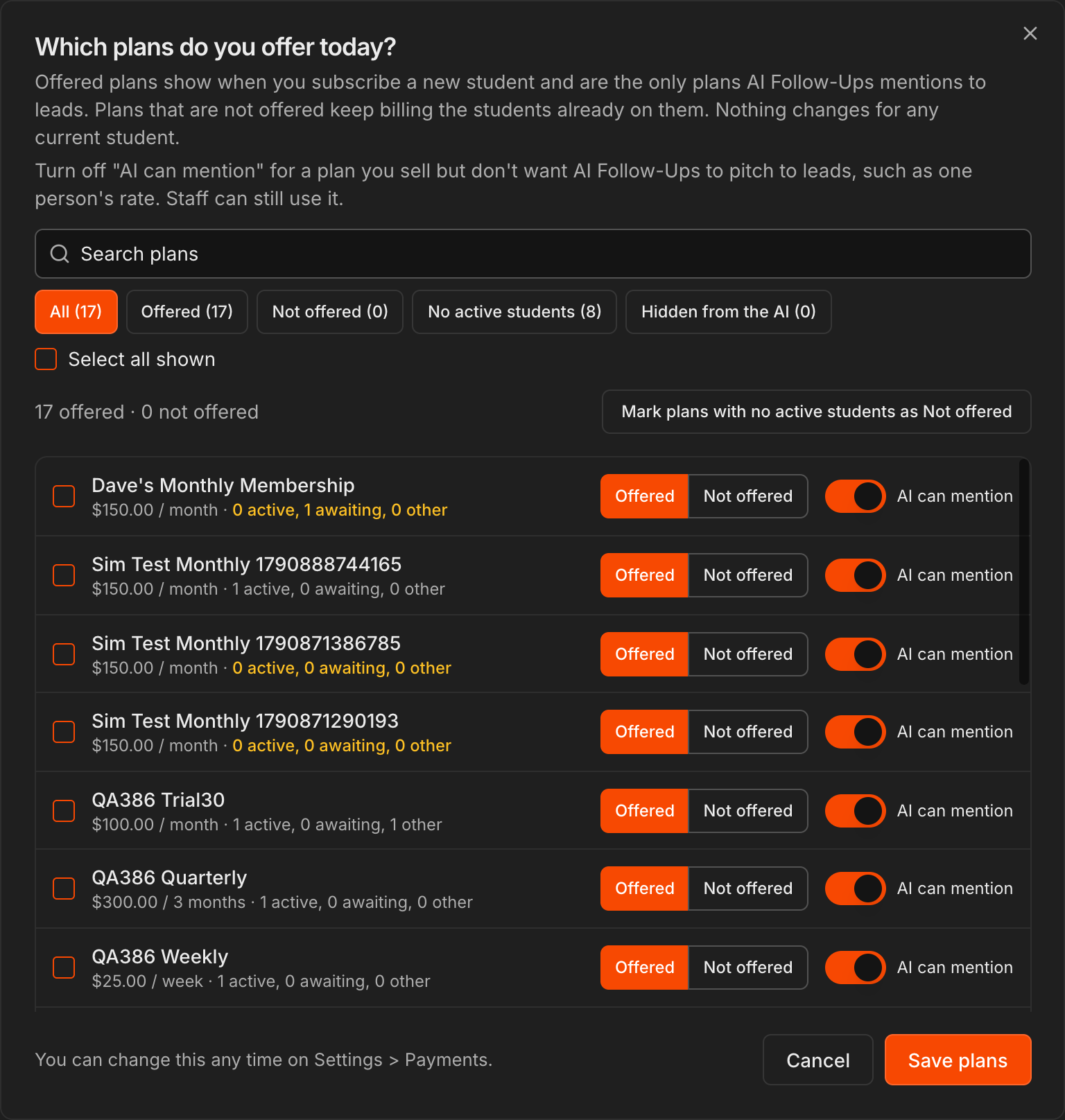
Click the Membership plans row. It reads All 17 offered · review needed until you have looked at your plans once, because the AI only quotes plans marked Offered.
Click Review plans to open Which plans do you offer today?. Set each plan to Offered or Not offered, or use Mark plans with no active students as Not offered to clear old rates in one click.
Turn off AI can mention on a plan you still sell but do not want pitched to leads, such as one person's custom rate. Staff can still use it.
Click Save plans. Students already on a plan you stop offering keep it and keep being billed.
Note
The same **Offered** and **Not offered** controls live under **Settings** > **Payments**, where a **Review offered plans** button opens this screen. See Setting Up Base Membership Plans.
Set the no-show message, texts and what the AI knows
Missed trial classes is on by default with up to 2 tries: after a no-show, Kmura sends a sorry-we-missed-you message with the next open times 30 minutes later, by text when the lead agreed to texts, otherwise by email. If they pick a time, the trial is rebooked and the reminders rebuilt.
Texts reads Texting isn't set up until your gym is registered for SMS. See Sending SMS. Texts in the plan only go to leads who ticked the SMS consent on your form.
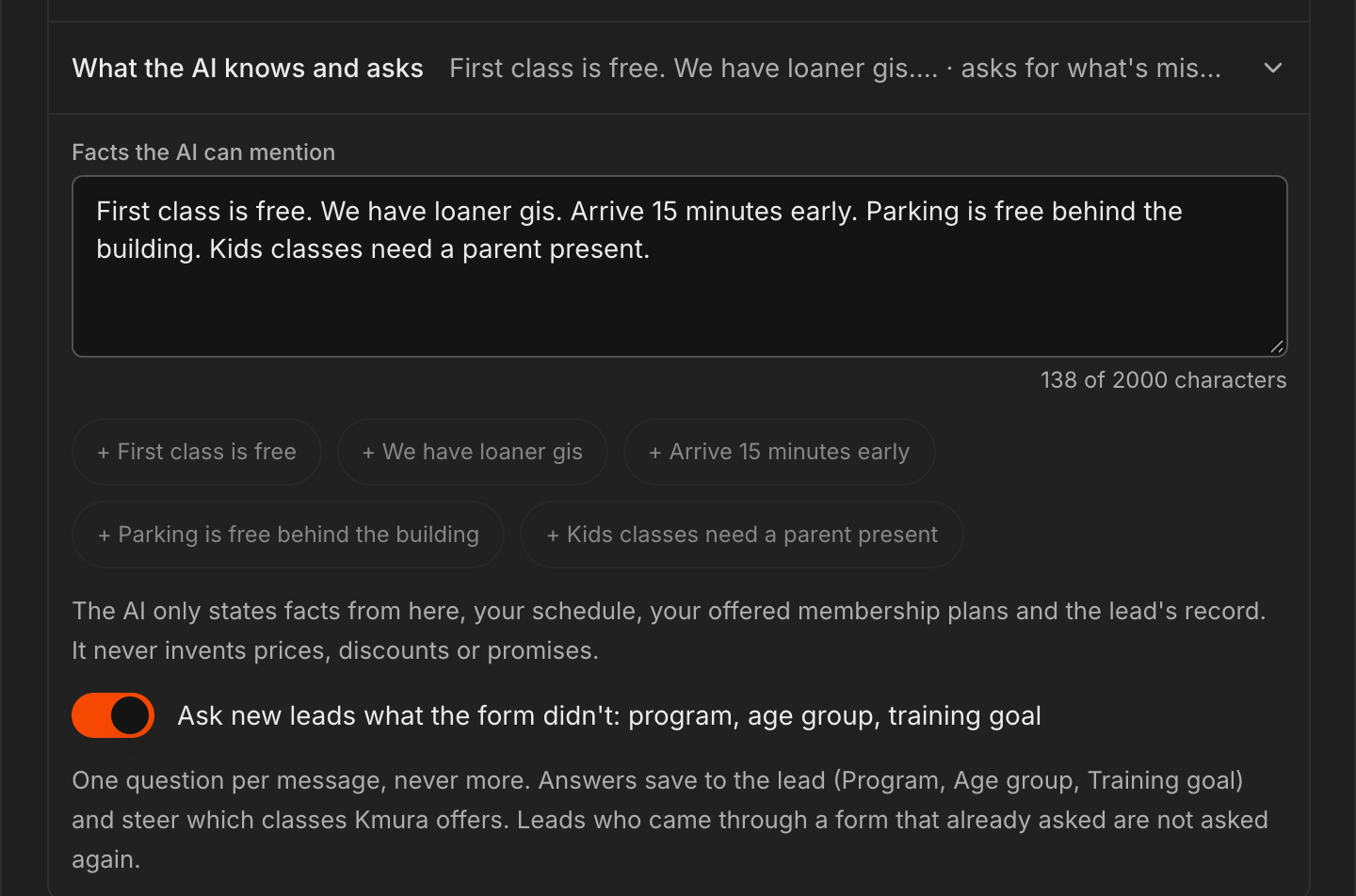
Click What the AI knows and asks and type the facts the AI may use under Facts the AI can mention, for example that the first class is free, that you have loaner gis or where to park. The chips add the common ones in one click.
Leave Ask new leads what the form didn't on so the AI asks, one question per message, for the program, age group and training goal the form did not collect. Answers save to the lead.
Caution
The AI only states facts from this box, your schedule, your offered membership plans and the lead's own record. It never invents prices, discounts or promises, so put anything you want it to say here.
Read the safeguards, preview, and turn it on
Before you turn it on lists what is always true: everything pauses for a lead the moment they reply, book or join; messages only state facts; emails and texts stay inside the send windows; every AI message counts toward your gym's monthly AI allowance; and Leads Alerts never email or text a lead the AI is working.
Leave Let me OK the first 10 messages before they send on. Each of the first 10 messages then waits for your approval, which is how you check the tone before anything goes out unseen.
Tick the acknowledgment and click Turn On AI Follow-Ups. New leads are enrolled from now on, and leads that came in during the last 30 days are offered too.
Note
If one of your lead forms sends its own auto-reply, or an active campaign already emails new leads, the screen lists them with a checkbox to pause them, so nobody gets two welcomes.
Read the AI line on every lead card
Back on the Board, each card carries one AI line with the next thing that will happen, for example the next automated message and when.
Replied · your turn (orange) means a reply is waiting for a person, Reply drafted · your OK (amber) means Kmura wrote an answer to review, and AI replied (grey) means Auto-pilot answered. A Needs you line means Auto-pilot handed the lead to your team, and a call task shows as Call ... with a Done button.
Cards that wait on a person pulse, and the count on the AI Follow-Ups button adds them up.
Hover a card for Kmura's one-line summary of where that lead stands.
Tip
The **List** view sorts leads that wait on a person to the top, and the **Calendar** view shows every trial class for the week with its waiver state.
Reply from the conversation in Lead Details
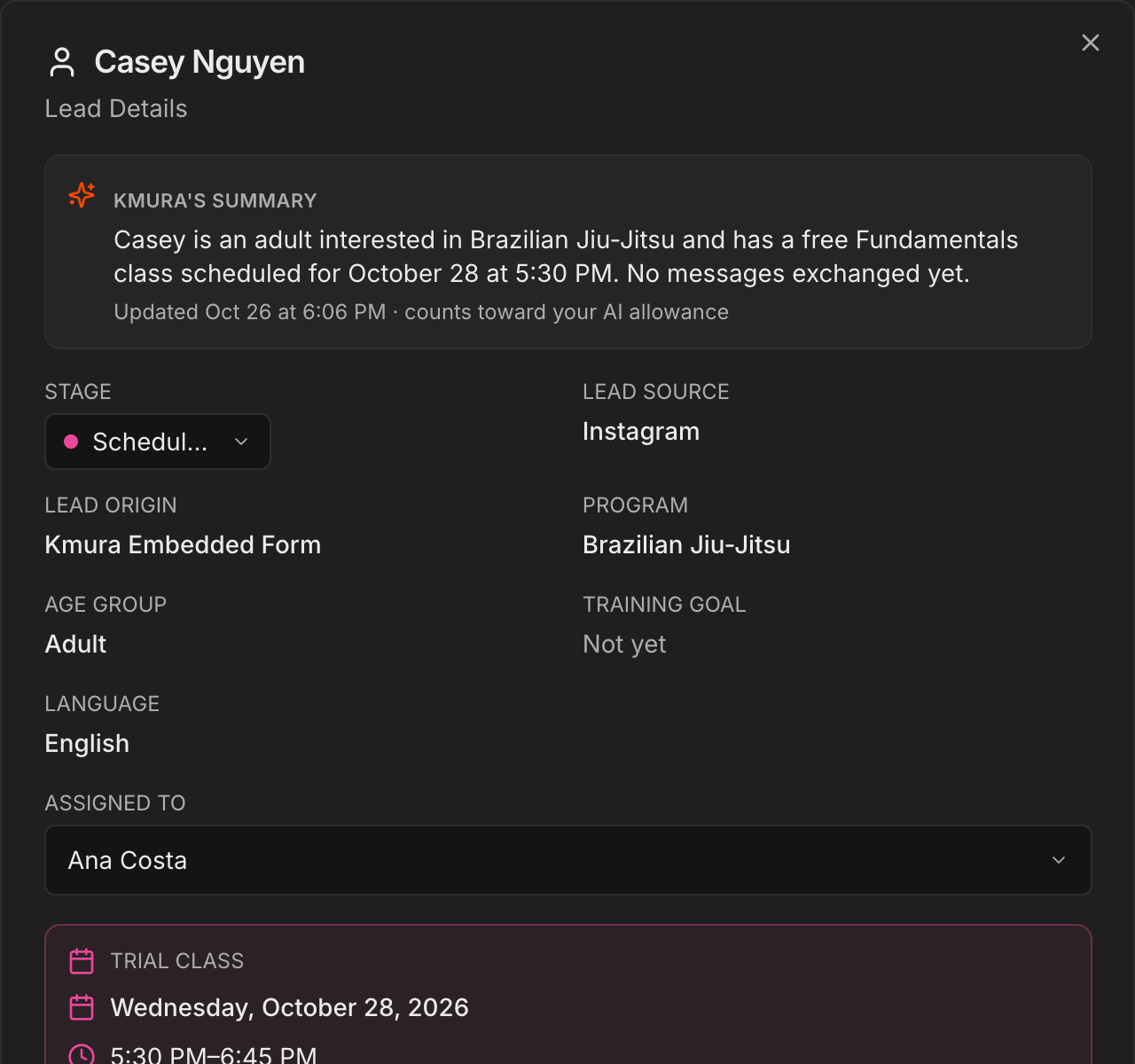
Click a lead. Lead Details opens with Kmura's summary at the top, the facts grid (including Program, Age group and Training goal that the AI fills in), the Trial Class block, and then the Conversation.
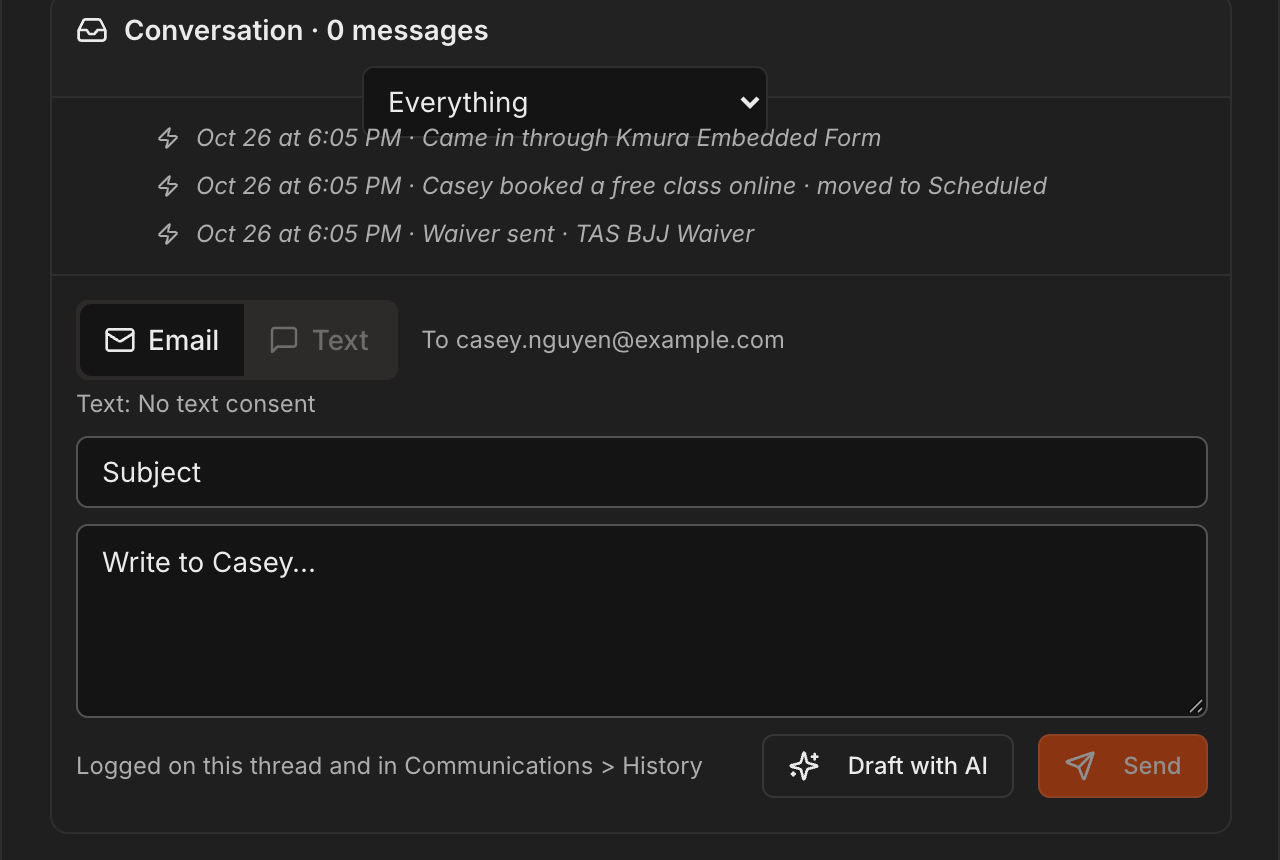
The conversation lists every email and text in both directions, Kmura's drafts and answers, call tasks, waiver events and stage moves in time order. Use the filter to show Messages only or Stage moves and events.
A draft from Kmura appears as an amber row with Send, Edit, Skip and I handled it. A hand-off from Auto-pilot appears as an orange row with the reason and a suggested answer.
Write your own message in the composer at the bottom: choose Email or Text, type, or click Draft with AI to start from a draft, then Send. Sending by hand pauses the AI for that lead.
Note
Every message sent from here is logged on the thread and under **Communications** > **History**.
Park a lead with Contact later
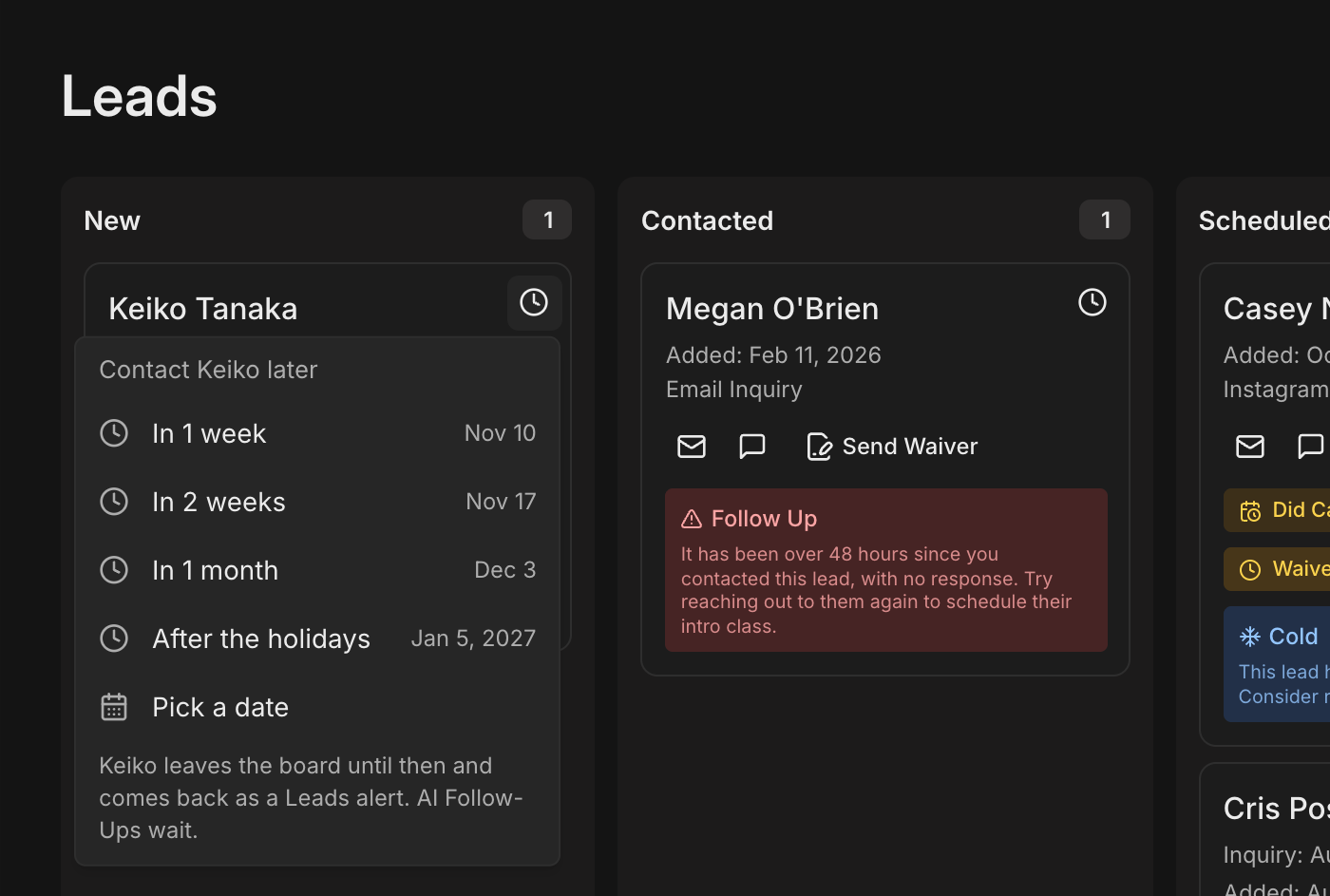
Hover a card and click the clock icon, or open the lead and click Contact later in the footer.
Pick In 1 week, In 2 weeks, In 1 month, After the holidays or Pick a date.
The lead leaves the board, keeps its stage, and its follow-ups wait. On that date it comes back to the board, a Leads alert reminds you, and the follow-ups resume.
A strip above the board lists everyone who is snoozed with a Bring back button, and the List view has a Snoozed filter.
Rename or add lead stages
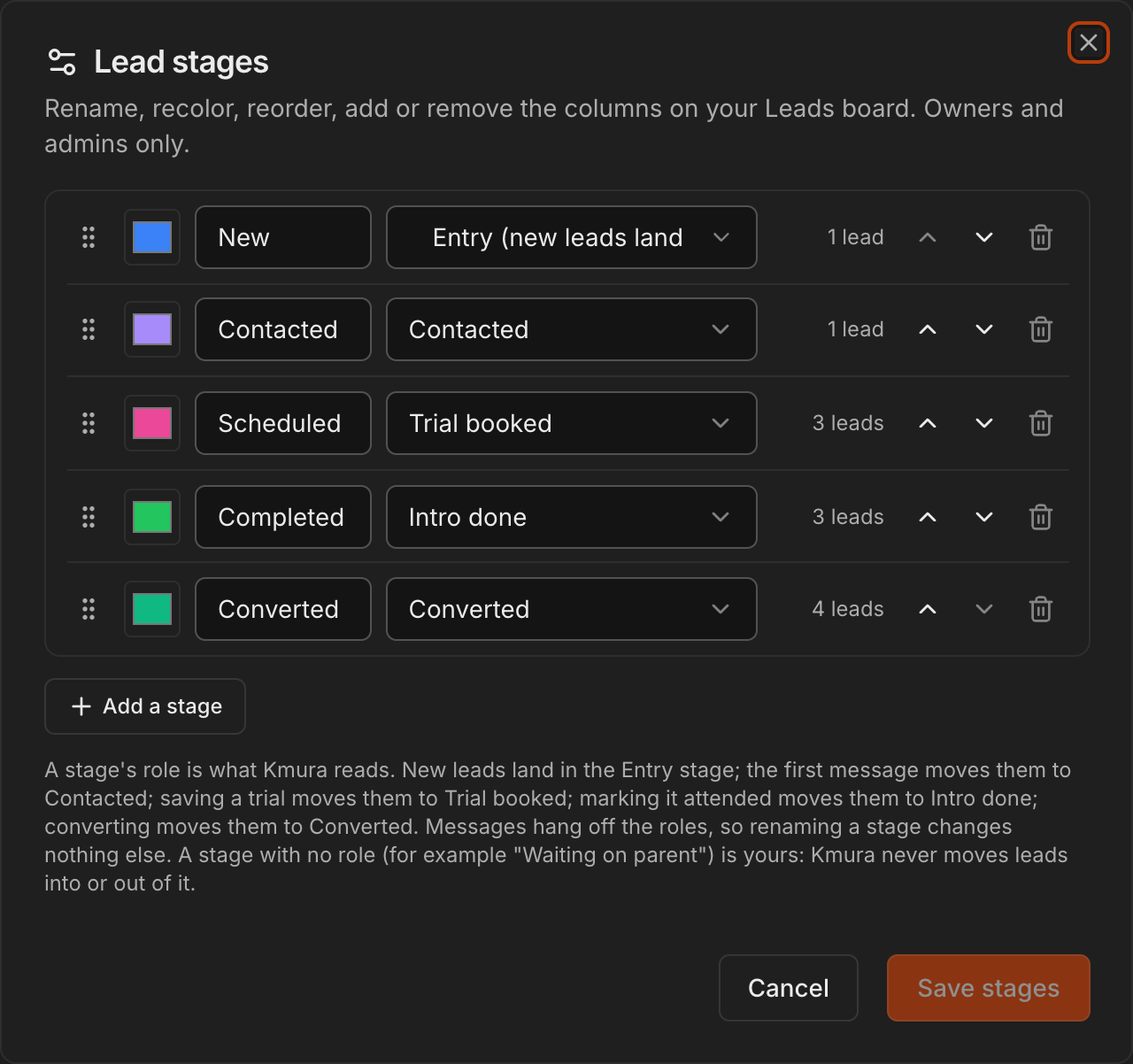
Click the gear next to the views in the Leads header to open Lead stages (owners and admins only).
Rename, recolor, reorder, add or remove the columns on your board. Each stage carries a role: Entry (new leads land here), Contacted, Trial booked, Intro done, Converted or No role.
Kmura reads the roles, not the names, so renaming Scheduled to Trial booked changes nothing else. A stage with no role, for example Waiting on parent, is yours: Kmura never moves leads into or out of it, and follow-ups wait while a lead sits there.
Click Save stages.
Note
Entry and Converted are required and stay first and last. A stage with leads in it cannot be removed until you move them.
Manage AI Follow-Ups after it is on
Click AI Follow-Ups in the Leads header. The Activity tab shows Needs you (replies, drafts, hand-offs and due calls), what is coming up, and what was sent.
The Settings tab holds every row from setup plus AI allowance, which shows the percentage of your gym's monthly AI allowance used. At 100% Auto-pilot drops back to drafts and queued follow-ups wait until the 1st; your team can always email and text by hand.
Call tasks for the coach also appear in a Leads To Call card at the top of that coach's My Schedule page, with Call, Mark done and Open lead.
Use the master switch to turn AI Follow-Ups off. Queued messages are held, not deleted, and turning it back on resumes the ones whose time has not passed.
Note
Moving a lead to **Converted** stops the follow-ups, closes open calls and keeps the conversation on the new student record.