Open the Sent Waivers table
Go to Settings > Waivers and scroll to the Sent Waivers card at the bottom of the page.
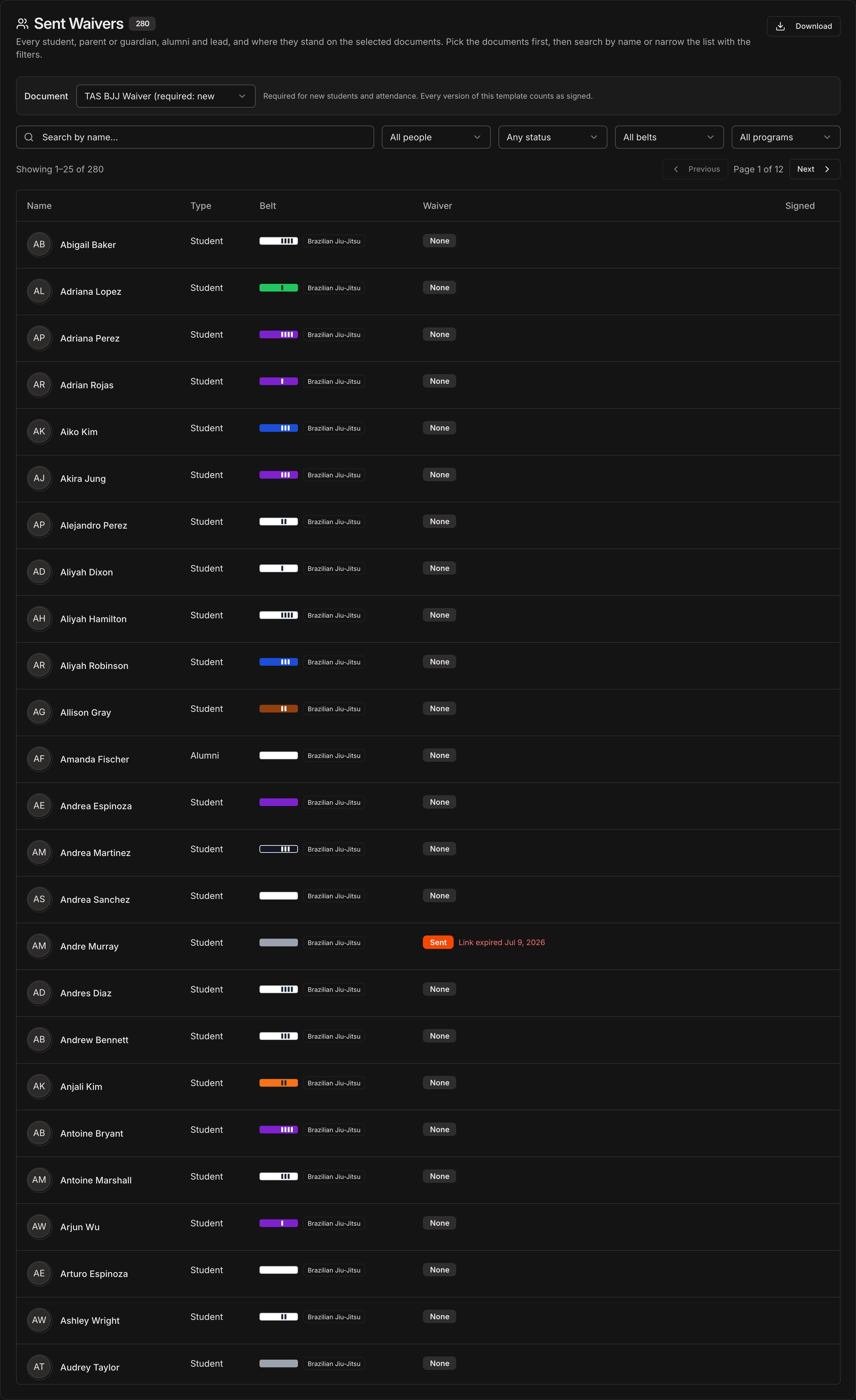
The badge next to the title counts everyone listed: every student, parent or guardian, alumni and lead in your academy.
Each row shows the person's Type, their Belt and program (students and alumni only), their Waiver status for the selected document, and the Signed date.
Rows are sorted by name, 25 per page; use Previous and Next to page through.
Note
The table is for looking, not sending. Sending, resending, viewing and downloading waivers happen on the person's own record (Step 5).
Pick the document to check
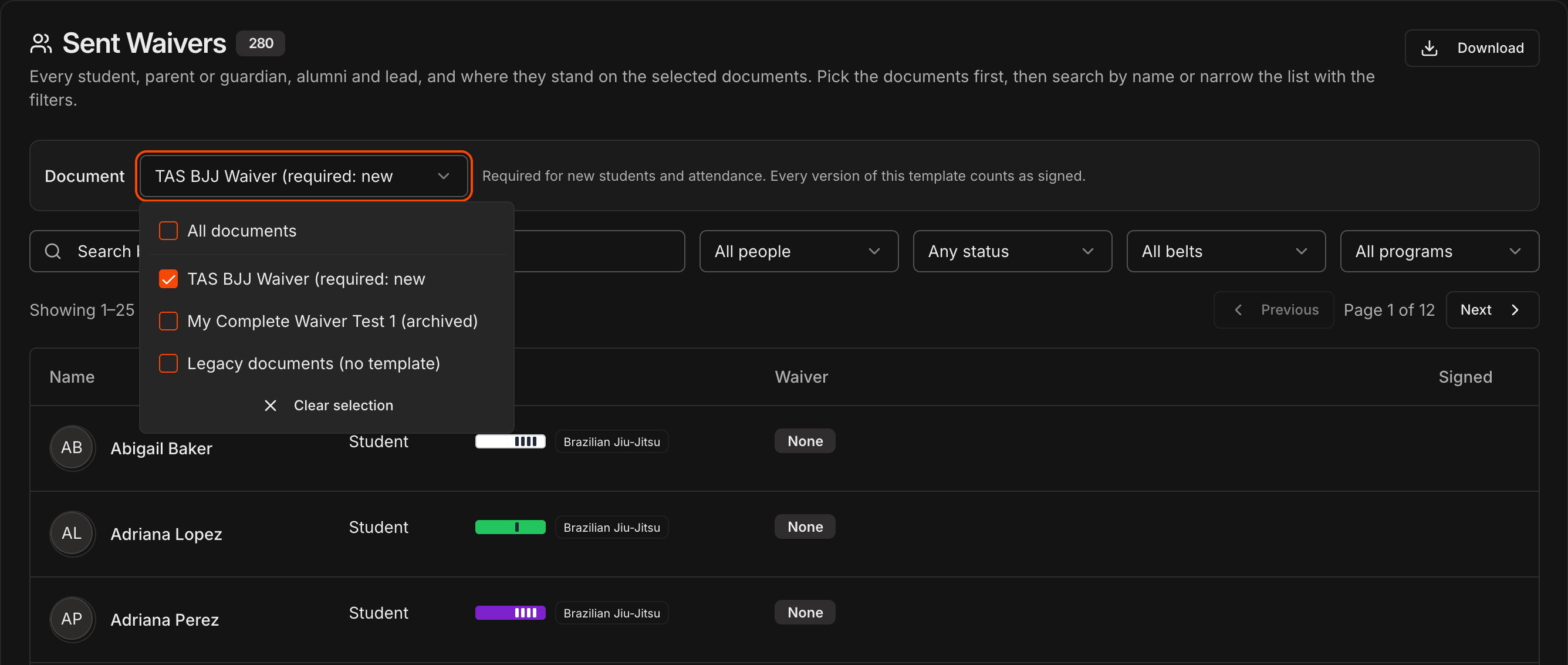
Use the Document filter above the search box to choose which waiver the Waiver column reads against.
Your required waiver is selected by default; archived templates and legacy documents signed before templates existed are listed too.
Tick more than one document to see each person's newest record across all of them, or tick All documents to read against everything.
Every version of a template counts: a v1 signature and a v2 signature both show as Signed.
Tip
If you require more than one document, check them one at a time. With several selected, the newest record wins, so a person who signed one and was then sent another shows as **Sent**.
Search and narrow the list
Type in Search by name to filter the list as you type.
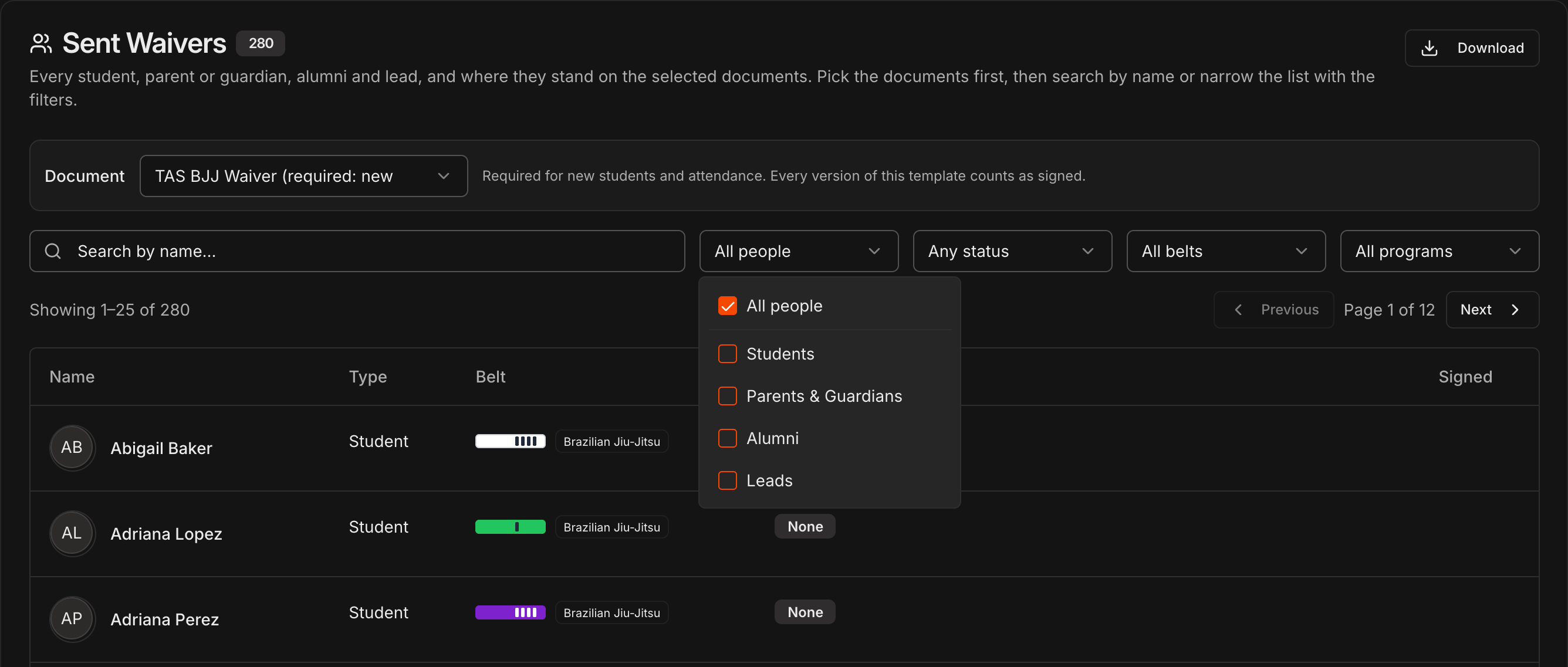
All people narrows to Students, Parents & Guardians, Alumni or Leads; a student who is also a guardian is listed once, as a student with a Guardian chip.
All belts and All programs apply to students and alumni only, so picking either one drops parents, guardians and leads from the list.
Every filter is a checkbox menu: tick several values at once, and the list updates while the menu stays open.
A filter with anything ticked turns orange so you can see the list is narrowed, and any change takes you back to page 1.
Find who has not signed
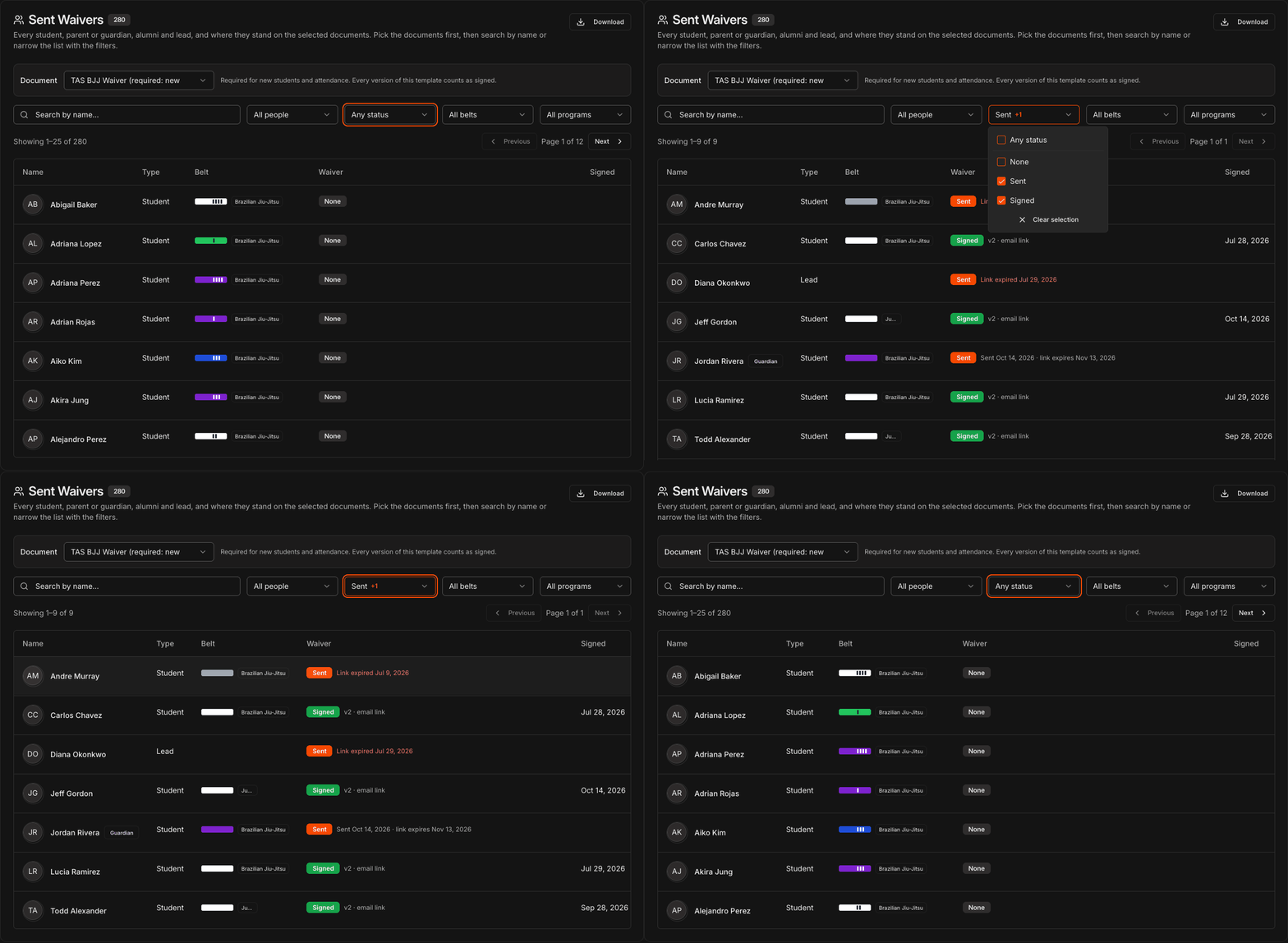
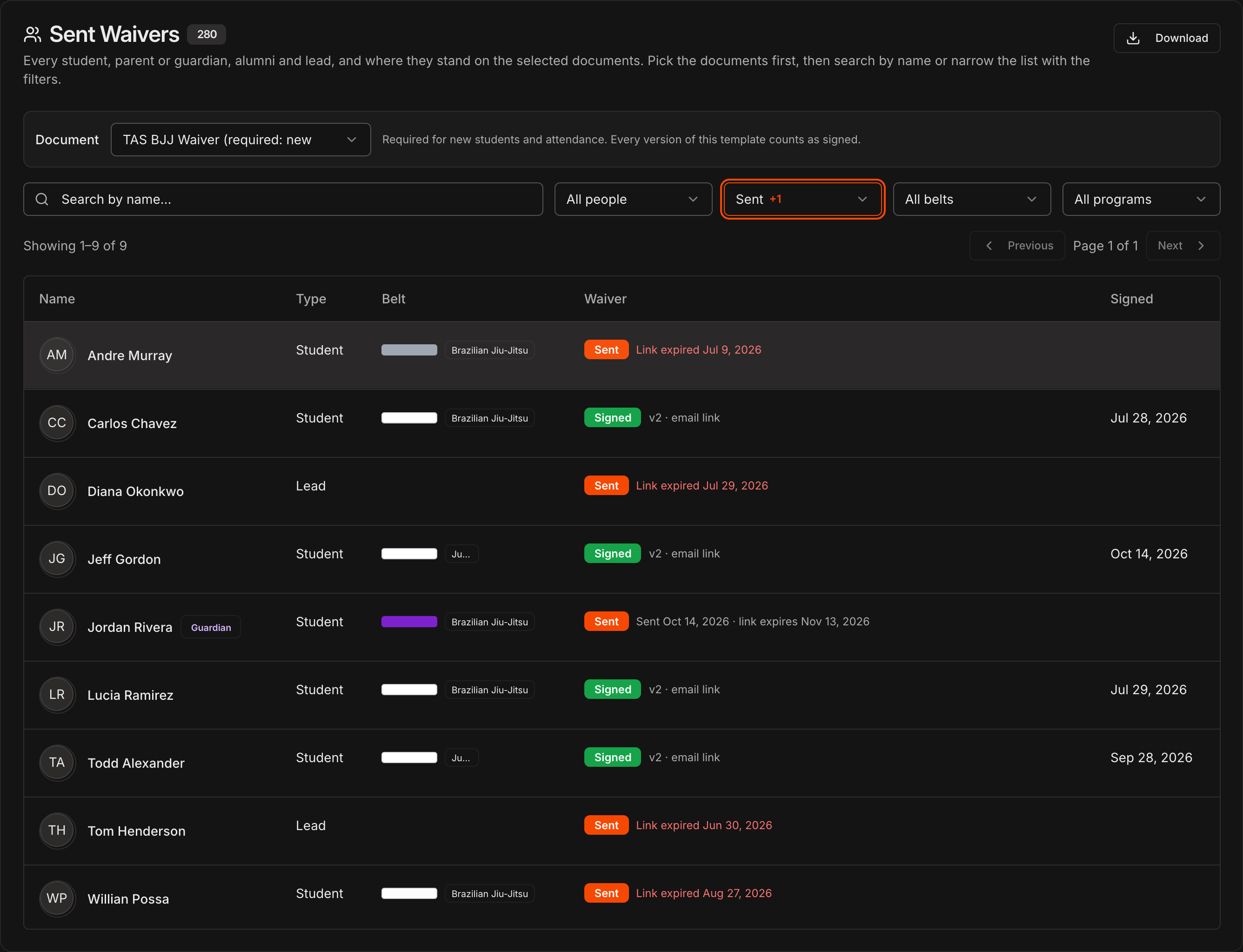
Open Any status and tick None, Sent or Signed.
None means no record for that document. Sent means a link went out and was not signed; the second line shows the sent date or a red Link expired date. Signed shows the version and how it was signed (email link, in person, by guardian or in Kmura), with the date in the Signed column.
Combine None with Students and a program to get the exact list of students you still need to chase.
Click Download at the top right of the card to export the list as it is filtered, one row per person per document, as CSV or PDF.
Note
**Sent** includes expired links on purpose. A red **Link expired** line means the person needs a fresh link, which you send from their record.
Open a person's record
Click any row to jump to that person's waivers.
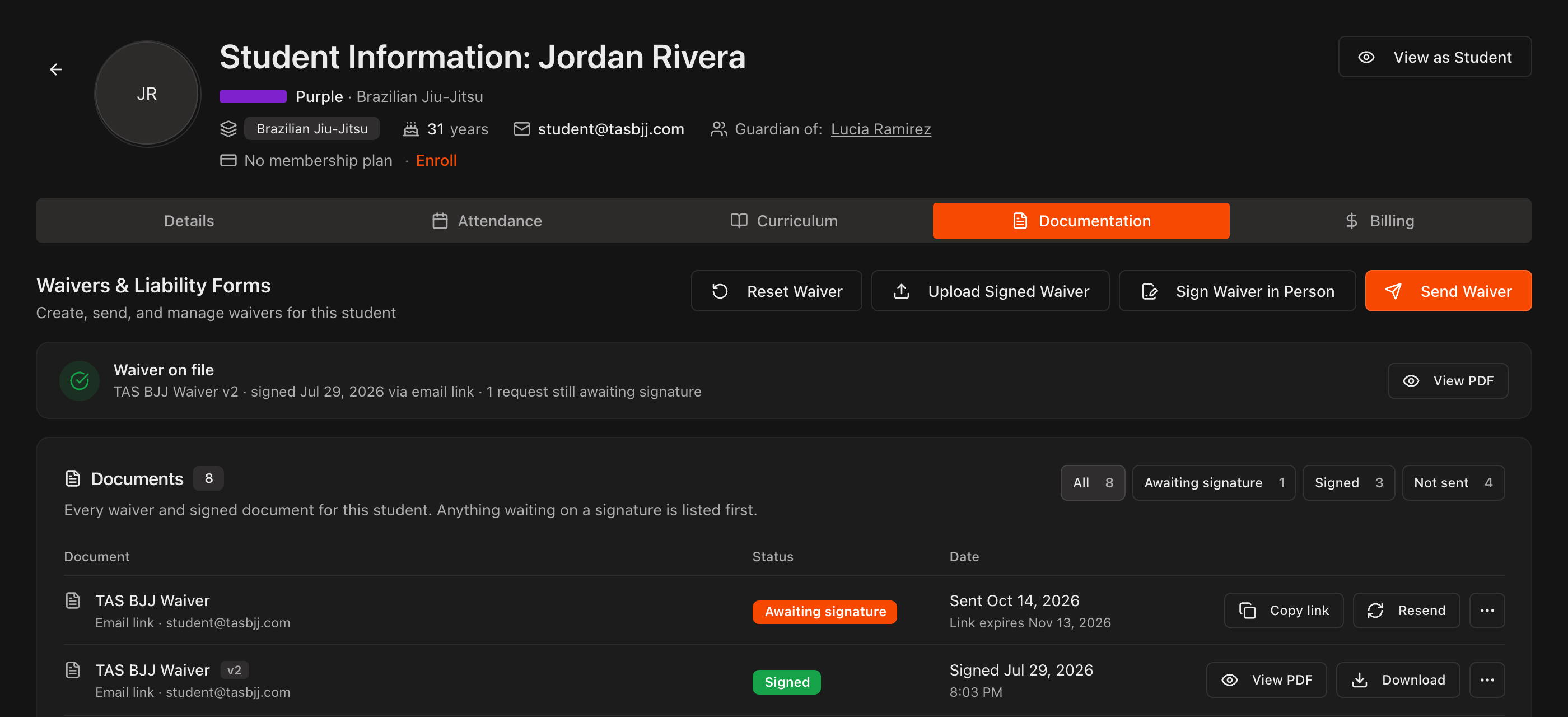
A student or alumni row opens the Documentation tab of their Student Information page, where you can resend, copy a link, view and download signed PDFs or cancel a request (see Have Students Sign Waivers).
A parent or guardian row opens their record under Students > Parents/Guardians, and a lead row opens the lead.
Go back and the table is exactly as you left it: same document, filters, search and page.