
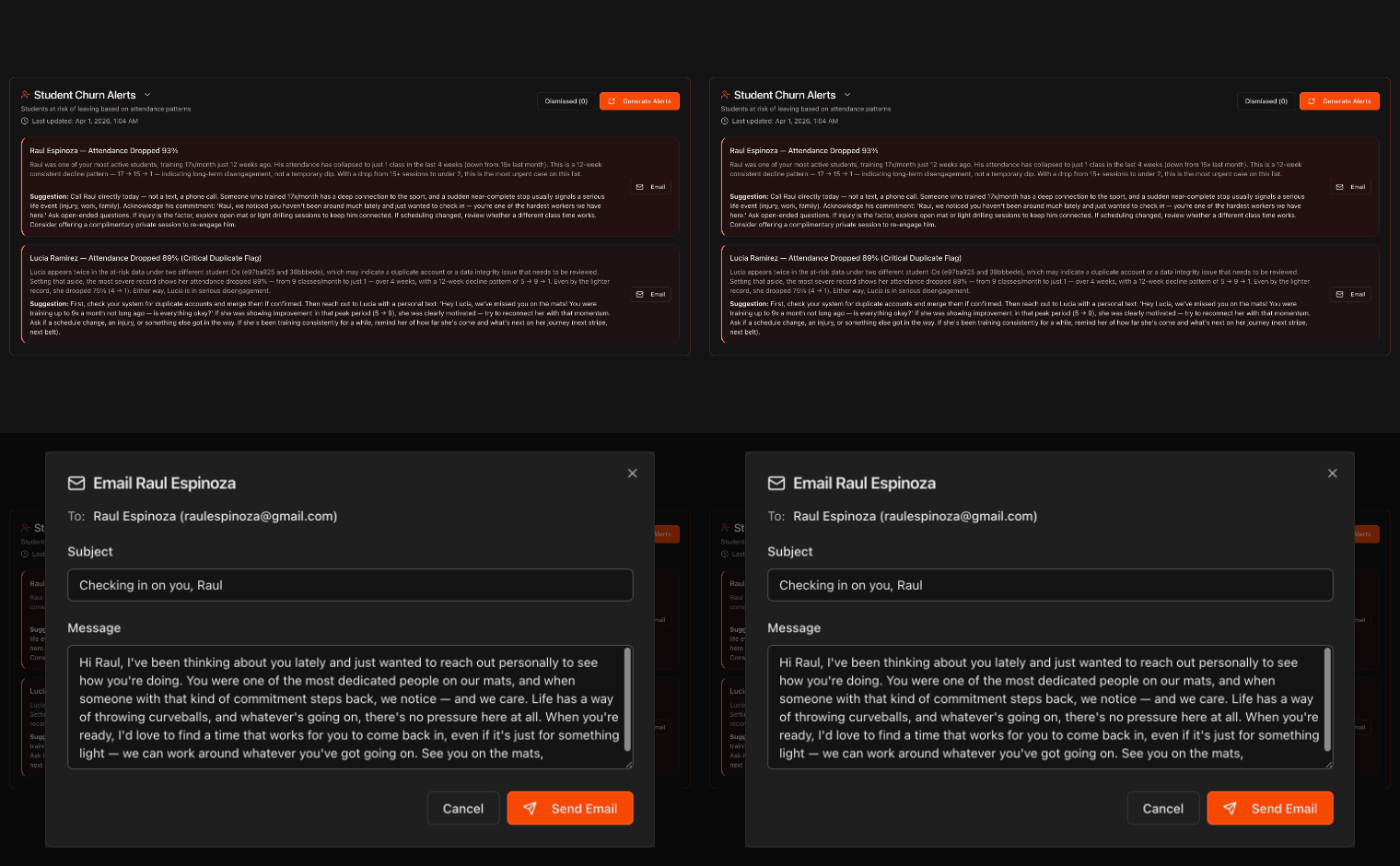
Open your Student Churn Alerts
Go to the Overview page and click Student Churn Alerts to expand it.
The number badge shows how many students are currently flagged as at risk.
Note
Kmura's AI monitors each student's attendance over time and flags students whose attendance is steadily declining, an early signal they may be about to quit.
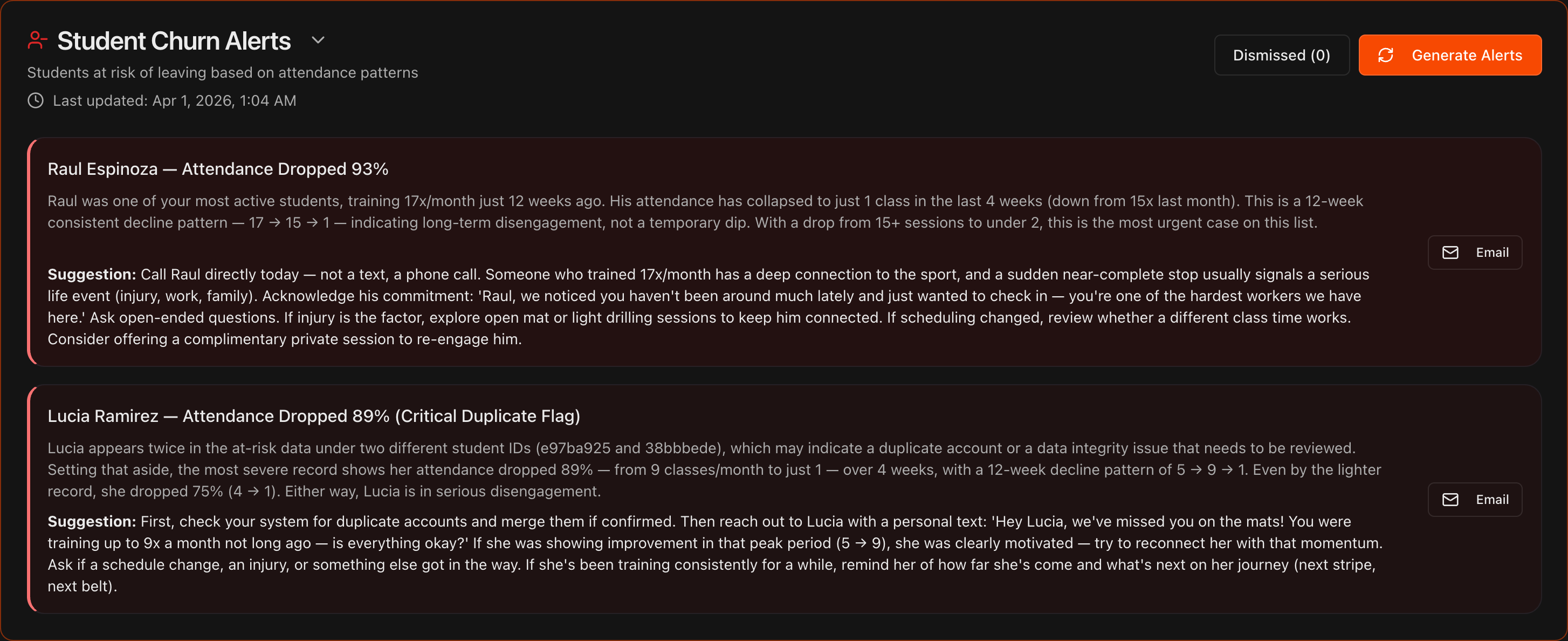
Read the alert and its suggestion
Each alert shows the student's name, how much their attendance has dropped, for example from 15 classes a month down to 1 over 12 weeks, and a bold Suggestion for re-engaging them.

Email a student in one click
The most effective intervention is usually a personal outreach, so click the Email button on the right side of the alert.
Kmura's AI drafts a personalized email, pre-filling the To, Subject, and Message fields.
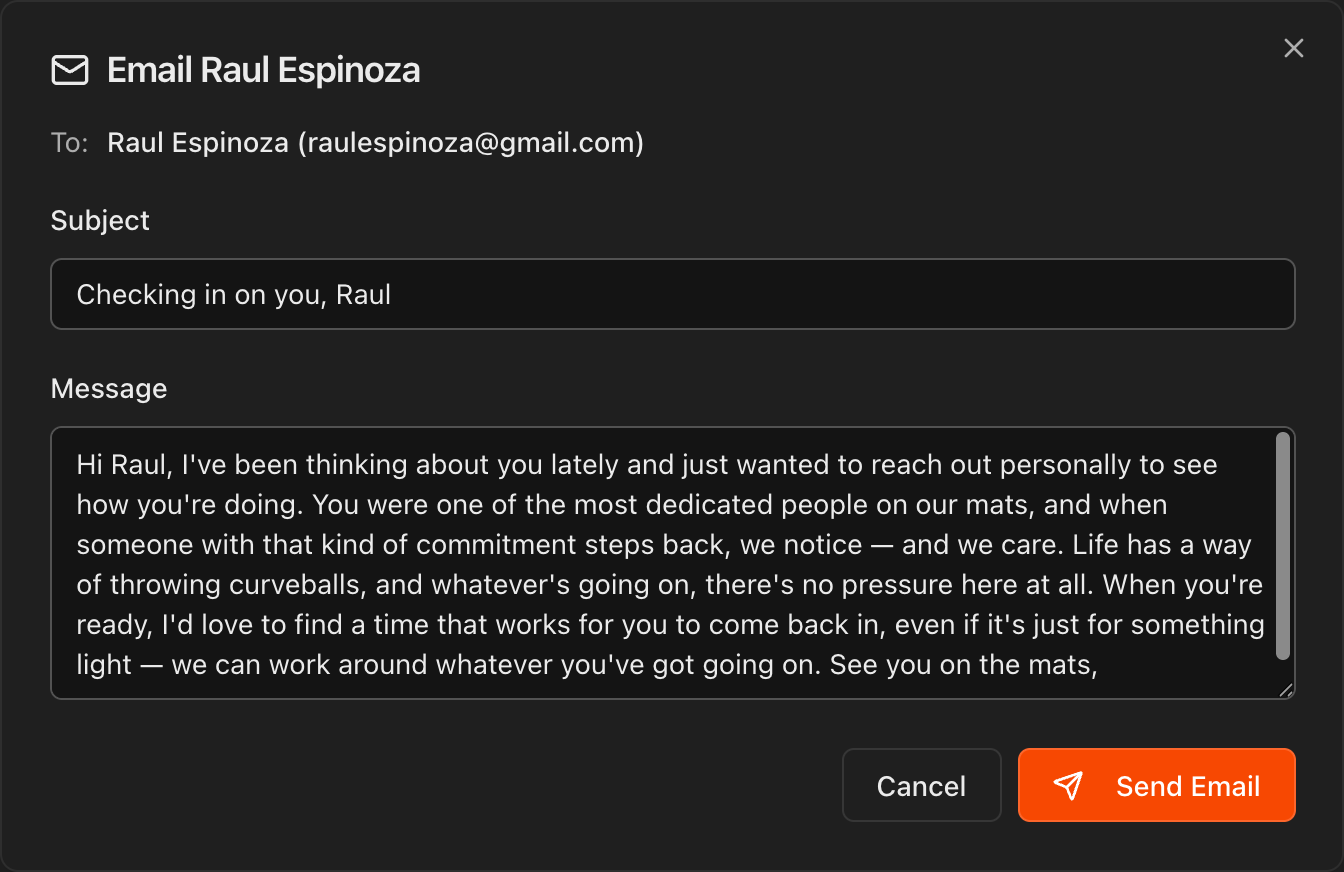
Edit and send
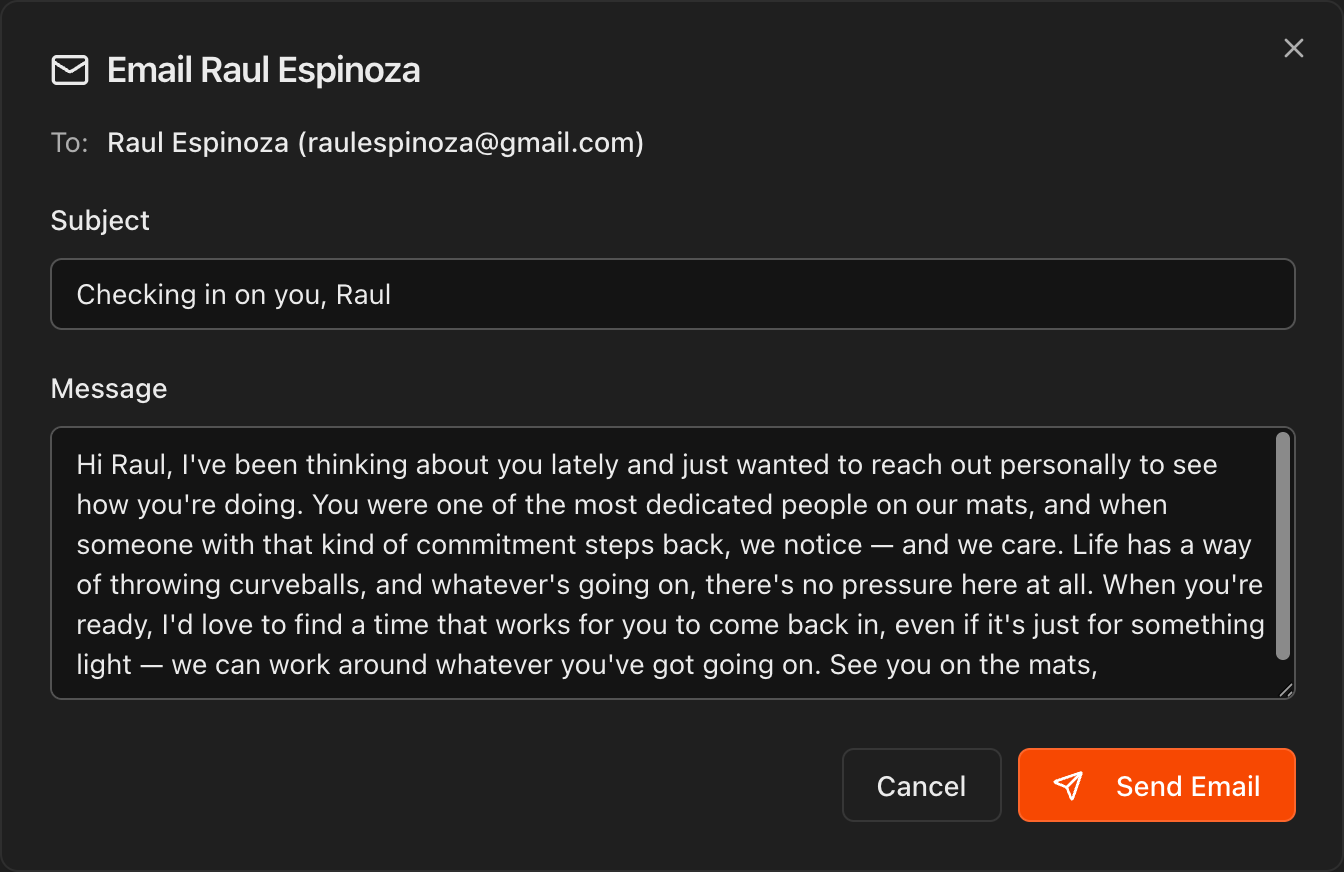
Review the draft, edit the Subject or Message as needed, then click Send Email, or Cancel to close without sending.
Tip
For a long-tenured student, acknowledging their commitment and asking an open-ended question tends to work better than a generic check-in.
Dismiss and restore alerts
Hover over an inaccurate or stale alert and click the X in its top-right corner to dismiss it.
Click the Dismissed button to review dismissed alerts and restore any of them if needed.
Note
Kmura's AI automatically reassesses your gym's data every night at midnight EST and updates these alerts accordingly.
