Add your phone number for SMS notifications
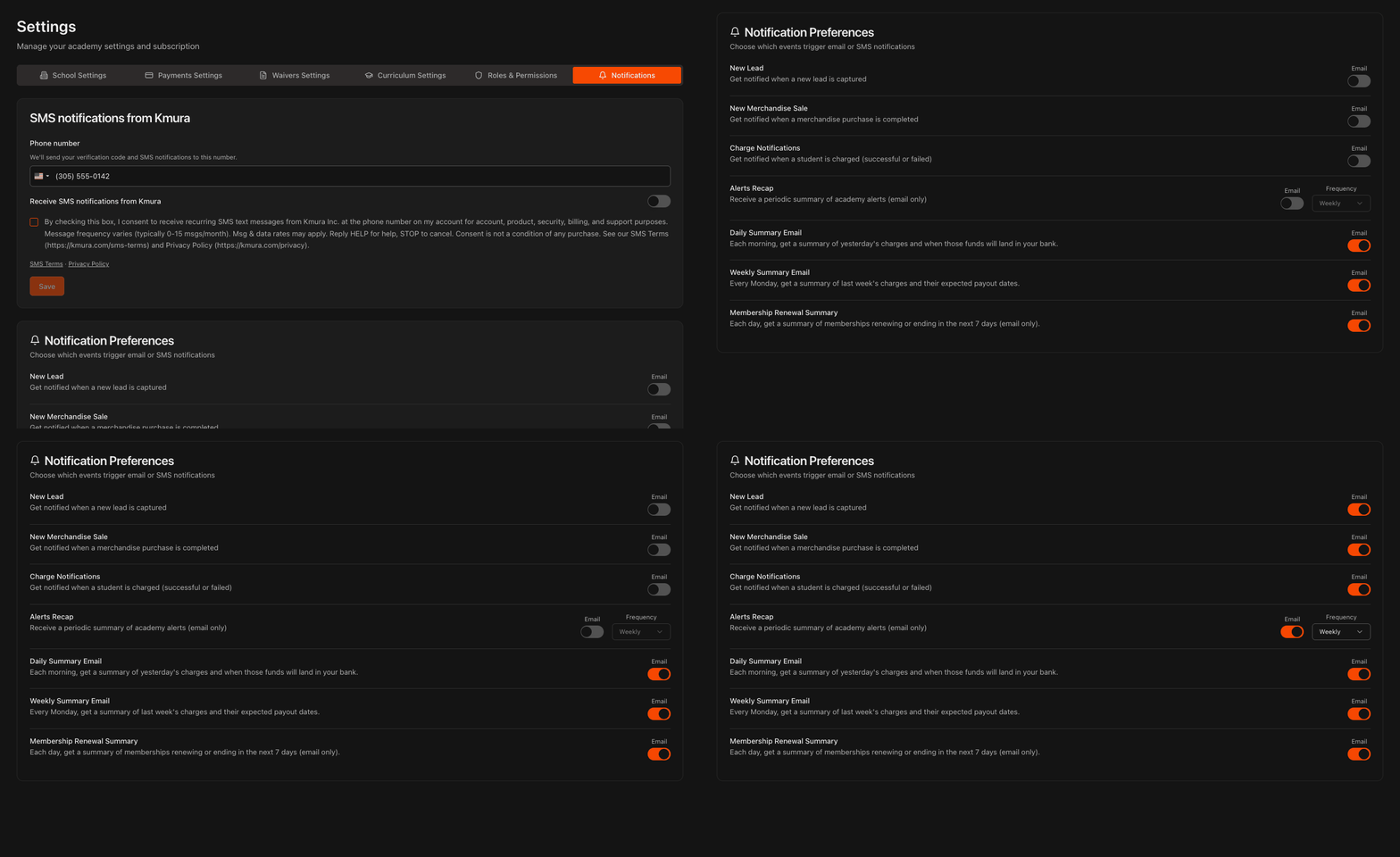
Go to Settings and open Notifications.
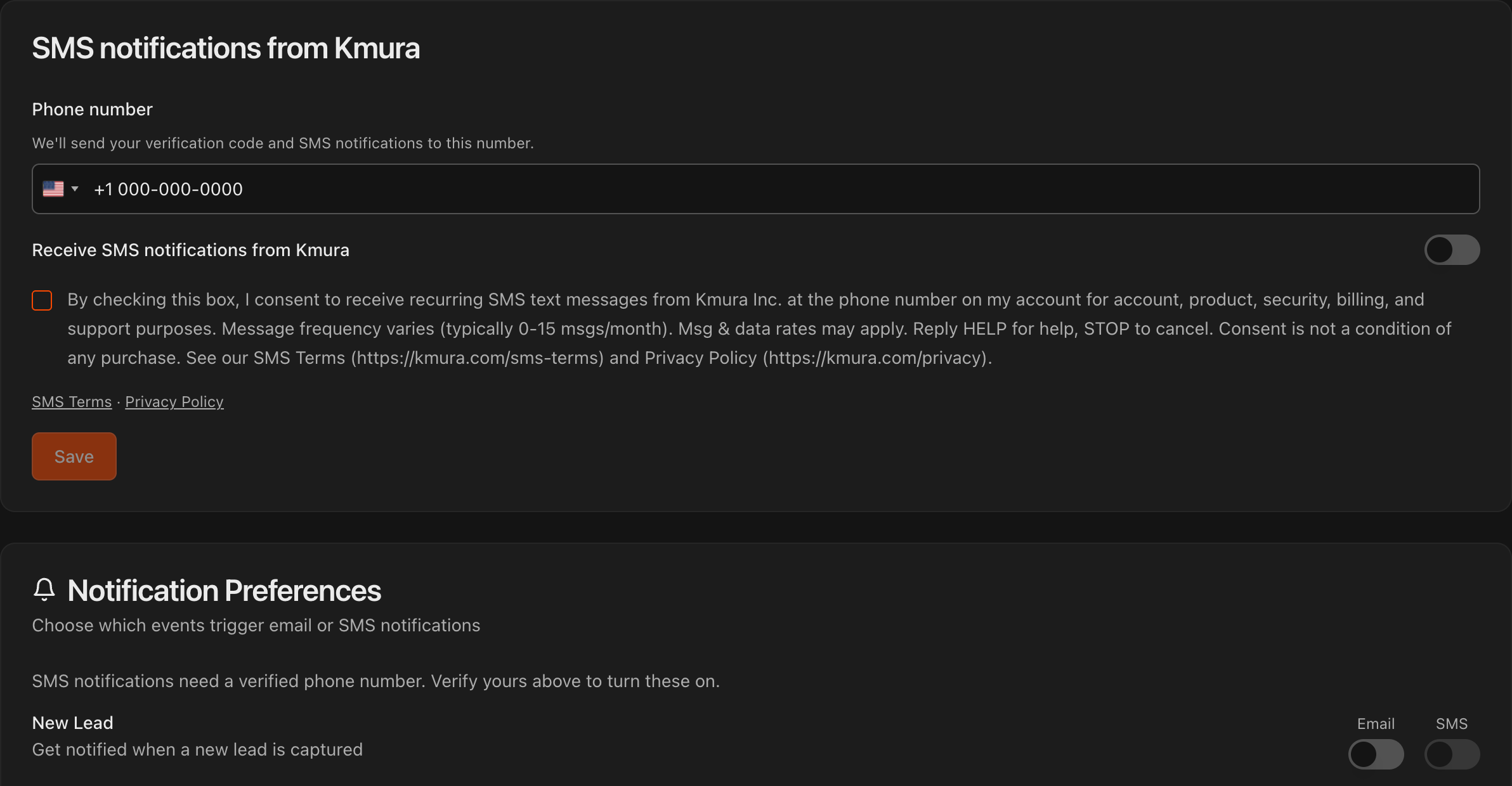
Under SMS notifications from Kmura, enter your Phone number, turn on Receive SMS notifications from Kmura, tick the consent box, and click Save.
Note
These are texts Kmura sends to you and your staff. They are free to your gym; Kmura pays for them.
Verify your phone number
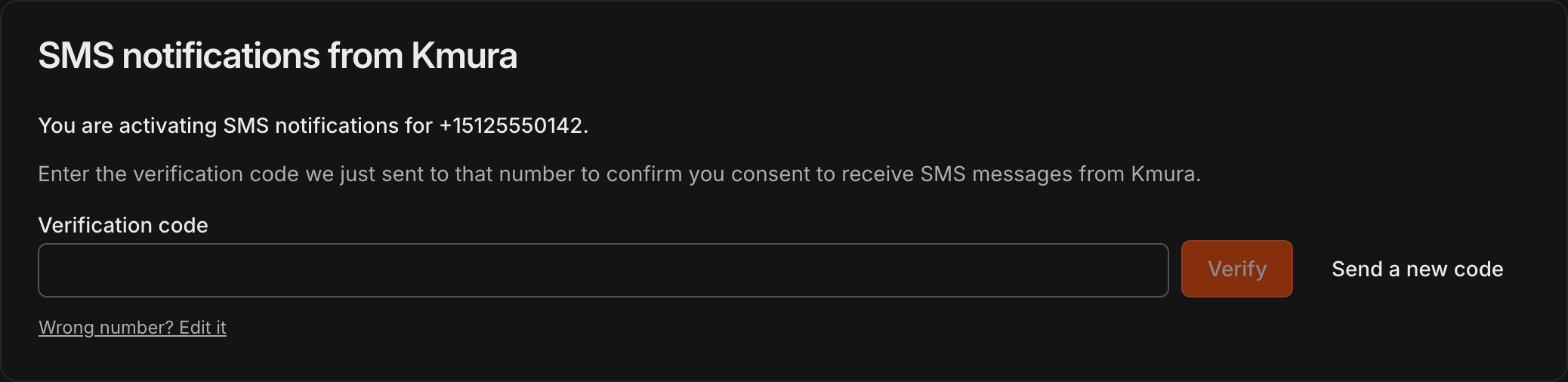
Kmura texts a code to the number you entered. Type it under Verification code and click Verify.
Use Send a new code if it did not arrive, or Wrong number? Edit it to fix the number.
Once verified, each notification below gains an SMS toggle next to its Email toggle.
Choose your alert notifications
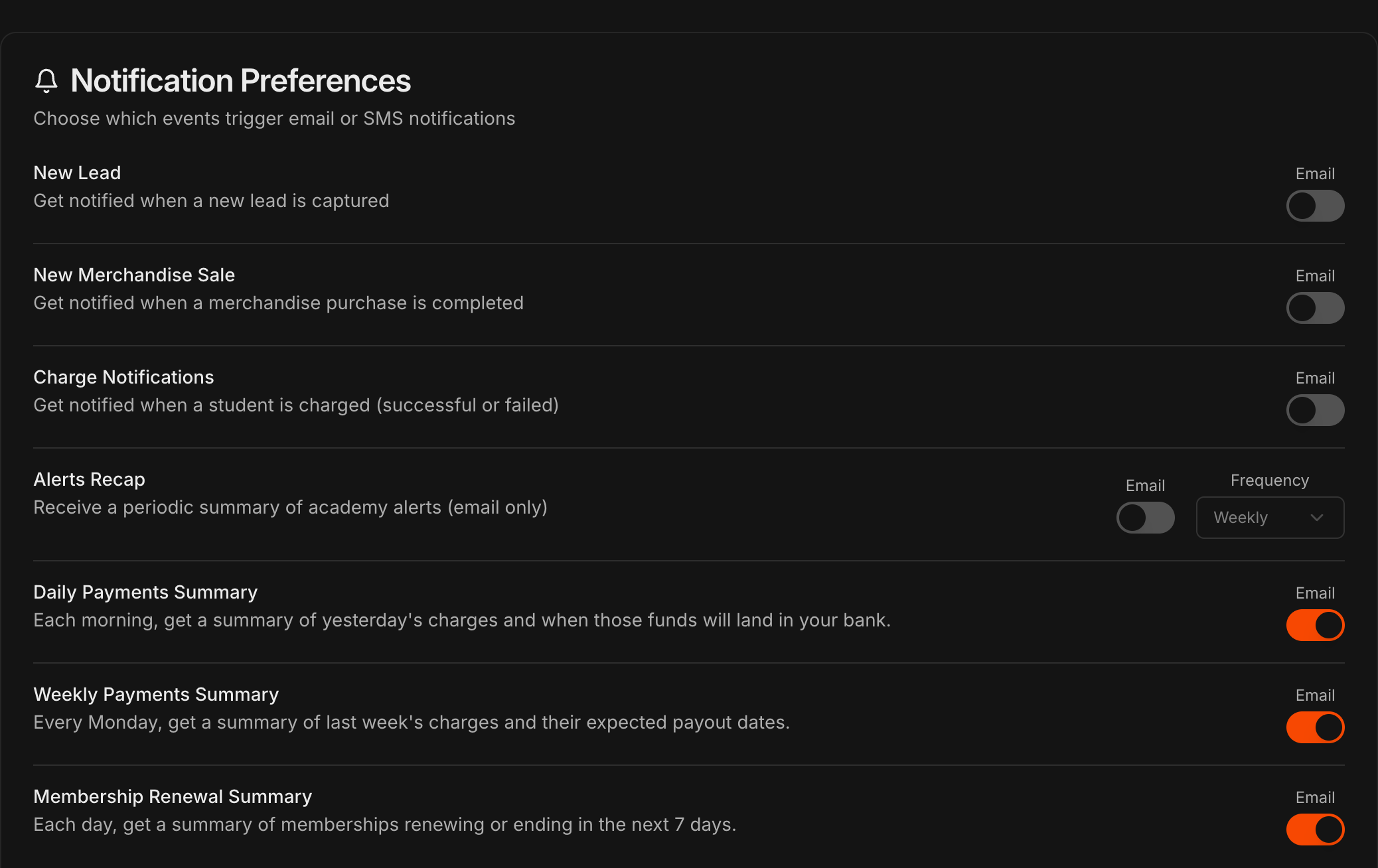
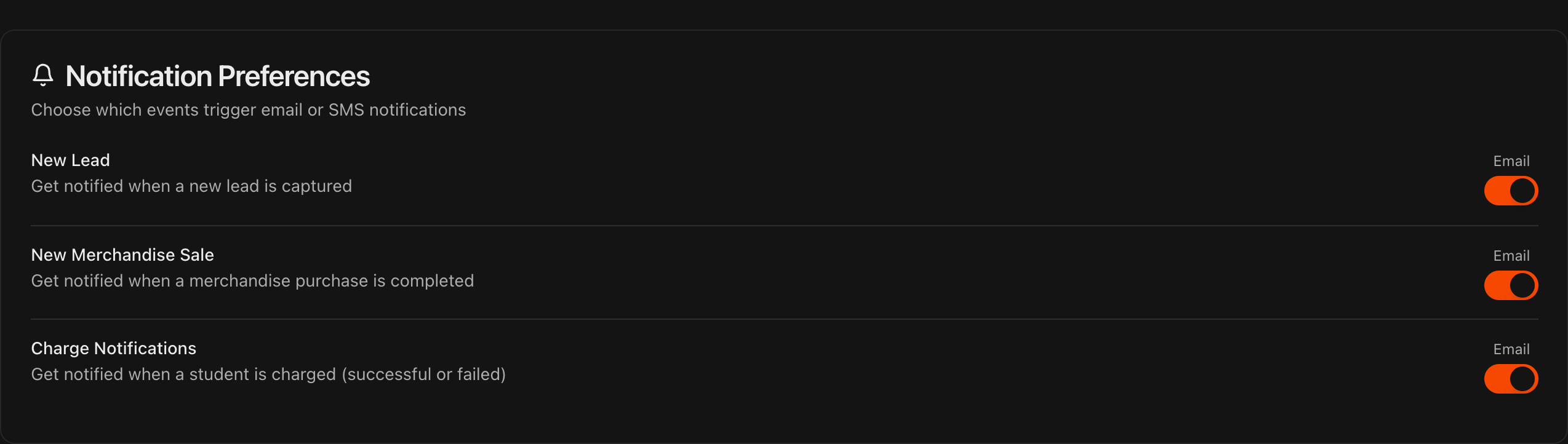
Scroll to Notification Preferences and review the available toggles.
Toggle on Leads Alerts to be notified when a lead needs attention.
Toggle on Sales Alerts to be notified about new sales and sign-ups.
Toggle on Failed Charge Alerts to be notified when a student payment fails.
Tip
Turn on only the alerts that are relevant to your role. Front-desk staff may only need Failed Charge Alerts, while owners often want all three.
Turn on summaries and choose channels
Still under Notification Preferences, toggle on Daily Payments Summary to get a morning recap of yesterday's charges and when the funds land, and Weekly Payments Summary for a Monday recap of last week.
Toggle on Membership Renewal Summary for a daily list of memberships renewing or ending in the next 7 days.
Every notification can be delivered by Email, by SMS, or both, except Alerts Recap, which is email only.