
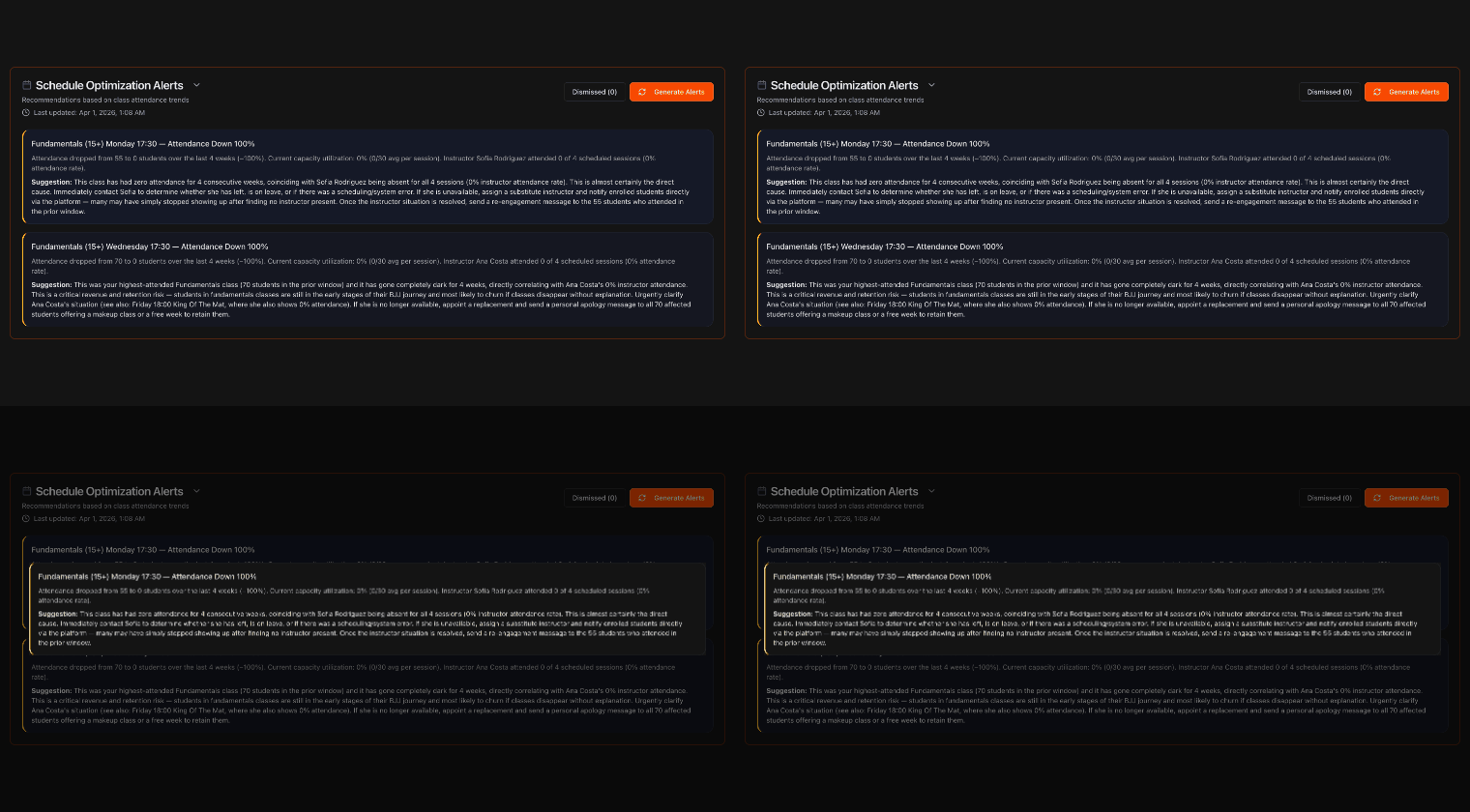
Open your Schedule Optimization Alerts
Go to the Overview page and click Schedule Optimization Alerts to expand it.
Each alert points to a specific class and time slot and how its attendance is trending.
Note
Because Kmura's AI continuously monitors attendance patterns over time, its schedule recommendations get sharper the longer you use the platform.
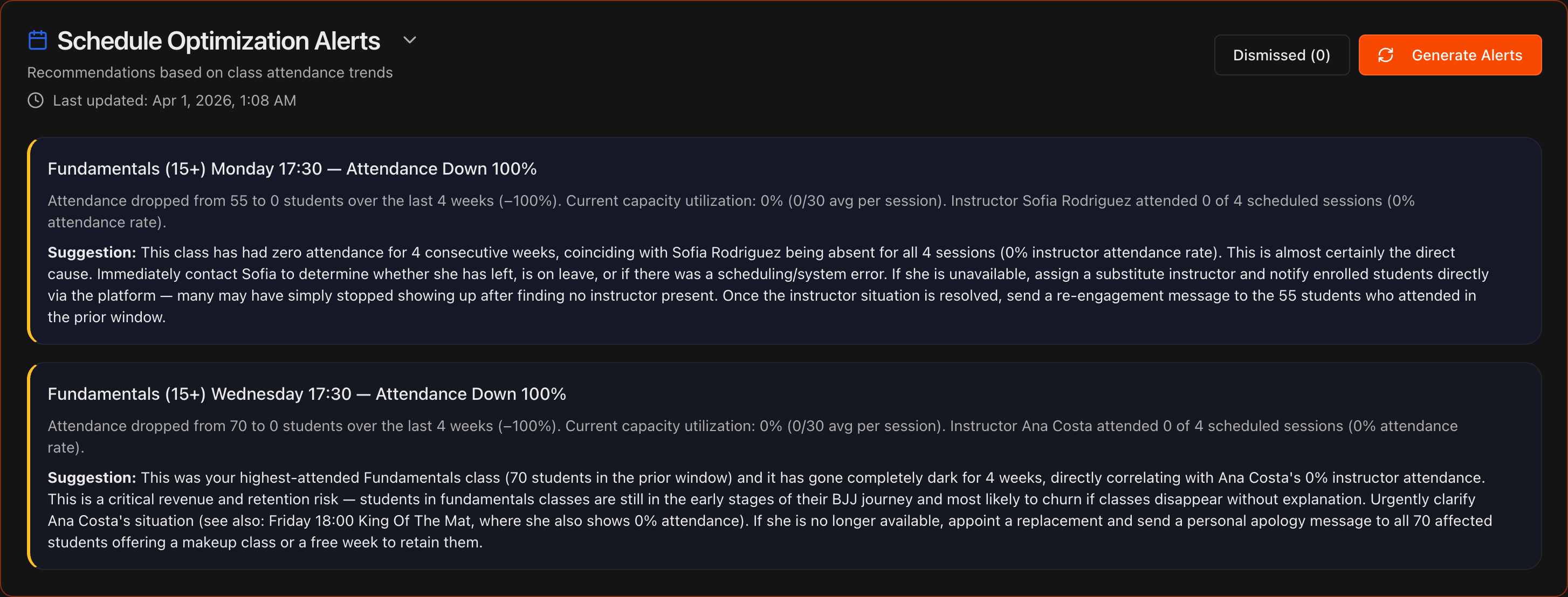
Read the recommendation
Each alert shows a class type and time, for example Fundamentals Wednesday 17:30, how its attendance has changed, and a bold Suggestion.
The AI surfaces class types and times that are gaining popularity as well as those that are declining.

Adjust your schedule
Use the recommendations to move, add, or retire classes on your Schedule so your timetable matches real demand.
Tip
A sudden drop to zero attendance often points to an instructor coverage problem rather than student demand, so check the cause before cutting a class.

Dismiss and restore alerts
Hover over an inaccurate or stale alert and click the X in its top-right corner to dismiss it.
Click the Dismissed button to review dismissed alerts and restore any of them if needed.
Note
Kmura's AI automatically reassesses your gym's data every night at midnight EST and updates these alerts accordingly.
