Save a report
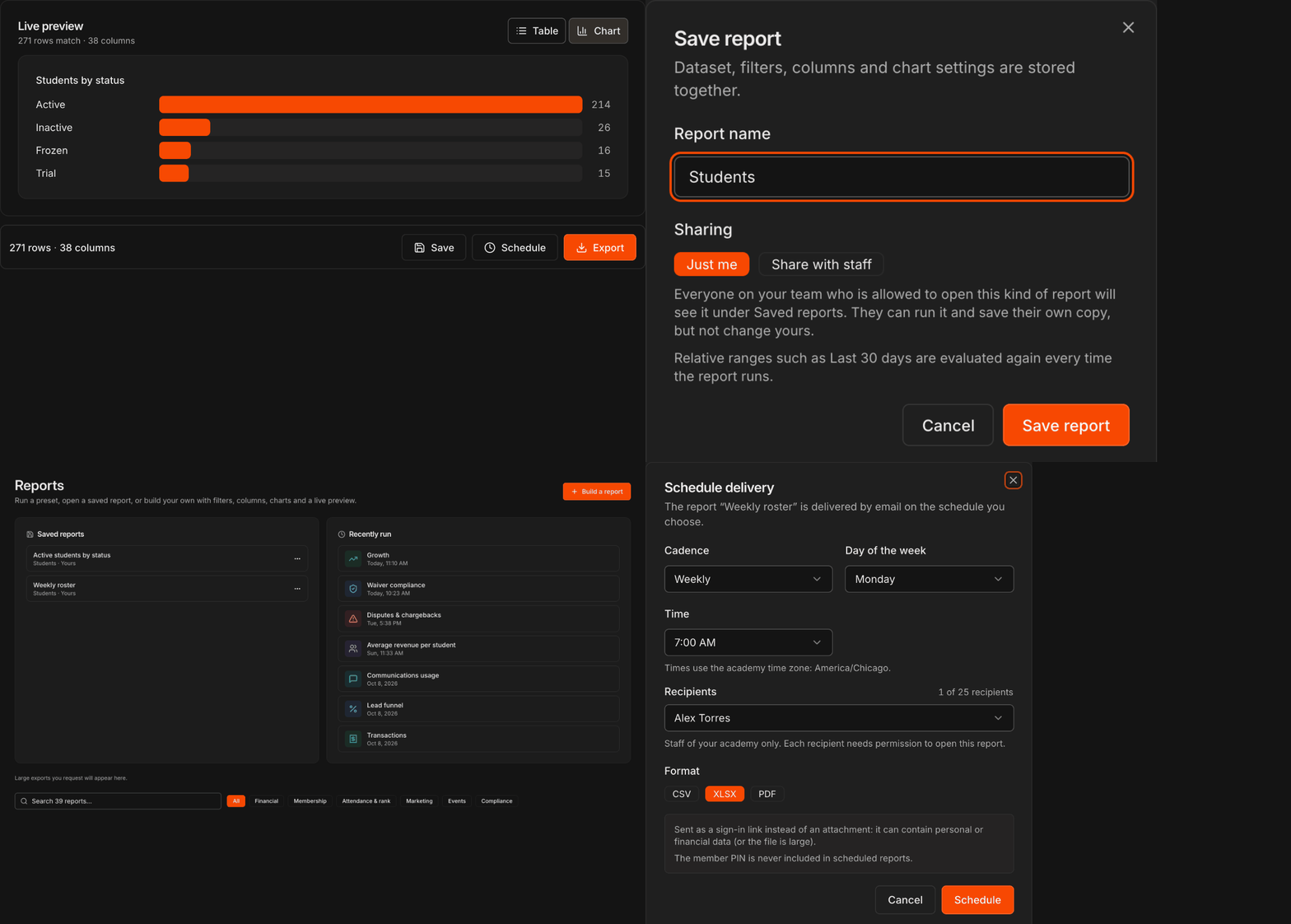
Set up any report (a pre-built one or Build a report) with the filters, columns and chart view you want, then click Save.
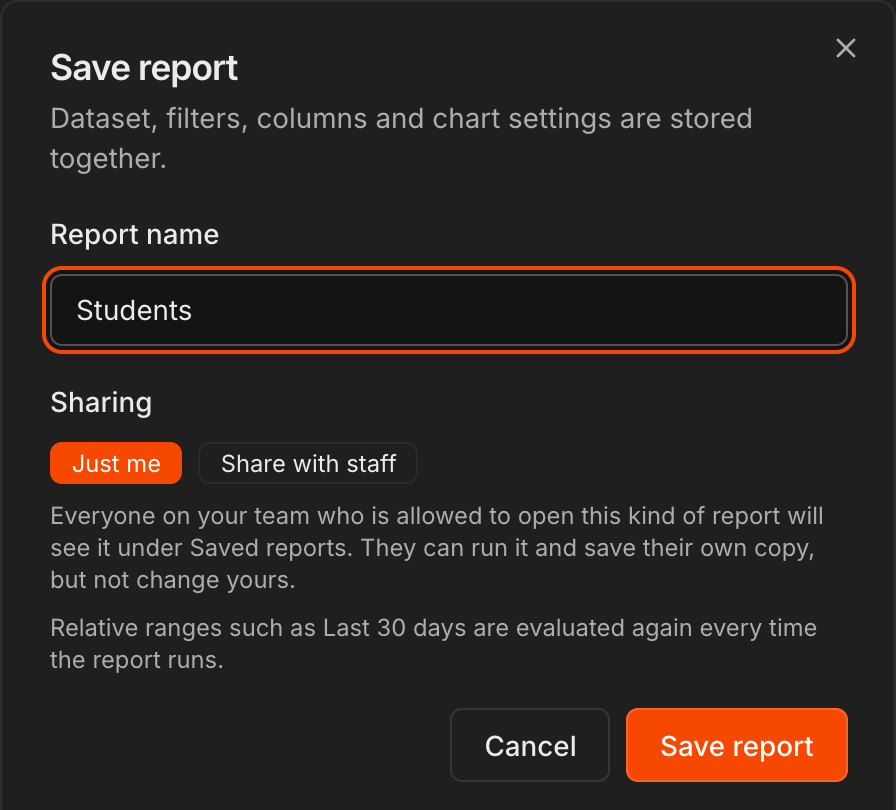
Give it a Report name.
Under Sharing, keep Just me or choose Share with staff. Shared reports appear under Saved reports for every staff member allowed to open that kind of report; they can run it and save their own copy, but not change yours.
Click Save report.
Note
Relative ranges such as **Last 30 days** are evaluated again every time the report runs, so a saved report always shows the latest window.
Find and run saved reports
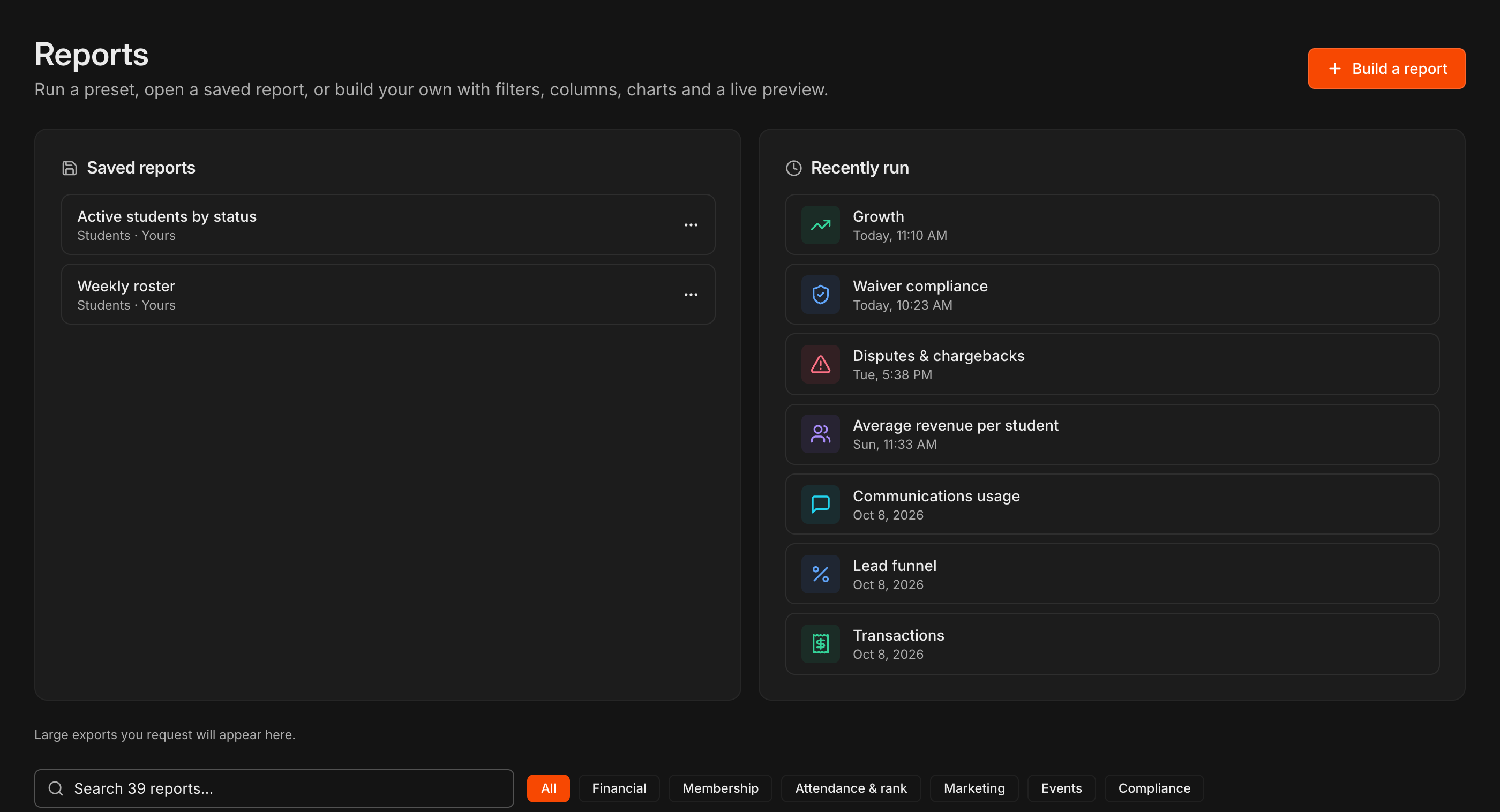
Saved reports sit in the Saved reports card at the top of the Reports page, with the dataset and whether the report is yours or shared.
Click a saved report to run it with its saved filters and columns.
Recently run next to it lists the reports you opened last, and the Reports search box finds saved reports as well as pre-built ones.
Schedule email delivery
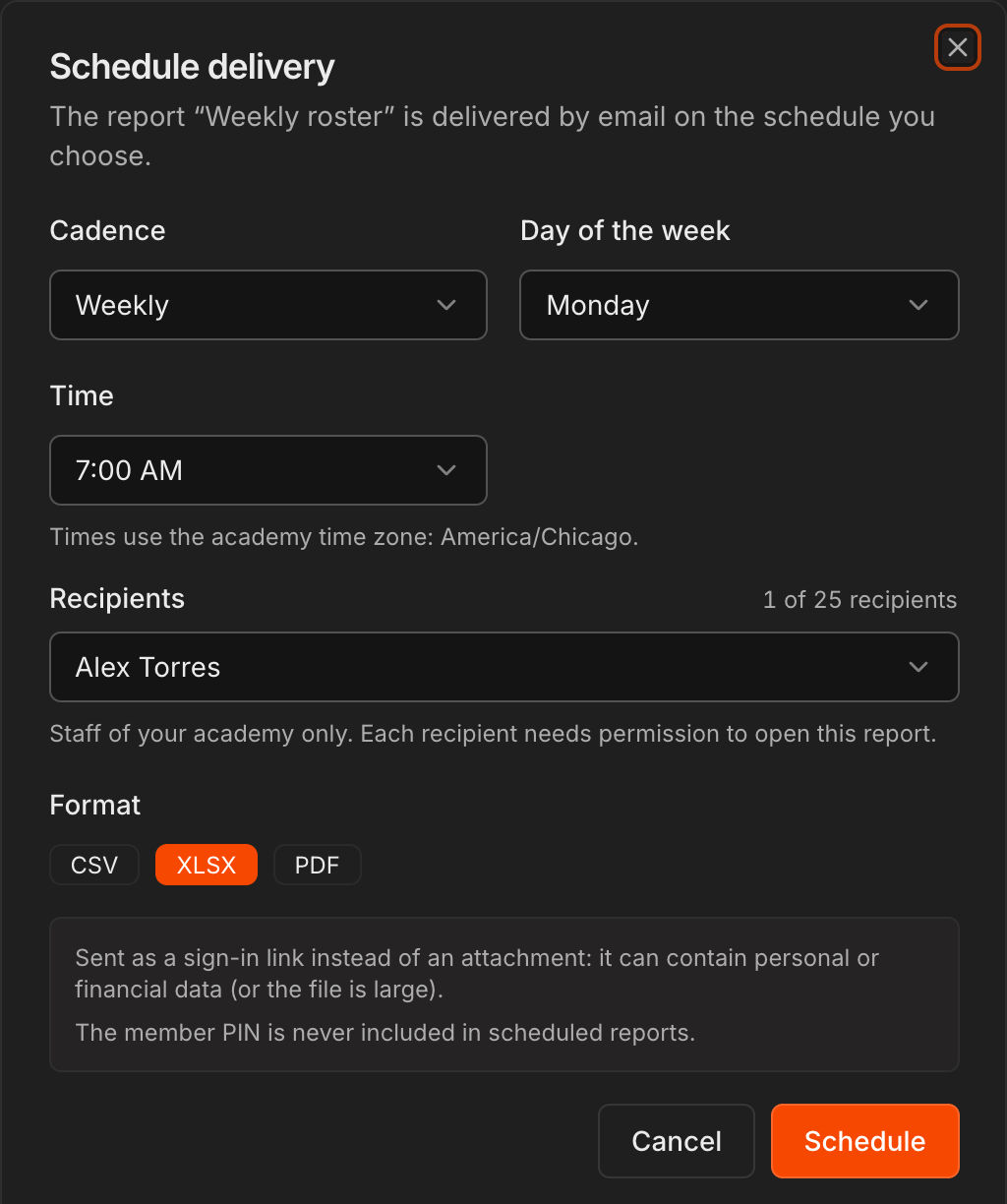
Click Schedule on any report. A schedule needs a saved report, so if the report is not saved yet Kmura asks you to name and save it first.
Choose a Cadence (Daily, Weekly or Monthly), the day, and the Time. Times use your academy's time zone.
Pick up to 25 Recipients. Only staff of your academy can be chosen, and each one needs permission to open that report.
Choose the Format: CSV, XLSX or PDF, then click Schedule.
Note
Reports that contain personal or financial data, or very large files, are sent as a sign-in link rather than an attachment. The member PIN is never included in a scheduled report.
Manage saved reports
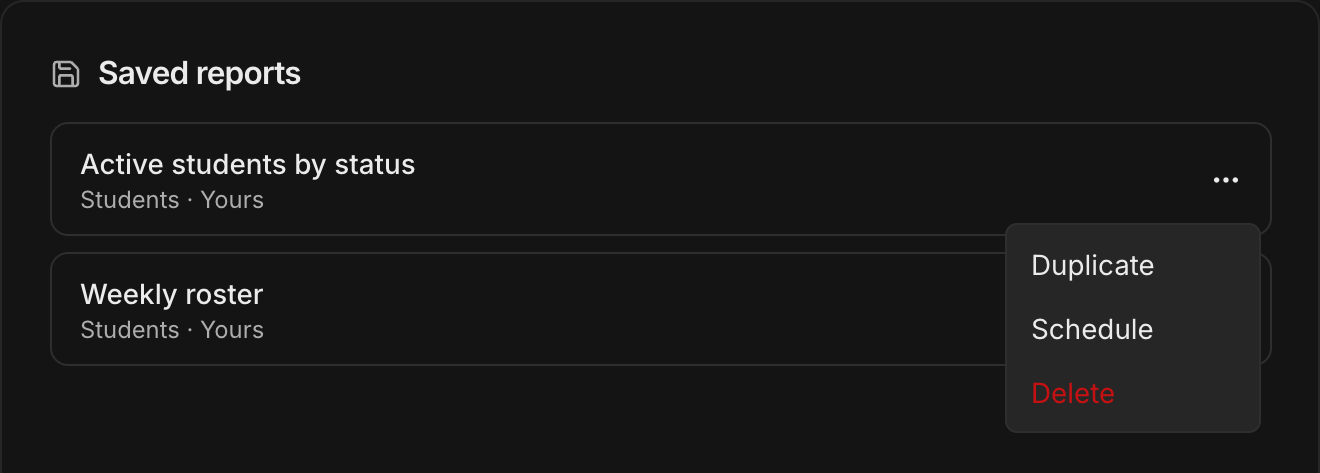
Click the ... menu on a saved report to Duplicate it, Schedule it, or Delete it.
To change a saved report's filters or columns, open it, make the change and click Save again.
Tip
Exports over 5,000 rows are prepared in the background and emailed to you as a link. They also appear under **Exports** on the **Reports** page.