
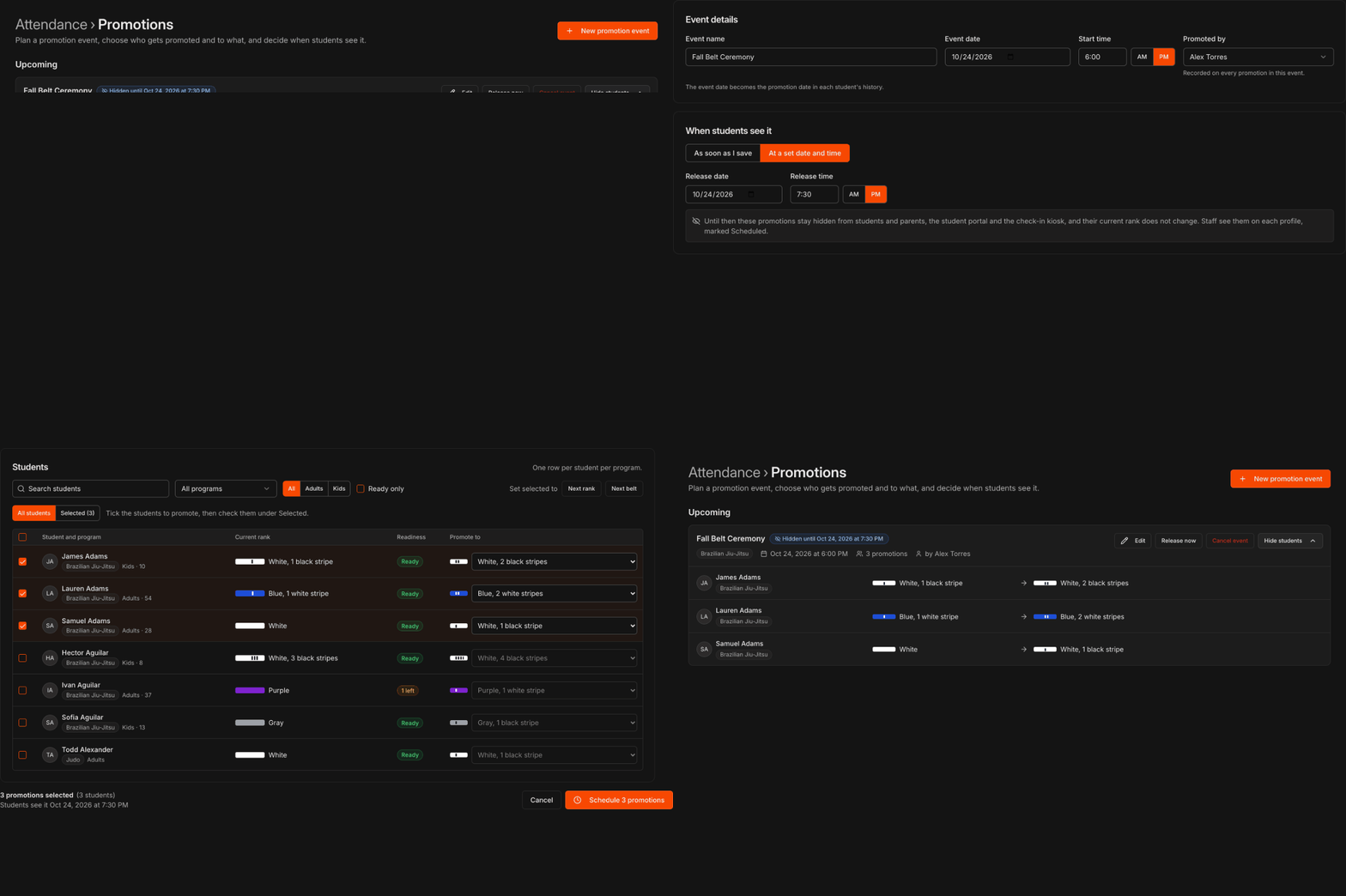
Open the Promotions page
Click Attendance in the left menu to open its submenu, then click Promotions.
Upcoming lists scheduled events. Past lists events that were released, undone or cancelled, newest first.
Click New promotion event to start one.
Note
The **Events** page is for seminars and camps. A banner at the top of it points you here if you are looking for promotion events.

Set up the event
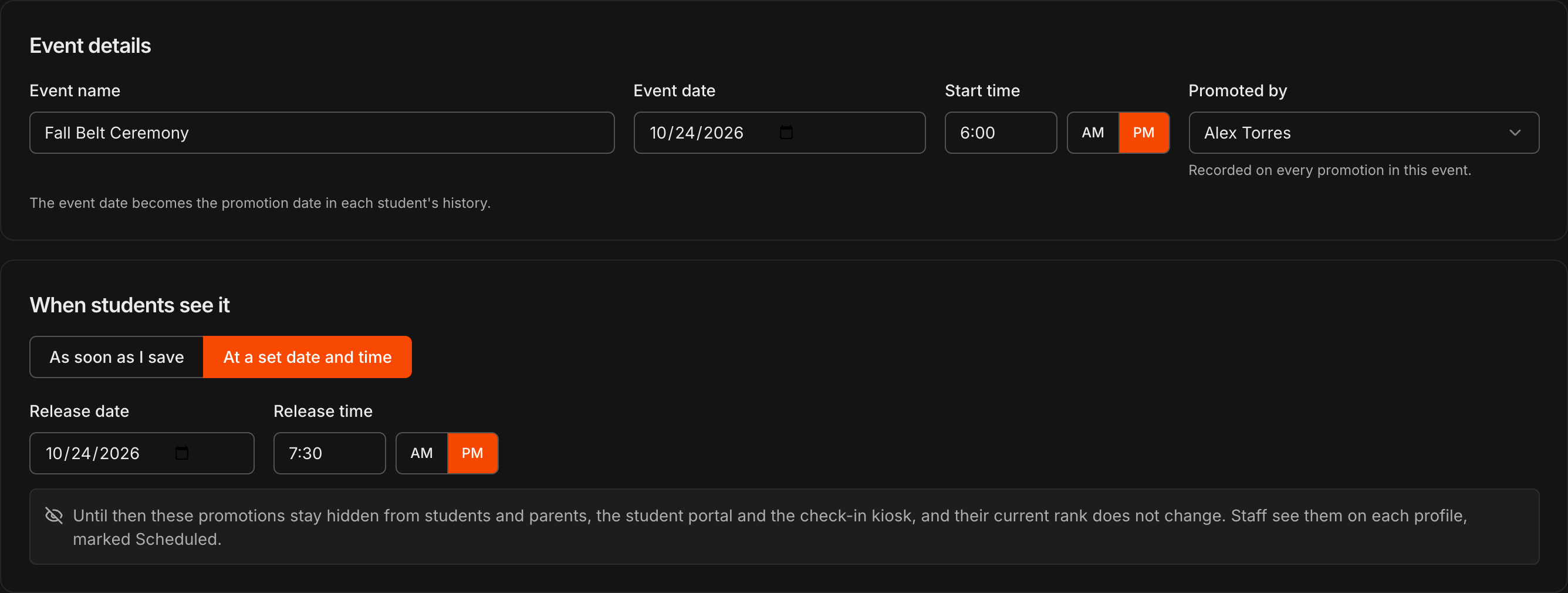
Under Event details, enter an Event name (for example Fall Belt Ceremony), the Event date and the Start time.
Promoted by defaults to you; pick the instructor who awards the belts. It is recorded on every promotion in the event.
Note
The event date becomes the promotion date in each student's **Promotion History**, so time at rank counts from that day.
Choose when students see it
Under When students see it, choose As soon as I save to promote everyone the moment you save.
Choose At a set date and time to schedule the release. The Release date and Release time start equal to the event start; change them to release later, for example after the ceremony.
Until the release time the promotions stay hidden from students and parents, the student portal and the check-in kiosk, and each student's current rank does not change.
Tip
Set the release a couple of hours after the ceremony starts so nobody sees their new belt on their phone before you hand it to them.
Pick the students and their new rank
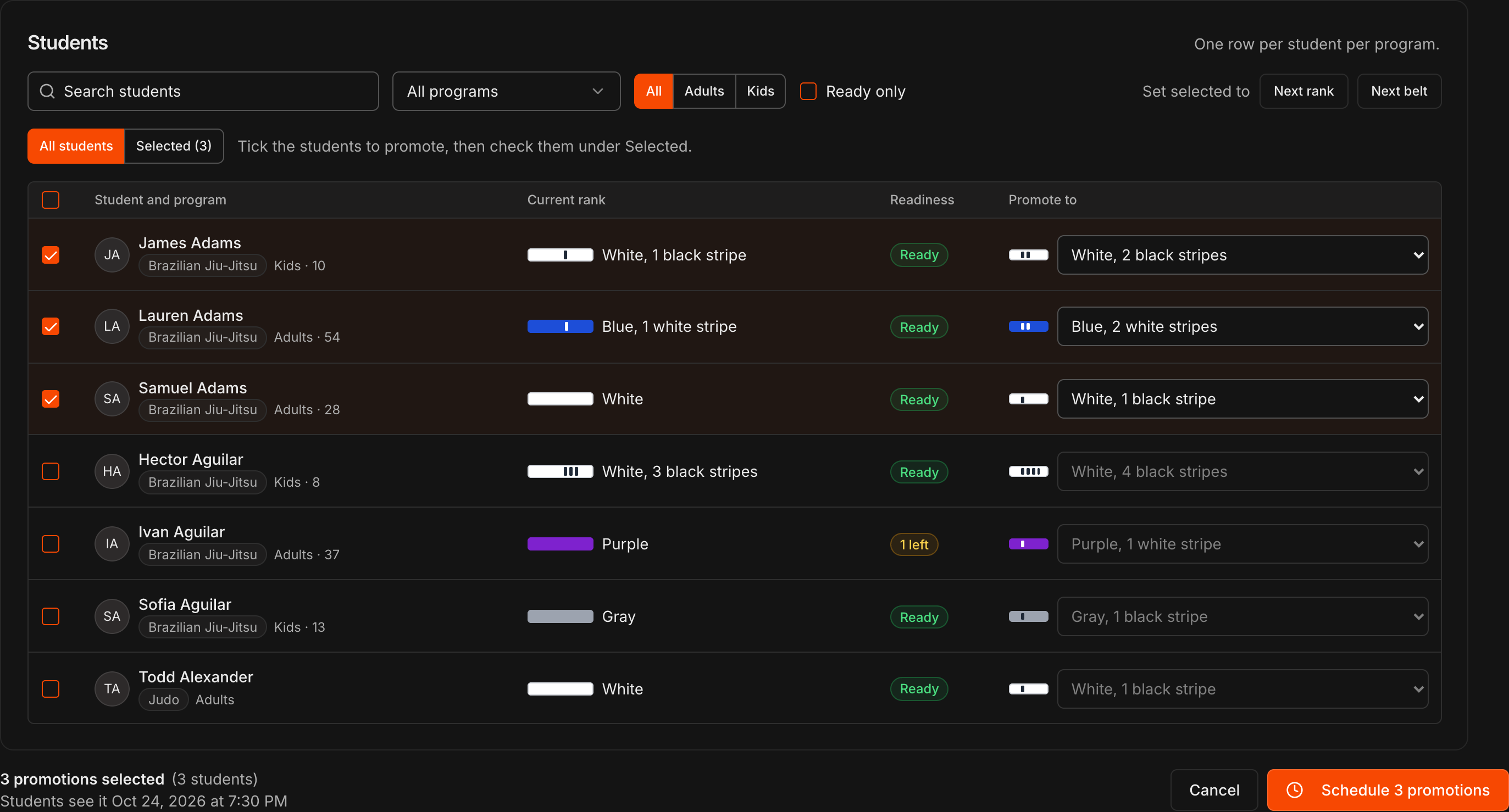
The Students table has one row per student per program, so a student in two programs appears twice and can be promoted in either or both.
Search by name, or narrow with All programs, All / Adults / Kids and Ready only.
Readiness shows Ready when the student meets every requirement in your Promotion Logic for the next rank, or N left with the number still unmet.
Tick a student and Promote to fills in with their next stripe or belt; open the dropdown to pick any higher rank in their division instead.
Use Set selected to > Next rank or Next belt to fill every ticked row at once, and the Selected (N) tab to review your picks.
Rows that cannot be promoted are dimmed with the reason: Highest rank, or the name of another scheduled event the student is already in.
Note
A student can be in only one scheduled event per program. Changing the program filter never clears what you have selected.
Schedule or record the event
The footer counts the promotions and students selected and repeats when students will see it.
Click Schedule N promotions for a timed release, or Record N promotions now if you chose As soon as I save.
A scheduled event must release in the future; the footer tells you if the time has already passed.
Manage an upcoming event
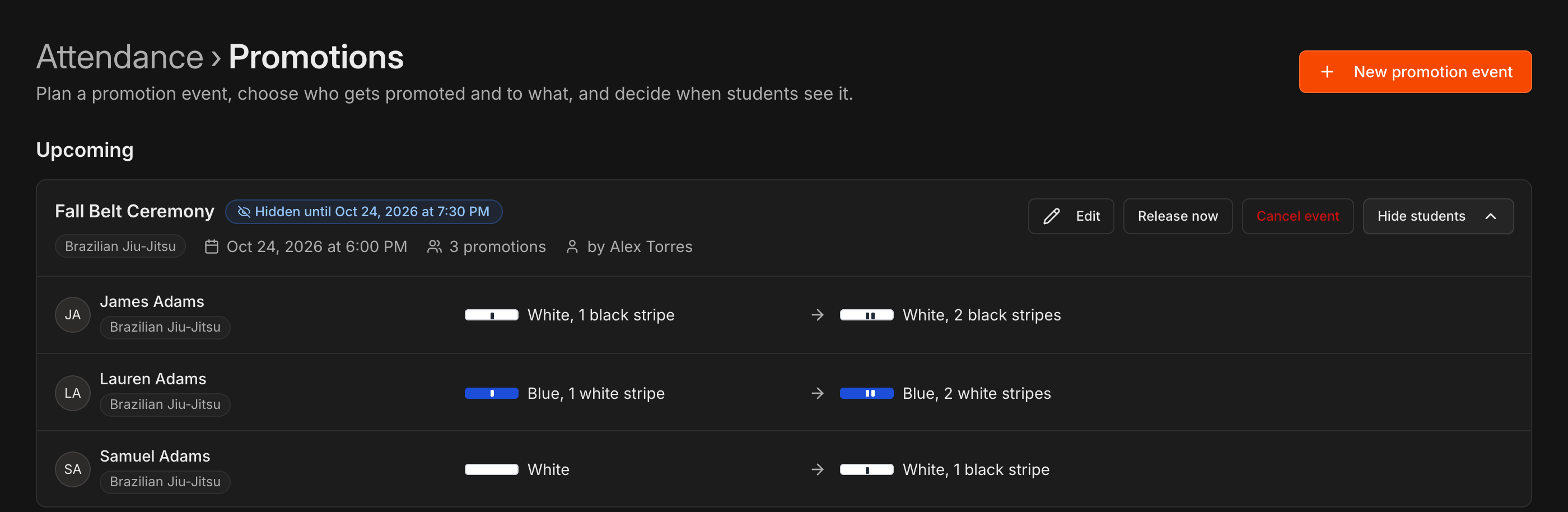
Each upcoming event card shows a blue Hidden until pill with the release time, the programs involved, the event date, the number of promotions and who is promoting.
Click View students to expand one row per promotion with the student, program, current rank and new rank.
Click Edit to reopen the builder and add, remove or retarget students until the event is released.
Click Cancel event to drop it. A cancelled event moves to Past and students never see it.
Caution
Cancelling cannot be undone. If you only need to move the ceremony, use **Edit** and change the dates instead.
Release it early
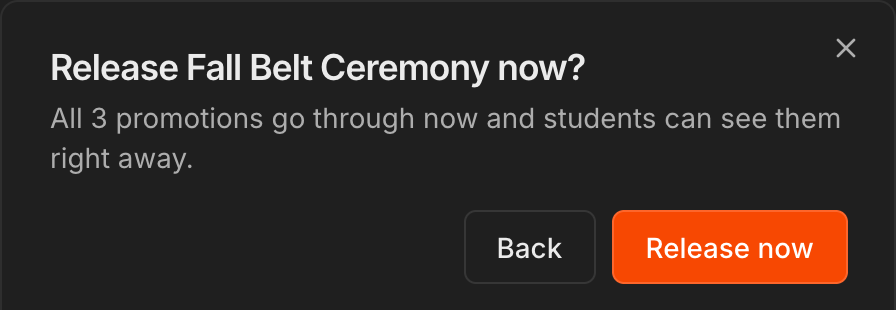
Click Release now on an upcoming event when you do not want to wait for the scheduled time.
Confirm with Release now in the dialog. Every promotion goes through immediately and students can see their new rank right away.
A student whose rank changed another way since you scheduled the event is skipped at release and marked Skipped in the event's student list.
What staff and students see before release
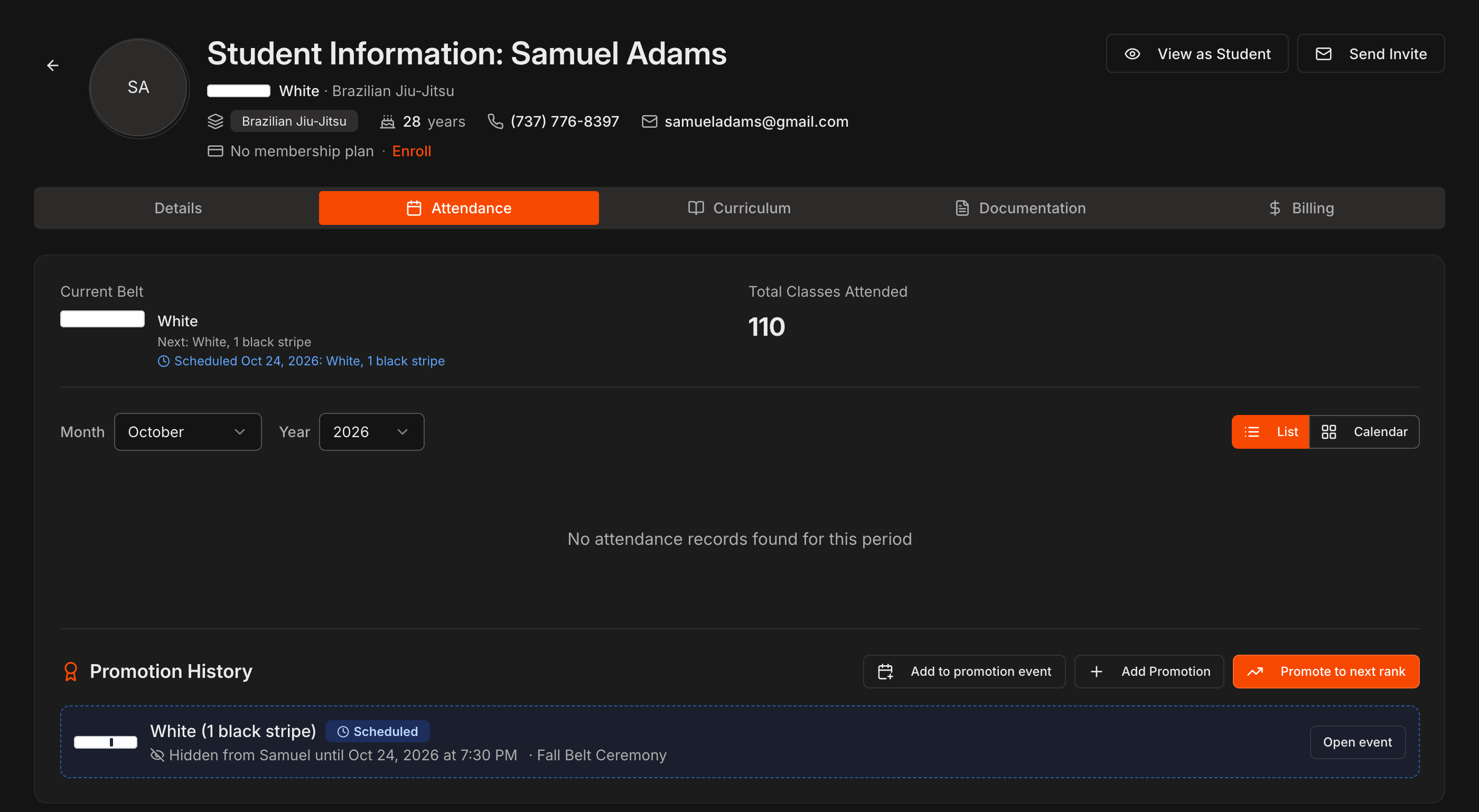
On the student's Attendance tab, Current Belt gains a blue Scheduled line with the date and the rank to come, and Promotion History shows a dashed Scheduled row with Open event.
The student, their parent or guardian, the student portal and the kiosk still show the current belt.
Promote a scheduled student by hand
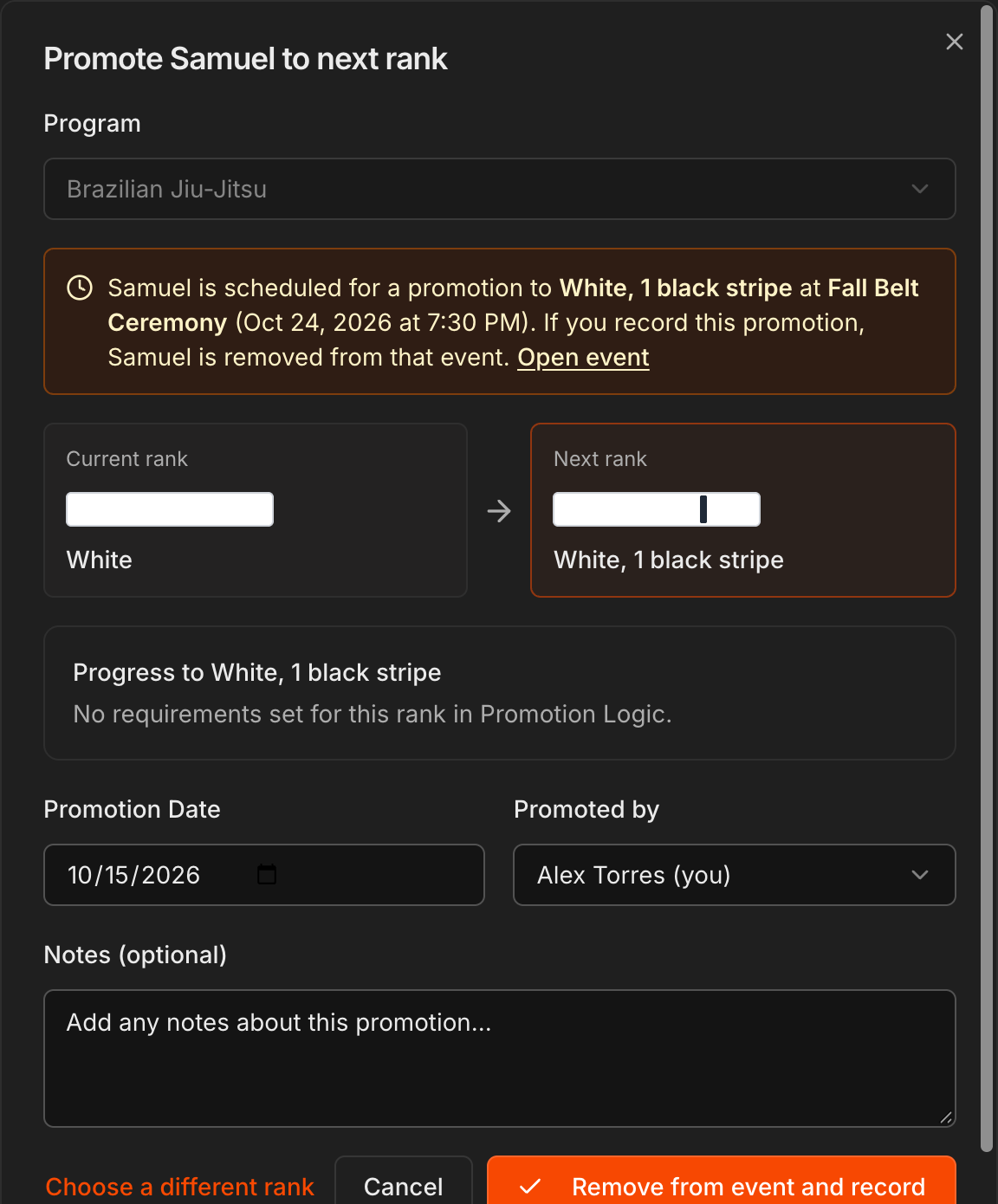
If you open Promote to next rank or Add Promotion for a student who is already in a scheduled event, an amber warning names the event and the rank they are scheduled for.
Click Remove from event and record to record the promotion now; the student leaves the event and the rest of it is unchanged.
The same warning appears if you change that student's belt on the Details tab, and saving removes them from the event.
Undo an event
On a released event in Past, click Undo event and confirm.
Each promotion is reversed as long as it is still that student's newest promotion in the program; anyone promoted again since is skipped, and the event tells you how many were undone and how many skipped.
Note
Undoing an event removes the history entries it created. To reverse a single student instead, use **Undo** on their **Promotion History** row.