
Configure your promotion logic
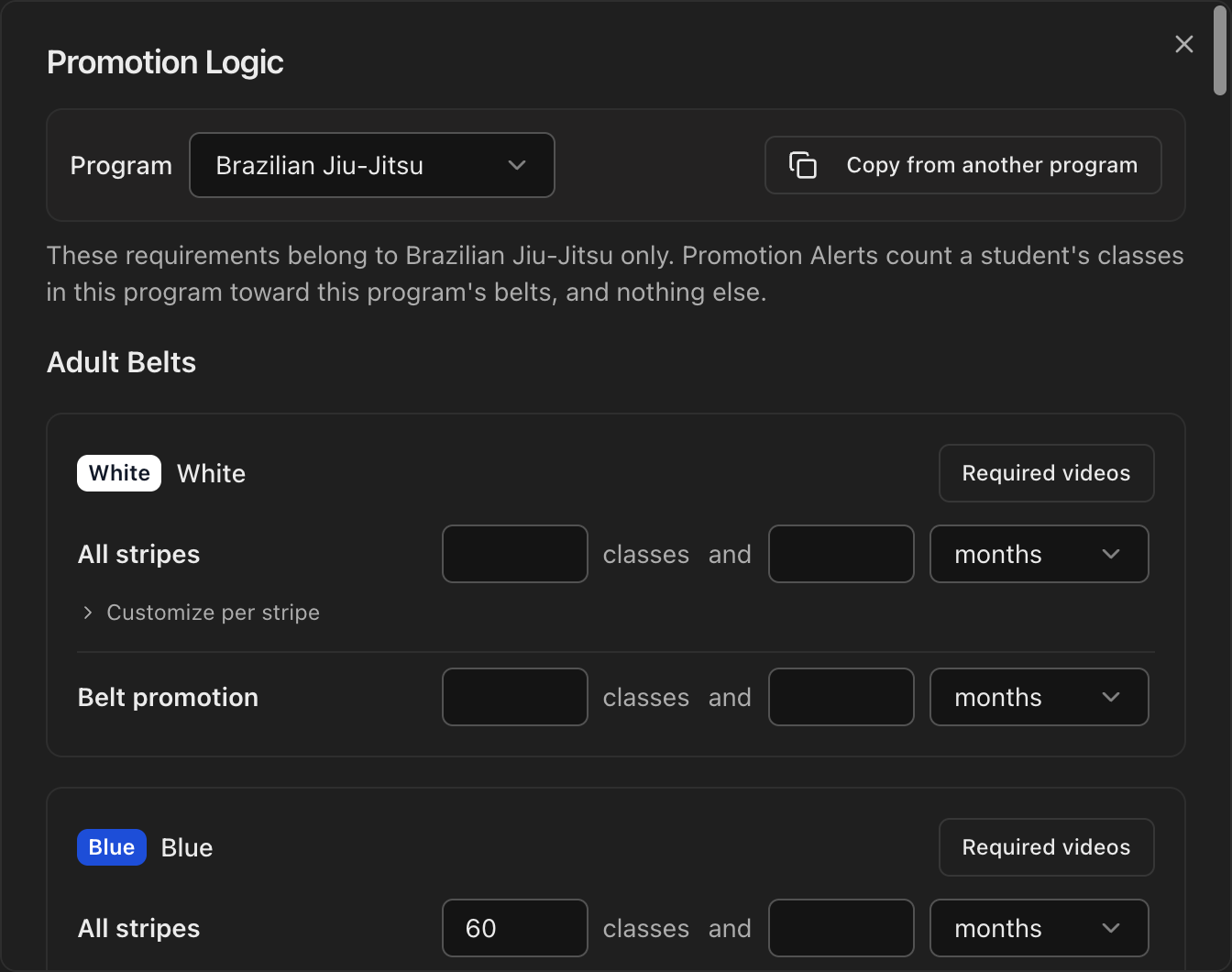
Go to Settings > Curriculum > Promotion Logic and click Configure Promotion Requirements.
Pick the Program. Requirements are set per program, per belt, and can be customized per stripe, for both Adult Belts and Children Belts.
Set your time-at-rank and attendance requirements, then click Save before switching programs.
For each belt you can also add Class type requirements, such as 5 No Gi Fundamentals classes, built from the class editor's Type and Level fields.
Note
Each top-level program has its own promotion logic. Sub-programs share their parent's.
Keep attendance and promotion histories current
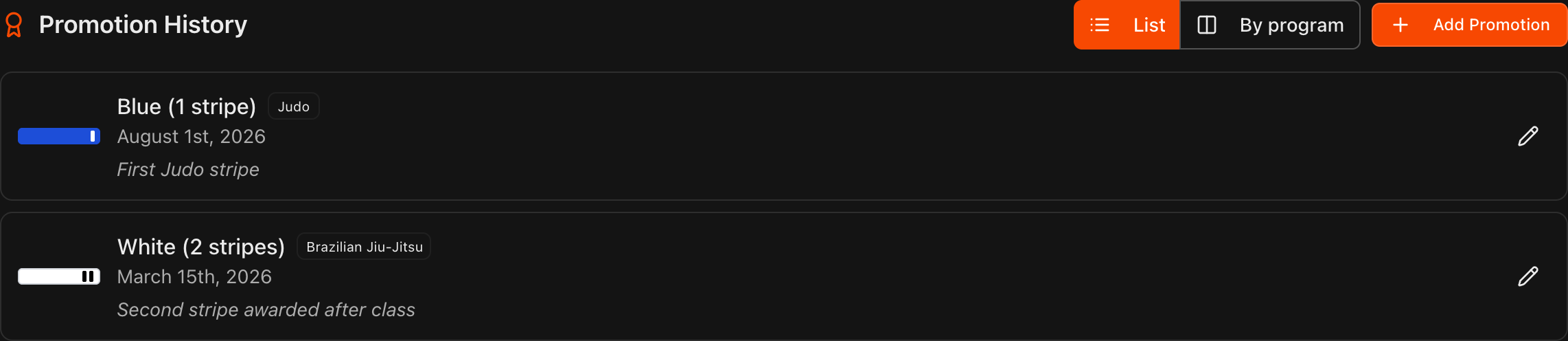
Update each student's rank history from their Student Information page, Attendance tab, under Promotion History, by clicking Add Promotion and choosing the Program first.
Each student's Attendance tab shows a Progress to next stripe callout above Promotion History with the same numbers the alerts use.
Caution
For attendance-based requirements you must be taking attendance in Kmura, and for time-at-rank requirements you must keep **Promotion History** accurate. Without these, the alerts cannot work correctly.
Note
Promoting a student from the **Attendance** page or with **Add Promotion** updates their **Promotion History** automatically. Alerts count only classes in that program's tree, so a Judo class never counts toward a BJJ stripe.
Open your Promotion Alerts
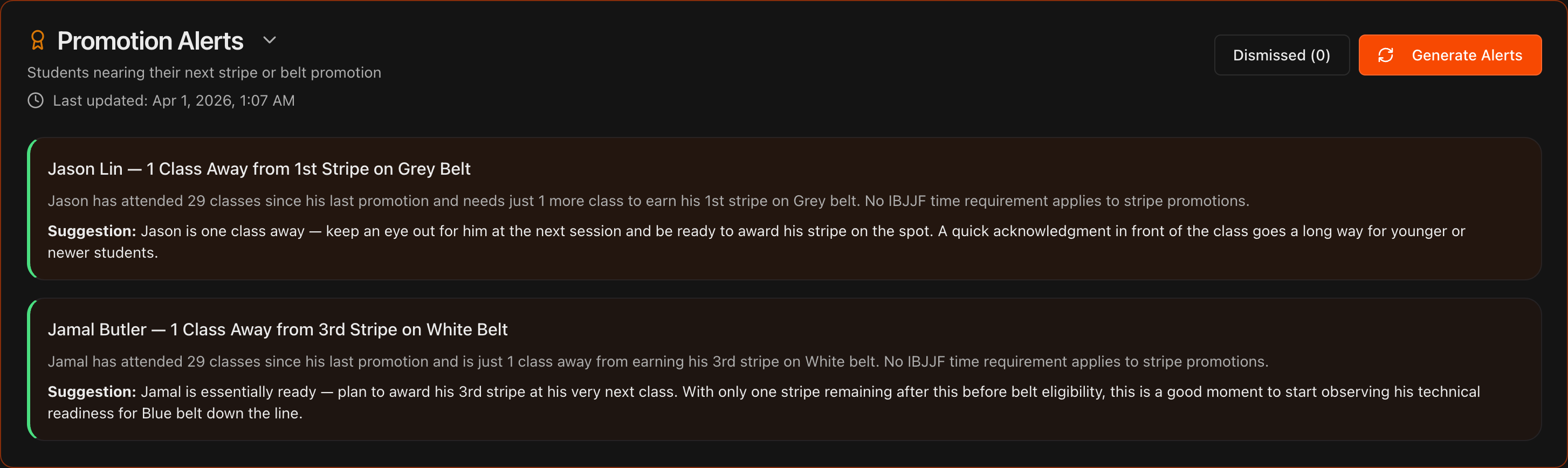
Go to the Overview page and click Promotion Alerts to expand it.
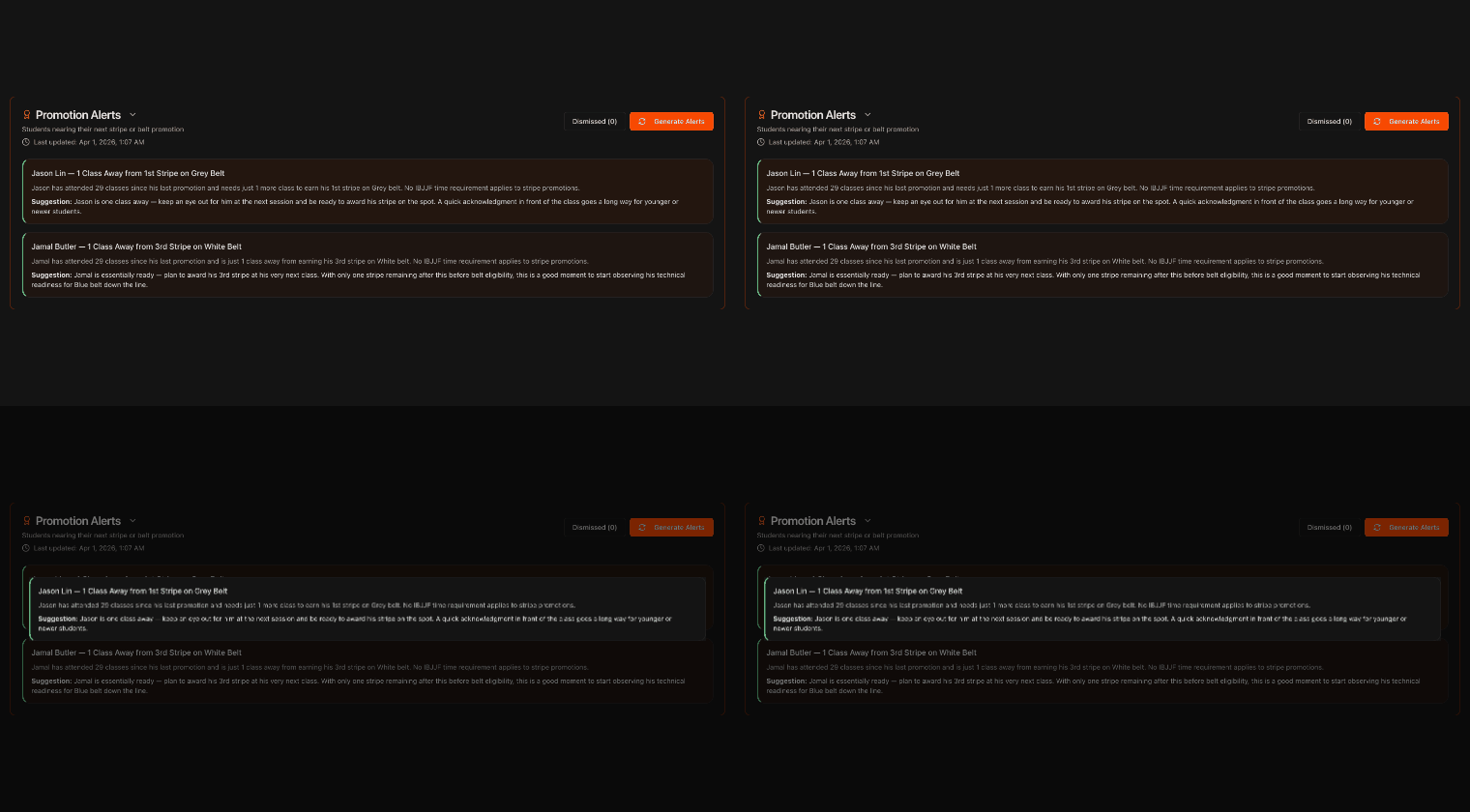
Each alert names a student nearing eligibility, for example one class away from their first stripe.
Each alert names the student and the program, so a student training in two programs can appear twice.
When a belt has class type requirements, the alert explains the shortfall by type and level, and a student is not flagged as ready until every requirement is met.
Act on the alert
Use the bold Suggestion to plan the promotion, such as being ready to award a stripe at the student's next class.
Tip
Awarding a stripe on the spot, in front of the class, is a powerful motivator, especially for younger or newer students.

Dismiss and restore alerts
Hover over an inaccurate or stale alert and click the X in its top-right corner to dismiss it.
Click the Dismissed button to review dismissed alerts and restore any of them if needed.
Note
Kmura's AI automatically reassesses your gym's data every night at midnight EST and updates these alerts accordingly.
