Open the Charge History section
Open the student's Student Information page, click the Billing tab, and scroll to Charge History.
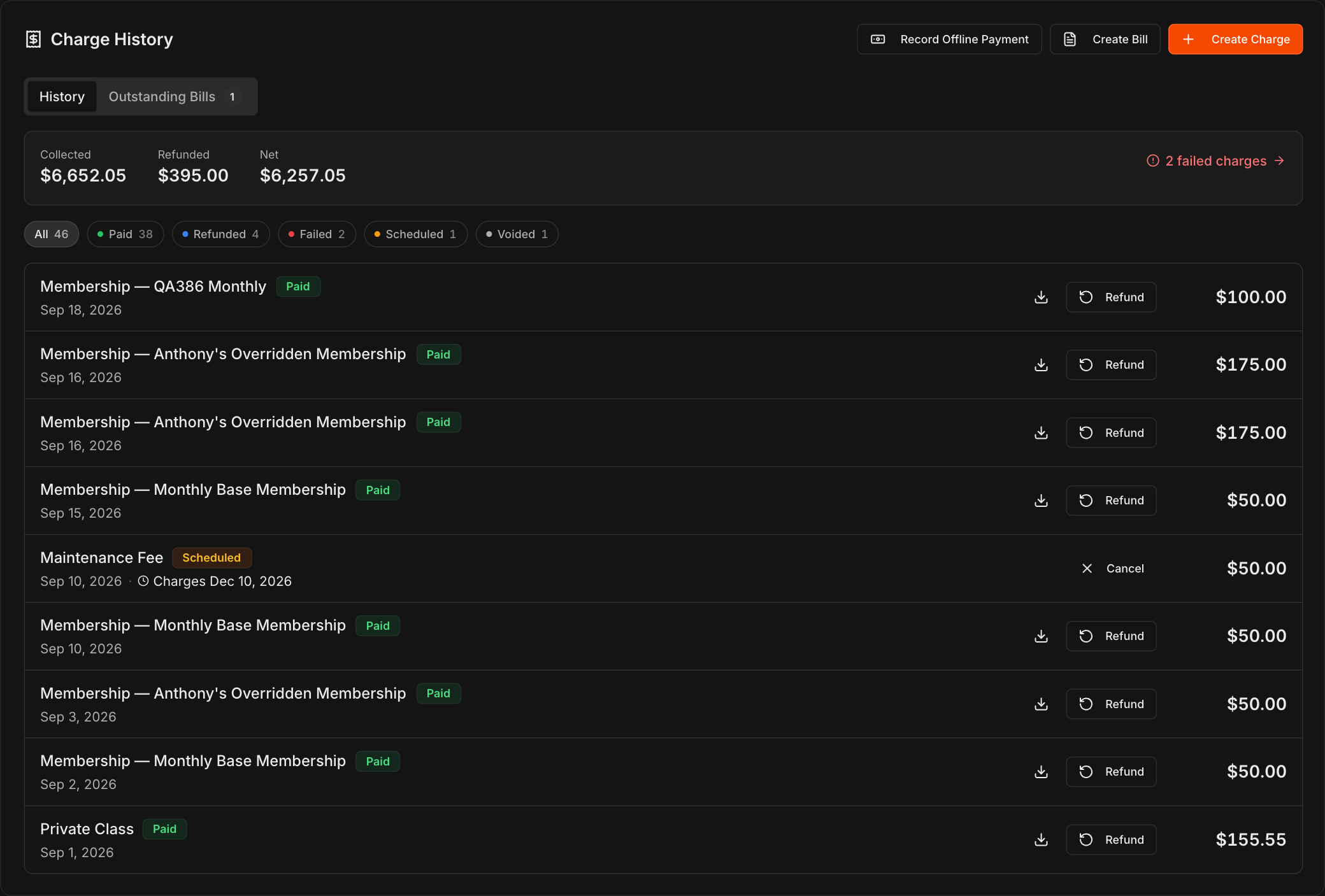
The section has two tabs: History lists every charge that has already been paid, refunded, or failed, and Outstanding Bills lists what the student owes but has not paid yet.
On History, a strip shows Collected, Refunded, and Net totals, the chips filter the list by status, and refunded charges show how much was refunded and when.
On History, you can issue a Refund on any charge and download a receipt for any payment.
If a charge failed, the failure reason is shown along with a Retry button to attempt it again.
With more than one gym, every entry in Charge History carries a tag with the gym that collected it.
Create a one-time charge
Click Create Charge in the Charge History section.
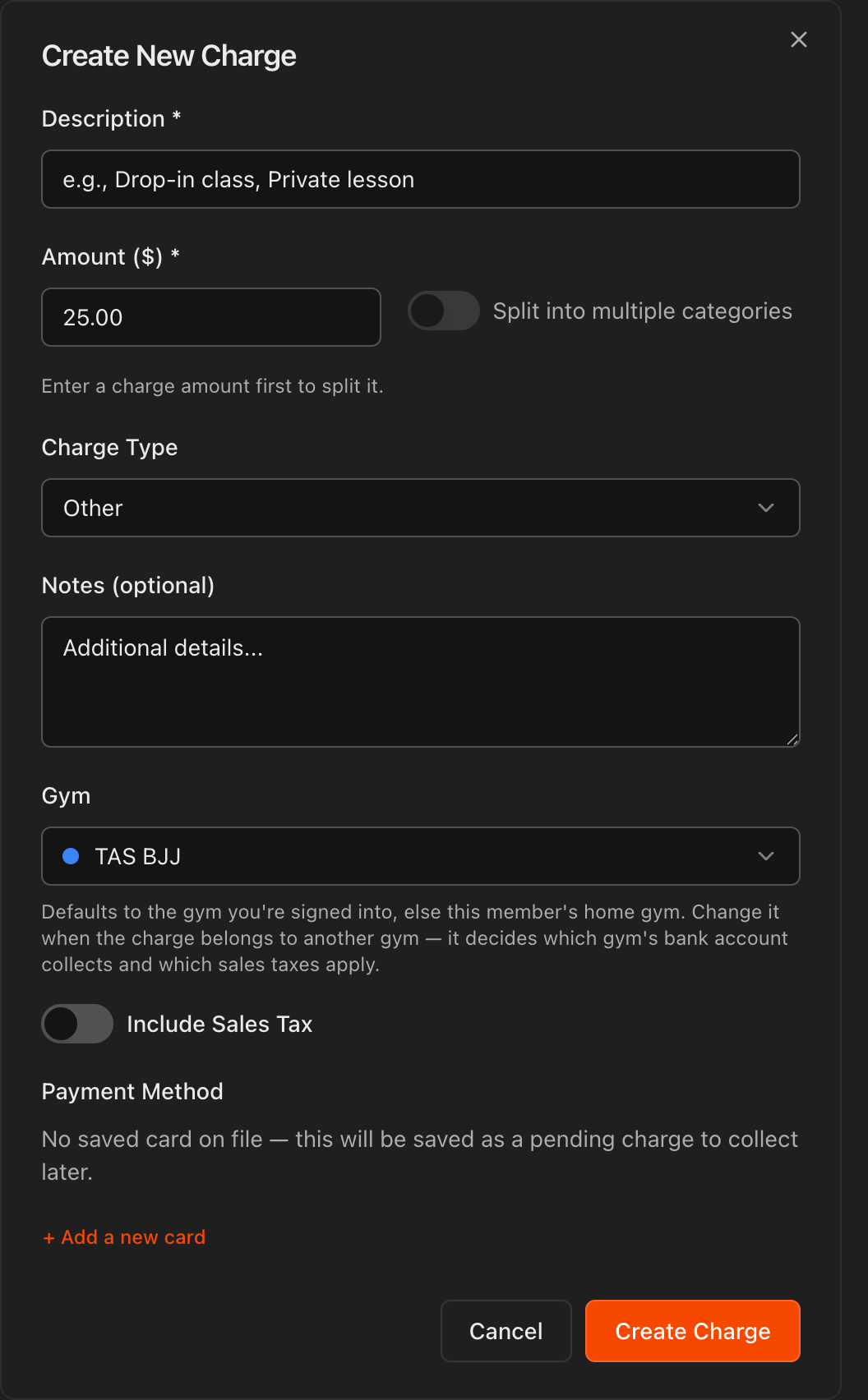
Enter a Description (for example, an enrollment fee, seminar, or private lesson) and the Amount.
Optionally use Split into multiple categories, pick a Charge Type, add Notes, and toggle Include Sales Tax.
Select the student's card under Payment Method, then click Create Charge. The charge is not processed immediately; Kmura confirms Charge Created and saves it as a pending charge in the Charge History section.
Choose the Gym the charge belongs to. It defaults to the gym you are working in, or the member's home gym, and decides which gym's bank account collects and which sales taxes apply.
From the pending row, use the two buttons to either collect the payment now or mark it as paid offline.
Note
With **Dual Pricing** on, the **Amount** you enter is the bank price and Kmura shows both totals under it, for example Bank $50.00 · Card $51.64.
Create a bill to collect later
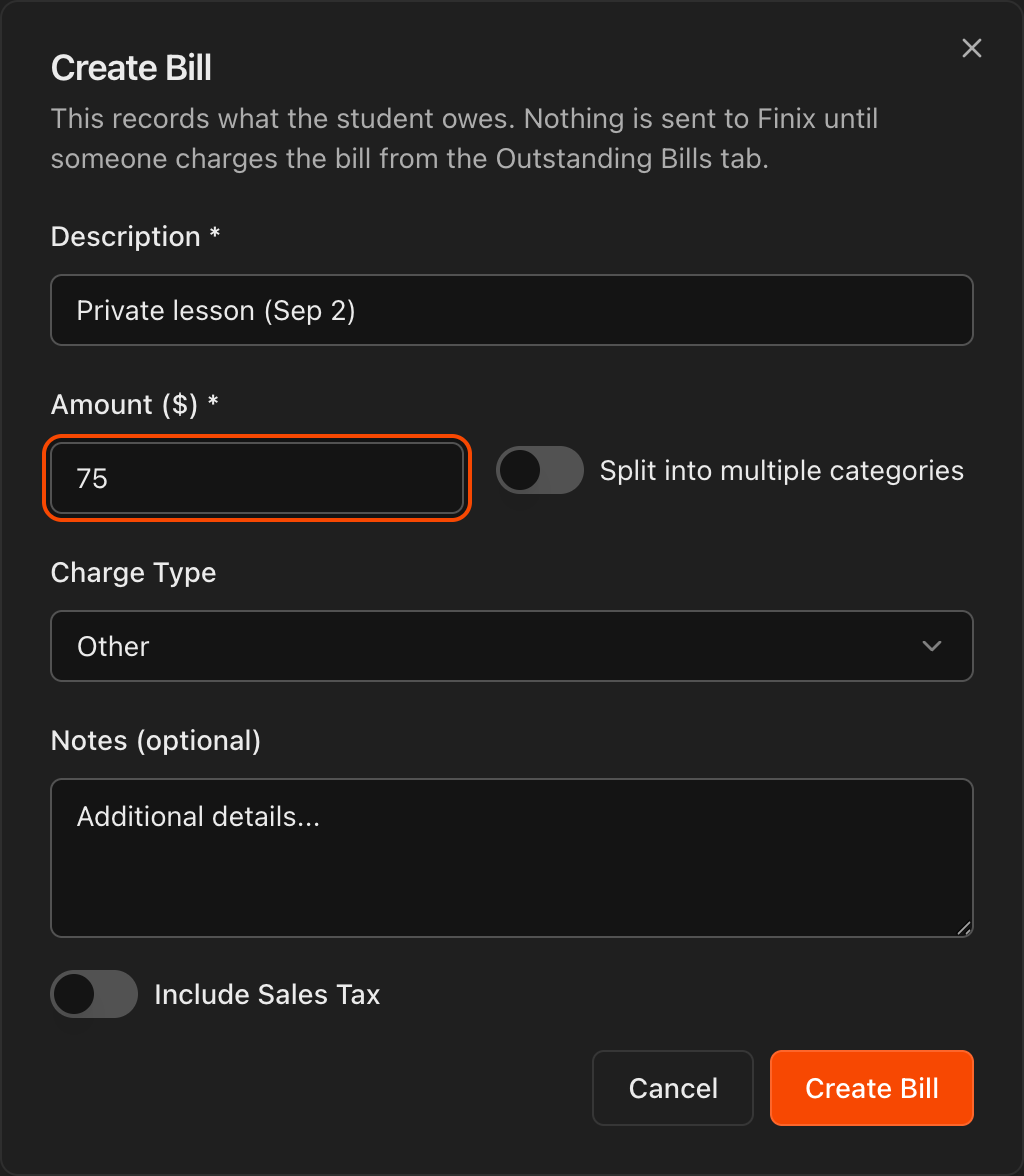
Click Create Bill in the Charge History section when the student owes money but you do not want to charge a card right now.
Enter a Description and Amount, pick a Charge Type, and add optional Notes or Include Sales Tax, the same fields as a charge.
Click Create Bill. Kmura confirms Bill Created, and the bill appears on the Outstanding Bills tab marked Unpaid. Nothing is sent to the payment processor yet.
Note
A bill records what the student owes. A charge processes a payment. Use a bill for things like a drop-in fee you will collect at the front desk, or a private lesson you will charge once the session happens.
Collect, record, or void an outstanding bill
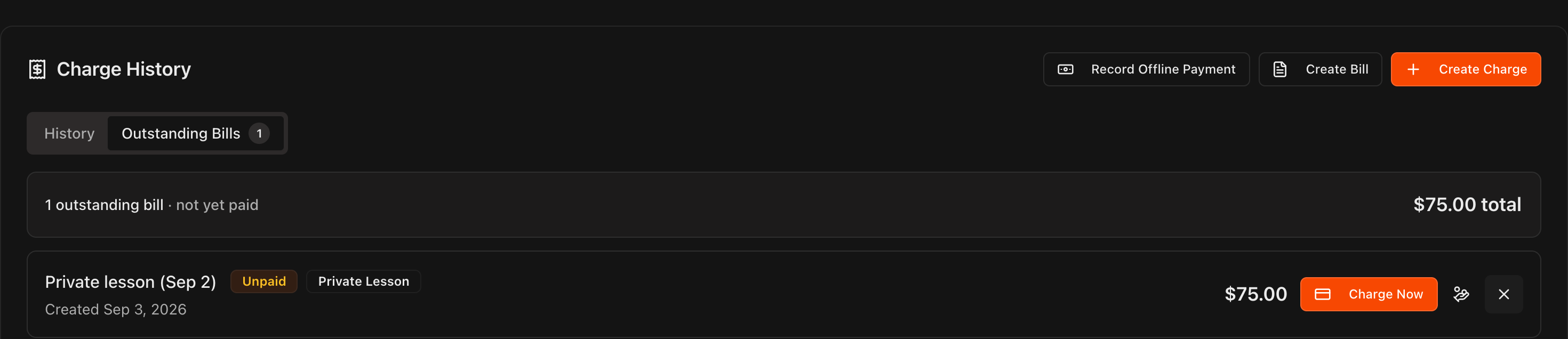
Open the Outstanding Bills tab. The header shows how many bills are open and the total owed.
Click Charge Now on a bill to run it through the payment processor immediately. Pick the Payment Method and click Charge. The student receives an email receipt as usual.
Click the Mark paid offline icon to record a payment taken outside Kmura, such as check, cash, or Zelle. Choose the Payment method, set Paid on, add an optional Reference such as a check number, and click Mark Paid.
Click the Void bill icon to cancel a bill the student no longer owes.
Once a bill is charged or marked paid, it moves from Outstanding Bills to History.
Tip
The **Outstanding Bills** tab shows a count badge whenever the student has unpaid bills, so you can spot money owed the moment you open their **Billing** tab.
Defer the charge to a future date
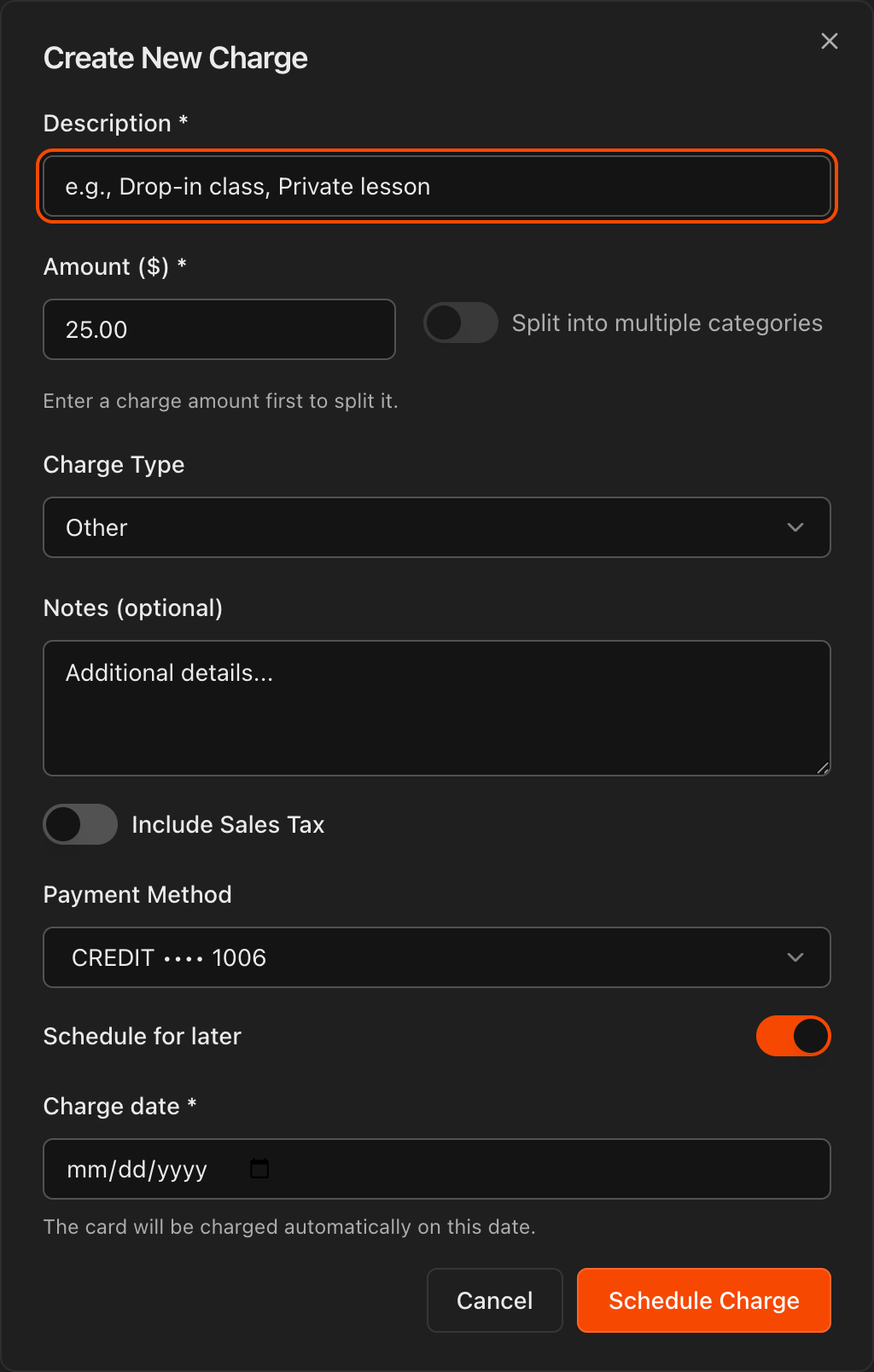
To charge the student later instead of now, turn on Schedule for later in the Create New Charge dialog.
Pick the Charge date. The student's card will be charged automatically on that date.
Click Schedule Charge to save the scheduled charge.
Record an offline payment
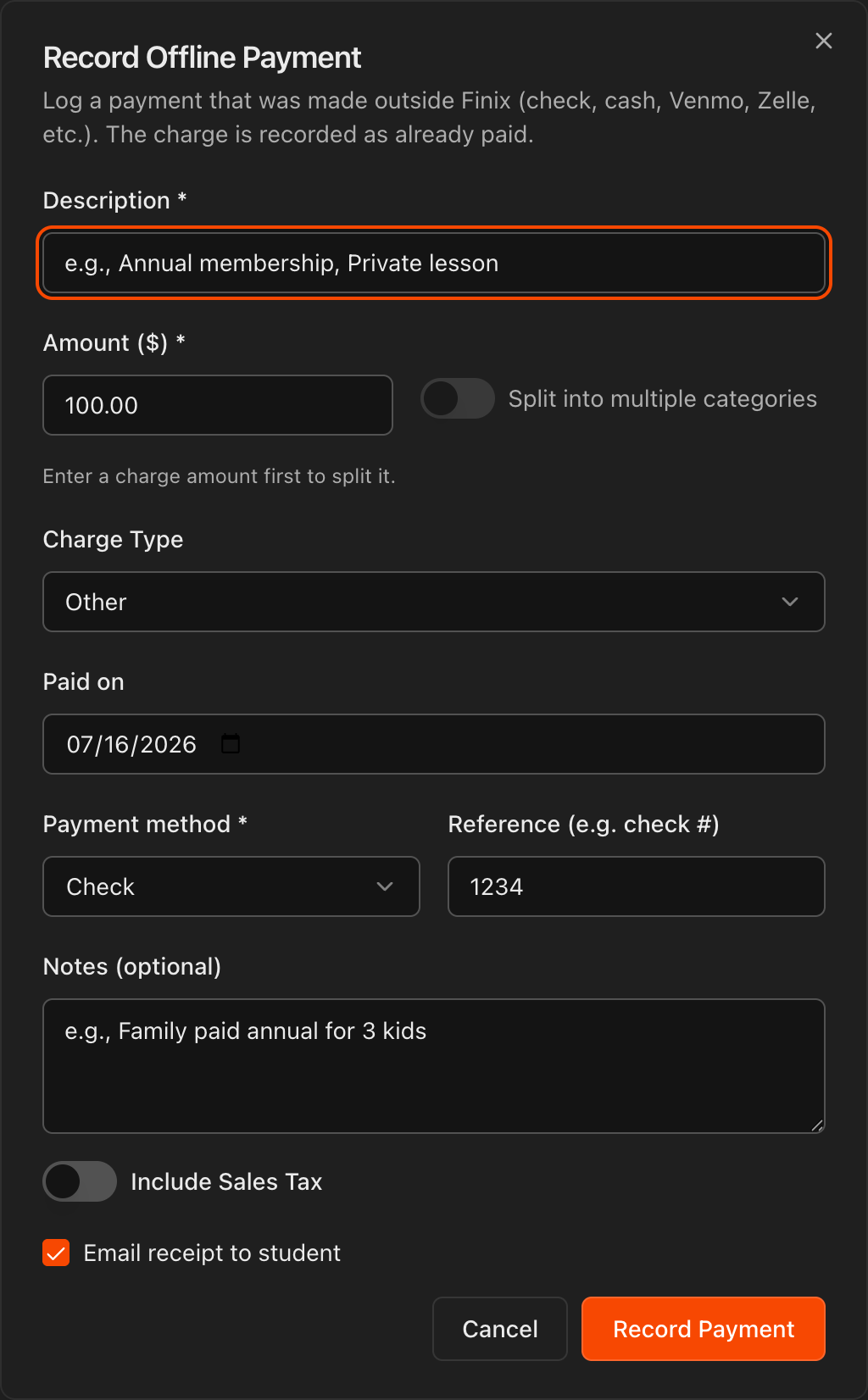
Click Record Offline Payment to log a transaction that happened outside of Kmura, such as check, cash, Venmo, or Zelle.
Enter the Description, Amount, Charge Type, the Paid on date, and the Payment method, with an optional Reference like a check number.
The charge is recorded as already paid, so you have a record of it in Kmura, and you can send the student a receipt for the offline transaction if desired.
Note
Students automatically receive an email receipt each time they are charged, with sales tax itemized as a separate line item when tax applies.