Edit your academy's curriculum
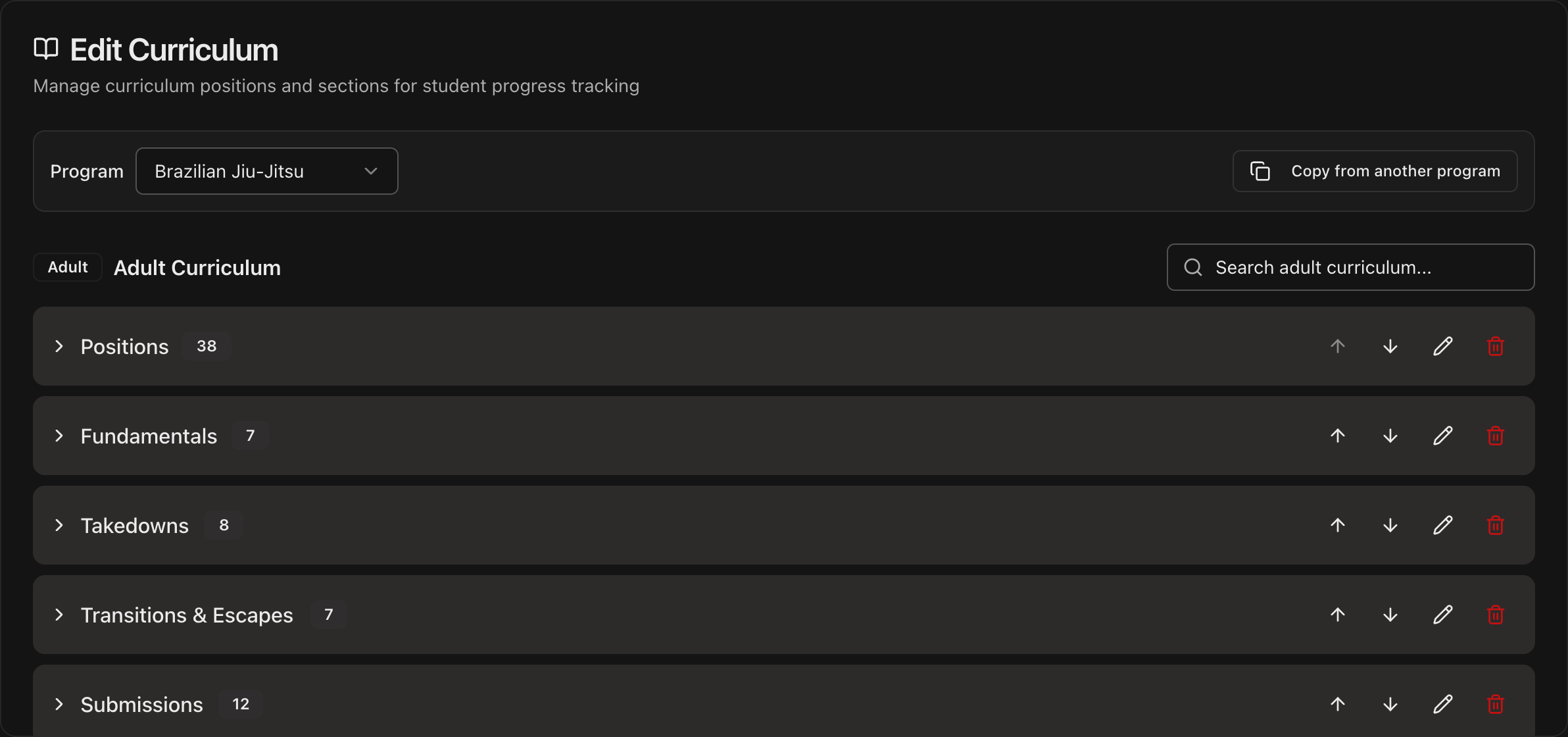
Go to Settings, open Curriculum, and scroll to Edit Curriculum.
Choose the program in the Program dropdown. Each top-level program has its own curriculum; sub-programs share their parent's.
The Adult Curriculum and Children's Curriculum are managed separately, each with its own search bar.
Expand a category to see its positions, then use the arrows to reorder, the pencil to rename, and the trash icon to delete.
Type into Add a position and press Enter to add a new position inside a category.
Click Add Adult Section or Add Children's Section to create a new category.
Note
Changes here apply to every student in that program. The updated curriculum appears on the **Student Information** page under the **Curriculum** tab.
Tip
Starting a new program? Click **Copy from another program** to bring over sections and positions from a program you already built.
Assess students on each position
Open a student's Student Information page and select the Curriculum tab.
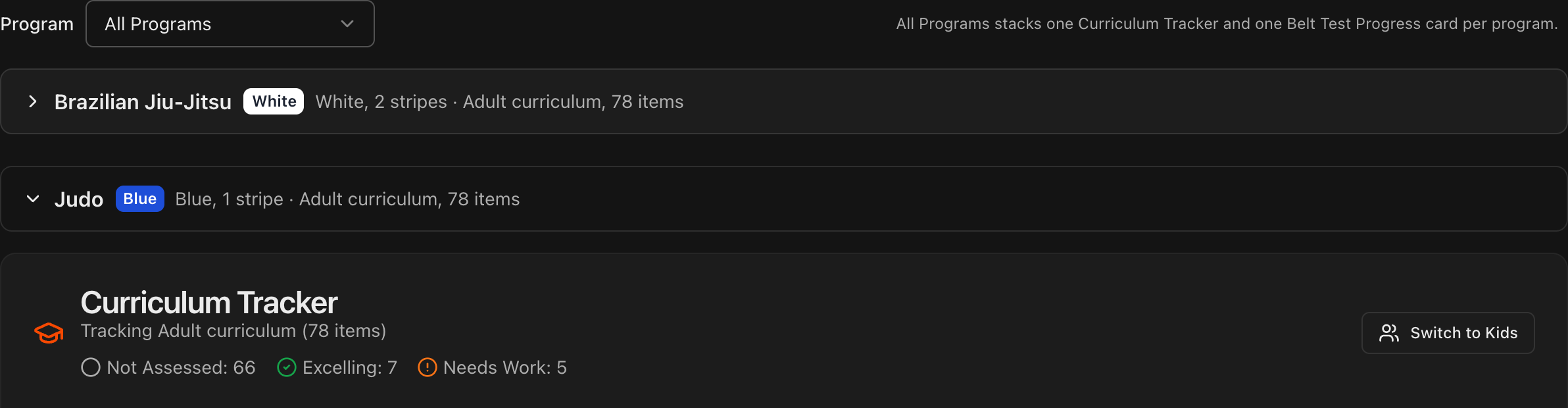
Under All Programs, the tab stacks one group per program the student trains in, each with its own Curriculum Tracker and Belt Test Progress. Pick a program in the Program dropdown to see just that one.
The Curriculum Tracker shows running totals for Not Assessed, Excelling, and Needs Work, plus a Switch to Kids toggle for the children's curriculum.
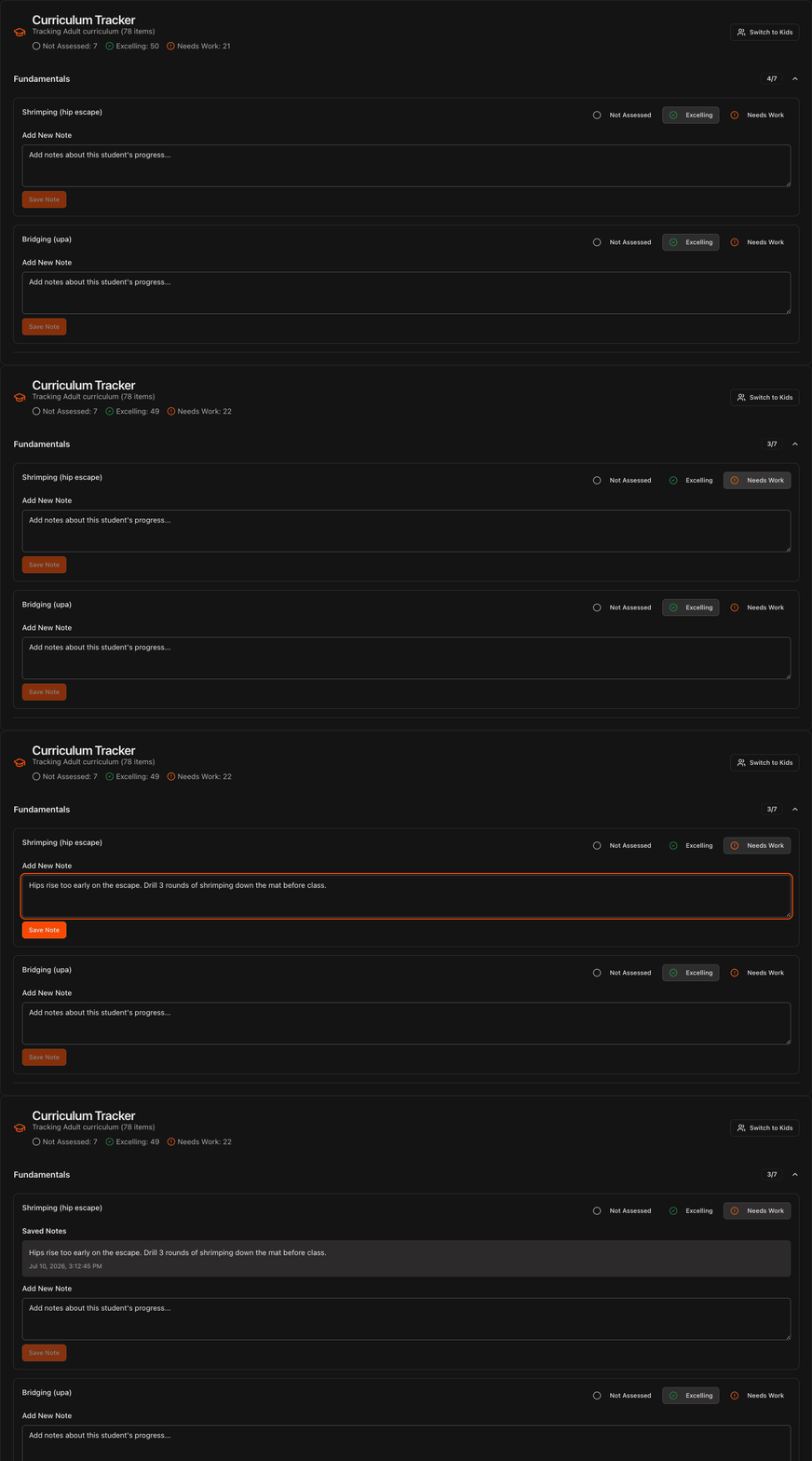
Expand a category and mark each position as Not Assessed, Excelling, or Needs Work.
The category counters and tracker totals update instantly as you assess.
Note
Assessments are stored per program, so a student can be **Excelling** on a position in one program and **Needs Work** on the same position in another.
Leave notes on positions
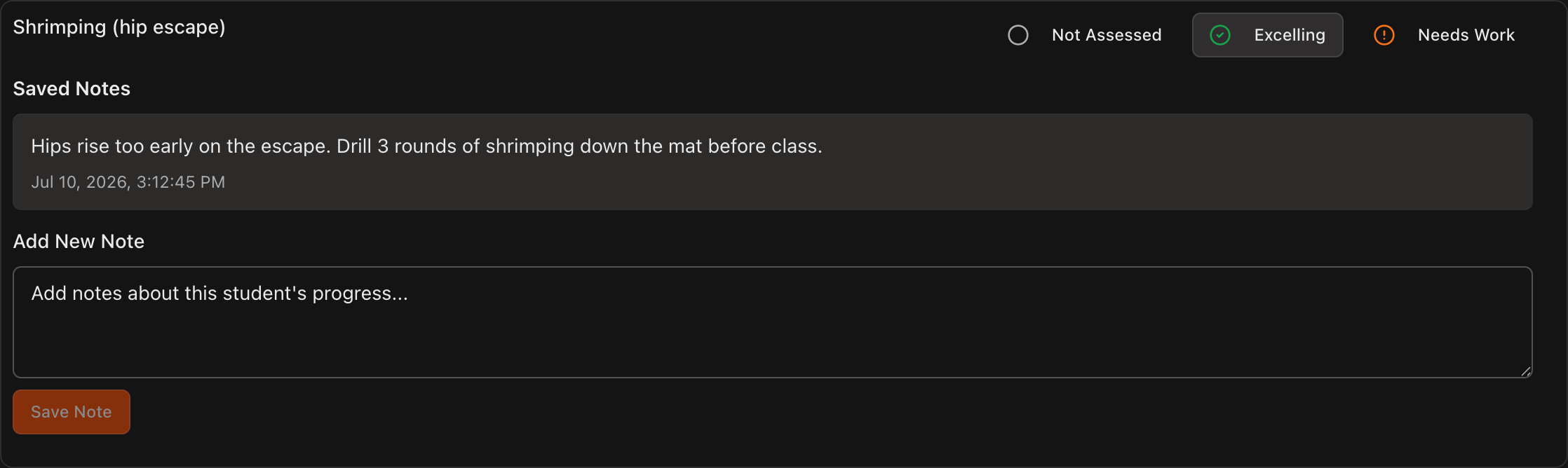
Under any position, type your feedback into Add New Note and click Save Note.
Saved notes appear under the position with a timestamp under Saved Notes.
The student sees this feedback on the Curriculum page inside their own Kmura portal.
In the student portal, the Curriculum page groups notes and progress by program the same way.
Note
Students can also save their own notes on specific positions when logged into their Kmura student accounts.