Open the student's Documentation tab
Go to Students, open the student (for example, Todd Snider), and click the Documentation tab.
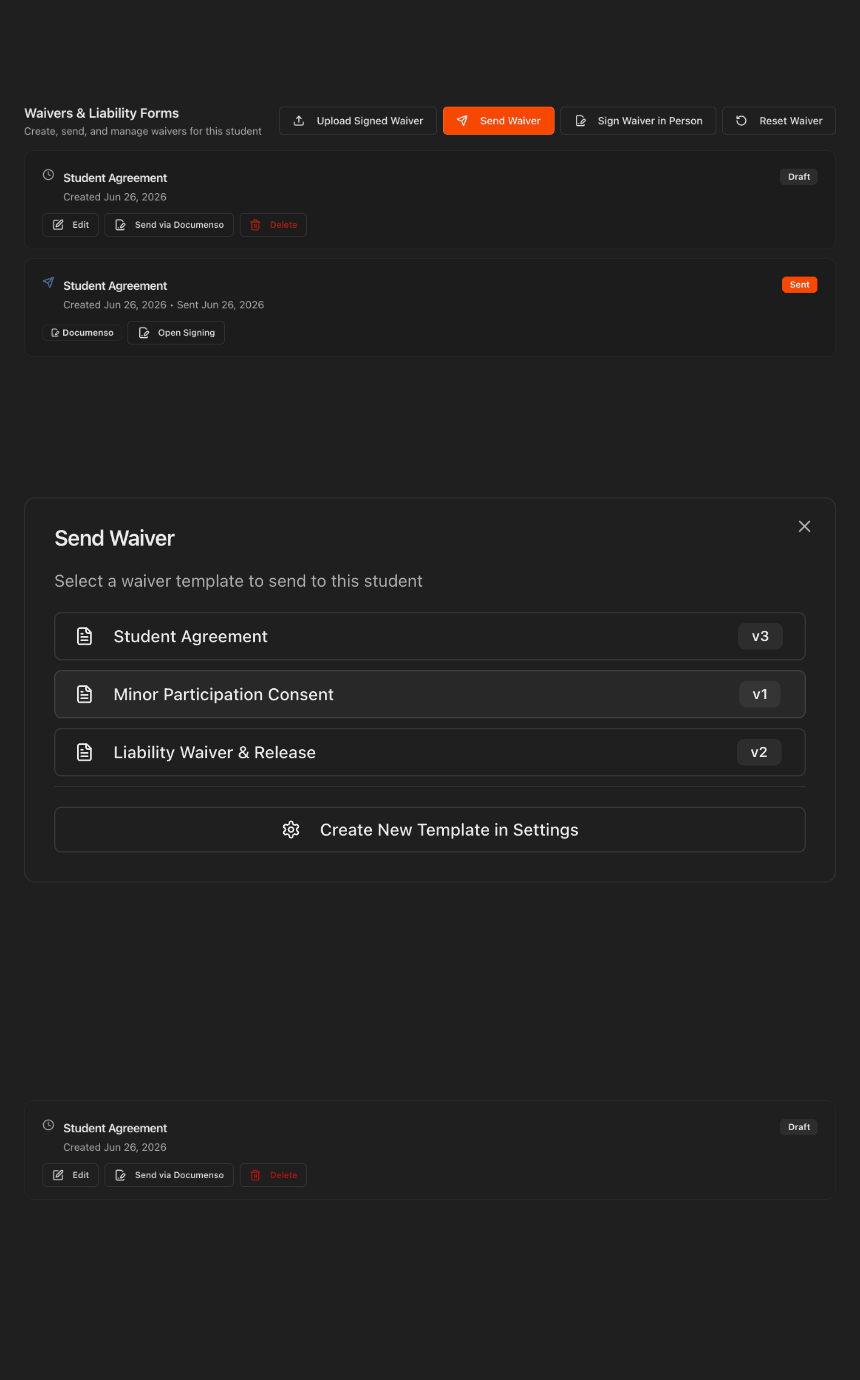
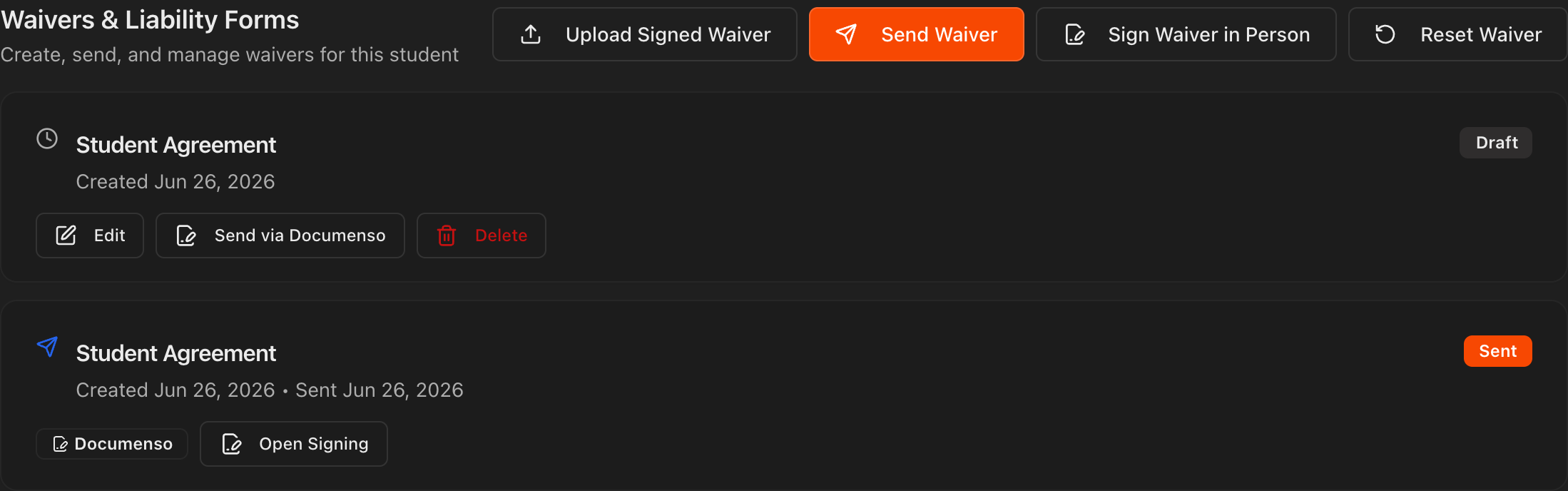
The Waivers & Liability Forms section is where you send, sign, upload, and review that student's waivers.
Each waiver on file shows a status of Draft, Sent, or completed.
Check waiver status by gym
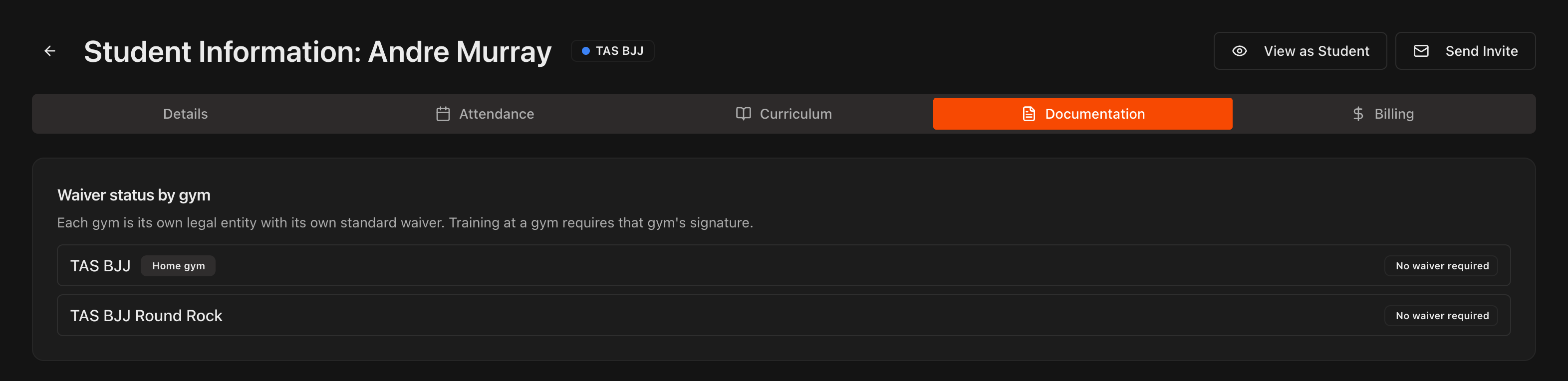
With more than one gym, the Documentation tab starts with a Waiver status by gym card listing every gym, with the student's home gym tagged Home gym.
Each row shows whether that gym requires a waiver and whether the student has signed it. Training at a gym requires that gym's signature.
Send a waiver for e-signature
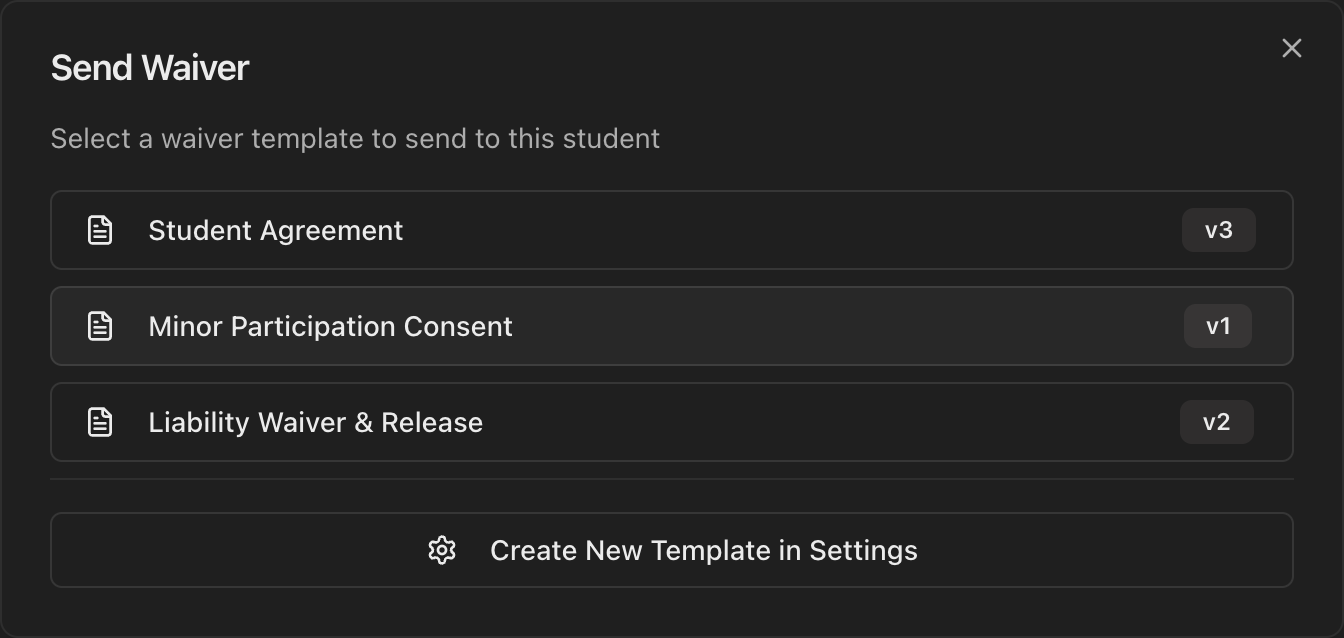
Click Send Waiver.
In the popup, select which of your saved waiver templates to send.
The selected template appears as a block in the Waivers & Liability Forms section.
Note
The templates listed here are the ones you saved under **Settings** > **Waivers**.
Send it via Documenso
On the template block, click Send via Documenso.
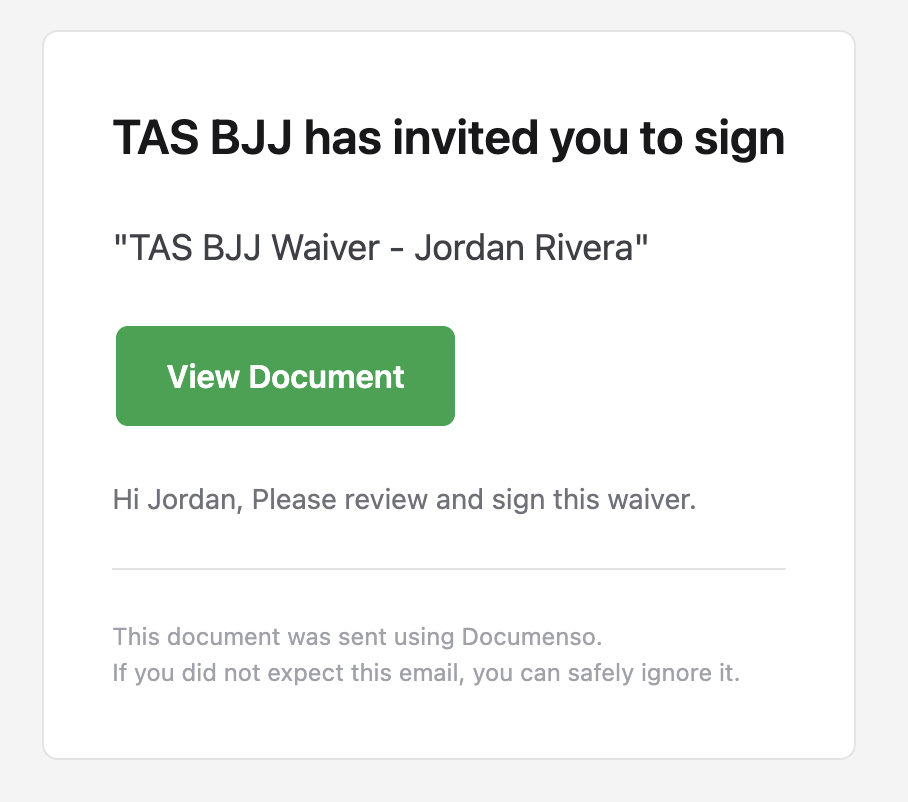
A secure e-signature link is emailed to the student, and the waiver's status changes to Sent.
Note
Documenso is the e-signature service Kmura uses to collect and store legally signed waivers.

What the student receives
The student gets an email with a button to open and sign the waiver online.
They can sign from any device, with no Kmura login required.
Have a student sign in person
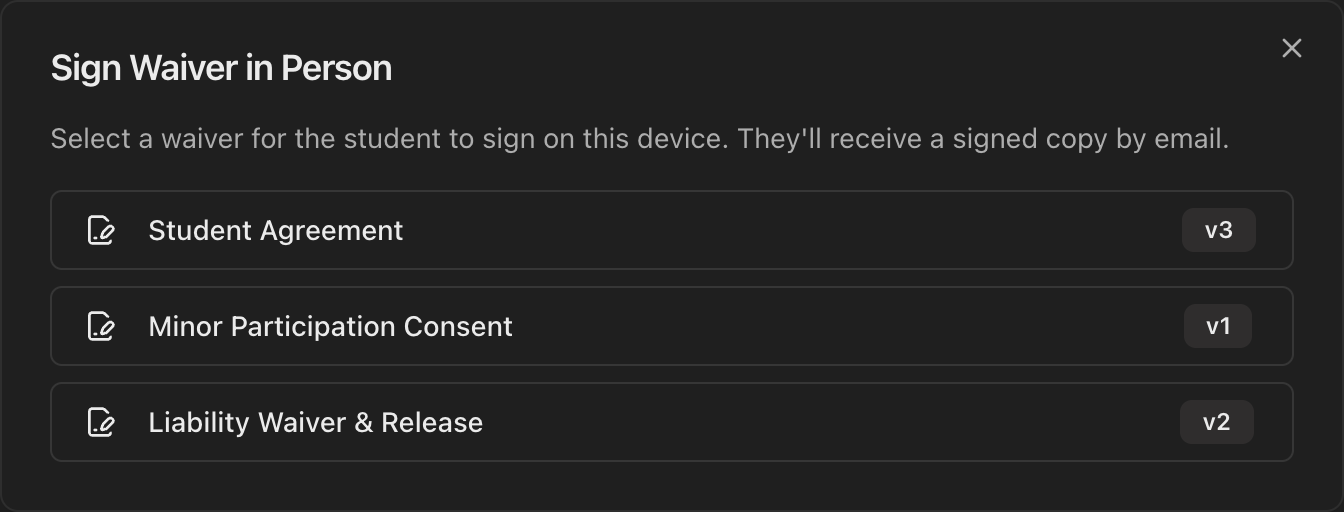
To capture a signature on the spot, click Sign Waiver in Person.
Select a template, then hand the student your computer or iPad to sign directly on that device.
Once they sign, the waiver is saved and they still receive a signed copy by email.
Tip
This is ideal for front-desk sign-ups and trial-class check-ins.
View the completed waiver
After the waiver is signed, refresh the page.
The signed waiver appears in the Waivers & Liability Forms section, where you can view it or download it as a PDF.

Upload an already-signed waiver
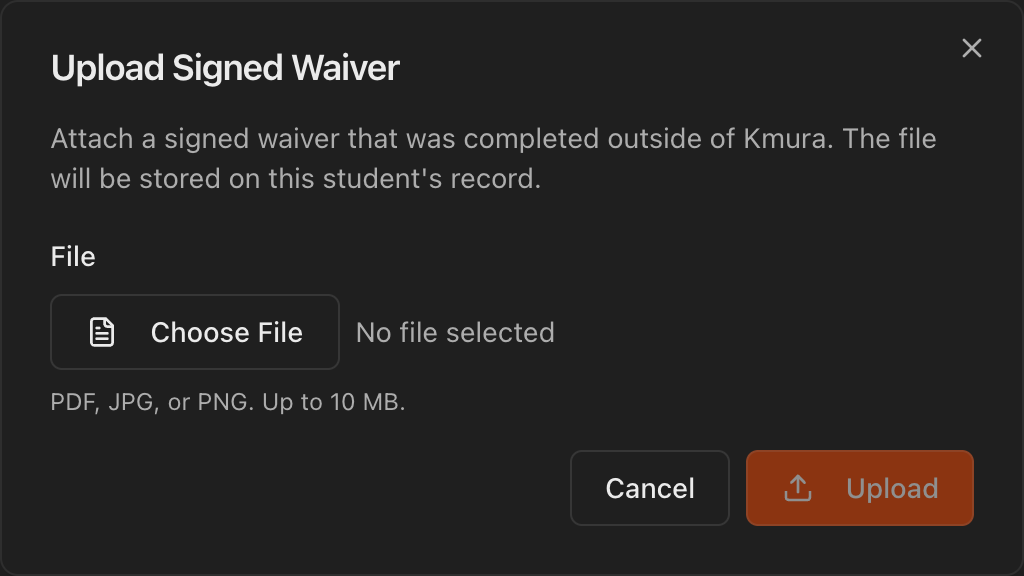
If you already have a signed waiver from outside Kmura, click Upload Signed Waiver.
Choose the file and click Upload to store it on the student's record.
Note
Accepted formats are PDF, JPG, or PNG, up to 10 MB.
Set required waivers (optional)
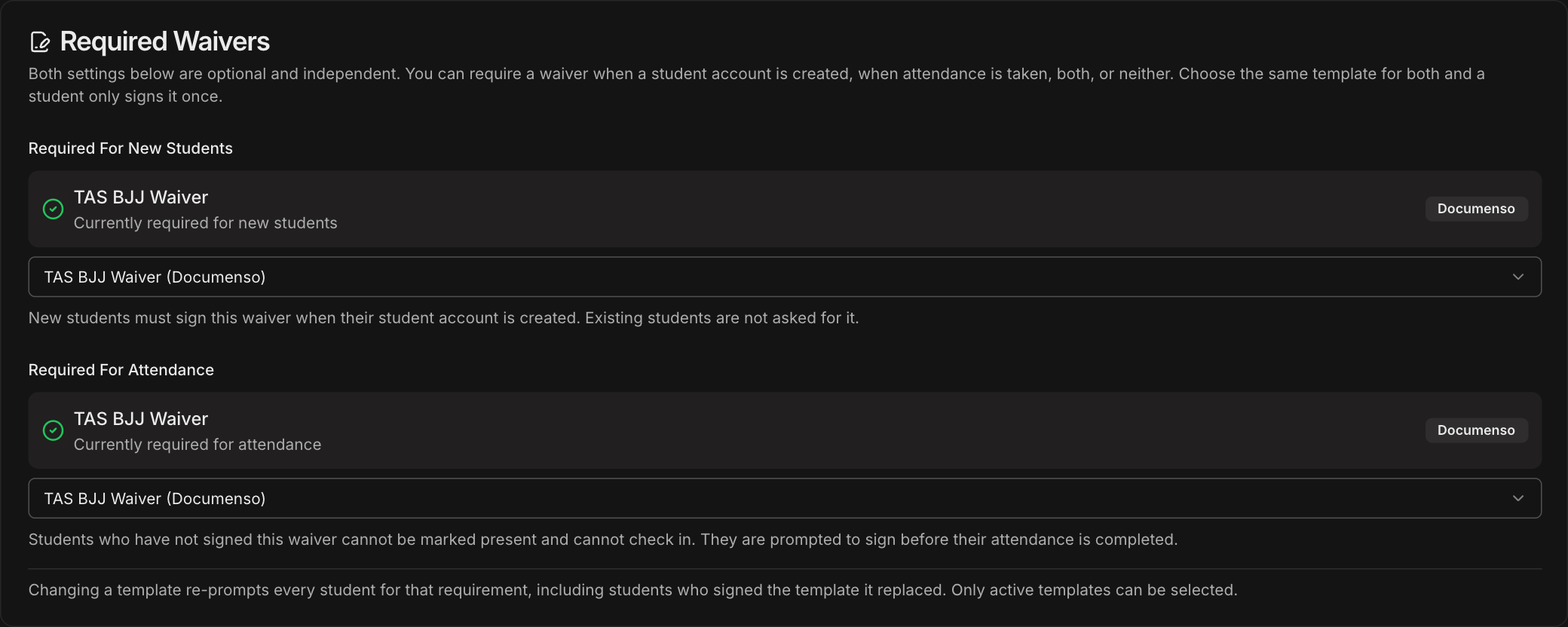
Under Settings > Waivers > Required Waivers, you can require a waiver when a student account is created, when attendance is taken, both, or neither.
Required For New Students is signed during account creation, with the parent or guardian signing for students under 18.
If a student who has not signed the Required For Attendance waiver is marked present (by an instructor or via self check-in), Kmura prompts you to email the waiver for e-signature before attendance can be completed.
Note
Creating and saving waiver templates is covered in the **Saving Waiver Templates** guide.