Open a lead's waiver options
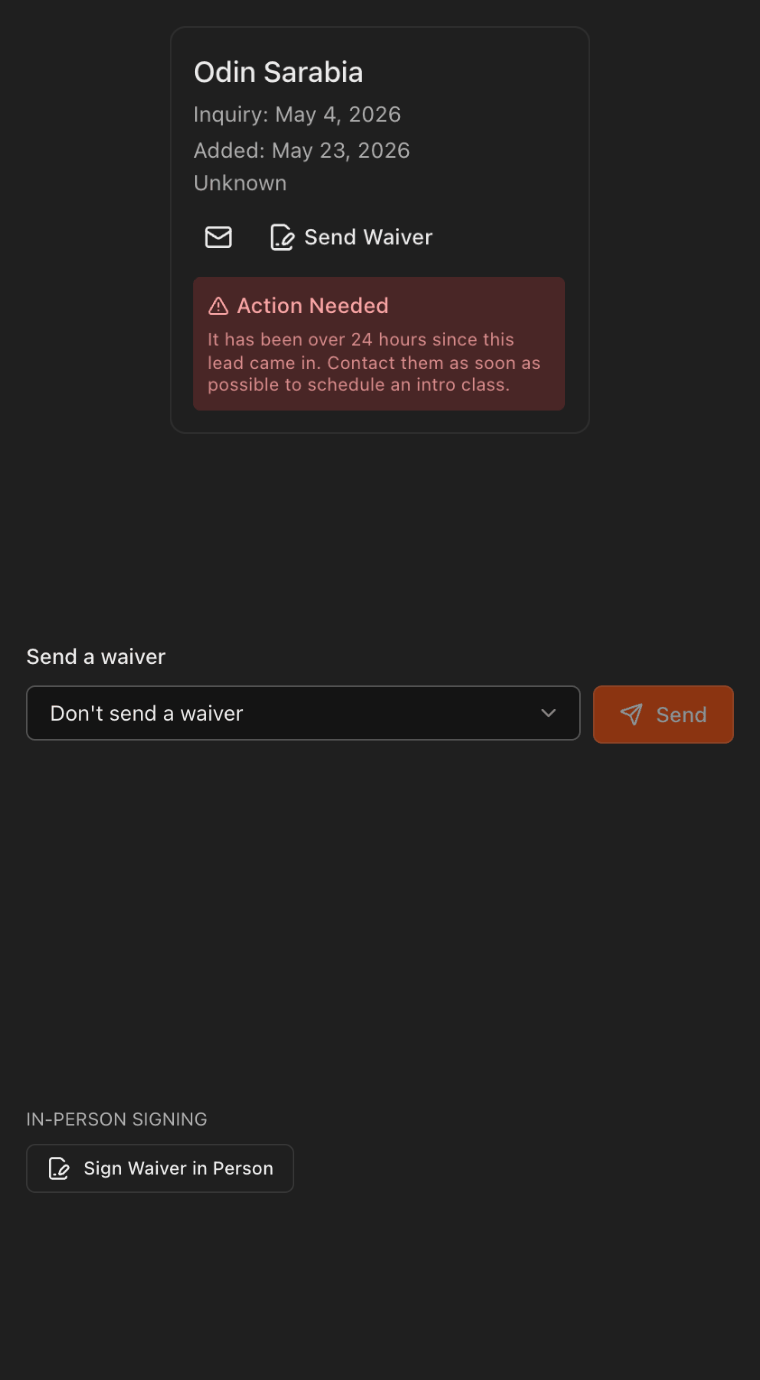
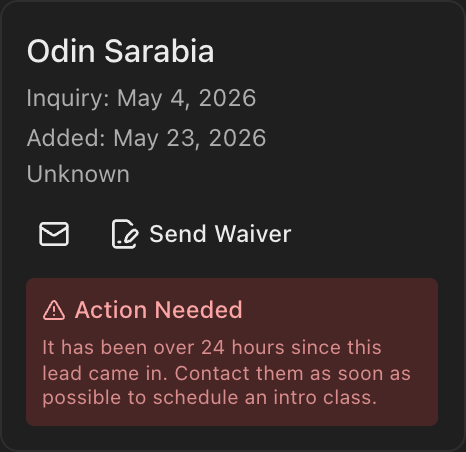
Go to the Leads page and find the lead on the board.
On the lead's card, click Send Waiver.
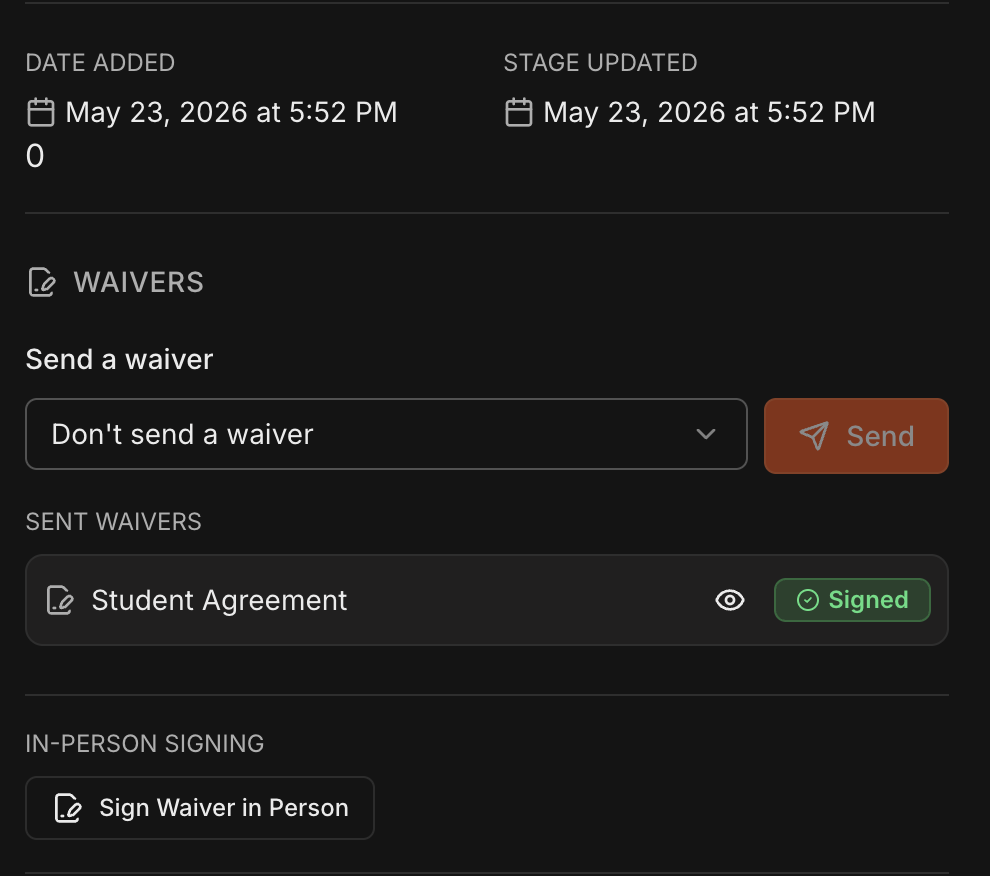
The lead's details open and scroll to the Waivers section.
Email a waiver for e-signature
Under Send a waiver, open the dropdown and choose one of your saved waiver templates.
Click Send to email the lead a secure e-signature link.
Note
The templates listed here are the ones you saved under **Settings** > **Waivers**.

What the lead receives
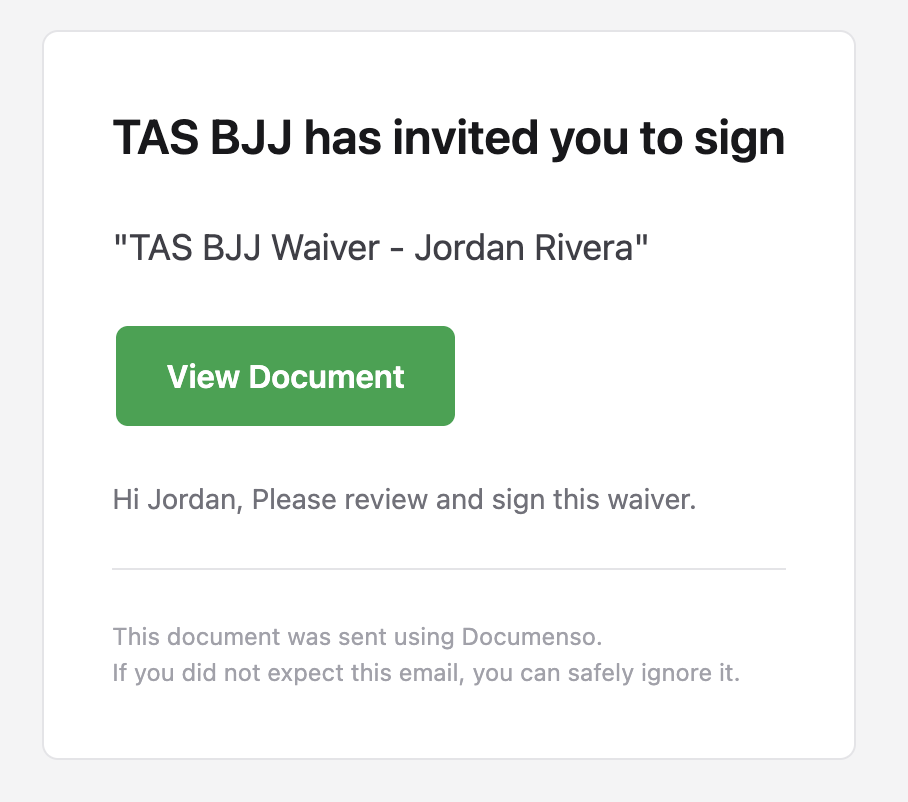
The lead gets an email with a button to open and sign the waiver online.
They can sign from any device, with no Kmura login required.
Have a lead sign in person
To capture a signature on the spot, click Sign Waiver in Person under In-Person Signing.
Select a template, then hand the lead your computer or iPad to sign directly on that device.
Once they sign, the waiver is saved and they still receive a signed copy by email.
Tip
This is ideal for walk-ins and trial-class sign-ups before a lead becomes a student.

View the completed waiver
After the waiver is signed, refresh the page.
The signed waiver appears in the lead's Waivers section, where you can view it or download it as a PDF.
Note
When the lead converts to a student, their signed waivers carry over to the student record.