Transactions
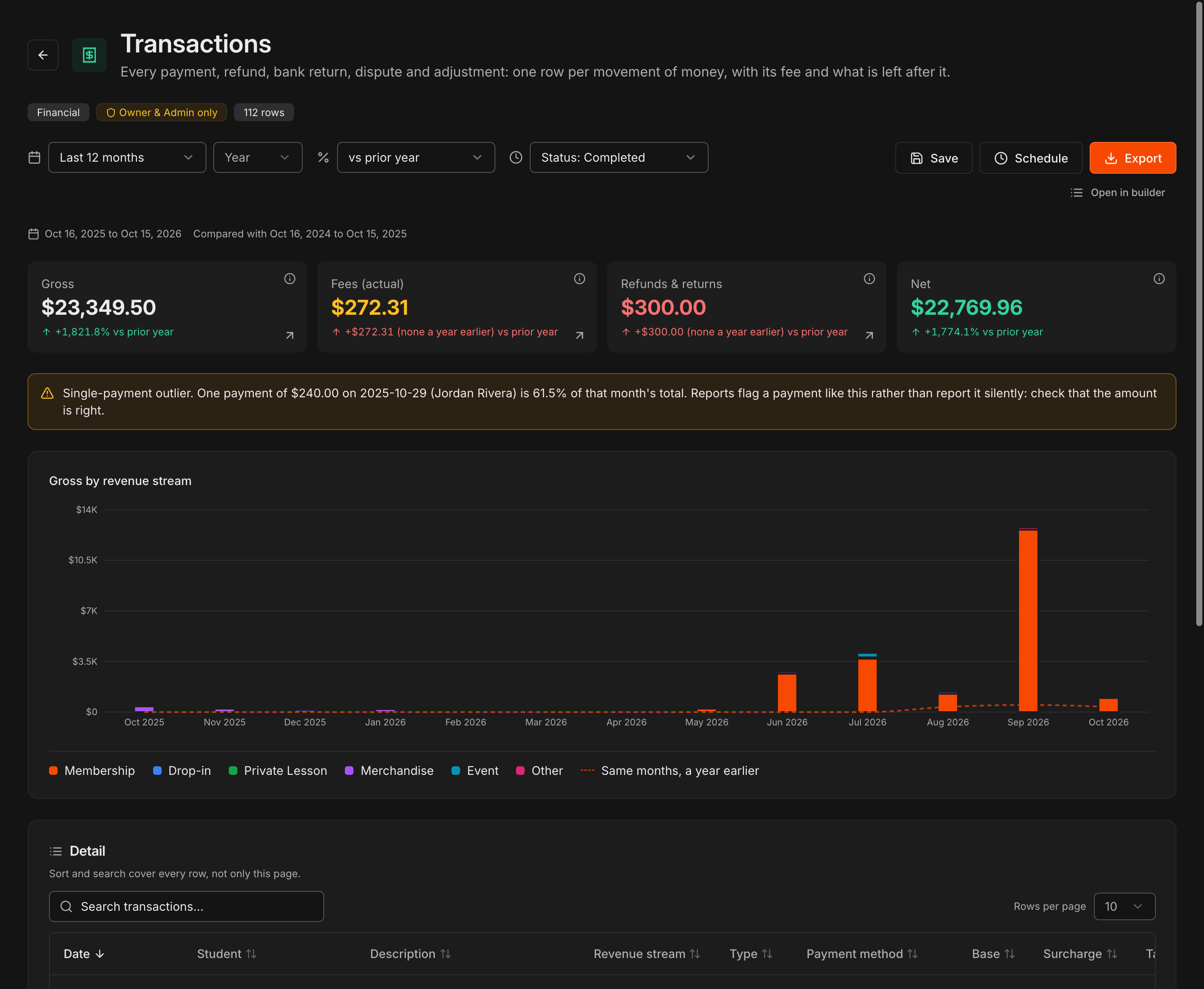
One row per movement of money: every payment, refund, bank return, dispute and adjustment, with its fee and what is left after it.
The tiles total Gross, Fees (actual), Refunds & returns and Net for the range, each against the prior period or year.
The chart stacks gross by revenue stream, month by month, and the Status filter narrows to completed or failed payments.
Note
The reports under **Financial** are visible to owners and admins only. All of them share the date range, comparison, **Save**, **Schedule** and **Export** controls described in Create & Export Reports.
Caution
An orange **Single-payment outlier** notice flags one payment that makes up an unusual share of a month. Check the amount is right rather than reporting it silently.
Payouts
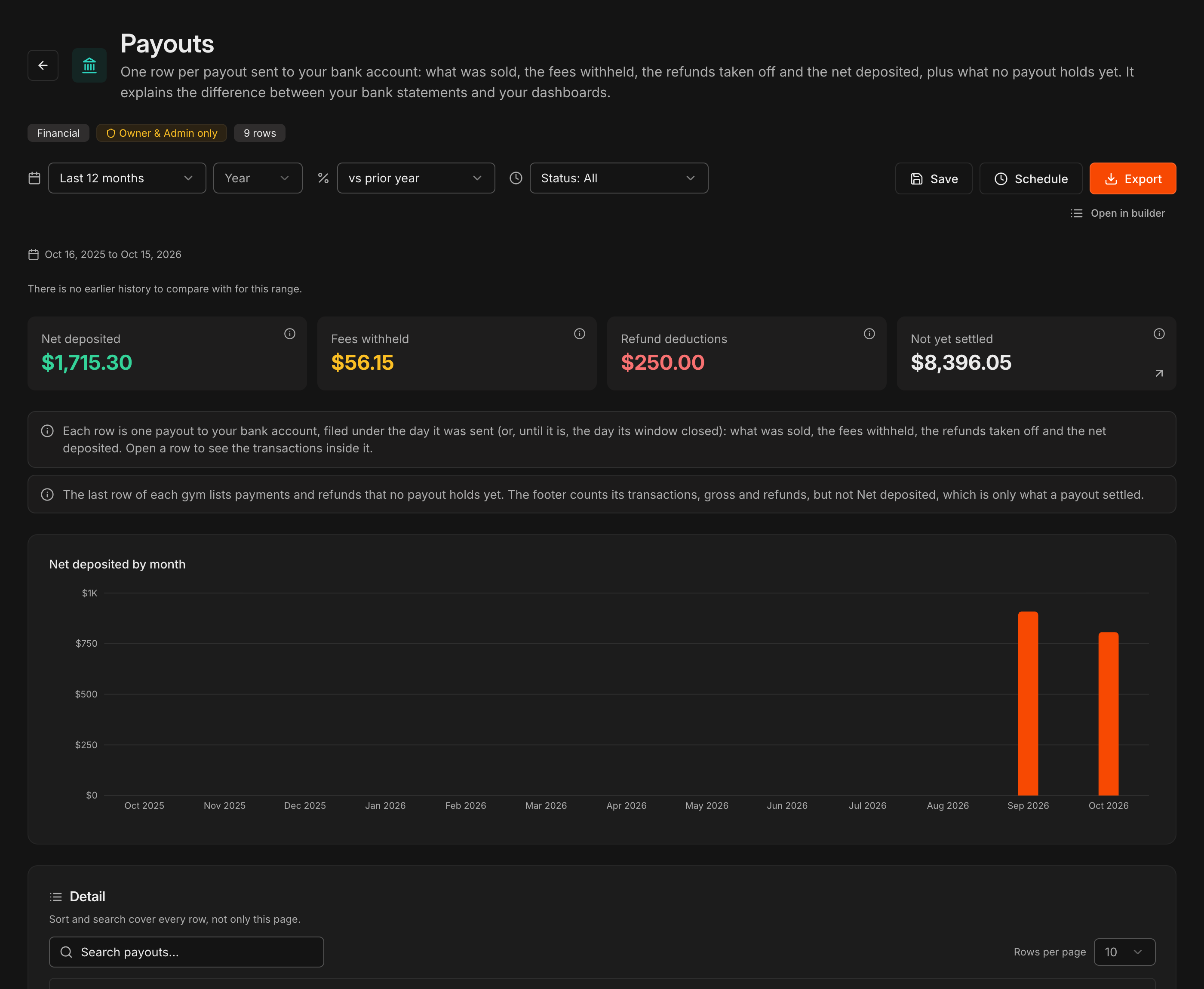
One row per payout sent to your bank account: what was sold, the Fees withheld, the Refund deductions and the Net deposited.
Not yet settled totals the payments and refunds that no payout holds yet; they sit on the last row for each gym.
Open a row to see the transactions inside that payout.
Tip
This is the report to reconcile against your bank statement. The net deposited on a row should match the deposit on your statement for that day.
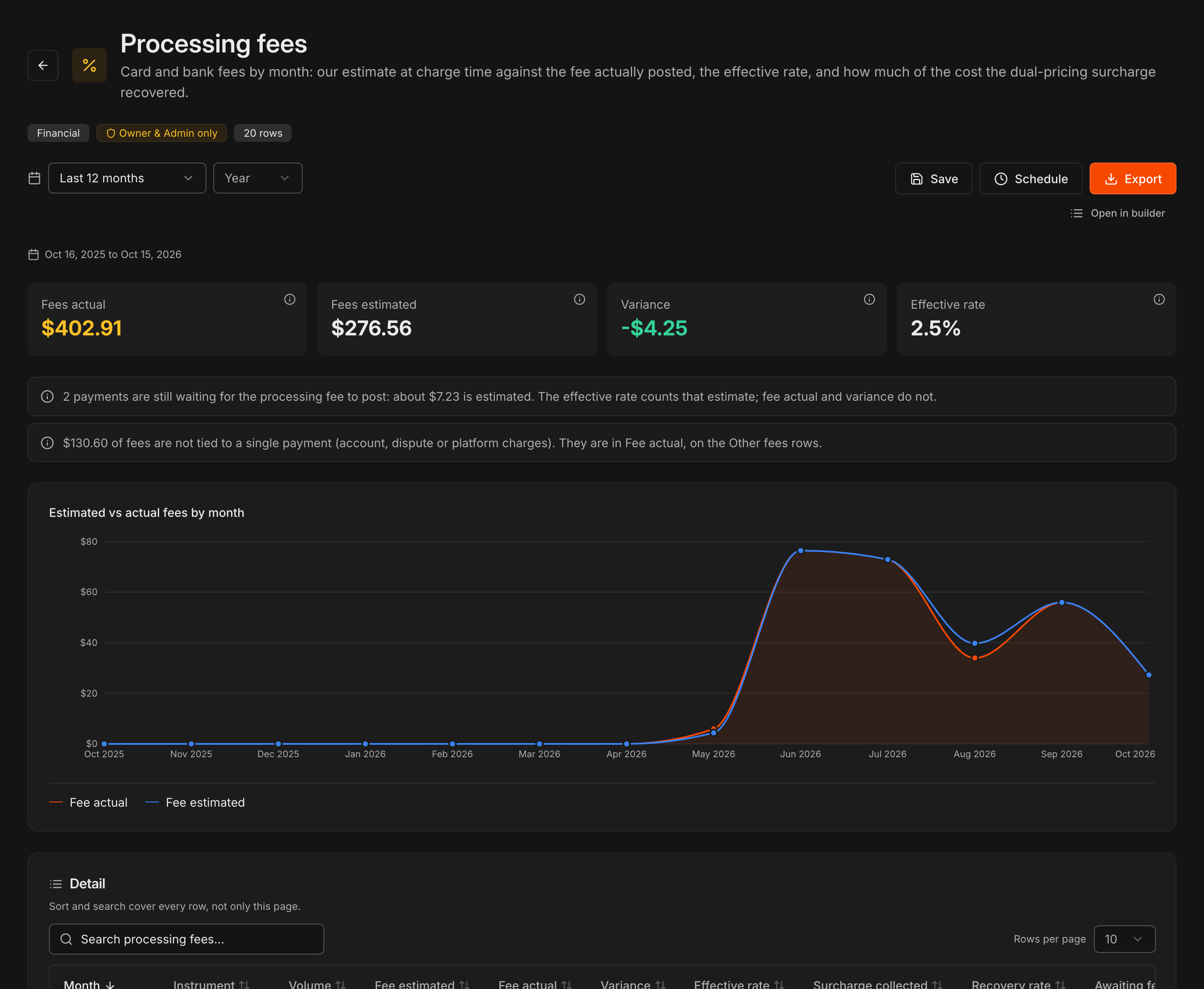
Processing fees
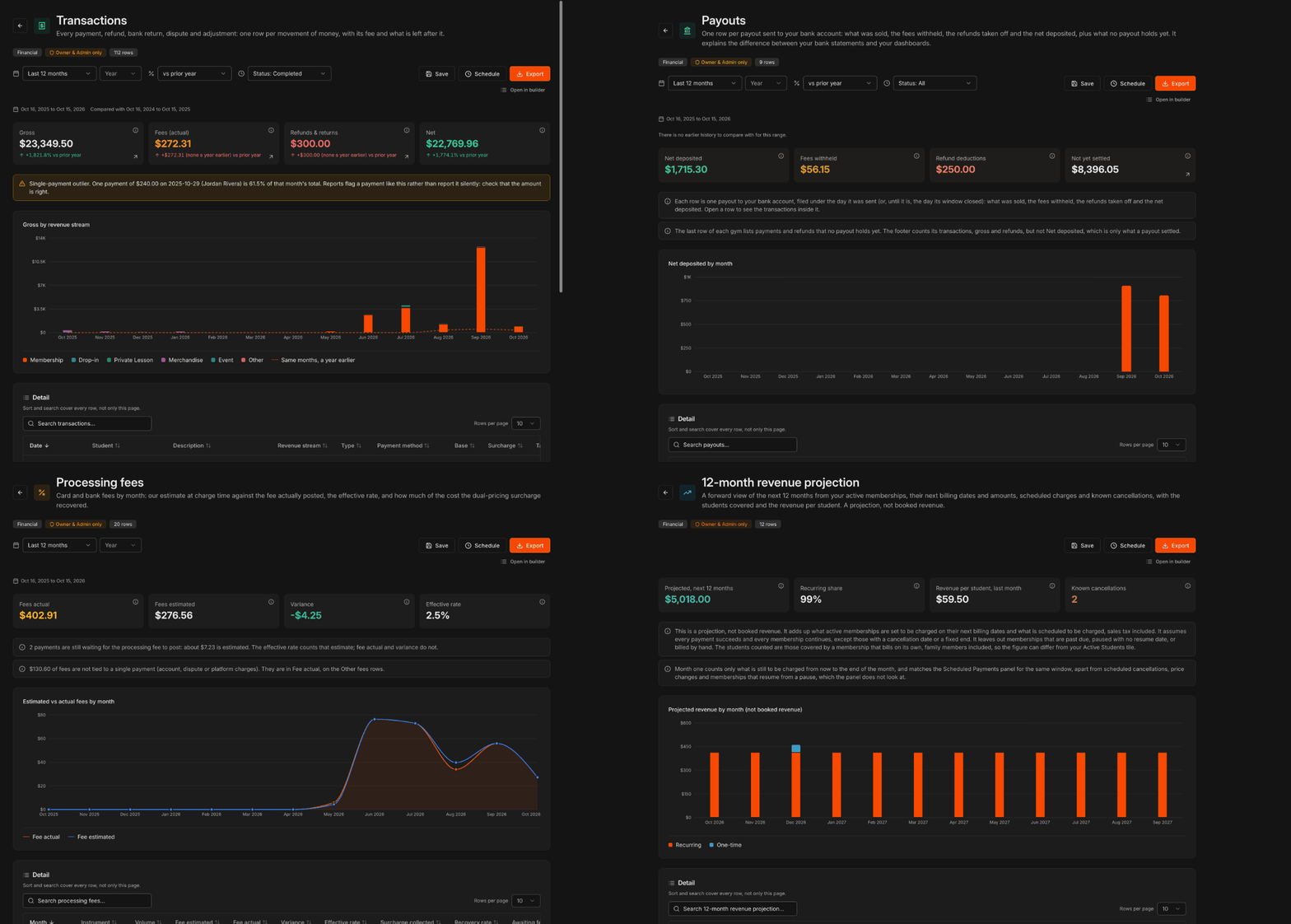
Compares Fees estimated at charge time with Fees actual once the processor posts them, month by month, with the Variance and the Effective rate.
For dual pricing, the report shows how much of the card cost the surcharge recovered.
Note
Fees that have not posted yet count as estimates in the effective rate but not in fee actual, and the report says how many payments are still waiting.
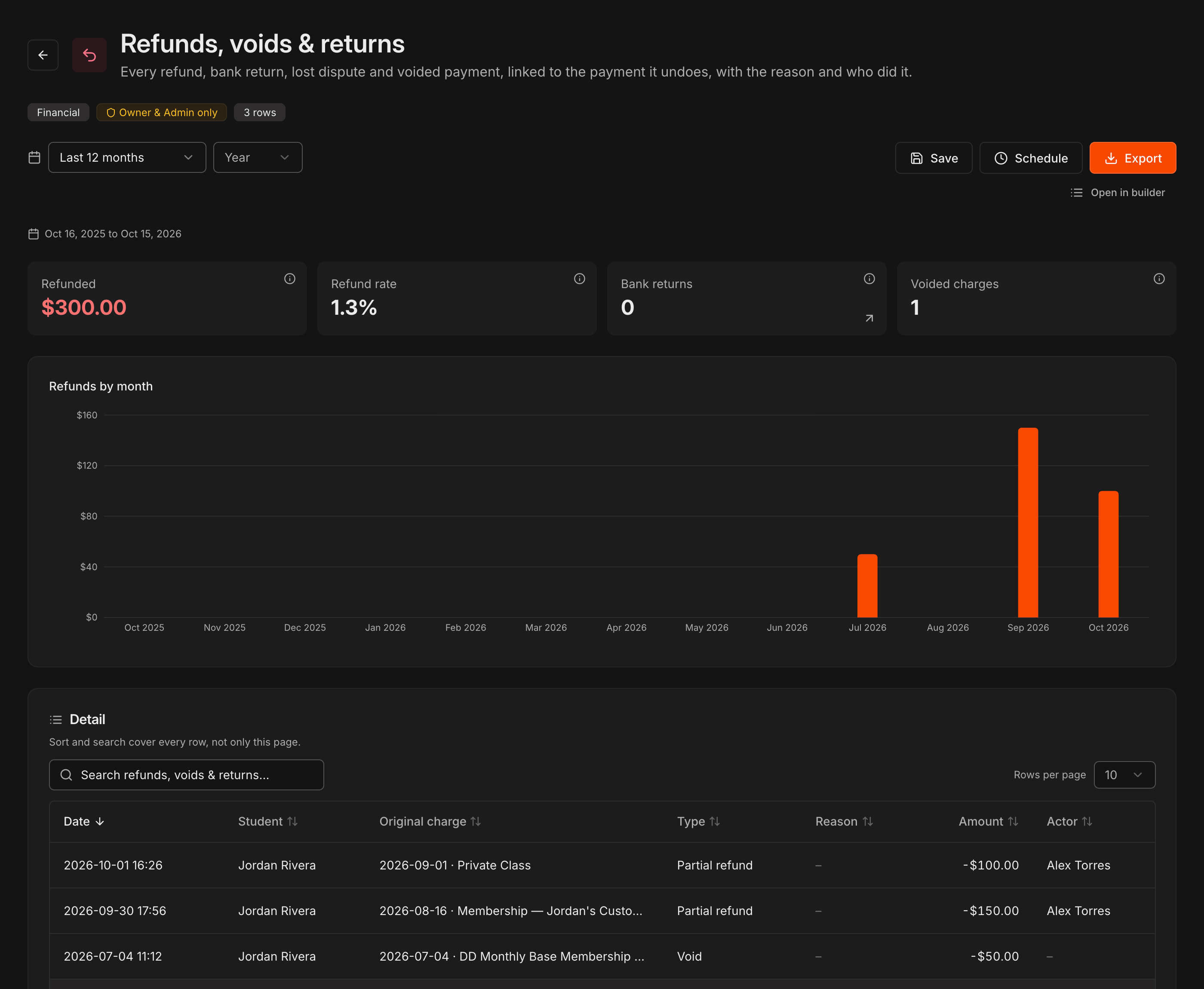
Refunds, voids & returns
Every refund, bank return, lost dispute and voided payment, linked to the original charge, with the reason, the amount and who did it.
The tiles total Refunded, the Refund rate, Bank returns and Voided charges, and the chart shows refunds by month.
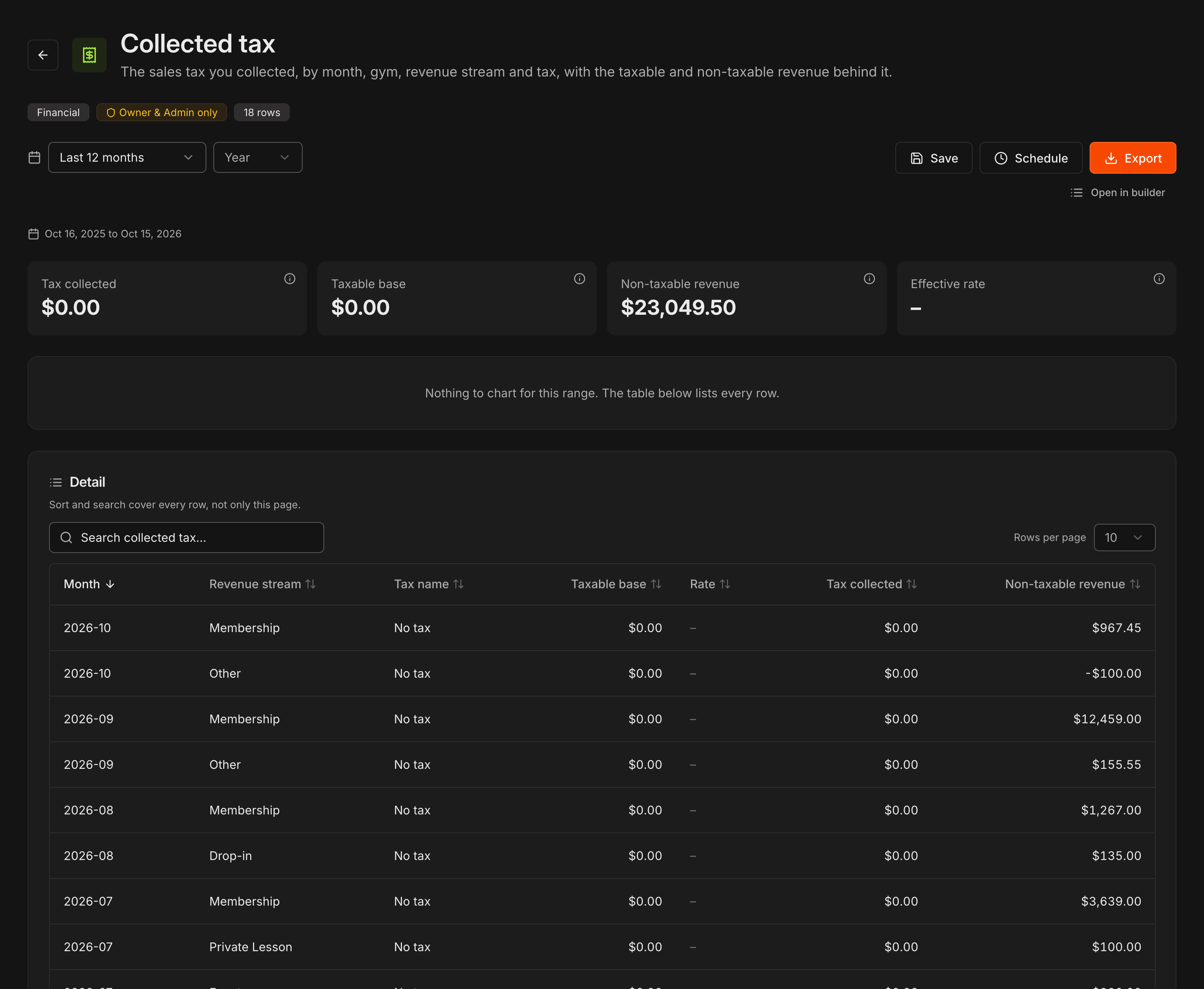
Collected tax
The sales tax you collected, by month, gym, revenue stream and tax name, with the Taxable base and the Non-taxable revenue behind it.
Use it when you file: set the range to the period you are filing and export.
Note
Taxes are set up under **Settings** > **Payments** (see Managing Academy Revenue). An academy with no taxes shows every row as **No tax**.
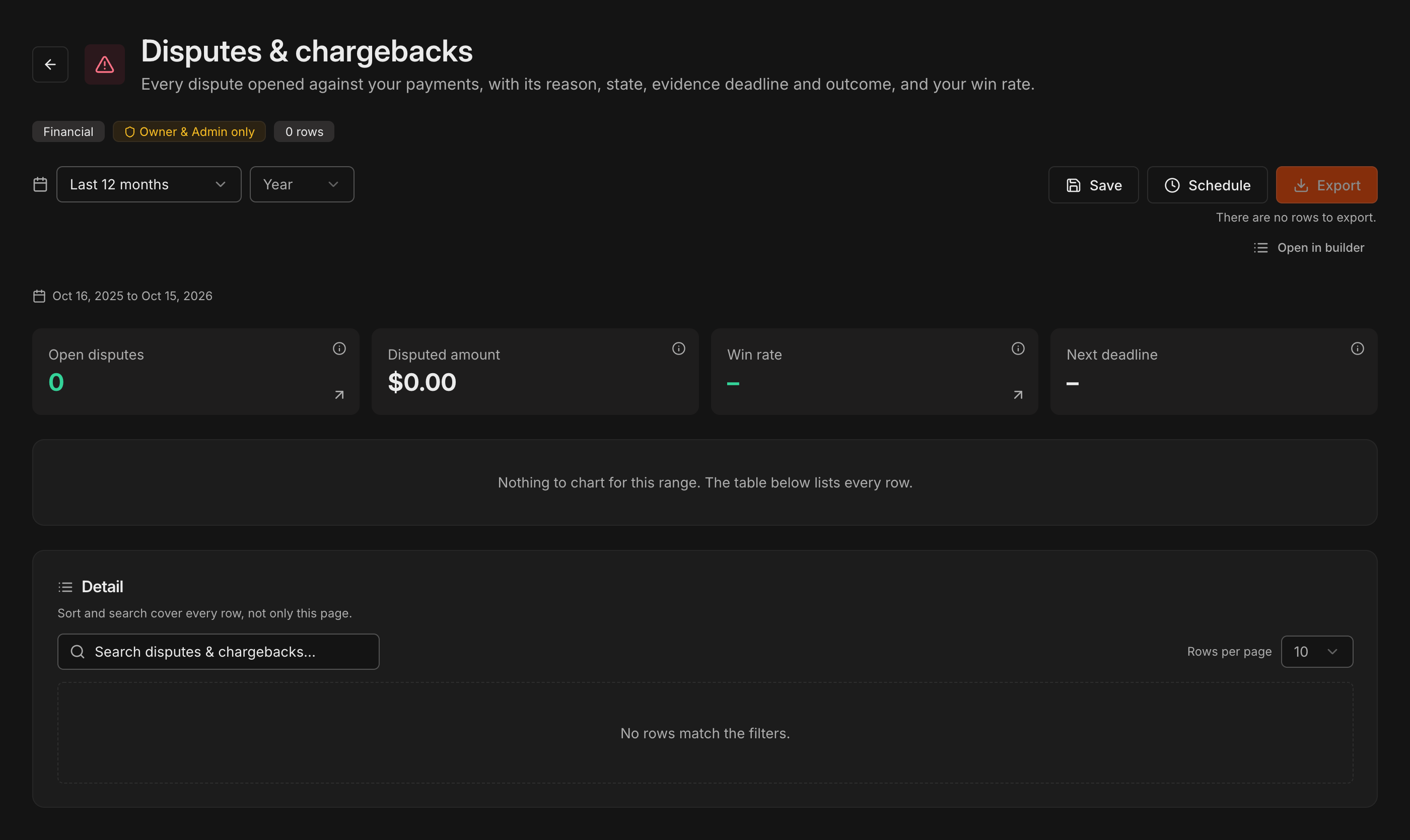
Disputes & chargebacks
Every dispute opened against your payments, with the reason, state, evidence deadline and outcome.
The tiles show Open disputes, the Disputed amount, your Win rate and the Next deadline to respond.
Note
Responding to a dispute happens on the **Financials** page under **Disputes & Chargebacks**; this report is the history.
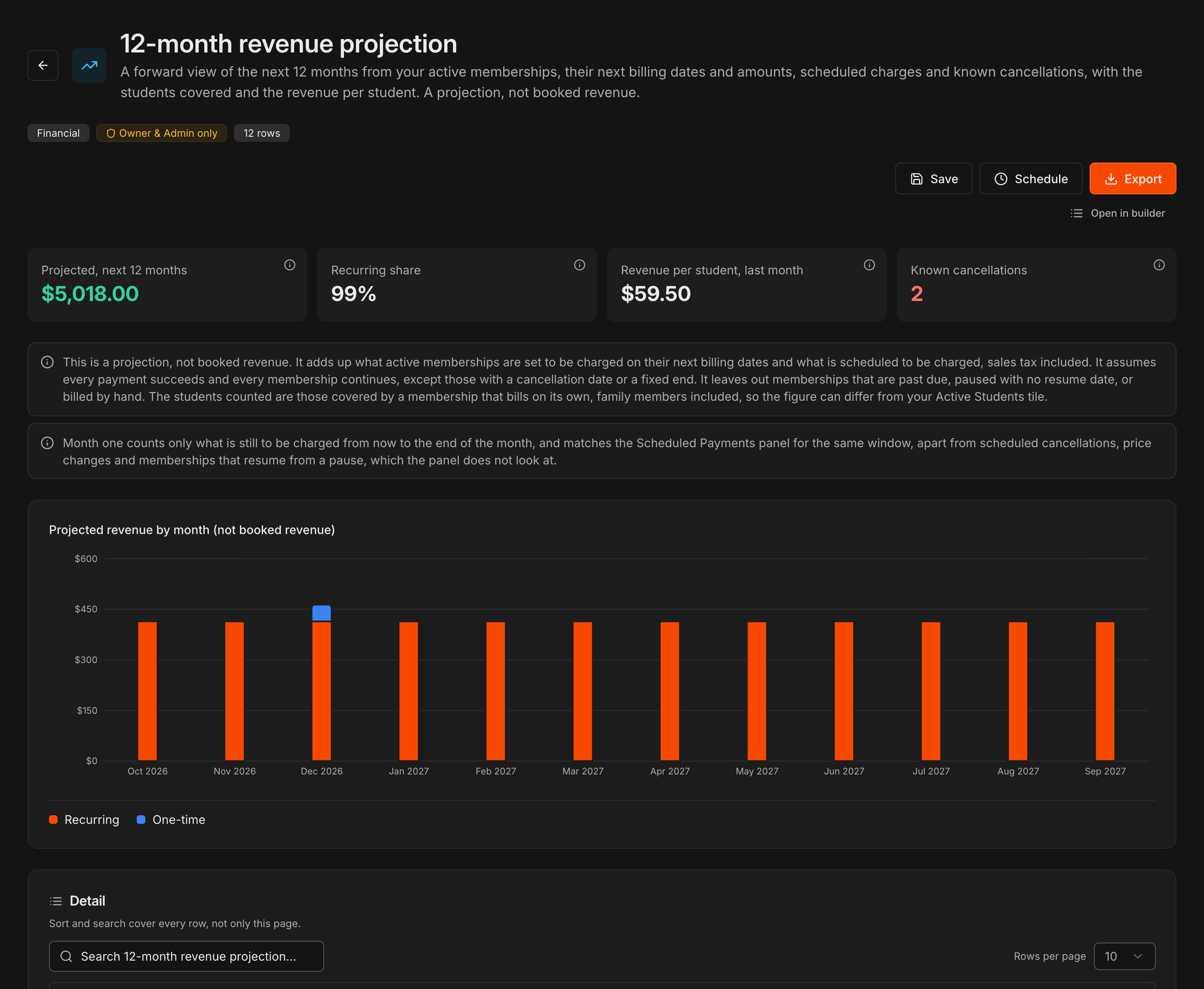
12-month revenue projection
A forward view of the next 12 months from active memberships, their next billing dates, scheduled charges and known cancellations, with the students covered and the revenue per student.
The tiles show the total Projected, next 12 months, the Recurring share, Revenue per student, last month and Known cancellations.
Caution
This is a projection, not booked revenue. It assumes every payment succeeds and leaves out memberships that are past due, paused with no resume date or billed by hand.
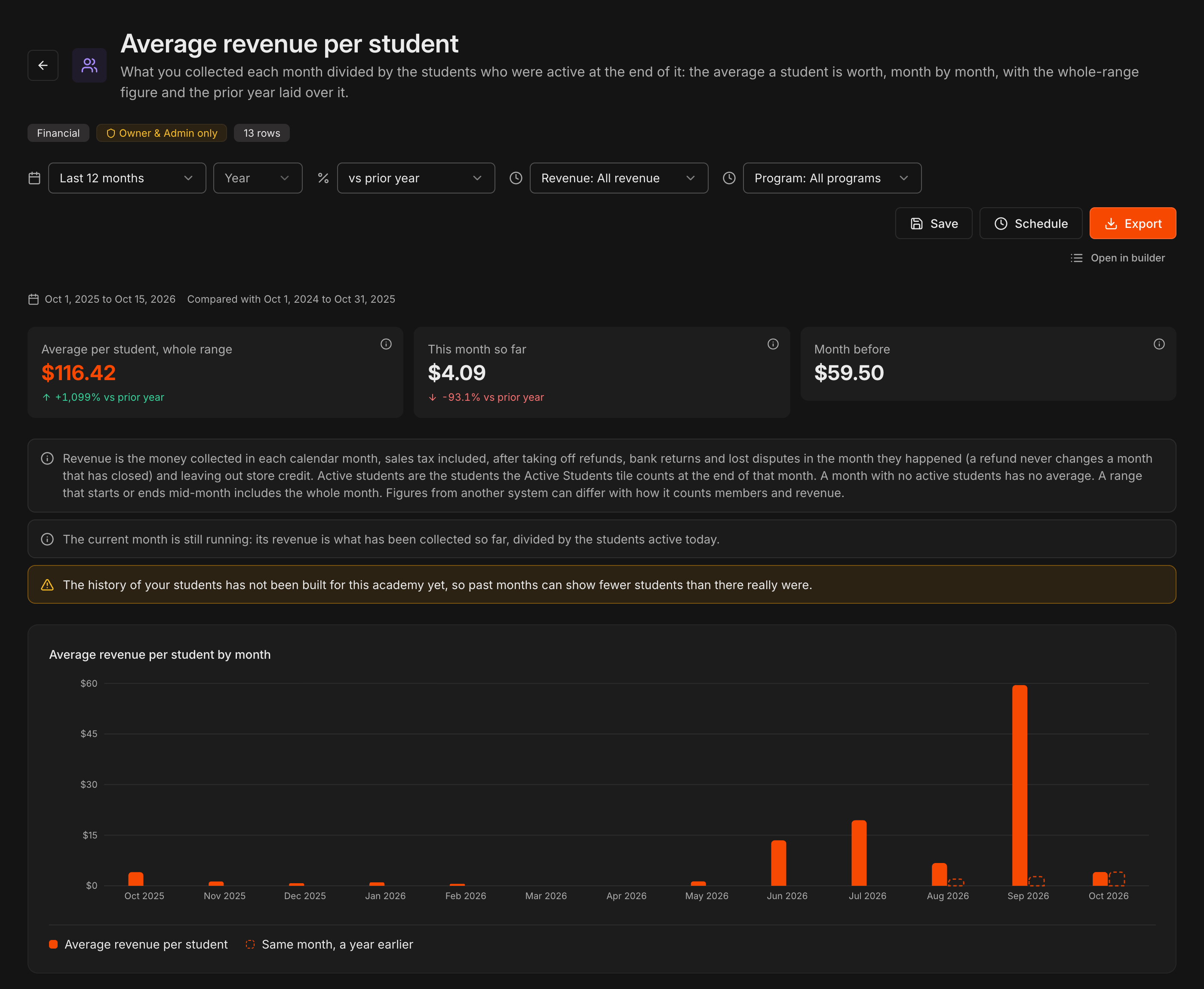
Average revenue per student
What you collected each month divided by the students who were active at the end of it, with the whole-range figure and the prior year laid over it.
Narrow with Revenue (all revenue or memberships only) and Program.
Revenue counts refunds, bank returns and lost disputes in the month they happened, and never changes a month that has closed.
Past due history
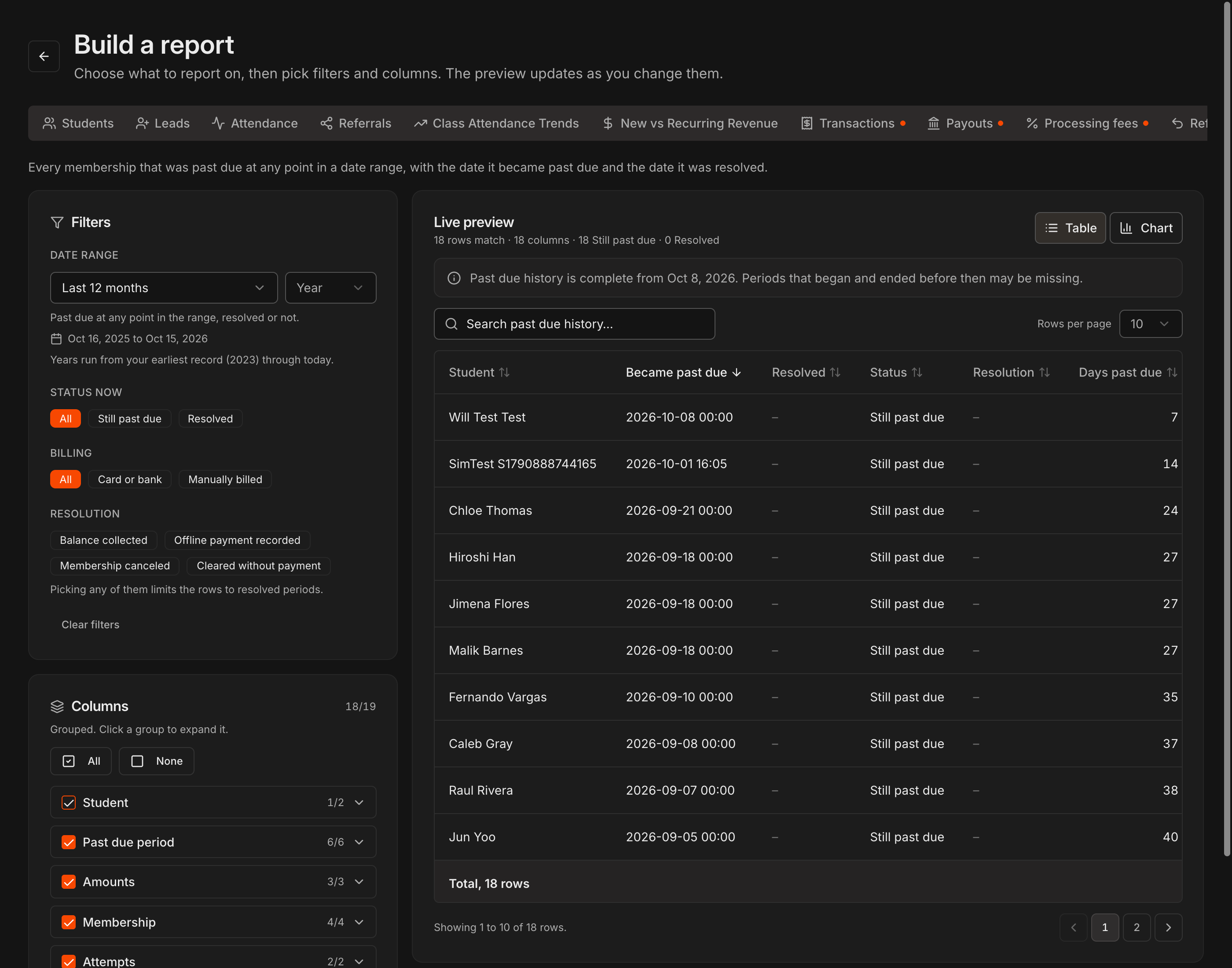
Opens in Build a report as the Past due history dataset: every membership that was past due at any point in the range, one row per past due period, with the date it became past due and, if resolved, the date it was resolved.
Filter by Status now (still past due or resolved), Billing (card or bank, or manually billed) and Resolution (balance collected, offline payment recorded, membership canceled).
Columns cover the period, the amounts owed, collected and uncollected, the membership, the failed attempts and the student's contact details.
Note
The same data is behind **Download** in **Past Due Memberships** on the **Financials** page, so the two never disagree.