Open Promotion Logic
Go to Settings and open Curriculum.
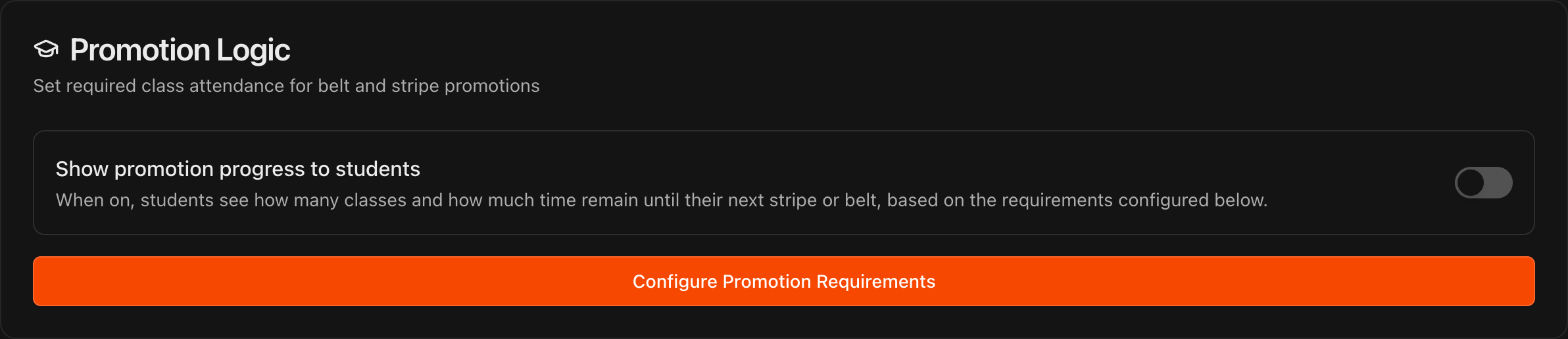
Scroll to the Promotion Logic card at the bottom of the page.
Click Configure Promotion Requirements.
Note
**Show promotion progress to students** on this card applies to every program.
Set attendance and time-at-rank requirements
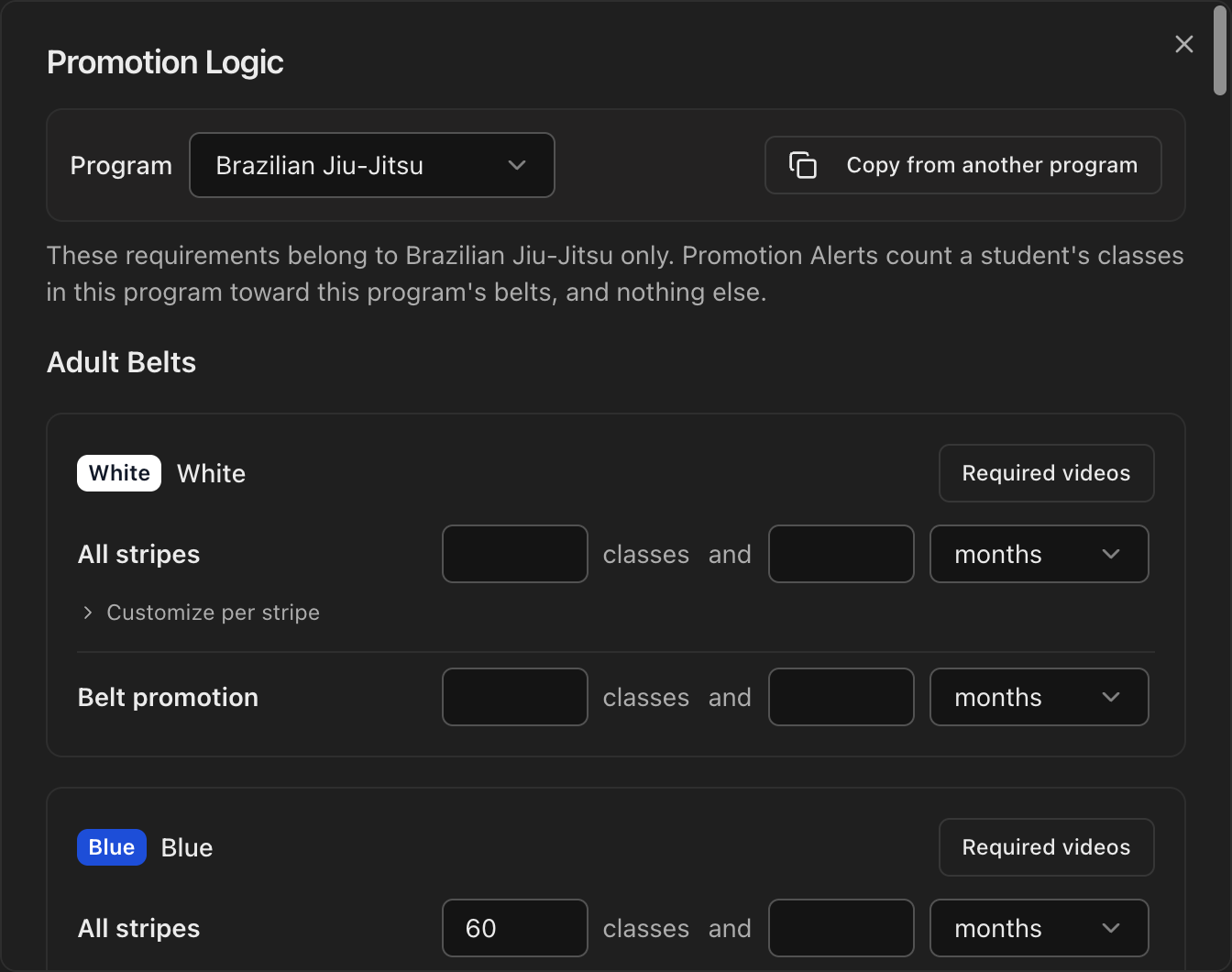
Pick the program in the Program dropdown at the top of the dialog. The requirements you enter belong to that program only, and Promotion Alerts count a student's classes in that program toward that program's belts.
The dialog lists every belt in that program's catalog under Adult Belts and Children Belts.
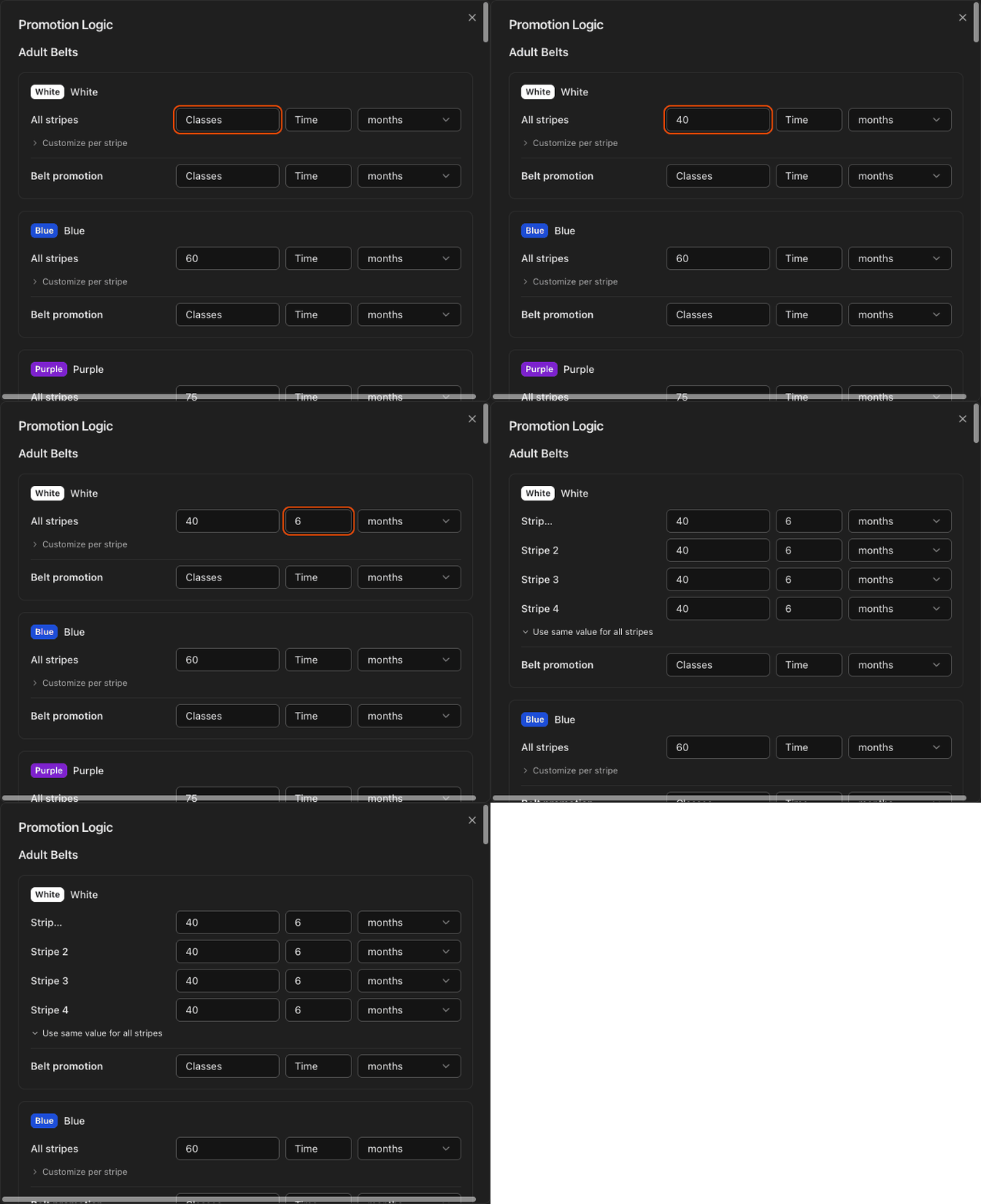
For each belt, enter the number of classes and/or the time in months on the All stripes row to apply one requirement to every stripe. An empty field means no requirement of that kind.
Expand Customize per stripe to set different requirements for each individual stripe within that belt.
Use the Belt promotion row to set the requirements for moving up to the next belt.
Click Save. Save writes the selected program only.
Caution
Switching programs discards unsaved edits, so save before you change the dropdown.
Note
Setting these requirements is what powers Kmura's AI **Promotion Alerts**. If they are left blank, Kmura cannot tell when a student is due for promotion.
Add class type requirements
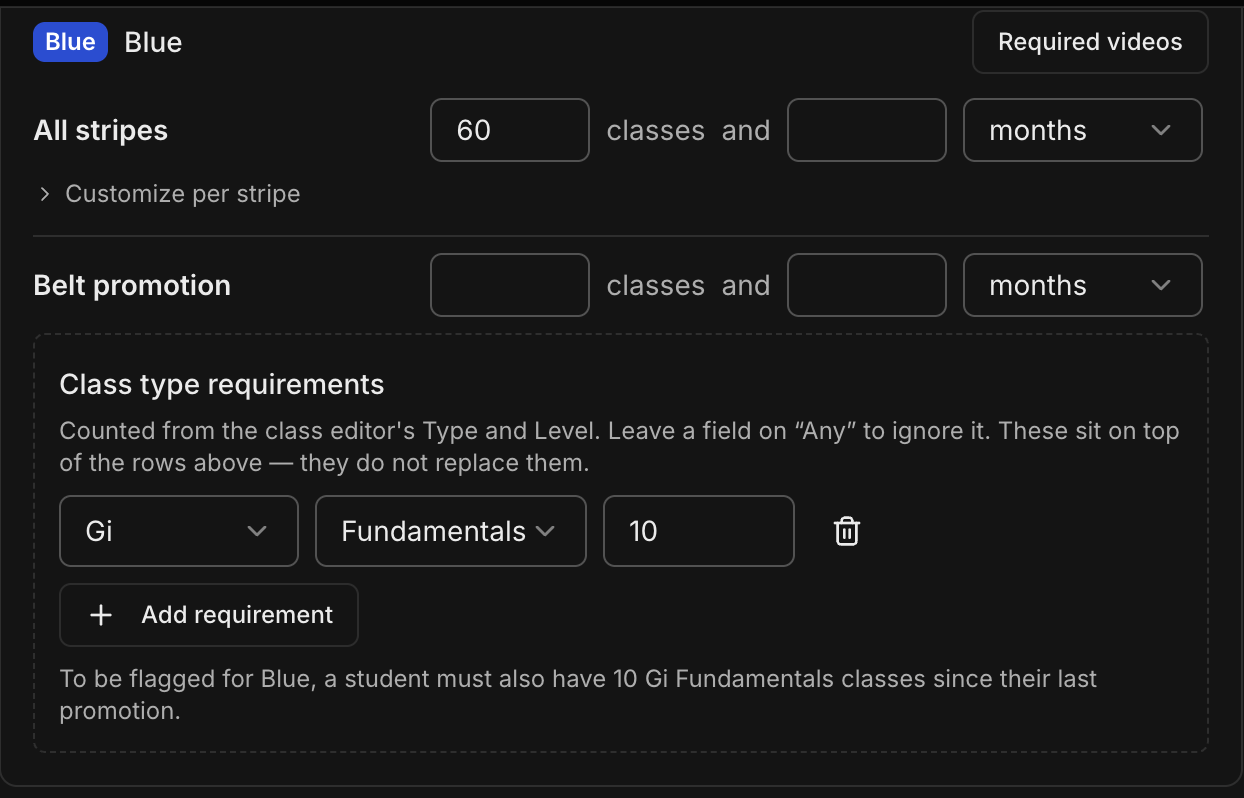
Under a belt's Belt promotion row, find the Class type requirements block and click Add requirement.
Choose a Type (Gi, No Gi, Wrestling, MMA or Any type), a Level (Fundamentals, Intermediate, Advanced or Any level) and the number of classes.
Add as many rows as you need. A summary line under the rows restates the rule in words.
Click Save.
Note
These rows sit on top of the class count and time at rank above. They do not replace them, and they are counted since the student's last promotion.
Note
Type and Level come from each class in the **Schedule** class editor. A row set to **Any type** and **Any level** is rejected because it repeats the plain class count.
Copy requirements to another program
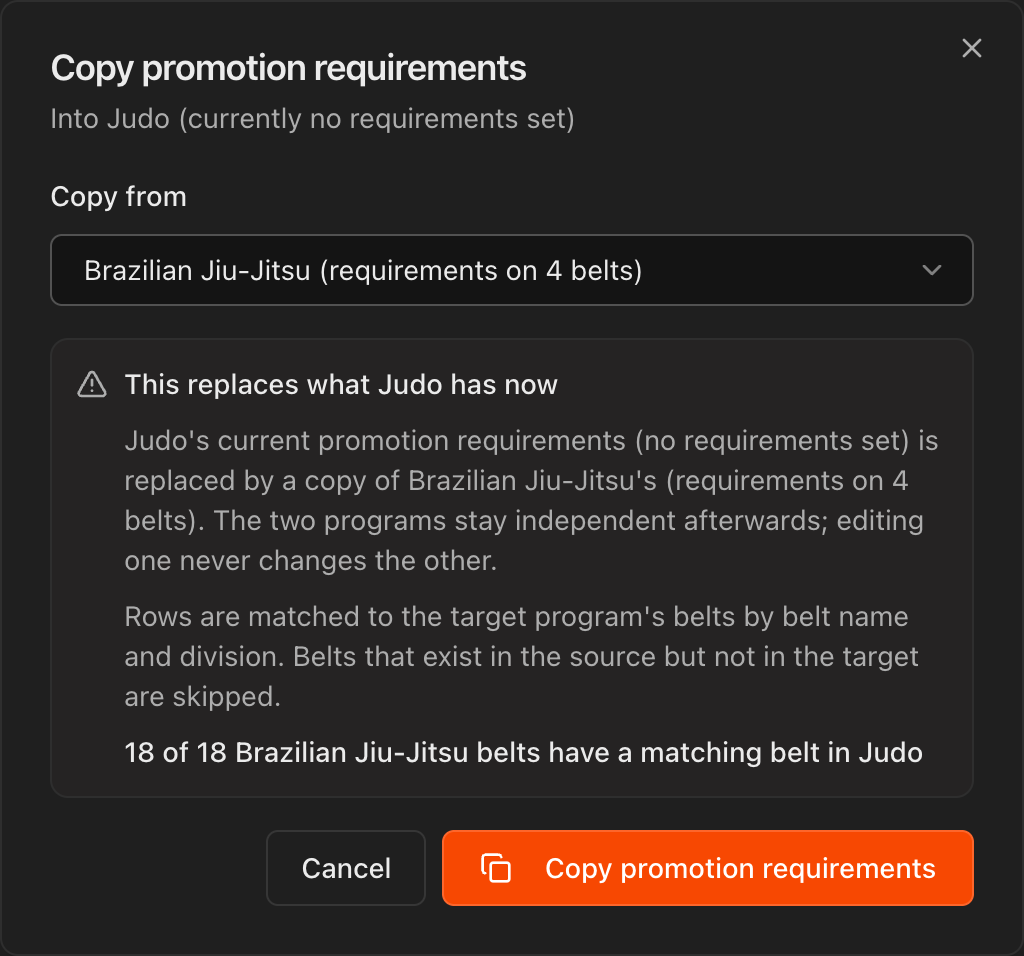
Switch the Program dropdown to the program you want to fill, then click Copy from another program.
Choose the source under Copy from and confirm. Rows are matched to the target's belts by belt name and division; unmatched belts are skipped, and the dialog shows the match count.
Tip
Copy the belt catalog into the new program first (see Manage Belts & Belt Tests), otherwise nothing matches.
Check your Promotion Alerts
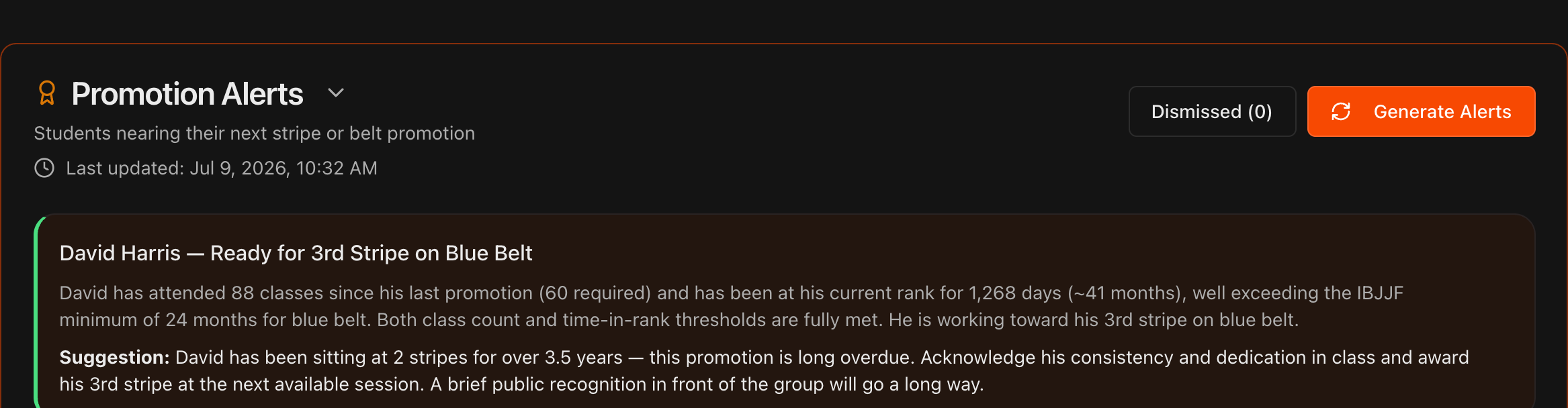
On the Overview page, expand the Promotion Alerts panel.
Kmura's AI compares each student's attendance and time at rank against your promotion logic and flags students who are ready or overdue.
Click Generate Alerts to refresh the list, and Dismissed to review alerts you have set aside.
Alerts are generated per student per program, and each alert names the program it applies to.
When a belt has class type requirements, an alert only flags a student as ready once every row is met, and the explanation names the shortfall, for example 3 No Gi Fundamentals classes short.
Caution
For attendance-based requirements, attendance must be tracked regularly in Kmura or the alerts will undercount classes.
Keep promotion histories accurate
For time-at-rank requirements, each student's promotion history must be logged correctly in Kmura.
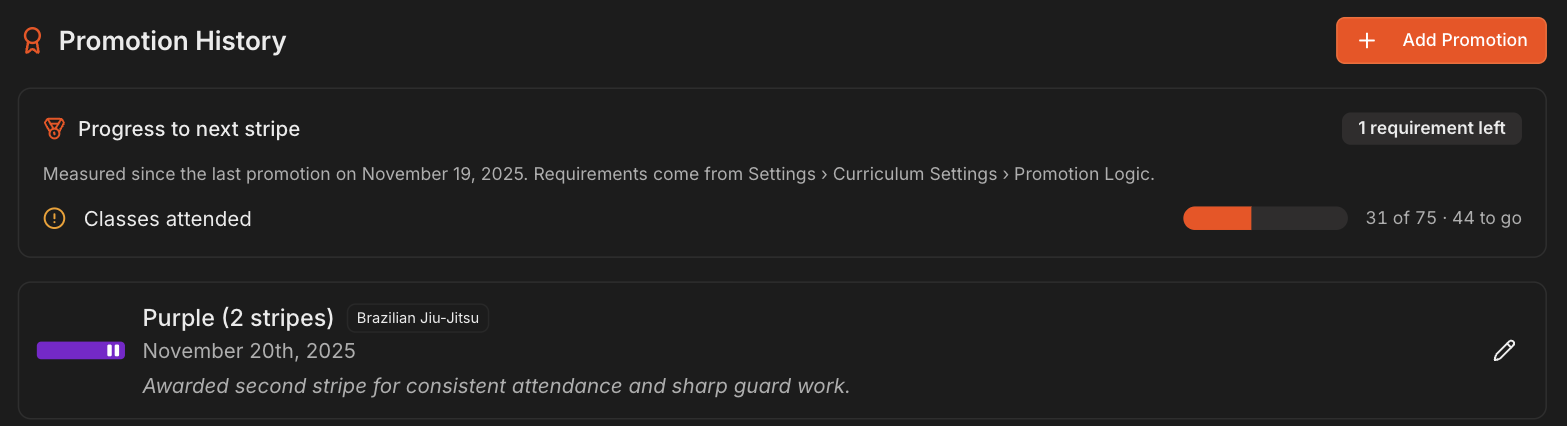
Open a student's Student Information page, select the Attendance tab, and scroll to Promotion History.
Use the Program dropdown above the card to narrow the history to one program. Under All Programs, each record carries a badge naming its program.
Each record shows the belt, stripes, date, and any notes, and can be edited with the pencil icon.
A Progress to next stripe callout sits above the promotion records. It lists every requirement for that student's belt, met or unmet, with the count and how many are left.
The callout is read-only and hidden when no requirements are configured for the belt.
View promotion history by program
In the Promotion History header, switch List to By program.
Each program gets its own timeline column, oldest promotion at the top, with the current rank marked Current and a summary line such as 2 promotions, now Purple, 2 stripes.
A program with no promotions yet shows No promotions recorded in this program yet instead of hiding the column.

Log a past promotion manually
Click Add Promotion at the top right of the Promotion History section.
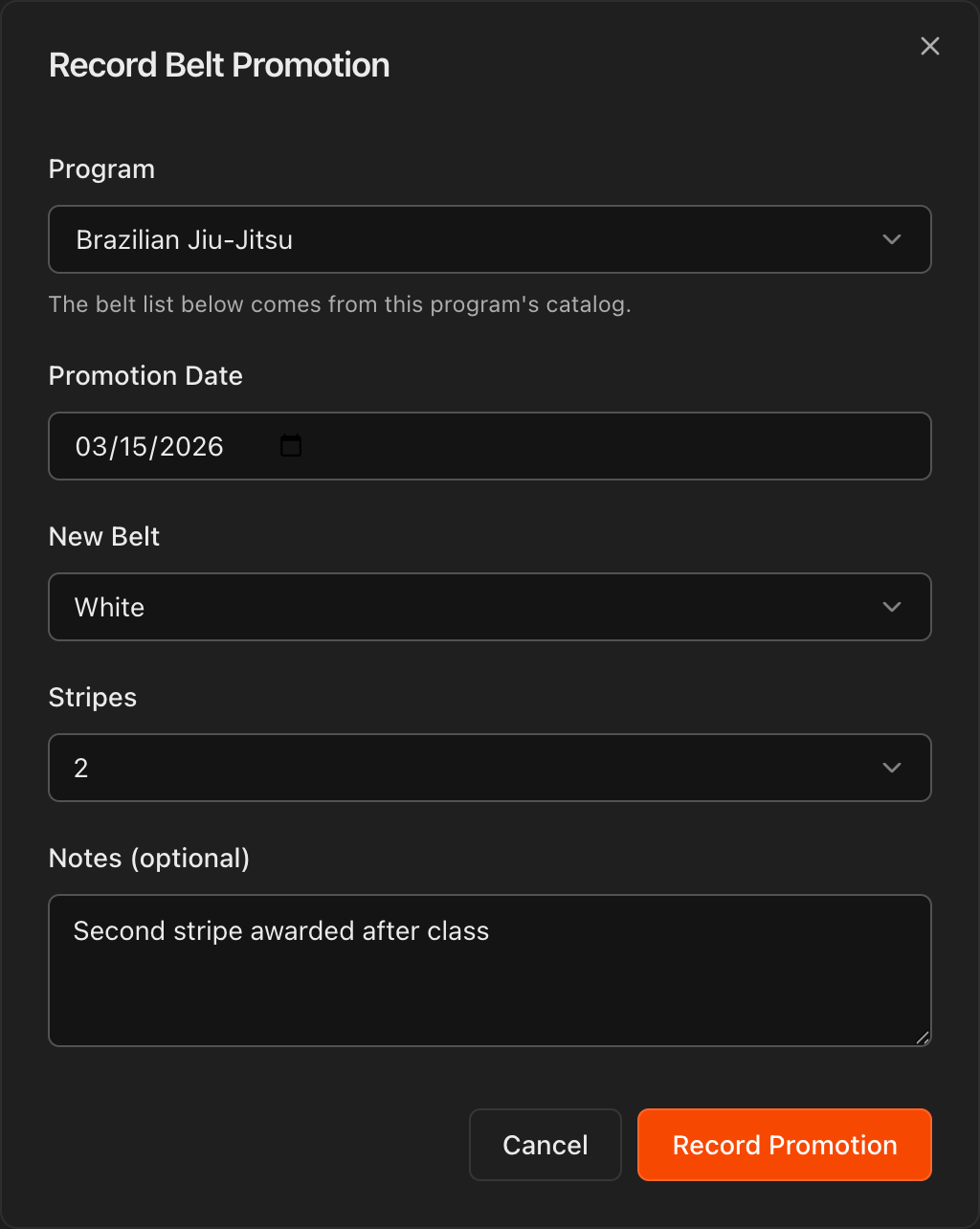
Choose the Program first. The New Belt list comes from that program's catalog.
Set the Promotion Date, choose the New Belt and Stripes, optionally add Notes, and click Record Promotion.
Tip
When onboarding existing students, log their most recent promotion date so time-at-rank calculations start from the right place.
Note
Recording a promotion here also updates the student's current belt for that program. Changing the belt on the **Details** tab does not create a history record, so use **Add Promotion** when you want the promotion logged.
Promotions from attendance and the Details tab
Clicking Promote on a student's bubble on the Attendance page logs the promotion in that program's history and shows a confirmation with the next rank before anything is saved.
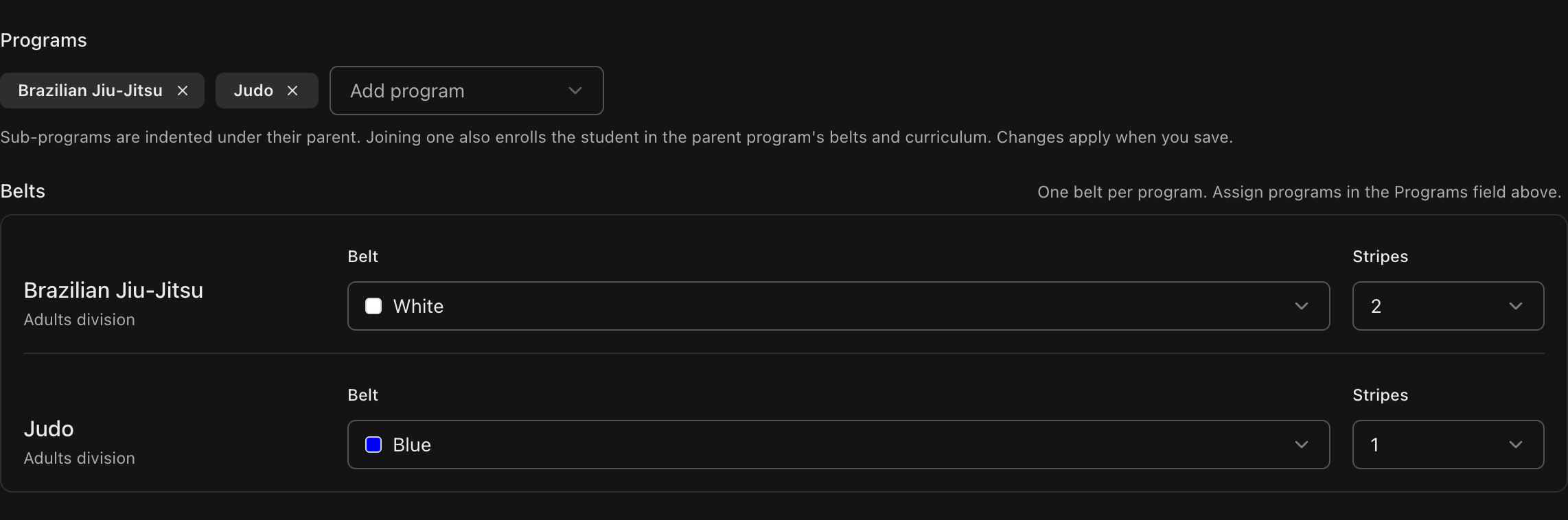
On the Details tab, the Belts block lets you set the belt and stripes for each program directly. Use it for corrections; use Add Promotion when you want a dated history record.