Convert a student to alumni
Open the student's Student Information page and stay on the Details tab.
Scroll to the Convert To Alumni section, between Two-Factor Authentication and Danger Zone, and click Convert To Alumni.
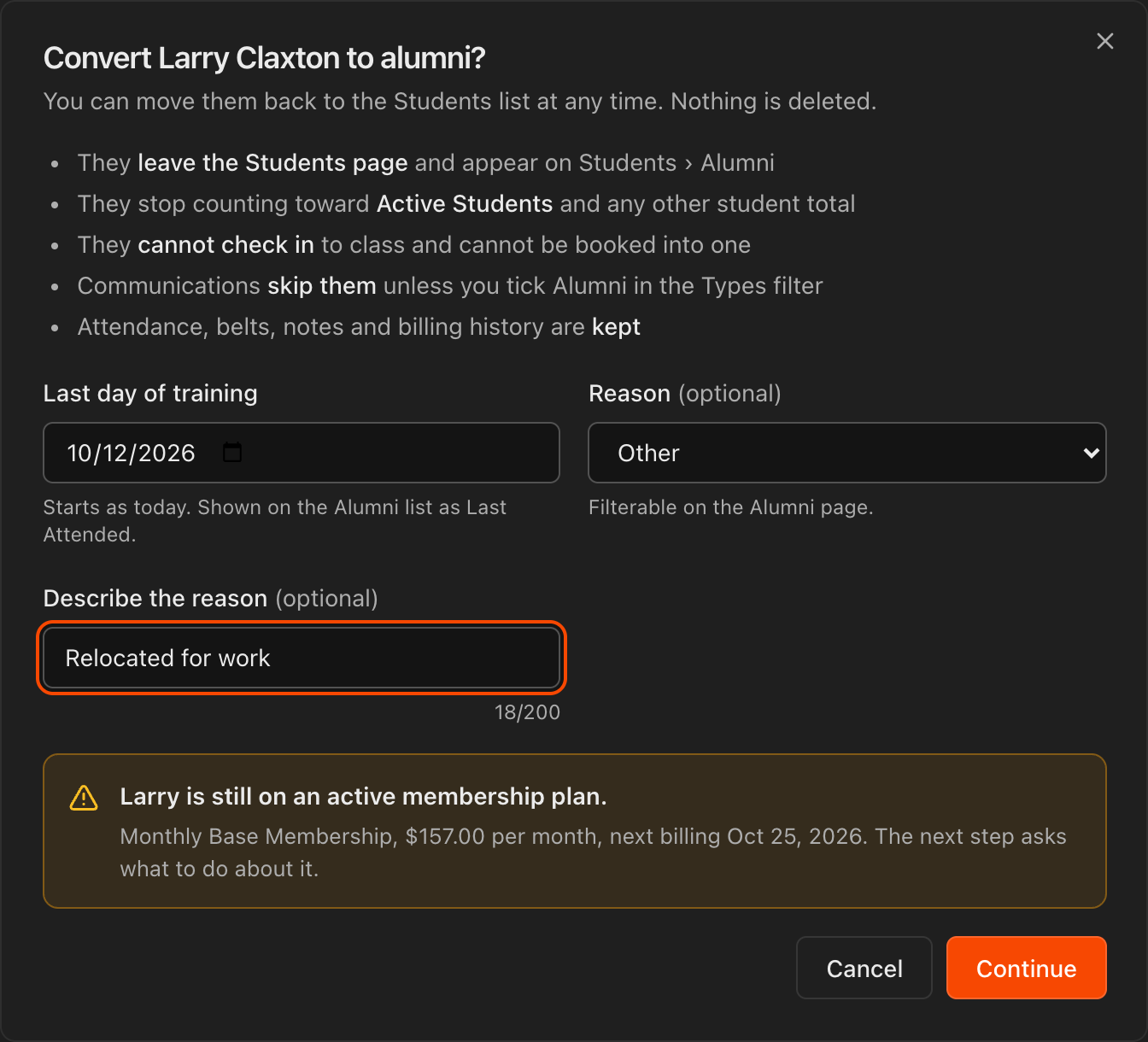
The dialog lists what changes: they leave the Students page and appear under Students > Alumni, stop counting toward Active Students and every other student total, cannot check in or be booked into a class, and are skipped by Communications unless you filter for them. Attendance, belts, notes and billing history are kept.
Last day of training starts as today and shows on the Alumni list as Last Attended. Change it if they stopped earlier.
Pick a Reason (optional): Moved away, Graduated, Cost, Injury, Schedule conflict, Lost interest or Other. Choosing Other adds a Describe the reason field (up to 200 characters).
Click Convert To Alumni.
Note
Nothing is deleted. Alumni is a reversible state; **Delete Student** in **Danger Zone** is the only action that removes personal information for good.
Decide what happens to an active membership
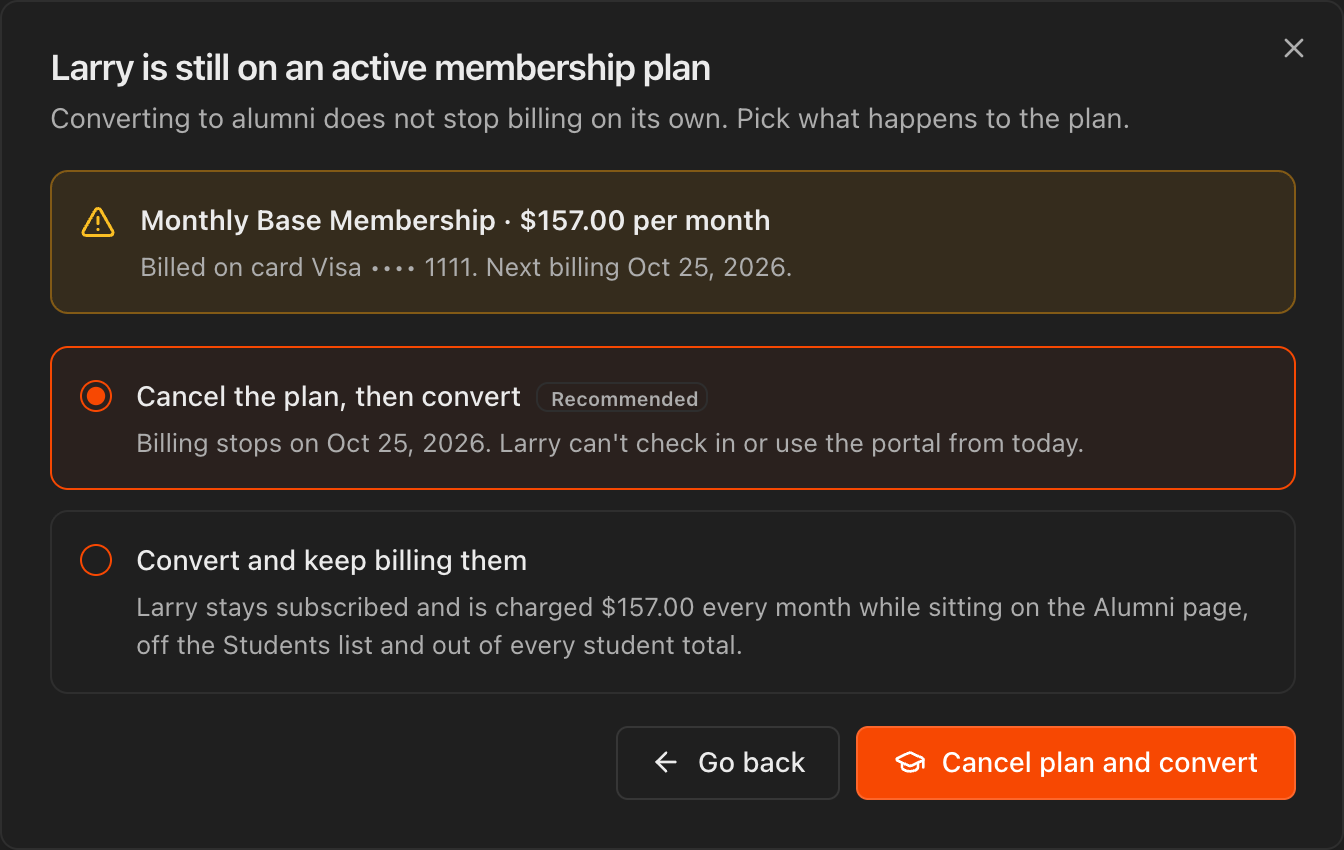
If the student still has an active plan, the dialog shows the plan and its next billing date, and the button reads Continue instead of Convert To Alumni.
Cancel the plan, then convert (recommended) ends billing at the end of the current period and blocks check-in and portal access from today.
Convert and keep billing them keeps the subscription running while they sit on the Alumni page, off the Students list and out of every student total.
Click Cancel plan and convert or Convert and keep billing to finish.
Caution
Converting does not stop billing on its own. If you keep billing, the card is charged every cycle until you cancel the plan on their **Billing** tab or return them to Students.
Find and filter alumni on the Alumni page
Click Students in the left menu, then Alumni.
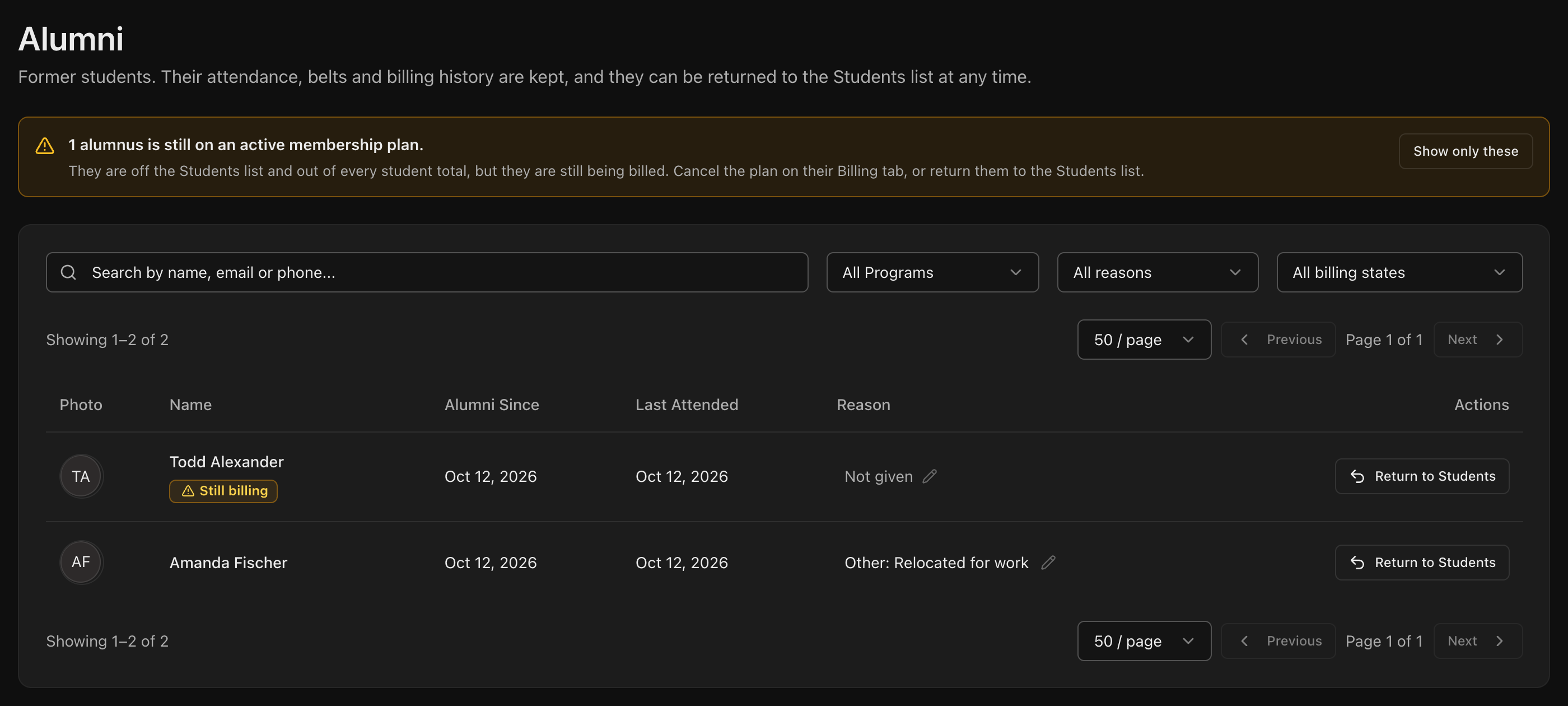
The table shows Name, Alumni Since, Last Attended, Reason and a Return to Students action per row. Search by name, email or phone, or filter by All Programs, All reasons and All billing states (Still billing or No plan).
Anyone still on a plan carries a Still billing badge, and a banner at the top counts them with a Show only these shortcut.
Click the pencil next to a Reason to set or correct it, even long after the conversion.
Tip
Alumni do not count toward **Active Students** or any other student total on **Overview**, so converting former students keeps your numbers honest.
Edit an alumnus's record from their profile
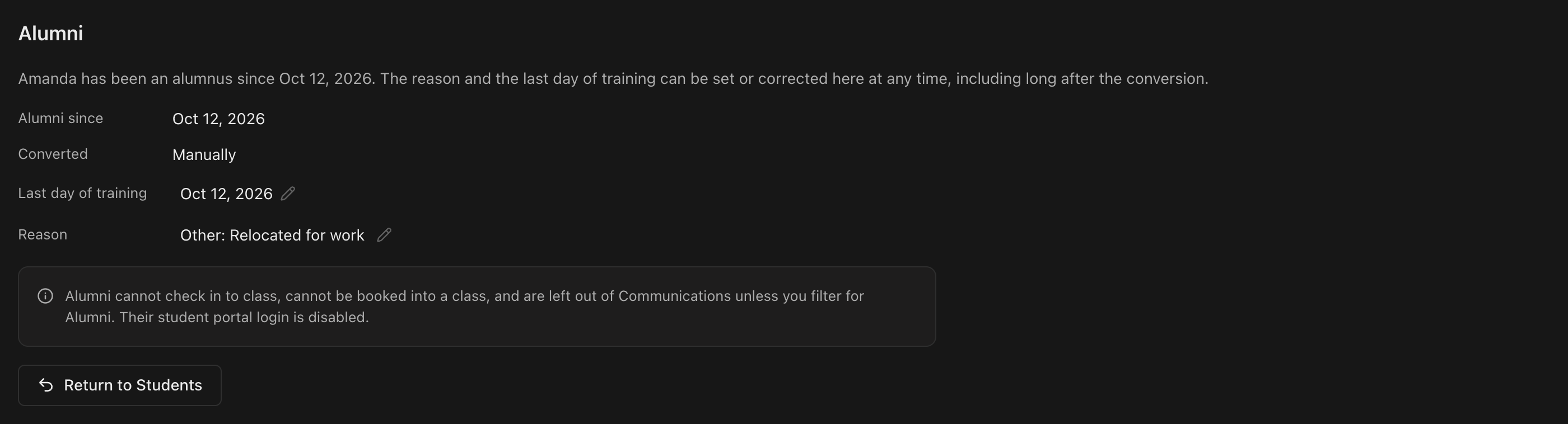
Open an alumnus from the Alumni page or global search. Their header carries an Alumni badge and Status is locked until they return to Students.
On the Details tab, the Alumni section shows Alumni since, Converted (Manually or Automatically), Last day of training and Reason. Use the pencil icons to correct the date or reason.
If they are still being billed, a Still being billed notice names the plan and next billing date so you can cancel it from the Billing tab if that was not deliberate.
Note
Alumni cannot check in to class, cannot be booked into a class, and their student portal login is disabled.
Return an alumnus to the Students list
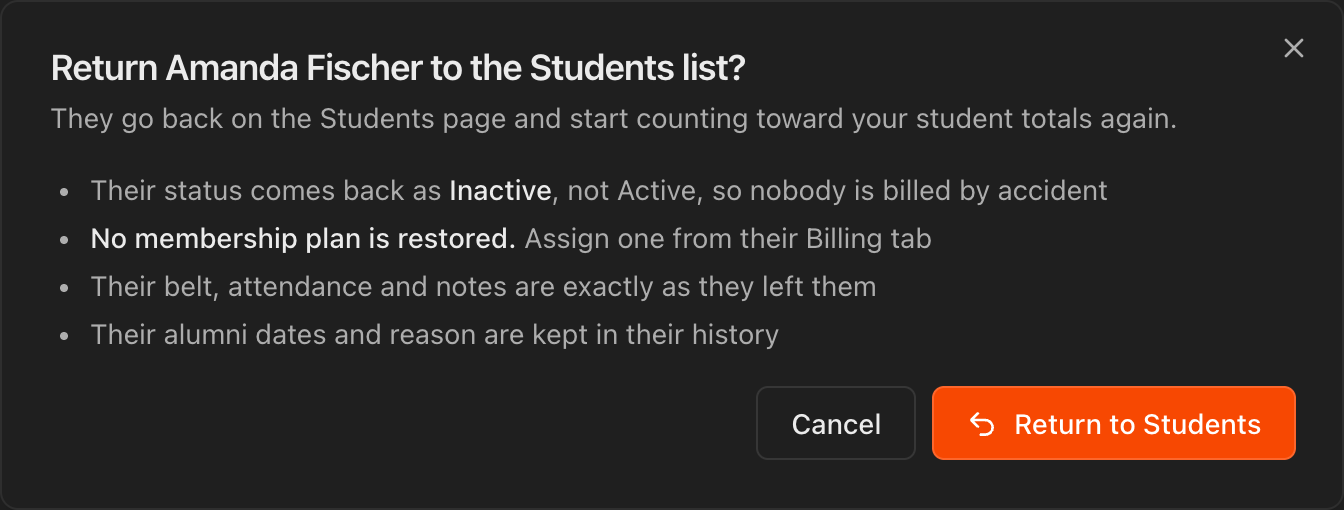
Click Return to Students on the Alumni page row or in the Alumni section of their Details tab, then confirm.
Their Status comes back as Inactive, not Active, so nobody is billed by accident, and no membership plan is restored. Assign one from their Billing tab.
Belt, attendance and notes are exactly as they left them, and the alumni dates and reason stay in their history.
Giving an alumnus a membership plan from their Billing tab also moves them back to Students automatically. The tab shows a banner saying so.
Move students to Alumni automatically when their plan ends
Go to Settings > Student Portal and scroll to Alumni Conversion.
Turn on Move students to Alumni when their membership ends. It is off by default.
When on, a student moves to Alumni on the day their last active plan ends, whether it was cancelled or ran out. Students who already have no plan are left where they are, and an alumnus who is given a plan always returns to Students.
Note
Automatic conversions show **Converted: Automatically** on the student's profile, with no reason set. Add one from the Alumni page if you want it on record.

Email or text alumni
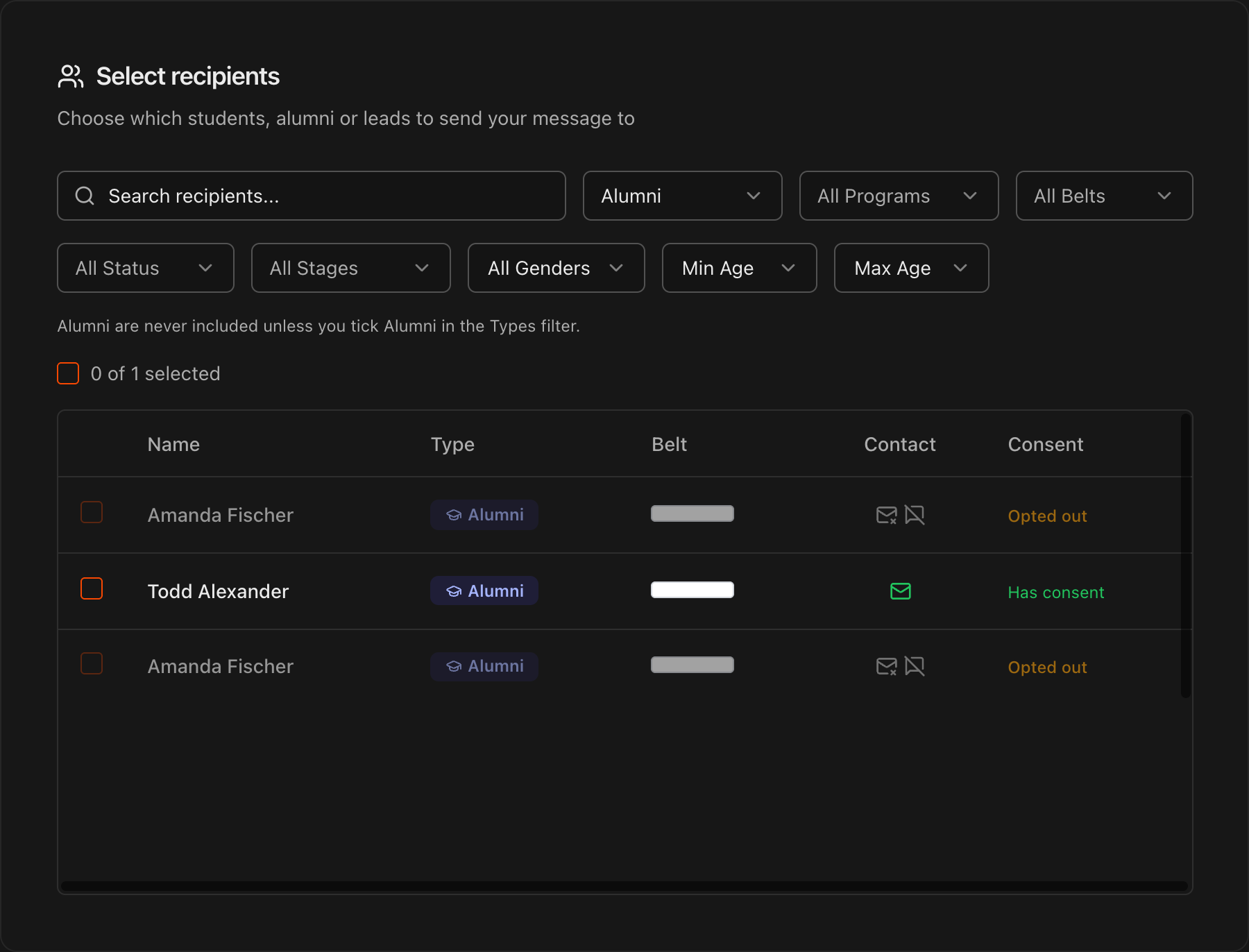
Go to Communications > One-time. Alumni are never included in the recipient list unless you tick Alumni in the Types filter (Students, Alumni, Leads).
Alumni rows are tagged Alumni so you can tell them apart from current students when you mix types.
Global search (Search... at the top) also finds alumni, tagged Alumni, the same way it finds students and parents/guardians.
Tip
A short "we'd love to have you back" email to alumni with reason **Schedule conflict** or **Cost** is an easy win-back list.