Subscribe a student from their Billing tab
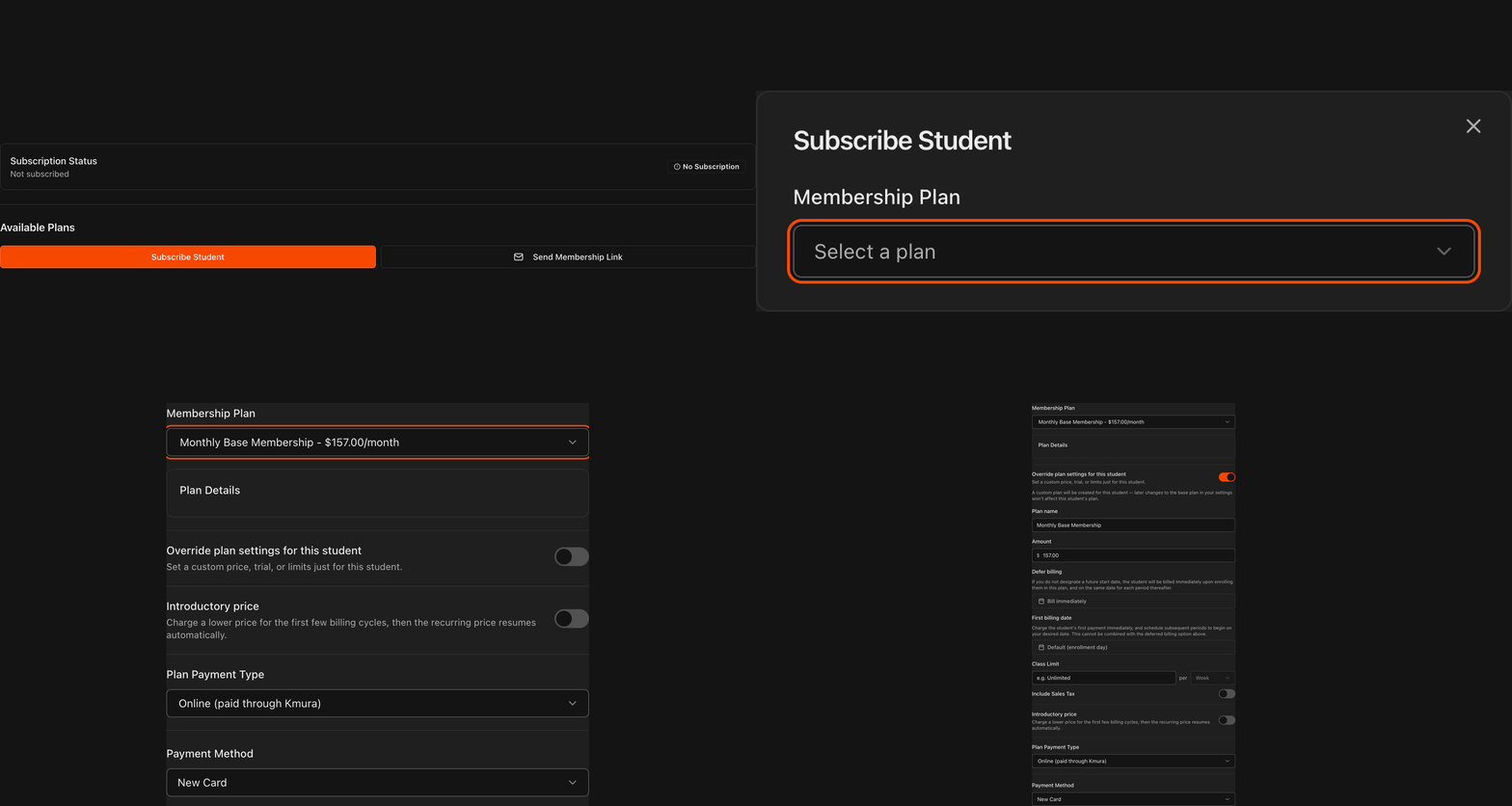
Open the student's Student Information page and click the Billing tab.
Under Available Plans, click Subscribe Student to enroll the student in a plan.
Alternatively, Send Membership Link emails the student a link to subscribe themselves.
Note
The **Subscribe Student** button appears when the student has no active subscription.
Note
With more than one gym, a subscription is billed through the student's **Home Gym**. The **Billed through** tag on the Billing tab shows which gym's bank account it settles to; change the home gym on the **Details** tab if it is wrong.

Select a base membership plan
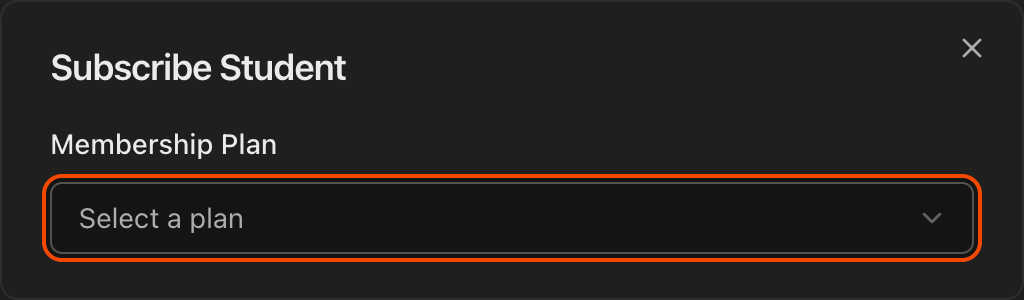
In the Subscribe Student pop-up, choose one of your base plans from the Membership Plan dropdown.
You must start from a base plan from your settings, but you can override its settings for this student in the next step if desired.
Note
With **Dual Pricing** turned on, each plan in the dropdown shows both its bank and card prices, for example $157.00 bank · $161.50 card. See Setting Up Dual Pricing.
Review the subscription options
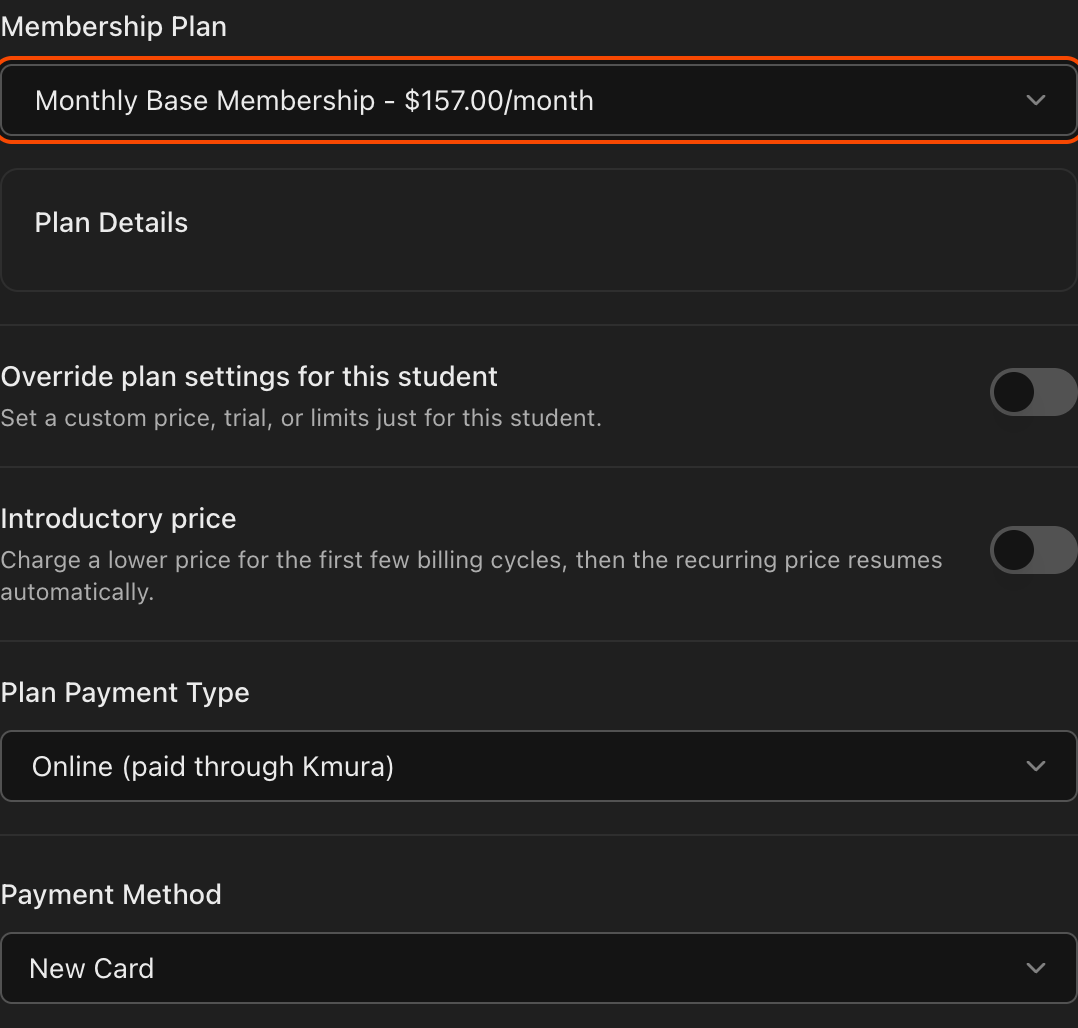
Once a base plan is selected, the pop-up expands with the plan details and additional options.
From here you can turn on Override plan settings for this student, set an Introductory price, choose the Plan Payment Type, and pick a Payment Method.
If nothing needs customizing, simply complete the subscription with the base plan as-is.
Override plan settings for this student
Turn on Override plan settings for this student to customize the plan for this student only.
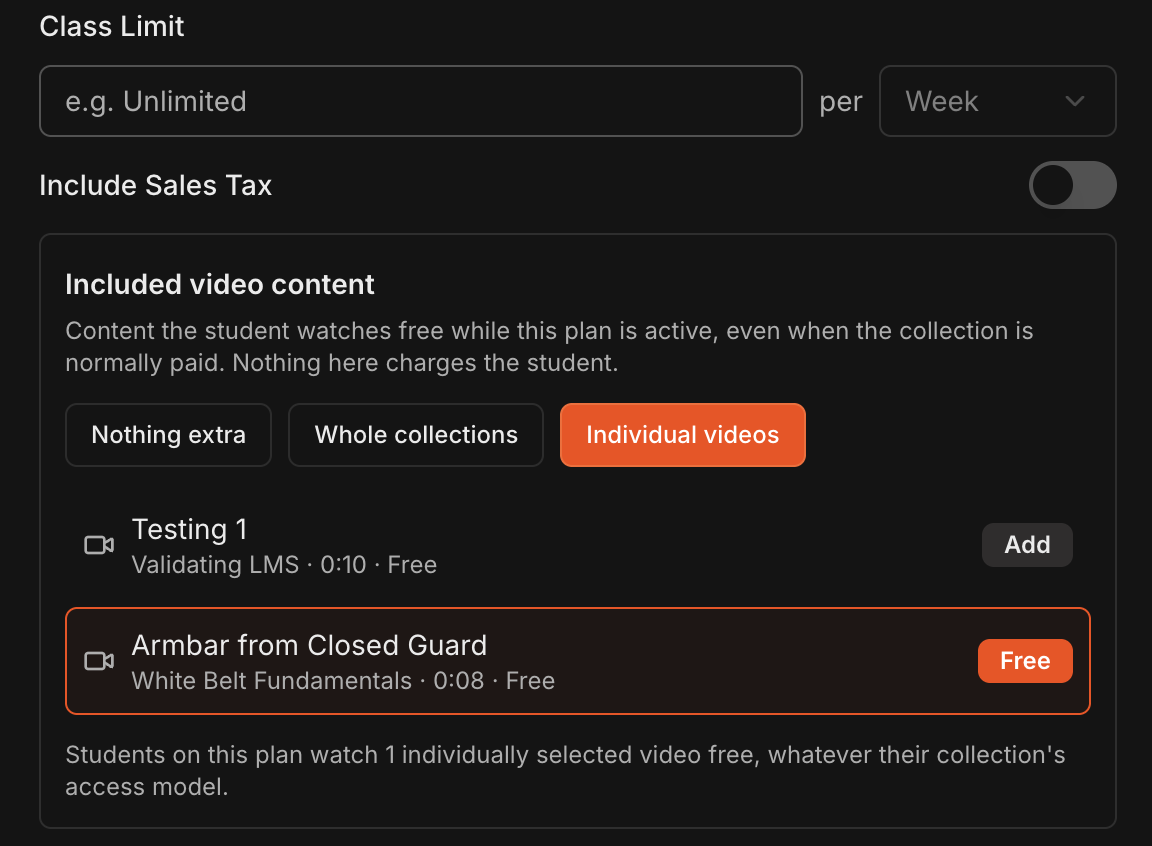
You can set a custom Plan name, Amount, Class Limit, and Include Sales Tax without affecting other students on the same base plan.
Under Included video content, choose Whole collections or Individual videos and click Add on the content this student should watch free while the plan is active.
Use Defer billing to schedule the student's first charge on a specific future date.
Alternatively, use First billing date to charge the student's first payment immediately and schedule subsequent billing periods to begin on your desired date.
Caution
**Defer billing** and **First billing date** are mutually exclusive. They cannot both be used at the same time.
Note
Overriding creates a custom plan for this student. Later changes to the base plan in your settings will not affect this student's plan.
Offer an introductory price
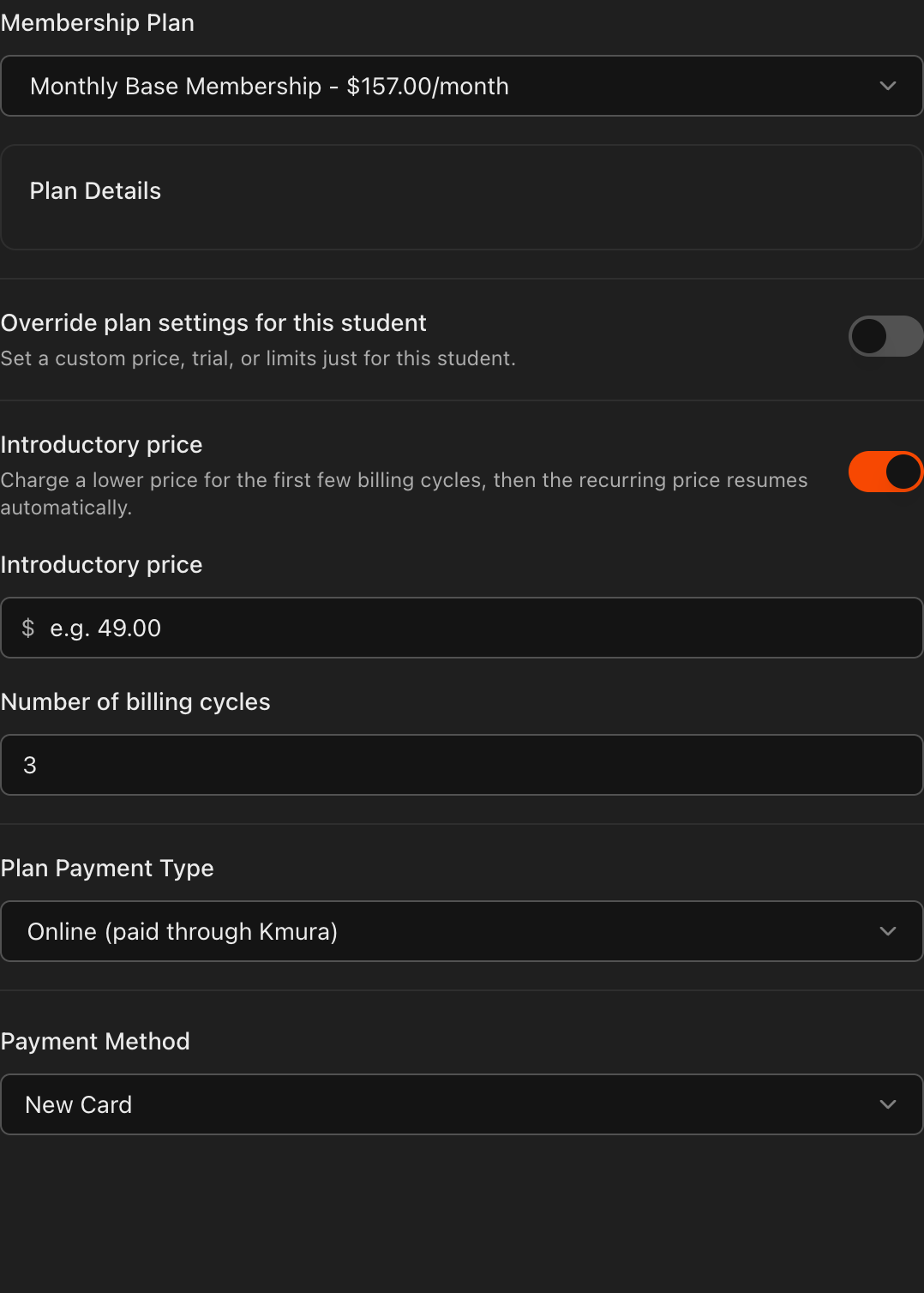
Turn on the Introductory price toggle to charge a lower price for the student's first few billing cycles.
Enter the discounted Introductory price and the Number of billing cycles it applies to.
After those cycles, the plan automatically reverts to the usual price for that student.
Enroll an offline payer (paid outside of Kmura)
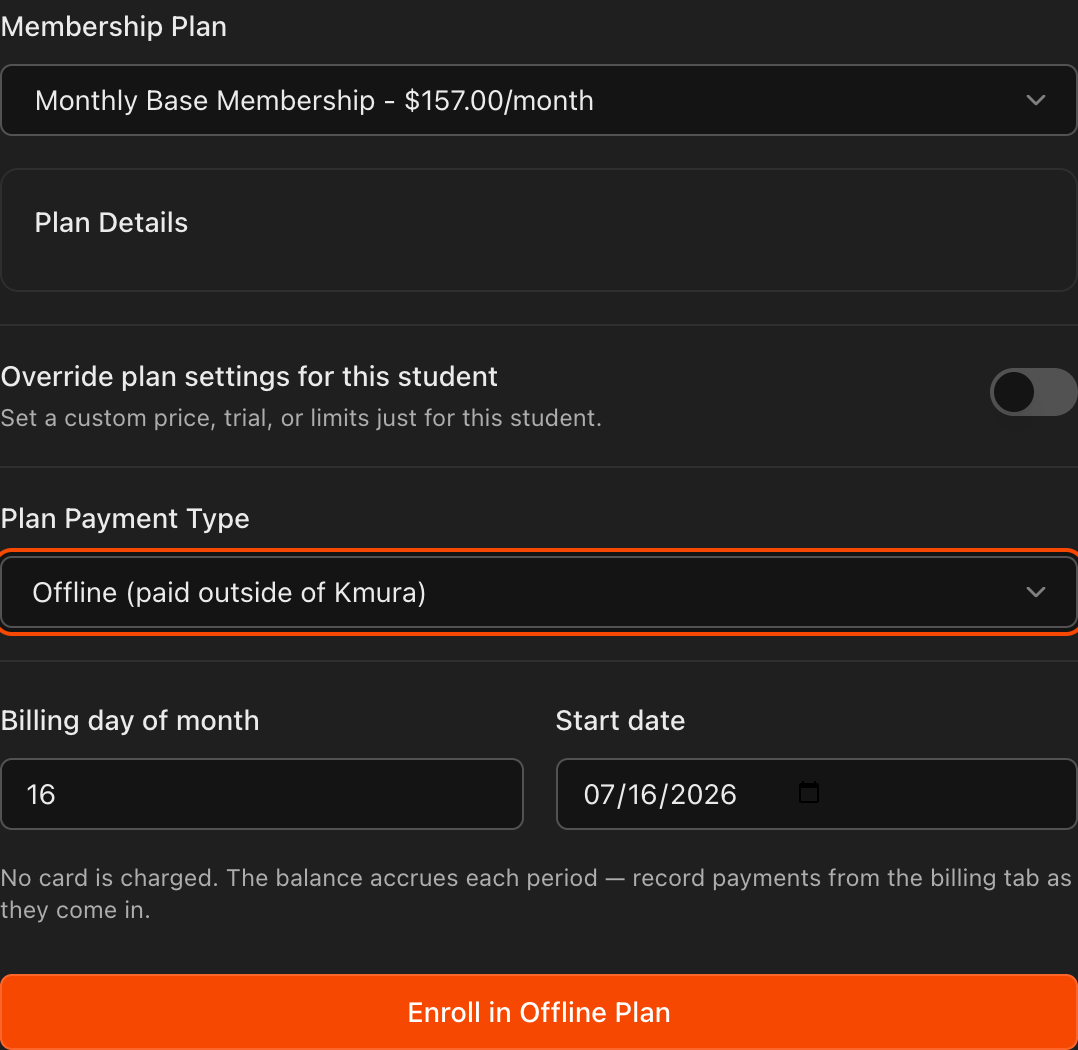
Under Plan Payment Type, select Offline (paid outside of Kmura) if you do not want to charge this student through Kmura.
Set the Billing day of month and Start date, then click Enroll in Offline Plan.
No card is charged. Kmura automatically keeps track of the student's owed balance each period.
Caution
For offline payers, staff must click **Record Offline Payment** on the student's **Billing** tab each time the student pays outside of Kmura, so the owed balance stays correct.
Choose a payment method
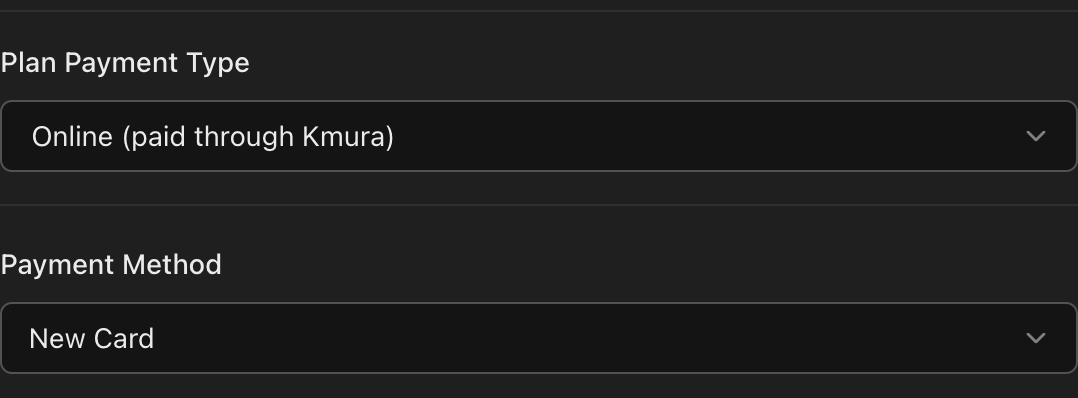
For online plans, pick a Payment Method at the bottom of the pop-up.
Choose New Card to enter the student's card information on their behalf.
If the student has already created their Kmura account (card information is required during account creation), a Saved Card option appears so you can select their card on file.
Note
Once students have created their Kmura student accounts, they can also choose to pay by bank account (ACH) from their portal instead of by card. They accept a bank authorization when they do, and it appears under **Bank authorizations** on their **Billing** tab.
Track everything in Charge History
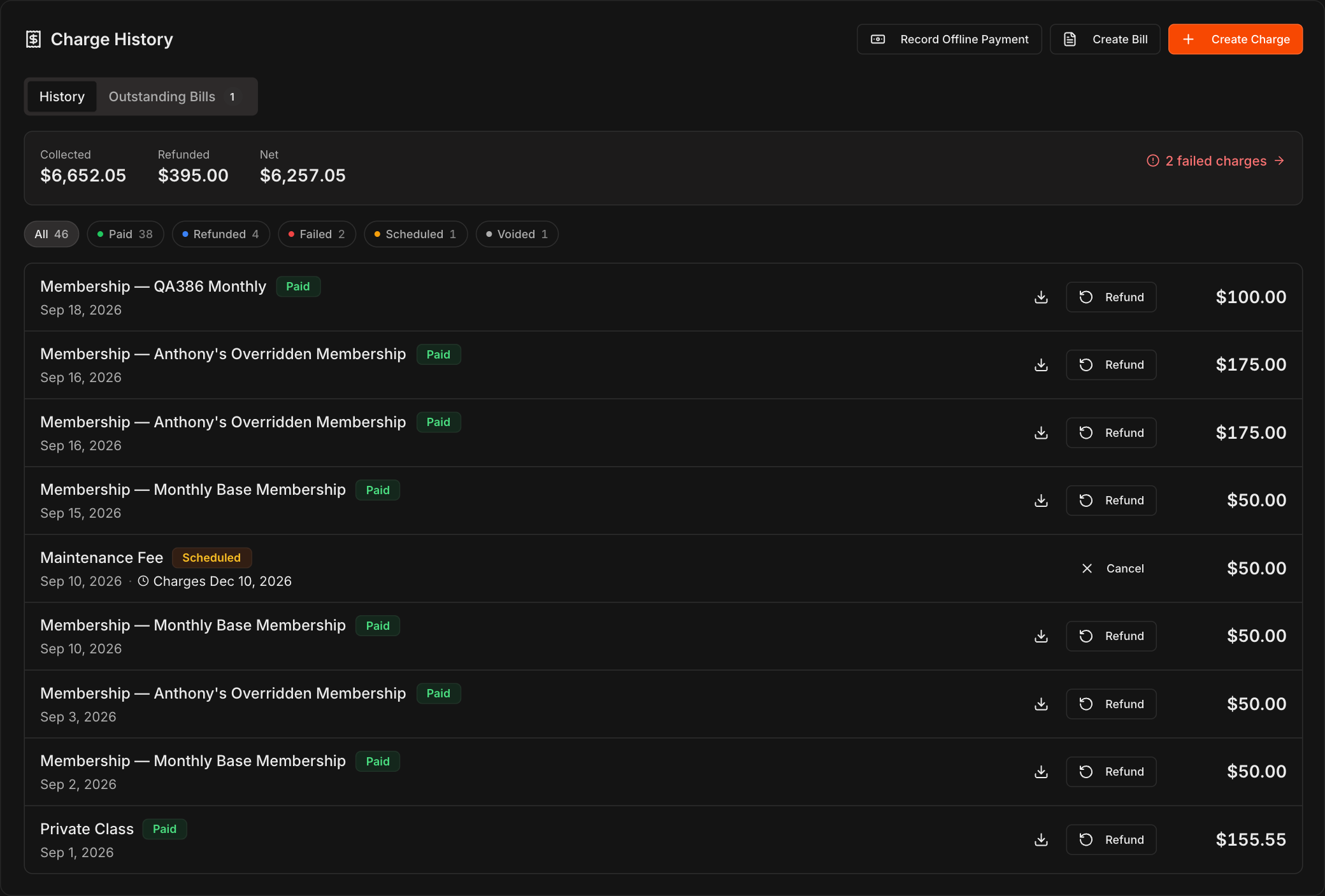
Further down the Billing tab, the Charge History section lists every charge for the student, including one-time charges and regular membership payments.
The strip at the top shows Collected, Refunded, and Net totals, and the chips (All, Paid, Refunded, Failed, Scheduled, Voided) filter the list.
You can issue a Refund on any charge, and download a receipt for any payment.
If a charge fails, the failure reason is shown along with a Retry button to attempt the charge again.
Note
Students automatically receive an email receipt each time they are charged, with sales tax itemized as a separate line item when tax applies.
Check membership status from the Students page
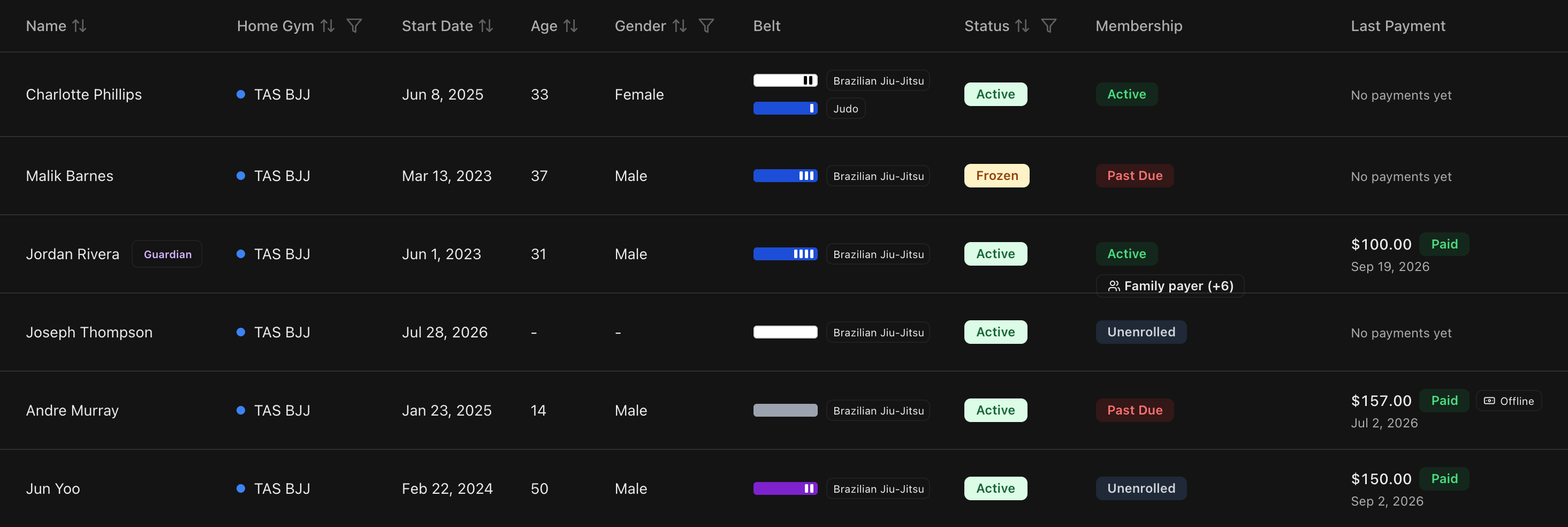
On the Students page, the Membership column shows one of four states drawn from the same data as the student's Billing tab: Active (current membership and the last payment succeeded, including free trials), Frozen (paused from the Billing tab), Past Due (an automatic charge failed, even while Kmura is still retrying it, or an offline billing period has no recorded payment), and Unenrolled (no current membership).
The Last Payment column shows the most recent membership charge with its amount, a Paid, Failed or Refunded badge, and the date. An Offline chip marks payments logged with Record Offline Payment.
Note
The two columns answer different questions. A student can show a **Paid** last payment and still be **Past Due** if a later billing period went unpaid.
Note
This column replaces the old **Payment** column. Family plan members inherit the payer's state and last payment.
Note
Alumni are not listed on the **Students** page. Find them under **Students** > **Alumni**.