Move between weeks on the Schedule
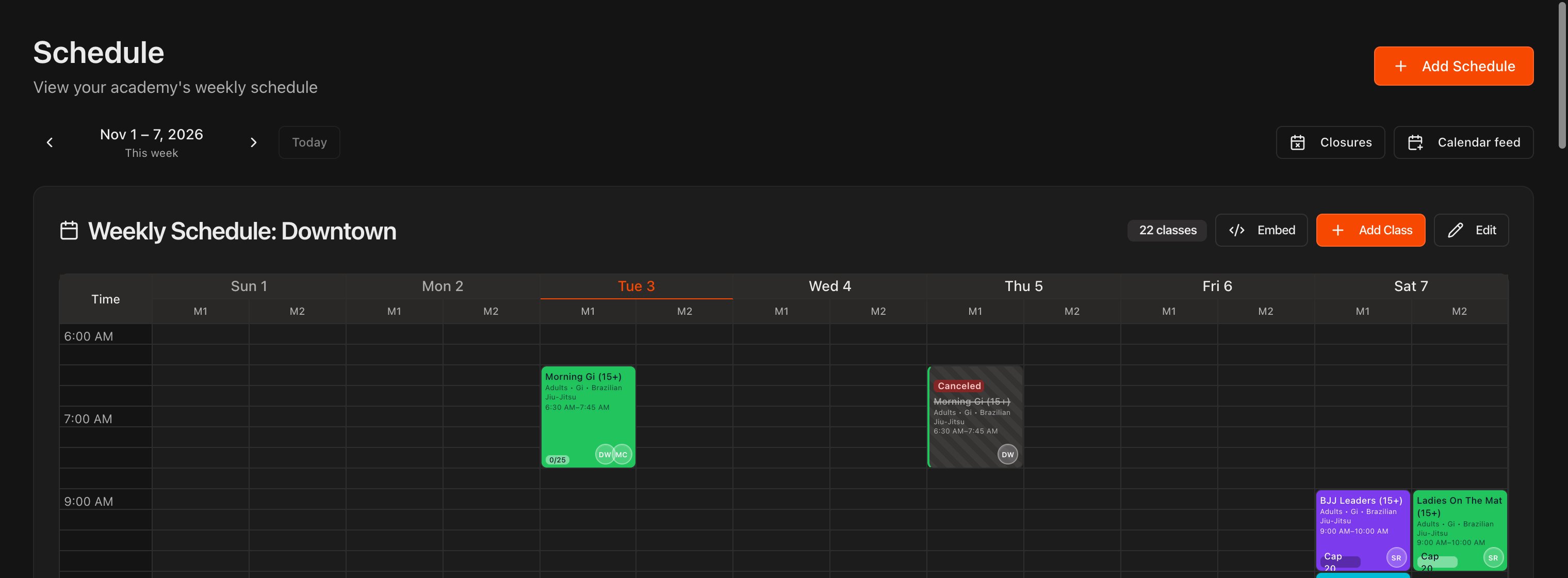
Click Schedule in the left menu. The grid now shows a real week, for example Nov 1 to 7, 2026, with the date in every day header and today's column in orange.
Use the arrows next to the week range to move to a past or future week. The small line underneath reads This week, Next week, Last week or how many weeks away you are, and Today jumps back to the current week.
Every class block carries a capacity line at the bottom left: Cap 25 for a future class, or 14/25 (checked in over capacity) once the class is running or over.
The Closures and Calendar feed buttons sit on the right of the same row, above the location cards.
Note
Your weekly classes are still the source of truth. The dated grid only adds the exceptions: a date you cancel, or a closure that covers it. Everything else repeats every week as before.
Open a class on one date
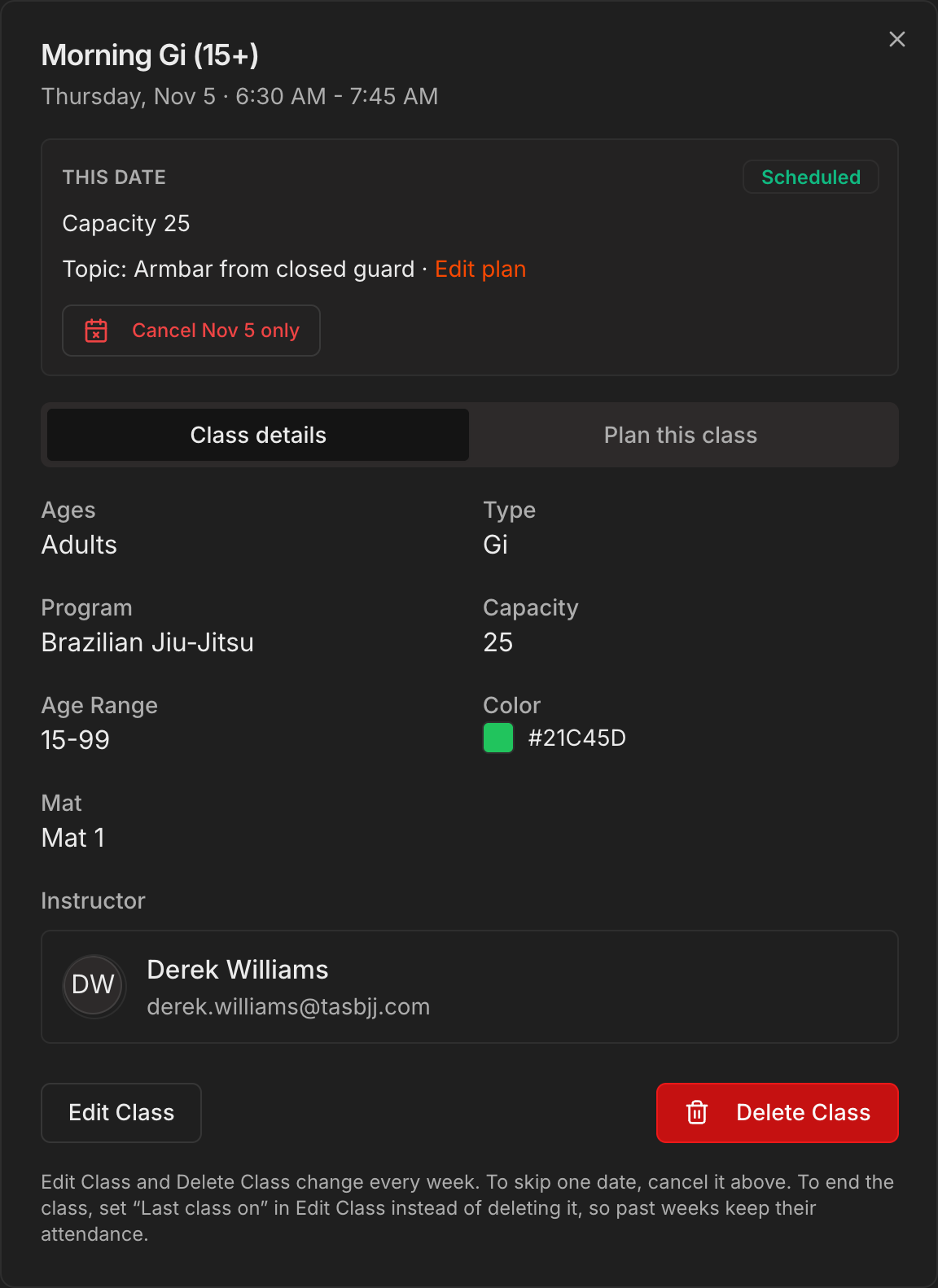
Click a class block. The dialog is dated, for example Thursday, Nov 5 · 6:30 AM to 7:45 AM, and starts with a This date box.
This date shows the status chip (Scheduled, Canceled or Closed), the capacity or the check-in count, the lesson topic with a Plan this class link, and a red Cancel Nov 5 only button for today or any later date.
The two tabs underneath are Class details (what the class is every week) and Plan this class (the topic and notes for this one date).
Edit Class and Delete Class at the bottom still change the whole weekly class, never just one date.
Tip
To end a class without losing its past attendance, set **Last class on** in **Edit Class** instead of deleting it. **Delete Class** removes the class from every week, including weeks that already happened.
Cancel a single class date
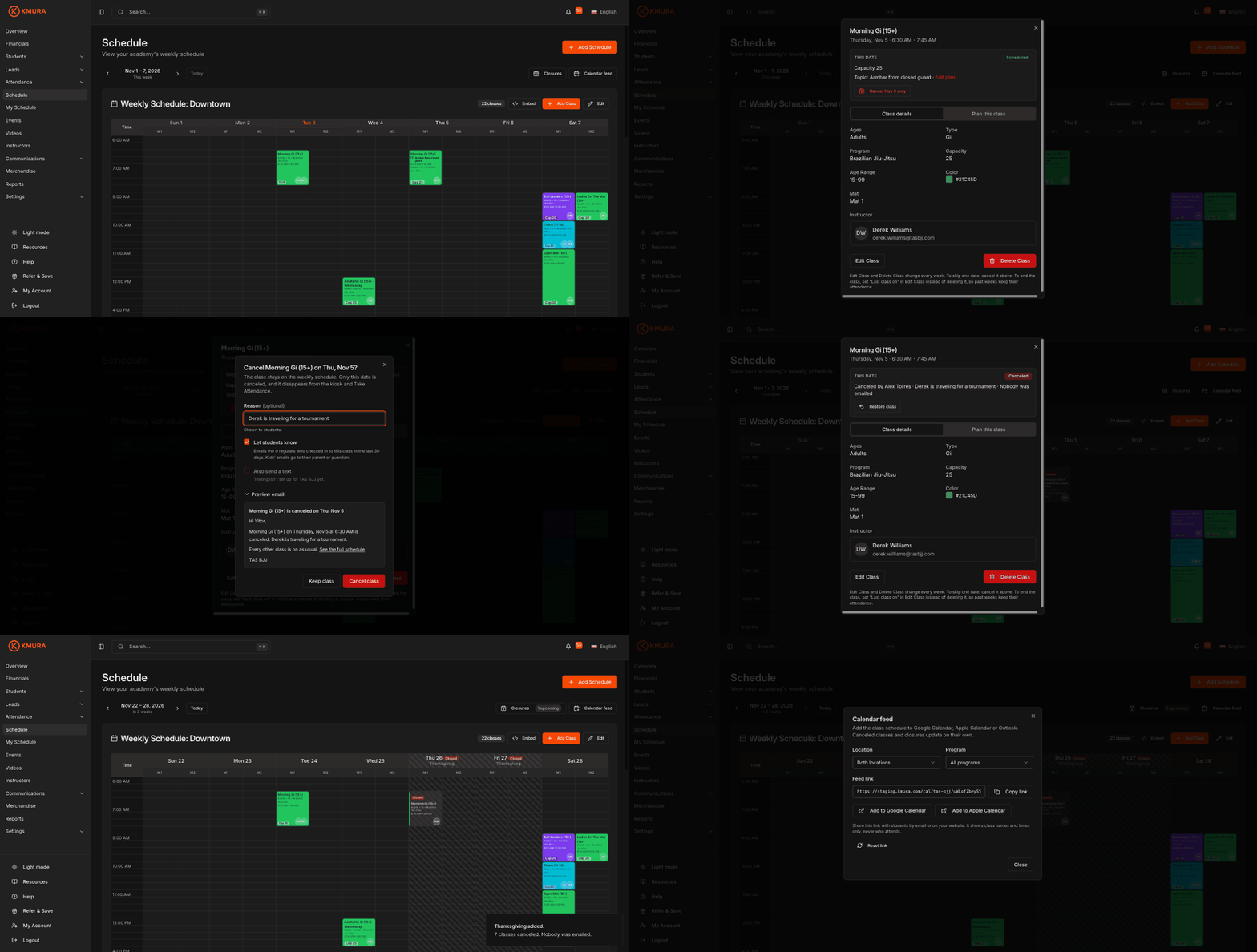
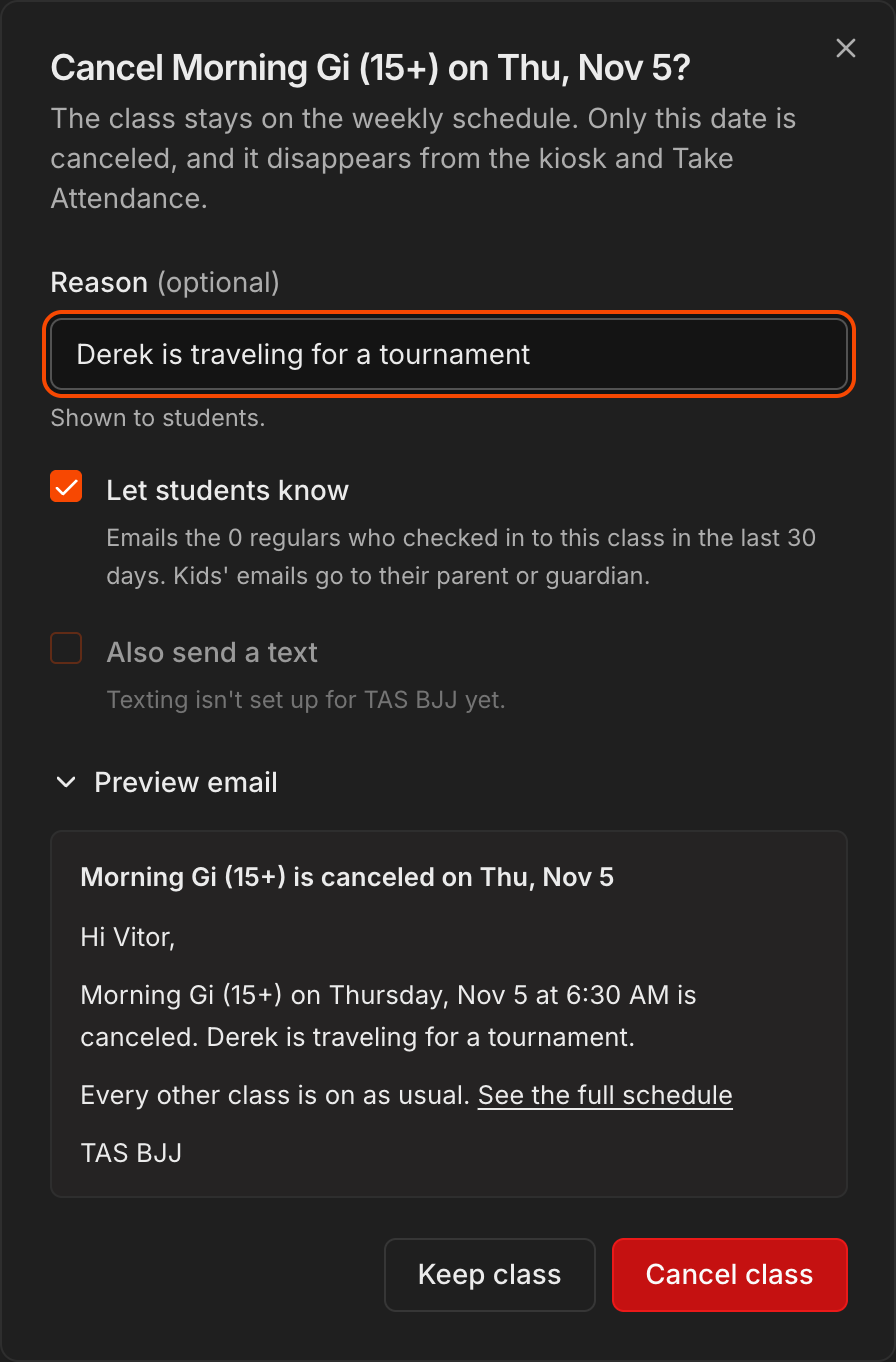
In the This date box, click Cancel Nov 5 only (the button carries the date you opened).
Enter a Reason if you want students to see one, for example Instructor out sick. It is optional and up to 120 characters.
Leave Let students know ticked to email everyone who checked in to this class in the last 30 days, plus any lead with a trial booked on that date. Kids' emails go to their parent or guardian.
Click Preview email to read exactly what goes out, then click Cancel class. A toast confirms how many people were emailed.
Note
**Also send a text** stays greyed out until texting is set up for your gym. See Sending SMS.
Caution
A date that already has check-ins cannot be canceled. Remove the attendance first, or leave the class on. Past dates are read-only.
See the canceled date and restore it
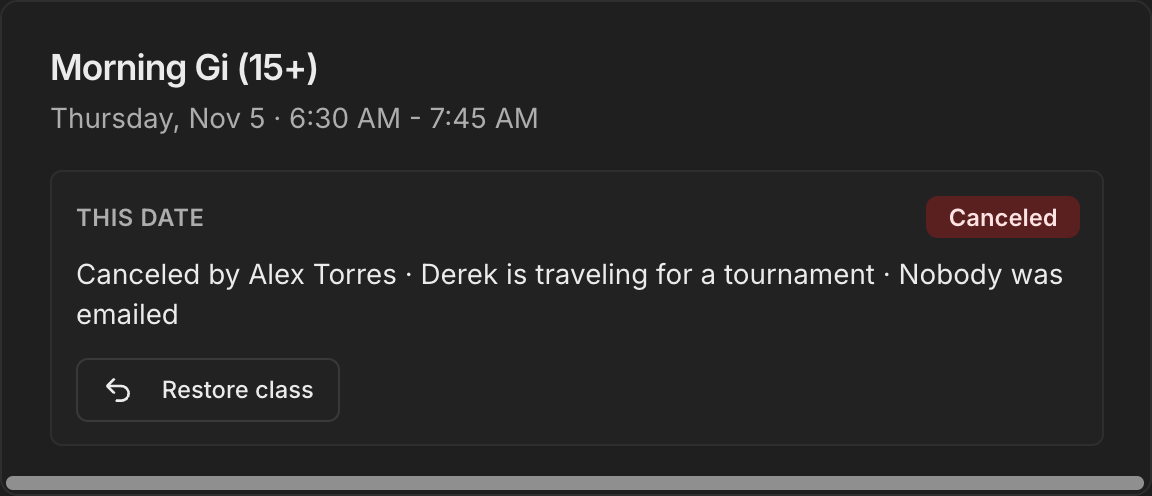
On the grid the block turns grey with stripes and a red Canceled chip. The class disappears from the kiosk, from Take Attendance and from the public booking page for that date only.
Open the block again: This date now reads Canceled by, who did it, the reason and how many people were emailed.
Click Restore class to put the date back. Leave Let students know it's back on ticked to email the same people who got the cancellation, then confirm with Restore class.
Note
Lesson plans survive a cancellation. If you planned the date and later restore it, the topic and notes come back with it.
Close the gym for a holiday
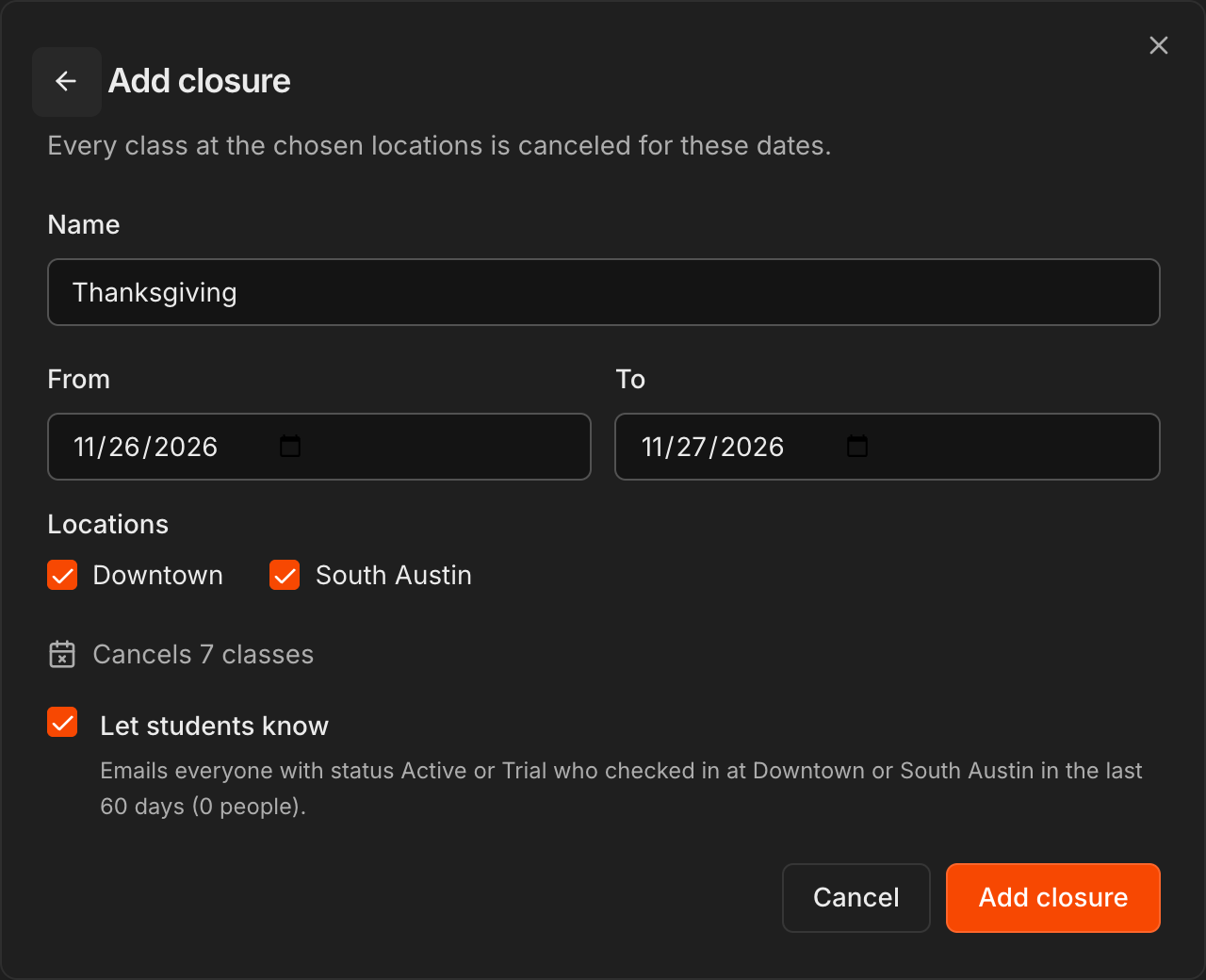
Click Closures above the schedule, then Add closure.
Give it a Name such as Thanksgiving, pick the From and To dates, and tick the Locations it applies to. All locations are ticked by default.
The line under the form updates live, for example Cancels 7 classes, so you can see what the closure takes off the schedule before you save.
Leave Let students know ticked to email every Active or Trial student who checked in at those locations in the last 60 days, then click Add closure.
Note
A closure can run up to 31 days, cannot start in the past and cannot overlap another closure at the same location. Classes that already have check-ins that day stay on.
Manage closures and read closed days on the grid
The Closures dialog lists what is coming under Upcoming and keeps older ones under Past. Each row shows the dates, the locations and how many classes it cancels, with Edit and Delete buttons.
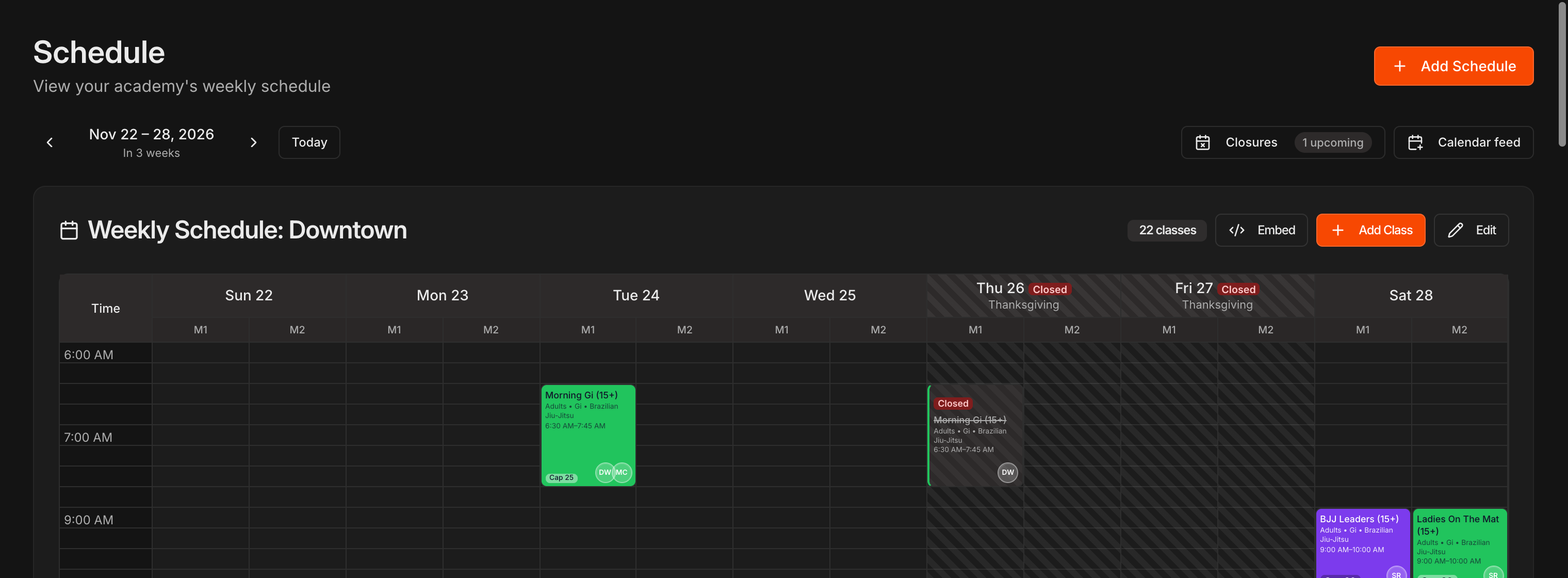
On the grid, a closed day gets stripes down the whole column, a Closed chip and the closure name in the day header, and every class on it shows Closed instead of Canceled.
Open a closed class and This date explains the closure with an Open Closures button, because a closed date can only be changed from the closure itself.
Delete on an upcoming closure puts its classes back on the schedule and offers to email the people who got the closure notice.
Note
A closure that has already started can be shortened or extended but not deleted, and its first day can no longer move.
Share your calendar feed
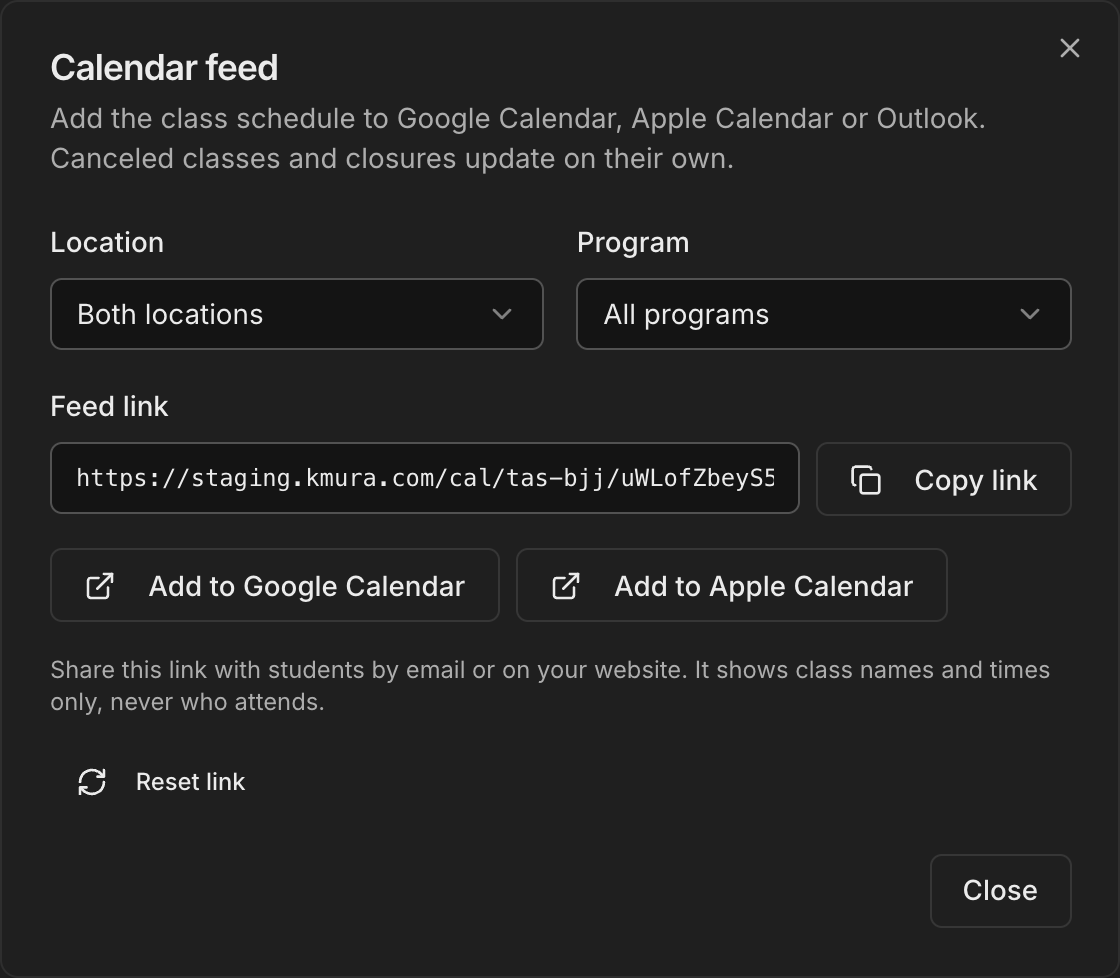
Click Calendar feed above the schedule.
Choose a Location and a Program, or leave them on Both locations and All programs. The Feed link underneath changes with your choice.
Click Copy link to paste it into an email or onto your website, or use Add to Google Calendar and Add to Apple Calendar for yourself.
The feed shows class names and times only, never who attends, and canceled dates and closures update in subscribed calendars on their own.
Caution
**Reset link** makes every old link stop updating, so anyone who subscribed has to add the new one. Use it only if a link got into the wrong hands.
Note
Calendar apps refresh subscribed feeds on their own schedule, so a same-day change can show up late. The email from the cancel or closure dialog is the timely notice.
Where canceled and closed dates show up
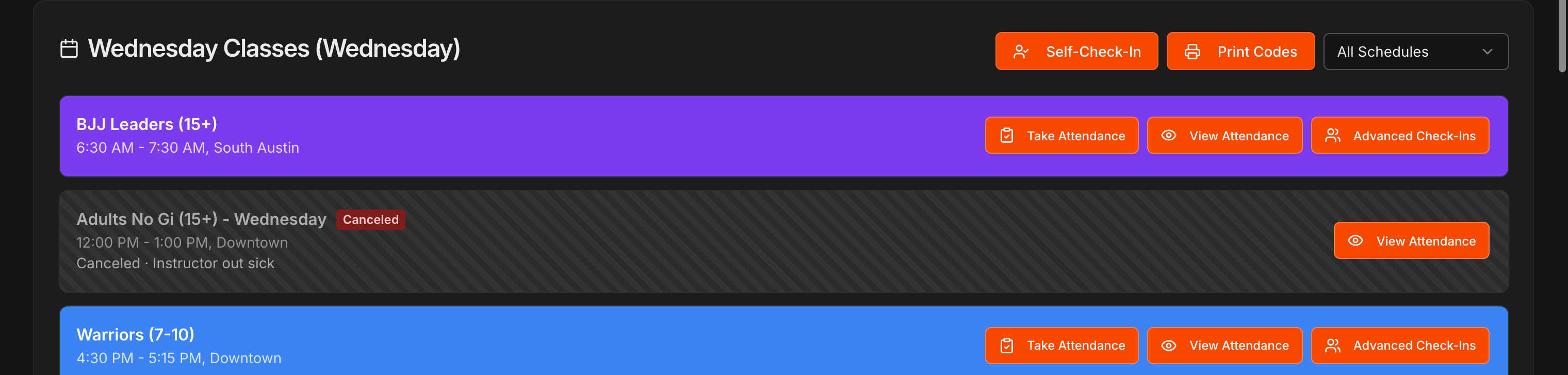
On Attendance, a canceled class keeps its bar with a Canceled chip and the reason, and loses Take Attendance and Advanced Check-Ins. View Attendance stays.
On a closed date, a red note such as Closed for Thanksgiving. Scheduled classes at Downtown and South Austin are canceled. replaces the class bars. A class that already had check-ins stays listed.
The self-check-in kiosk, the public trial booking page and the lead trial picker stop offering canceled and closed dates.
Students still see the date on their own schedule and in the embedded schedule, marked Canceled or Closed, so they know why the class is not happening.
Note
Capacity Pressure alerts and reports skip canceled and closed dates. A canceled class never counts as low attendance.